Quick answer
To get cinematic video from the DJI Osmo Pocket 4P, start in D-Log 2 for maximum dynamic range, set 4K/24fps with a 180-degree shutter, and use the gimbal's follow mode with smooth, deliberate movements.
Why D-Log 2 and 4K/24fps matter for cinematic footage
The DJI Osmo Pocket 4P features a 1-inch CMOS sensor and 17-stop dynamic range, which is why shooting in D-Log 2 is a smart choice for cinematic work. This flat color profile preserves highlight and shadow detail, giving you more flexibility in post-production to grade the footage toward a film-like look.
The 4K/240fps slow motion capability is another tool for cinematic shots. Use it sparingly for emphasis—like a quick pan or a subject's expression—rather than as your default frame rate, since 24fps is the standard for a natural motion blur that feels cinematic.
Step-by-step cinematic video setup
- Set resolution and frame rate: Choose 4K at 24fps (or 25fps if you're in a PAL region) for a standard cinematic motion cadence. Avoid 30fps unless you plan to slow down footage in post. Check that your memory card is fast enough (UHS-I Speed Class 3 or higher) to handle 4K recording without dropped frames.
- Adjust shutter speed and ISO: Set shutter speed to double the frame rate (1/50s for 24fps) to get natural motion blur. Keep ISO as low as possible (100–400) and use ND filters in bright conditions to avoid overexposure. If the image is still too bright at the lowest ISO, you need an ND filter—don't raise the shutter speed, as that will make motion look stuttery.
- Enable D-Log 2 and set white balance: Switch the color profile to D-Log 2 to maximize dynamic range. Set white balance manually to match your lighting (e.g., 5600K for daylight, 3200K for tungsten) for consistent color across shots. If you're not comfortable with color grading, start with a standard profile and adjust later—D-Log 2 requires post-processing.
- Use gimbal follow mode: Set the gimbal to Follow mode so the camera pans with your movement while keeping the horizon level. For dynamic shots, use Tilt Locked or FPV mode sparingly to avoid disorienting the viewer. Practice smooth, slow movements—fast jerky motions will be visible even with the gimbal's stabilization.
- Move the camera like a slider or dolly: Instead of walking normally, glide with bent knees and keep your arms close to your body. Use the gimbal's joystick to pan slowly, or physically move the camera along a straight line for a dolly effect. If you're walking, land heel-toe and avoid sudden stops—the gimbal can't compensate for abrupt changes in speed.
- Frame with the rule of thirds and lead room: Position your subject off-center using the grid overlay, and leave space in the direction they're looking or moving. This creates a more cinematic composition. Enable the grid in settings to help with framing—it's a small change that makes a big difference.
The camera that makes it possible
-
DJI Osmo Pocket 4P: Enhanced 1-inch CMOS & 17-stop dynamic range, plus new D-Log 2 for light & shadow precision. This combination lets you capture more detail in highlights and shadows, which is essential for cinematic color grading without losing image quality.
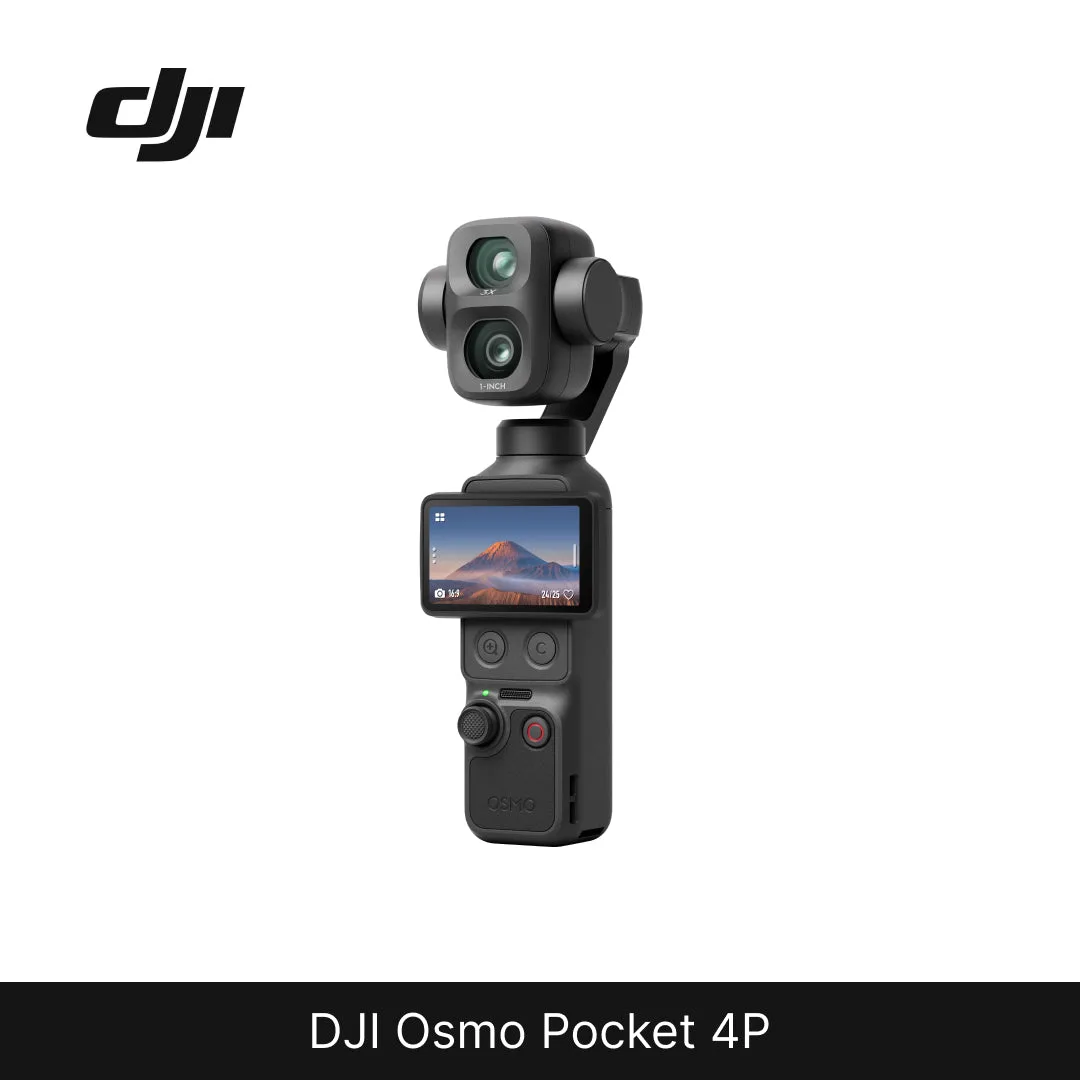
DJI Osmo Pocket 4P