Quick Answer
To use a tilt switch, connect it in series with a pull-up resistor to a digital input on your microcontroller, then read the state change when the switch tilts. The SW-520D is a reliable, mercury-free option for detecting orientation changes.
Understanding the Tilt Switch
A tilt switch is a simple sensor that detects orientation or movement. Inside the SW-520D, a metal ball rolls to make or break contact, similar to a mercury tilt switch but without the mercury. This makes it ROHS compliant and safer for hobby projects.
When the switch is tilted, the ball moves and changes the electrical connection. This binary signal can be read by any microcontroller, such as an Arduino, to trigger actions like turning on an LED or sounding an alarm.
Wiring Basics
The SW-520D has two terminals. Connect one terminal to ground and the other to a digital input pin on your Arduino. Add a pull-up resistor (typically 10kΩ) between the input pin and 5V to ensure a stable high signal when the switch is open.
When the switch is closed (level), the input reads low; when tilted (open), it reads high. This logic can be inverted by placing the switch between the input and 5V instead, depending on your project's needs.
Step-by-Step Guide to Using a Tilt Switch
- Gather Components: You'll need a tilt switch (like the SW-520D), a breadboard, jumper wires, a 10kΩ resistor, and an Arduino board. Check that your tilt switch is rated for your project's voltage; most work with 3.3V or 5V logic.
- Connect the Switch: Place the tilt switch on the breadboard. Connect one terminal to GND and the other to digital pin 2 on the Arduino. Connect a 10kΩ resistor from the same pin to 5V (pull-up). Double-check the resistor placement; a missing pull-up can cause floating readings.
- Write the Code: In the Arduino IDE, set pin 2 as INPUT_PULLUP (this enables the internal pull-up, so you can skip the external resistor). Read the pin with digitalRead() and print the state to the Serial Monitor. Remember that with INPUT_PULLUP, the logic is inverted: LOW when tilted, HIGH when level.
- Test the Response: Upload the code and tilt the switch. You should see the state change in the Serial Monitor. If not, check your wiring and ensure the switch is oriented correctly. If the state doesn't change, try swapping the terminals; polarity doesn't matter for this switch, but a poor connection can.
- Integrate into Your Project: Use the state change to trigger an action, such as turning on an LED or activating a buzzer. For example, set pin 13 HIGH when the switch is tilted. Add a small delay in the loop to debounce the switch and avoid multiple triggers from a single tilt.
Product Facts
-
SW-520D Tilt / Vibration switch (Pack of 5): The SW-520D uses a metal ball to create the same outcome as a mercury tilt switch without using mercury. This makes it a safe and ROHS-compliant choice for hobby projects, especially where children or the environment are a concern.
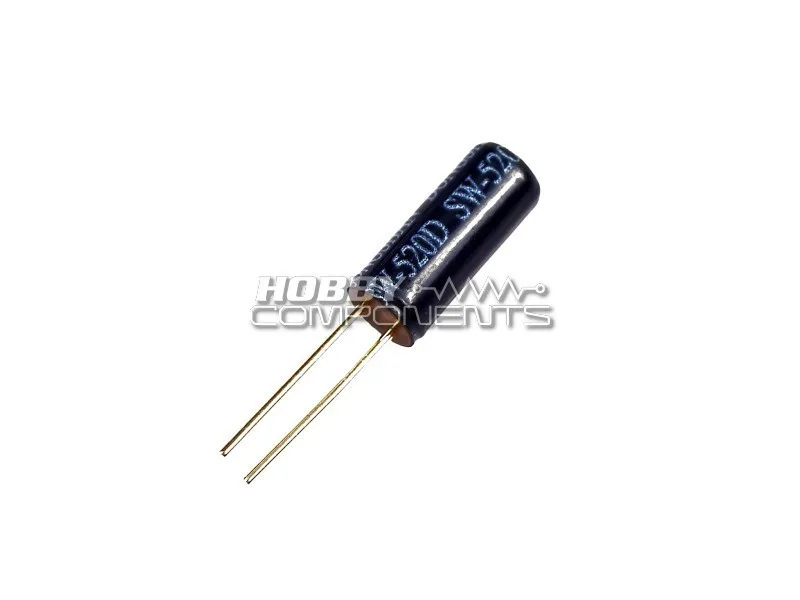
SW-520D Tilt / Vibration switch (Pack of 5)