Quick answer
To use a variable ND filter for smooth video, lock your shutter speed to double your frame rate (e.g., 1/60s for 30fps), then rotate the filter until the exposure looks right. Start at the lightest setting and increase density gradually. If you see an X-shaped dark cross, you have pushed the filter too far—rotate back slightly or switch to a stronger base density.
Why shutter speed matters more than ISO for video
In video, motion blur is controlled by shutter speed, not ISO. A shutter speed of 1/60s at 30fps gives natural motion blur that looks cinematic. If you raise shutter speed to compensate for bright light, footage becomes choppy and staccato. A variable ND filter lets you keep that ideal shutter speed while cutting the light entering the lens, so you can shoot wide open in bright sun without overexposing. This is the core reason a VND is a staple for outdoor video.
Choose the right density range for your conditions
Variable ND filters come in different density ranges. A lighter range like ND2–ND32 is ideal for cloudy to partly sunny days or when you want finer control. A darker range like ND3–ND1000 handles bright sun and lets you use very wide apertures. If you often shoot in changing light, a wider range gives more flexibility, but extreme densities can introduce color shifts or the X pattern more easily. Match the range to your typical shooting environment.
Step-by-step setup for smooth video
Follow these steps in order to avoid common pitfalls and get consistent results.
Steps to set up your variable ND filter
- Set your camera to manual mode and lock shutter speed: Set shutter speed to double your frame rate. For 24fps use 1/48s (or 1/50s), for 30fps use 1/60s. This preserves natural motion blur. Checkpoint: Confirm shutter speed is locked and not on auto.
- Set your aperture and ISO for the look you want: Choose your aperture for depth of field, then set ISO to its base value (e.g., 100 or 200). Do not use ISO to control exposure; that's the ND filter's job. Checkpoint: If the image is still too bright, you need more ND density.
- Attach the filter and start at the lightest setting: Screw the filter onto your lens and rotate the adjustment ring to the least dense position (e.g., ND3 or ND2). Look at your histogram or zebras. Checkpoint: Start light; you can always add density.
- Rotate gradually to increase density until exposure is correct: Slowly turn the ring to darken the image. Stop when highlights are just below clipping. Avoid rotating too far, which causes the X pattern. Checkpoint: If you see an X-shaped dark cross, back off the density or switch to a stronger base ND.
- Check for color shifts and adjust white balance: Some VNDs introduce a slight color cast. If needed, set a custom white balance or adjust in post. Multicoated filters like K&F Concept Nano-X reduce this. Checkpoint: Shoot a test clip and review color before committing to a long take.
- Fine-tune exposure with shutter angle or ISO only if necessary: If you cannot get exact exposure with the ND alone, adjust ISO slightly (e.g., from 100 to 125) or use a finer shutter angle if your camera supports it. Avoid large shutter speed changes. Checkpoint: Keep shutter speed changes minimal to preserve motion blur.
Product facts
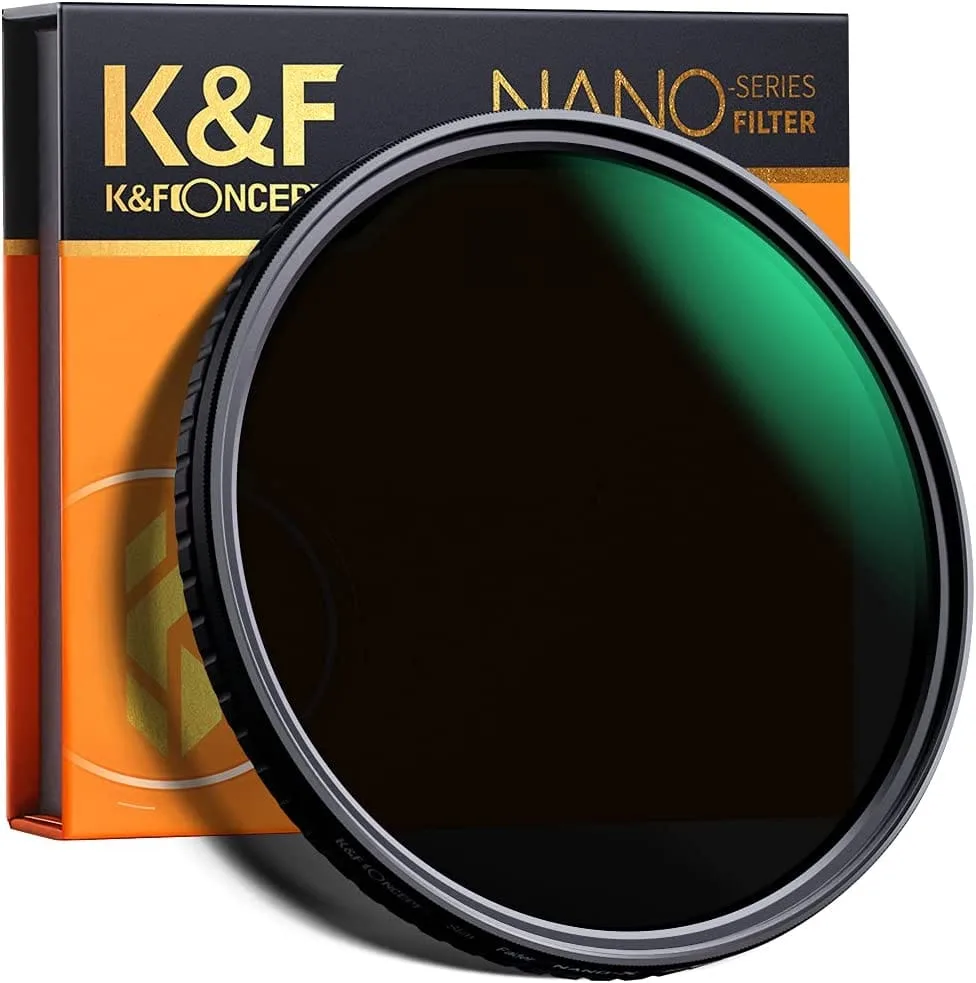
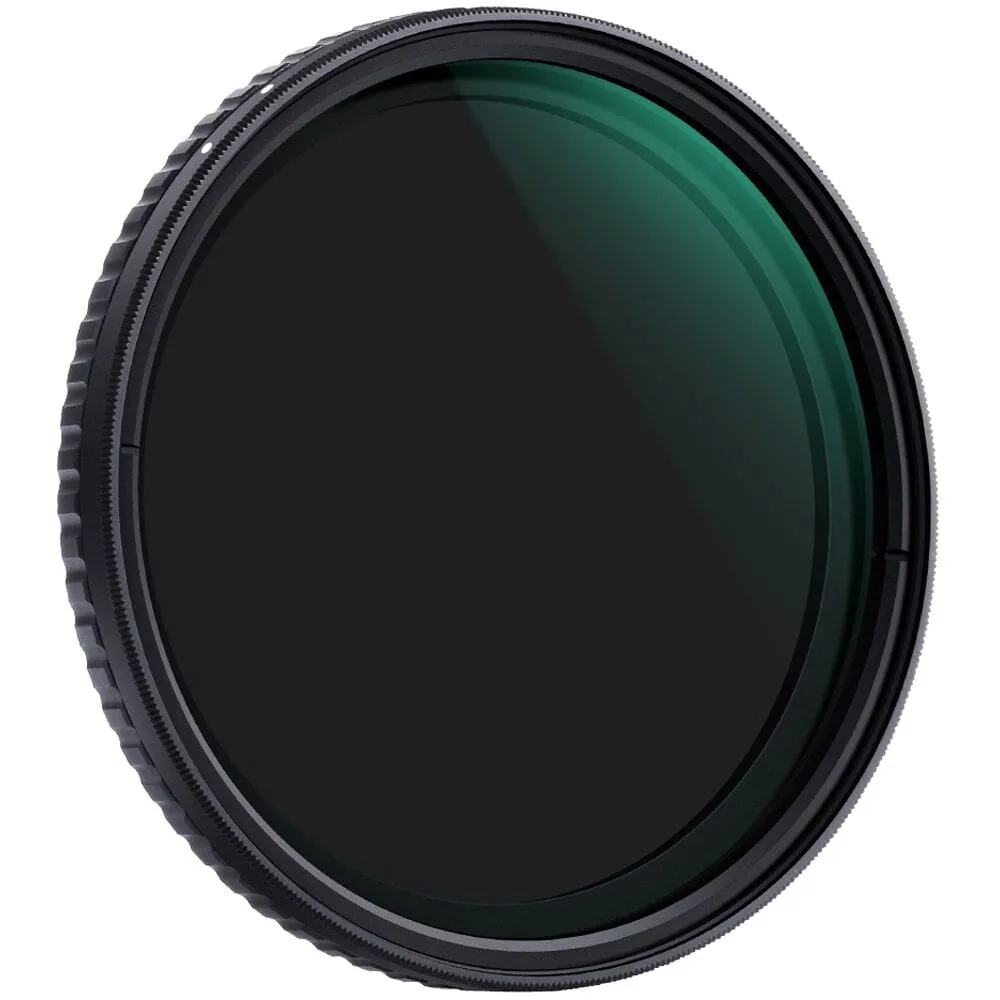
- K&F Concept 58mm Lens Filter Variable Neutral Density ND3-ND1000: 58mm Lens Filter Variable Neutral Density ND3-ND1000 A wide density range (ND3 to ND1000) covers bright sun to shade, so you can keep a slow shutter speed even at wide apertures.
- K&F Concept Nano-X 67mm ND2-ND32 Green Multicoated Variable ND Filter: Nano-X 67mm ND2-ND32 Green Multicoated Variable ND Filter The lighter ND2-ND32 range gives finer control in moderate light and reduces the risk of the X pattern at higher densities.