Quick answer
Installing a GDEMU SD card mount, like the one from Laser Bear Industries, lets you access the SD card without removing the Dreamcast shell. This guide walks through the simple assembly and installation process.
Why use a dedicated mount?
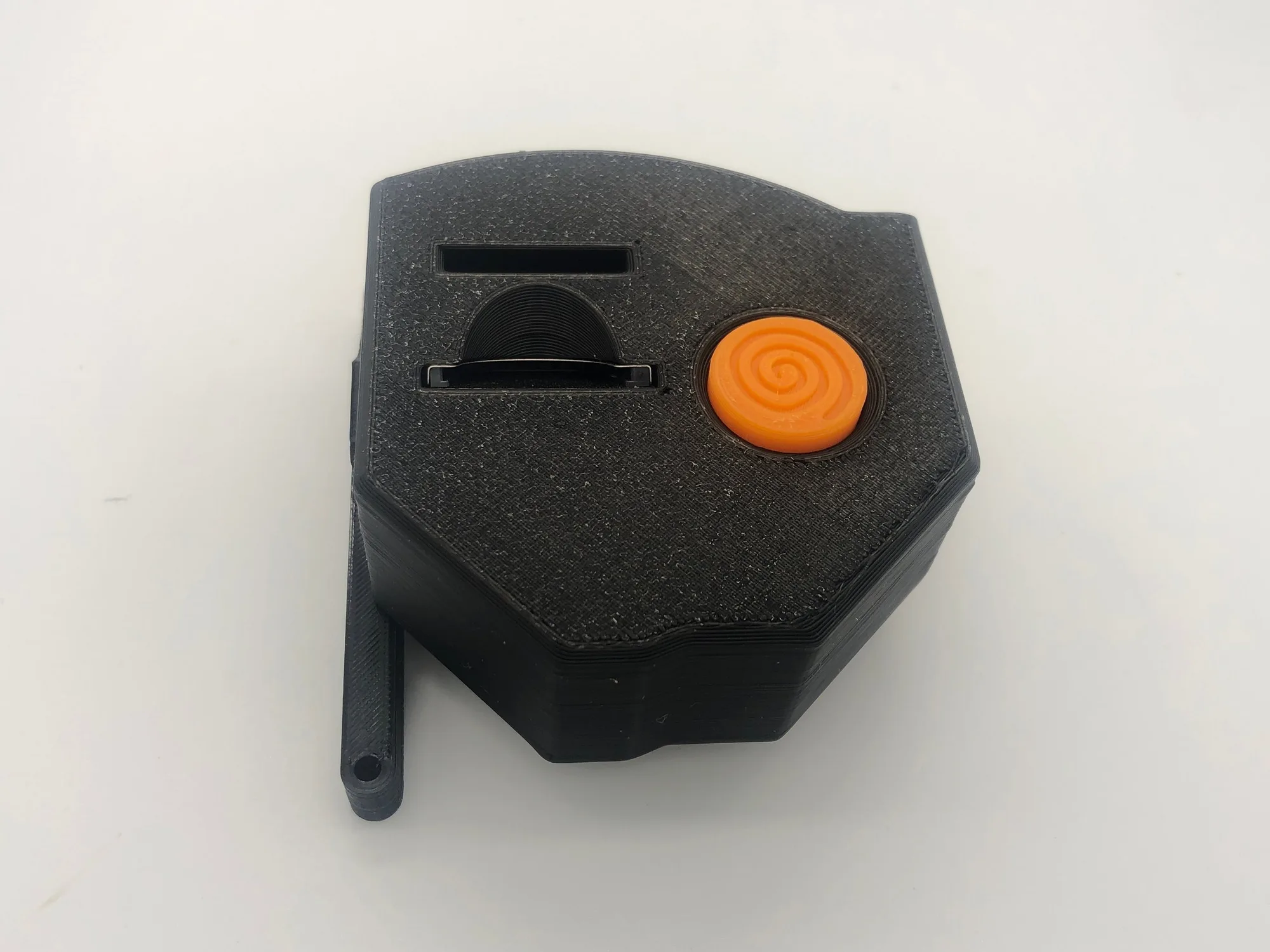
A GDEMU SD card mount replaces the original disc drive module with a 3D-printed bracket that holds the SD card slot in a convenient position. This eliminates the need to open the console every time you want to swap games or update firmware. The mount from Laser Bear Industries is designed to fit the Dreamcast shell without any modification, so you keep the original look and structural integrity.
What you need before starting
The kit includes a 3D-printed SD card extension bracket and all necessary screws. You will also need a small Phillips-head screwdriver and a clean workspace. No soldering or cutting is required, but take care not to force any parts into place. If you have a GDEMU already installed, you can reuse the same SD card; if not, have a formatted SD card ready with your game images.
Installation steps
- Step 1: Remove the original disc drive: Unplug the Dreamcast, remove the top shell screws, and lift off the upper case. Disconnect the ribbon cable and power connector from the original GD-ROM drive, then lift the drive out. Set the screws aside. Check that the ribbon cable is not torn; a damaged cable will prevent the GDEMU from communicating with the console.
- Step 2: Install the GDEMU board: Insert the GDEMU into the console's GD-ROM connector, aligning the notch. Press gently until fully seated. Do not force it—if it does not seat easily, check alignment. Make sure the board is level and the pins are straight before pressing; bending a pin can short the board.
- Step 3: Assemble the SD card mount: Take the 3D-printed bracket from the kit and attach the SD card extension module to it using the provided screws. The bracket should snap or screw into the same mounting points as the original disc drive. Do not overtighten the screws; the plastic can crack. Finger-tight is sufficient.
- Step 4: Connect the SD card extension cable: Plug the SD card extension cable into the GDEMU's SD card slot. Route the cable neatly so it does not pinch when the shell is closed. The bracket holds the SD card slot in the front opening. Ensure the cable is fully inserted—partial connection causes intermittent read errors.
- Step 5: Reassemble the console: Place the top shell back on and secure it with the original screws. Insert your SD card into the front slot. Power on the console and verify that the GDEMU menu appears. If the screen stays black, power off and check all connections. A loose ribbon cable is the most common cause.
Product details
-
GDEMU SD Card Mount: GDEMU SD Card Mount by Laser Bear Industries includes a 3D-printed SD card extension and all needed screws. This kit lets you access the SD card through the front slot without modifying the Dreamcast shell, making game swaps quick and tool-free.
GDEMU SD Card Mount