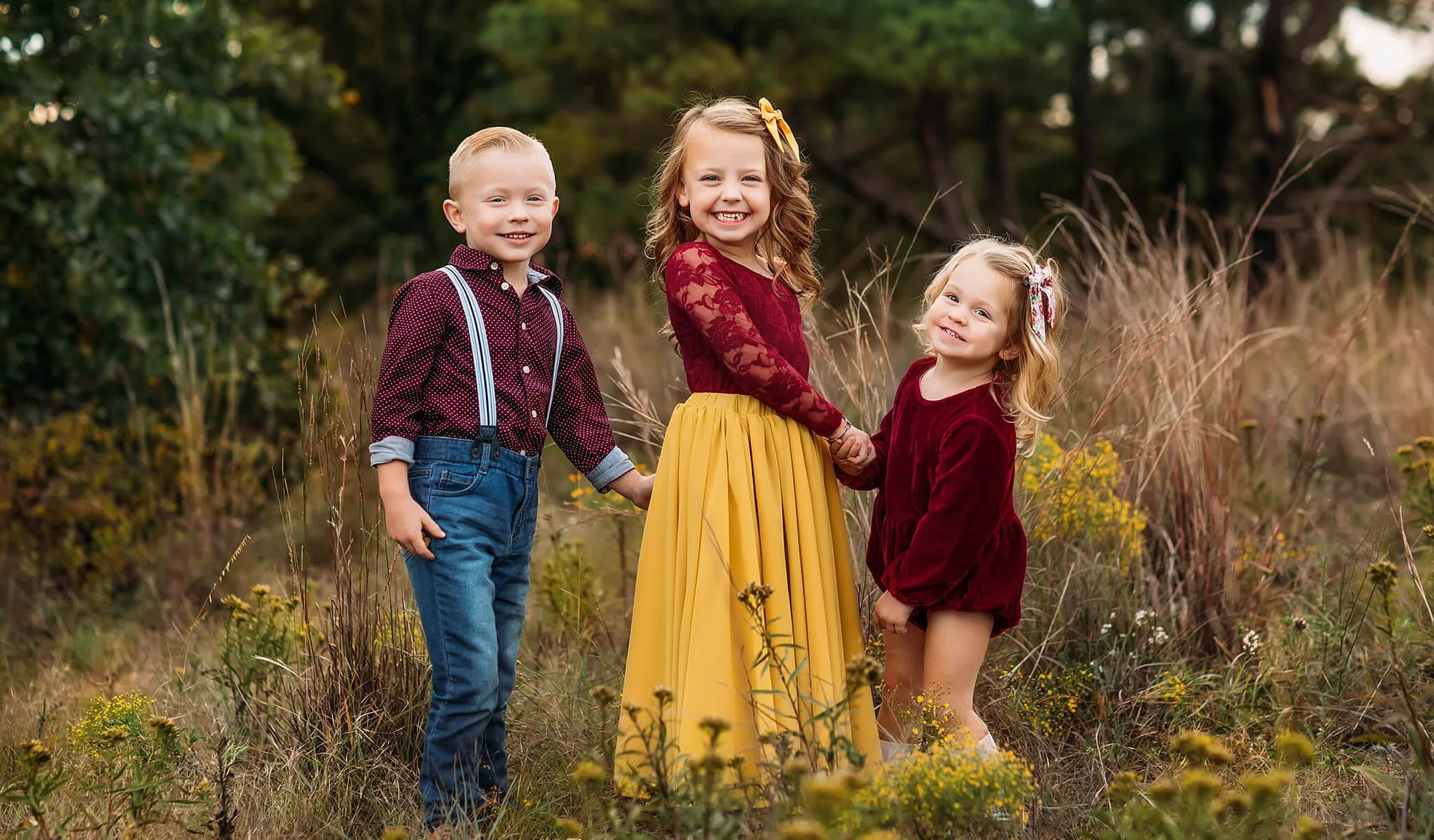
Quick answer
Bold presets push saturation and contrast hard, so skin often shifts orange before anything else. The fix is not to abandon the preset but to correct skin locally: pull orange and red saturation down, nudge orange hue toward yellow, and use a targeted adjustment brush on faces. If the face still looks flat or plastic after those moves, the preset is too strong for that light and you should switch to a gentler starting point.
Why bold presets turn skin orange first
Skin sits in the orange-red band of the color wheel, and bold presets usually raise global saturation and add contrast in that exact range. When a preset is built for landscapes or moody scenes, its color shifts are tuned for foliage, sky, and shadow, not for faces. The result is skin that reads orange, blotchy, or sunburned while the rest of the image looks exactly as intended.
This is a predictable side effect, not a broken preset. Treat the preset as your base look and plan to spend thirty seconds per image on skin. That is faster than rebuilding the edit from scratch, and it keeps the consistent style that made you buy the preset in the first place.
The four-step correction that works on most photos
Start in the HSL panel. Lower the Saturation slider for Orange and Red by 10 to 25 points, then move the Orange Hue slider slightly toward yellow. If lips or cheeks look flushed, reduce Red Luminance a touch to keep those areas from glowing. These three moves alone fix the majority of orange-skin cases from bold presets.
Next, check white balance. A preset that warms the whole image will also warm skin. If the scene was already warm, pull Temp down by 200 to 400K and see whether the background still holds the mood. Then use a brush on the face with reduced saturation and slightly raised shadows so the skin keeps texture instead of flattening out.
Finally, compare before and after at 100 percent on the eyes and cheeks. If the whites of the eyes have gone yellow, your white balance correction went too far in the other direction. Back it off until the eye whites are neutral and the skin sits between peach and tan rather than orange.
When to use brushes instead of global sliders
Global HSL moves affect every orange object in the frame, including wood, brick, and autumn leaves. If your photo has a lot of those, a targeted brush is the better tool. Paint the face and neck with a brush that reduces saturation and warms or cools skin as needed, then feather the edges so the transition is invisible.
Brush work is also the right call when two people in the same frame have different skin tones. One global orange adjustment will fix one face and damage the other. Two separate brushes let you correct each person independently without touching the rest of the image.
Choosing a bold preset that plays well with skin
Not all bold presets handle skin the same way. Collections built for portraits usually include a skin-safe variant or a profile that holds orange saturation in check. When you are shopping, look for presets that mention skin tones in their description rather than only color mood. A preset designed for both desktop and mobile also lets you test the look on a phone before committing to a full edit on your computer.
If you shoot a mix of portraits and landscapes, keep one bold collection for scenes and one gentler collection for people. Swapping between them costs less time than rescuing skin on every portrait.
Skin tone diagnosis: symptom, cause, fix, and stop point
- Symptom: skin looks orange or sunburned: The face reads warmer and more saturated than the rest of the scene, and cheeks or forehead look flushed even in neutral light. Cause: the preset raised global saturation in the orange and red ranges, which is where skin lives.
- Fix: HSL and white balance first: Lower Orange and Red Saturation by 10 to 25, move Orange Hue slightly toward yellow, and pull Temp down 200 to 400K if the scene was already warm. Check at 100 percent on the eyes and cheeks before moving on.
- Fix: brush the face when other orange objects are present: Use a brush with reduced saturation and slightly raised shadows on the face and neck, feathering the edges so the correction blends. Use separate brushes when two people in the frame have different skin tones.
- Stop point: when the correction starts flattening skin: If pulling saturation further makes skin look gray, plastic, or loses texture, you have gone past the useful range for this preset. Switch to a gentler preset or a portrait-oriented collection rather than pushing the sliders harder.
Products that help with this problem
- Bold & Vibrant Adjustment Brushes for Lightroom Classic: Includes 25 workflow brushes for Lightroom Classic, including brushes to warm or cool skin, add light, fix six different color casts, and boost seven different colors. The skin warming and cooling brushes let you correct faces locally after a bold preset, without changing the rest of the image.
- Dark & Moody Millennium Preset Collection: Dark and moody presets for both Lightroom desktop and the free Lightroom Mobile app, designed to produce warm skin tones and rich earthy hues. A moody preset that already targets warm skin tones gives you a bold look with less orange correction work afterward.