Quick answer
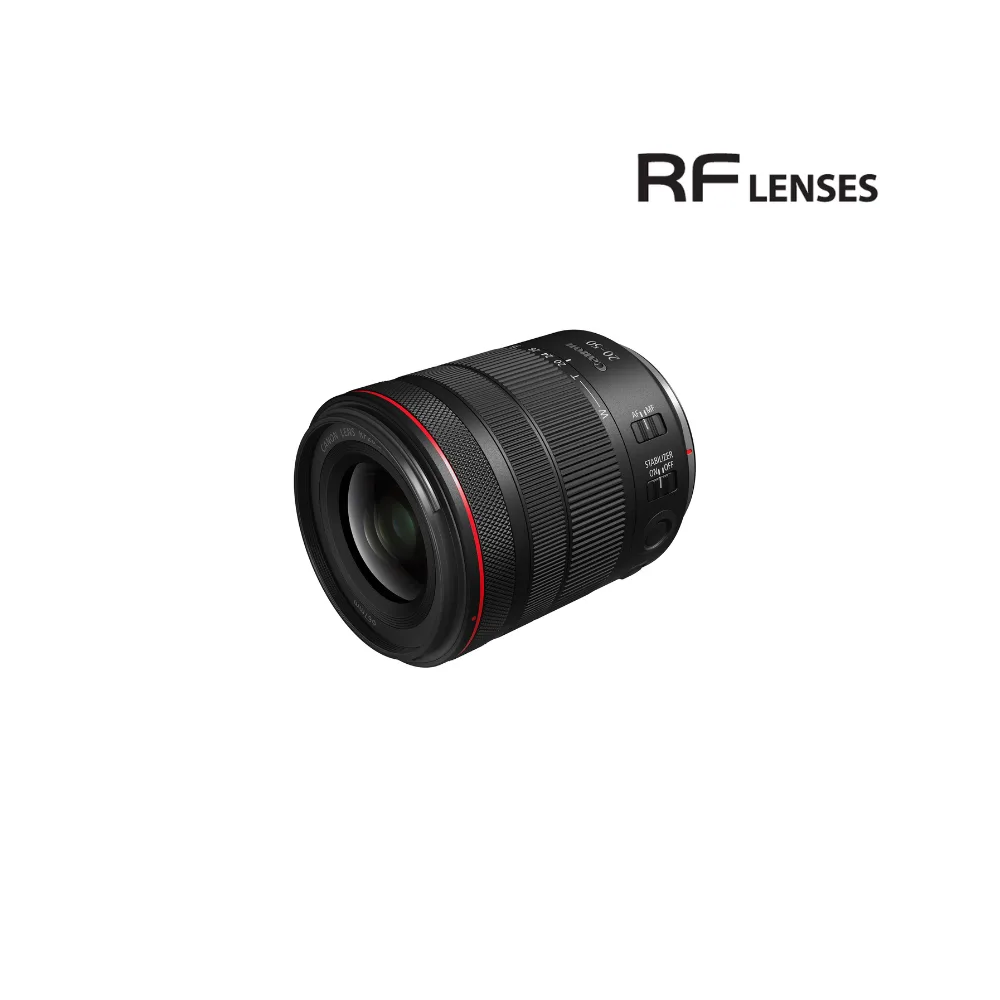
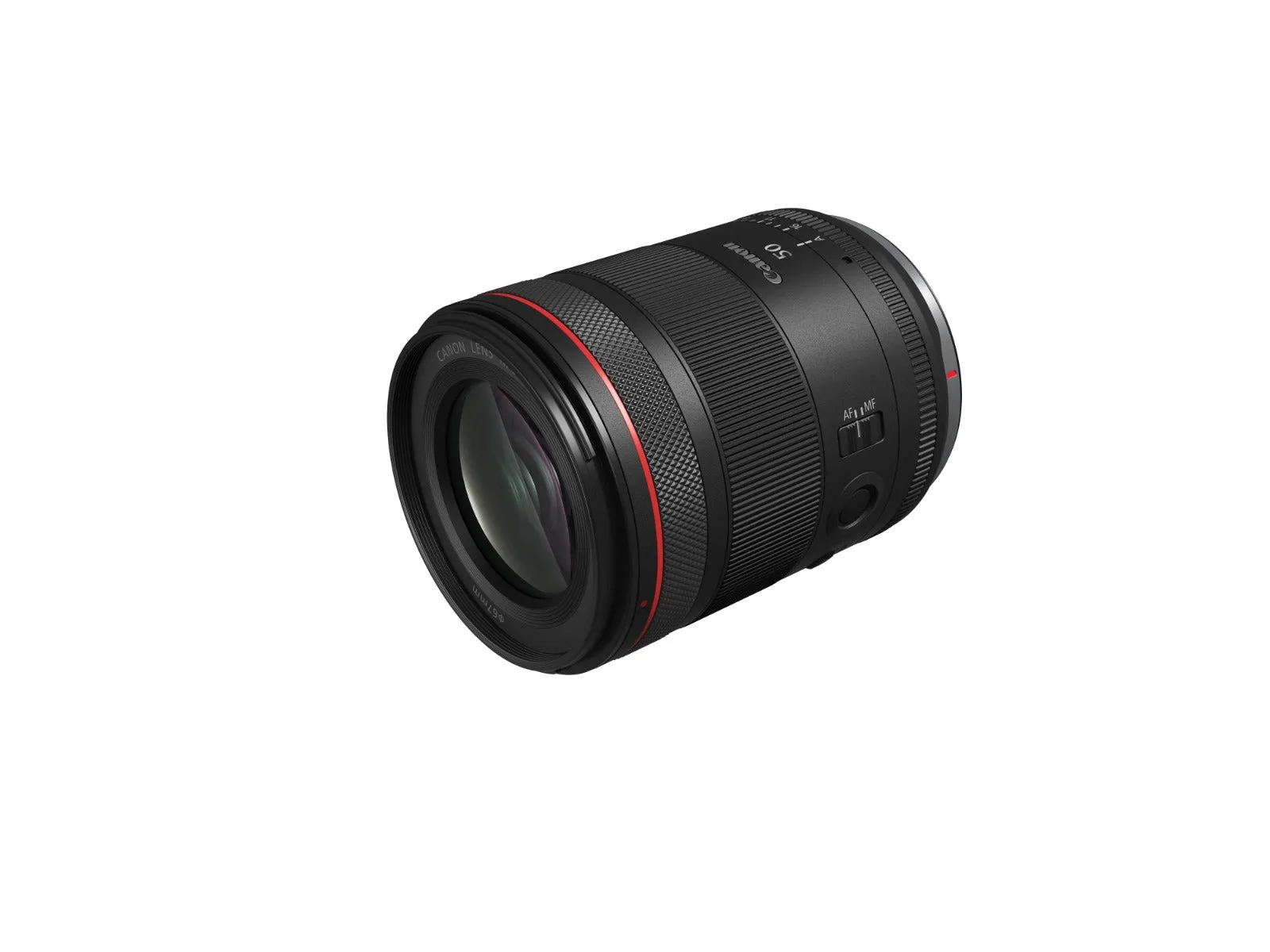
Mount the RF20-50mm f/4L IS USM PZ on any RF-mount EOS R body, confirm the lens firmware is current, then set Power Zoom speed in the camera menu and assign the zoom ring or a custom button to control it. Test smooth zoom before you rely on it for video, and always support the lens when carrying the camera.
Check body compatibility and firmware first
The RF20-50mm f/4L IS USM PZ is an RF-mount lens, so it fits every EOS R series body. Power Zoom control, however, depends on the camera's menu options, so install the latest body firmware before your first shoot. If the camera does not show Power Zoom settings, update the firmware and retry.
- Use a fully charged battery before updating firmware.
- Keep the lens attached during the update if the camera prompts you to.
- If the lens is not recognised, clean the gold contacts with a dry cloth and remount.
Mount the lens and secure it
Align the white RF index mark on the lens with the white dot on the body, then rotate until it clicks. Because the RF20-50mm f/4L IS USM PZ is a full-frame lens with a constant f/4 aperture, it balances well on mid-size and larger EOS R bodies, but it is still a lens you should support with your left hand while carrying the camera.
- Do not force the mount; if it does not click, remove and realign.
- Attach a tripod plate or cage if you plan to use a gimbal or follow-focus rig.
- Check that the lens hood is seated if you use one.
Set Power Zoom speed and control
Open the camera menu and look for Power Zoom settings. You can adjust the zoom speed to match your shot: slower for smooth, cinematic moves and faster for quick framing changes. The RF20-50mm f/4L IS USM PZ is the first full-frame RF lens with integrated Power Zoom, so these options are specific to this lens.
- Set a slow speed for video and a faster speed for stills if you switch often.
- If your body has a custom button, assign it to Power Zoom for one-touch control.
- Test the speed at different focal lengths; the feel can change across the 20-50mm range.
Assign the zoom ring or custom control
You can control Power Zoom with the lens's zoom ring, a custom button, or a compatible remote. Decide which method suits your shooting style and assign it in the menu. For handheld video, the zoom ring gives you direct control; for tripod work, a remote or custom button can reduce shake.
- If the zoom ring does not respond, check that Power Zoom is enabled in the menu.
- Avoid assigning the same button to two conflicting functions.
- Label or memorise your custom button before a paid shoot.
Confirm stabilisation and focus behaviour
The RF20-50mm f/4L IS USM PZ offers up to 8 stops of Image Stabilisation, which helps with handheld zooming and low-light stills. Set the stabilisation mode that matches your subject: standard for static scenes, panning for moving subjects. For focus, choose the AF area and subject detection that suit your scene, and test the lens's autofocus speed at both ends of the zoom range.
- Turn off stabilisation when the camera is on a solid tripod.
- If you use manual focus, enable focus peaking to confirm sharpness.
- Check that the focus ring is not set to a custom function that overrides manual focus.
Run a pre-shoot test and carry safely
Before an important shoot, record a short clip while zooming from 20mm to 50mm and back. Listen for motor noise and check for image jump. Also confirm that the lens is firmly mounted and that your bag or strap supports the combination; a heavy lens left hanging on the mount can strain the body.
- Review the clip on a larger screen to spot micro-jitters.
- Carry the camera by the body, not the lens, when the lens is attached.
- Pack the lens with a rear cap and front cap to protect the contacts and glass.
Step-by-step setup checklist
- Update camera and lens firmware: Install the latest firmware for your EOS R body and the RF20-50mm f/4L IS USM PZ before setup. Checkpoint: Power Zoom menu options appear only with current firmware.
- Mount the lens correctly: Align the white index marks and rotate until you hear a click; never force the mount. Checkpoint: The lens should sit flush with no movement.
- Set Power Zoom speed: In the camera menu, choose a slow speed for smooth video moves and a faster speed for quick stills framing. Checkpoint: Test the speed at 20mm and 50mm to feel the difference.
- Assign zoom control: Decide whether to use the zoom ring, a custom button, or a remote, and assign it in the menu. Checkpoint: Confirm the control works before you start shooting.
- Configure stabilisation and focus: Select the IS mode that matches your subject and set the AF area or manual focus aids. Checkpoint: Turn off IS on a tripod to avoid blur.
- Run a pre-shoot test: Record a short zoom clip and review it for noise, jump, or shake. Checkpoint: If you see issues, adjust speed or stabilisation before the real shoot.
Product facts
- RF20-50mm f/4L IS USM PZ: The RF20-50mm f/4L IS USM PZ is the first full-frame RF lens with integrated Power Zoom features, providing a consistent and smooth zoom with adjustable speed. You can set the zoom speed to match your shot, which is especially useful for video and smooth framing changes.
- RF20-50mm f/4L IS USM PZ: It offers up to 8 stops of Image Stabilisation. Handheld zooming and low-light stills are more stable, reducing the need for a tripod in many situations.
- RF20-50mm f/4L IS USM PZ: The versatile focal length and constant f/4 aperture provide practical usage that works well in both stills and video. You can shoot a wide range of scenes without changing lenses, and the constant aperture keeps exposure consistent when you zoom.