Quick Answer
To pair the AISLPC RGPad02, plug the included USB receiver into your AISLPC handheld console, turn on the controller, and wait for the LED to indicate a stable connection. Once paired, you can play wirelessly and even connect a second controller for local two-player gaming.
The AISLPC RGPad02 2.4GHz Wireless Game Controller is a handy accessory for anyone who wants to play retro games on their AISLPC handheld without holding the console the whole time. Whether you're lounging on the couch or setting up a quick gaming session, the wireless connection gives you more freedom and comfort.
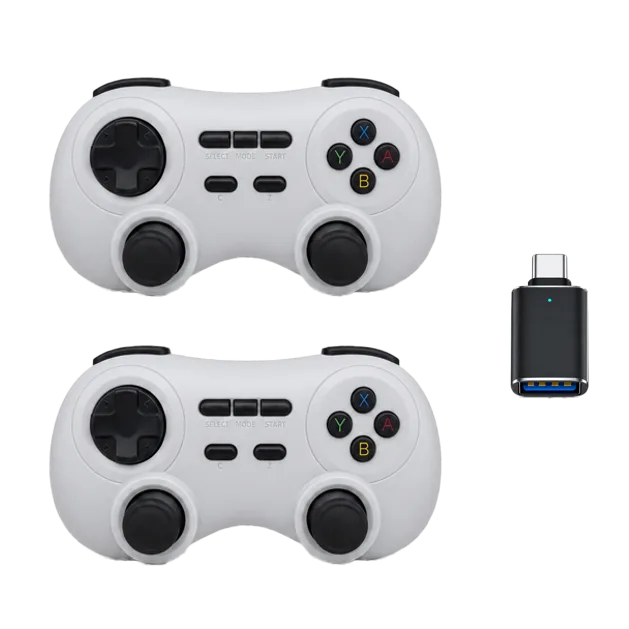
AISLPC RGPad02 2.4GHz Wireless Game Controller
This guide walks you through the pairing process, offers practical tips for using the controller, and covers common troubleshooting steps. By the end, you'll know how to get your RGPad02 working smoothly with your handheld console.
What You Need Before You Start
Before you begin, make sure you have your AISLPC RGPad02 controller, the included USB receiver, and a compatible AISLPC handheld console. The RGPad02 connects via a 2.4GHz wireless signal, which requires the USB receiver to be plugged into the console. Check that your console has a USB port available and that both the controller and console have sufficient battery or power.
If you plan to play with a friend, you can connect up to two RGPad02 controllers at the same time for local two-player gaming. Just repeat the pairing process for the second controller once the first is connected.
- Keep the USB receiver close to the console to avoid signal interference.
- Charge the controller fully before your first session to avoid mid-game disconnects.
Step-by-Step Pairing Process
Start by inserting the USB receiver into an available USB port on your AISLPC handheld console. The receiver should be recognized automatically; there is no need to install extra drivers. Next, power on the RGPad02 controller by pressing the power button. The LED indicator will light up, and within a few seconds, the controller should connect to the receiver.
Once connected, the LED will typically stay solid, indicating a stable link. If the LED blinks continuously, the controller hasn't paired yet. In that case, press the pairing button on the controller (if available) or turn the controller off and on again to retry. After a successful connection, you can start playing wirelessly without holding the console.
- If the controller doesn't connect on the first try, move the console closer to the receiver and retry.
- Some consoles may require you to enable 'gamepad mode' in the system settings; check your console's manual if the controller isn't responding.
Using the RGPad02 for Comfortable Gaming
The main benefit of the RGPad02 is that it lets you set your handheld console on a table or stand and play with the controller in your hands. This reduces arm and wrist strain, especially during longer gaming sessions. The 2.4GHz connection provides responsive control, so you can enjoy fast-paced games without noticeable lag.
For two-player gaming, simply pair a second RGPad02 controller using the same process. This is great for playing classic multiplayer games with a friend or family member. Remember that both controllers share the same receiver, so you don't need a second USB slot.
- Use a console stand or prop the device at a comfortable angle to avoid neck strain.
- If you're playing on the go, the RGPad02 is compact enough to carry in a small bag, but consider a protective case for your console.
Troubleshooting Common Connection Issues
If the RGPad02 fails to connect, first check that the USB receiver is firmly plugged in and that the controller has power. Move any objects that might block the signal, such as metal barriers or other wireless devices. Restart both the console and the controller, then try pairing again.
If the controller works but the buttons seem unresponsive, check the console's input settings to ensure the gamepad is selected as the active controller. Some games may also require you to configure button mappings in their settings. If problems persist, consult the product manual or contact AISLPC support for further assistance.
- A low battery can cause intermittent disconnects; recharge the controller if you notice erratic behavior.
- Keep the receiver away from USB hubs that may cause interference.
Pairing Checklist
- Insert the USB receiver: Plug the included USB receiver into the USB port of your AISLPC handheld console. Check that the receiver is fully inserted and the console recognizes it.
- Power on the controller: Turn on the RGPad02 using the power button. The LED will indicate the connection status. If the LED blinks, the controller is not paired yet; retry by turning it off and on.
- Wait for the connection: Allow a few seconds for the controller to sync with the receiver. The LED should become steady when connected. Test the buttons to confirm the connection is active.
- Pair a second controller (optional): Repeat the same process with another RGPad02 to enable local two-player gaming. Both controllers share the same receiver, so no extra setup is needed.
Related Products
- AISLPC RGPad02 2.4GHz Wireless Game Controller: Connect the included USB receiver to a compatible AISLPC handheld console and play wirelessly without holding the console in your hands. Its stable 2.4GHz connection gives you responsive control while allowing you to sit back and play more comfortably. This controller is the accessory you're pairing in this guide, so understanding its connection method helps you set it up correctly.
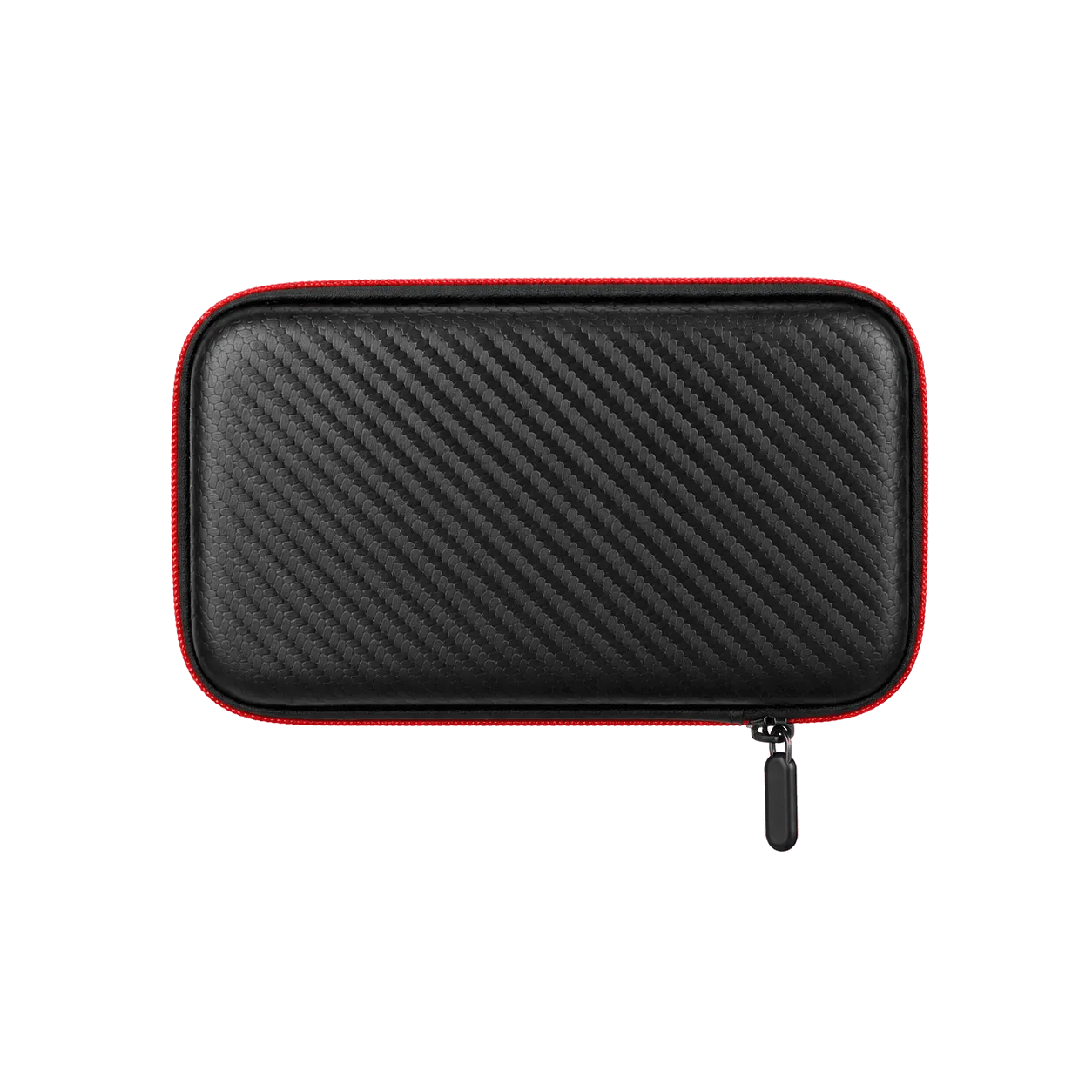
- AISLPC GuardShell Carrying Case for R36/R36T Series Retro Handheld Game Consoles: Protect your R36 Series handheld console wherever you go with the AISLPC GuardShell Hard Carrying Case. Designed for retro handheld gamers, this compact case helps keep your console safe from everyday scratches, bumps, and travel wear. If you're taking your handheld and RGPad02 on the go, a protective case keeps your gear safe during travel.
The AISLPC RGPad02 wireless controller is a straightforward way to enhance your retro handheld gaming experience. By following the pairing steps and troubleshooting tips in this guide, you'll be playing comfortably in no time. If you run into persistent issues, don't hesitate to reach out to AISLPC support for help.