Quick Answer
Yes, you can fast-charge a compatible laptop with a high-quality USB-C to USB-C 100W charging cable—but you also need a charger that delivers at least the laptop’s required wattage (typically 60–100W).
Why Wattage and Cable Quality Matter
A USB-C cable rated for 100W can handle the power needed by many modern laptops, but the cable alone doesn’t determine charging speed. Your charger must also provide enough wattage—for example, a 60W charger won’t fully power a 100W laptop, even with a 100W cable.
Cheap or unrated cables may overheat or deliver less power than advertised. A cable that explicitly supports 100W Power Delivery (PD) ensures safe, consistent charging for high-power devices like MacBook Pro, Dell XPS, or similar ultrabooks.
What to Check Before You Plug In
Not all laptops can charge via USB-C. Older models may lack USB-C Power Delivery input. Check your laptop’s specifications—look for “USB-C PD charging” or “Power Delivery” support. If your laptop has a proprietary charging port, USB-C charging won’t work.
Even if your laptop supports USB-C charging, it may require a specific wattage (e.g., 87W for a 15-inch MacBook Pro). Using a 100W cable with a 60W charger will only charge at 60W—safe, but slower.
How to Charge Your Laptop with a USB-C 100W Cable (Step by Step)
- Step 1: Confirm your laptop supports USB-C charging: Look for a USB-C port marked with a battery icon, a lightning bolt, or letters like PD. Check your laptop manual or search the manufacturer’s site for “USB-C Power Delivery” support. If your laptop lacks this, USB-C charging won’t work. Common mistake: Assuming any USB-C port can charge a laptop—many only support data or video, not power input.
- Step 2: Choose a charger that matches your laptop’s wattage requirement: Find the wattage your laptop needs (look on the original charger or in system settings). Use a charger that provides at least that wattage. For example, a 100W charger paired with a 100W cable will fully charge a power-hungry laptop, but a 60W charger will only trickle charge or slowly charge. Checkpoint: If your laptop requires 87W, a 100W charger works great; a 30W charger will take much longer or may not charge while you use the laptop.
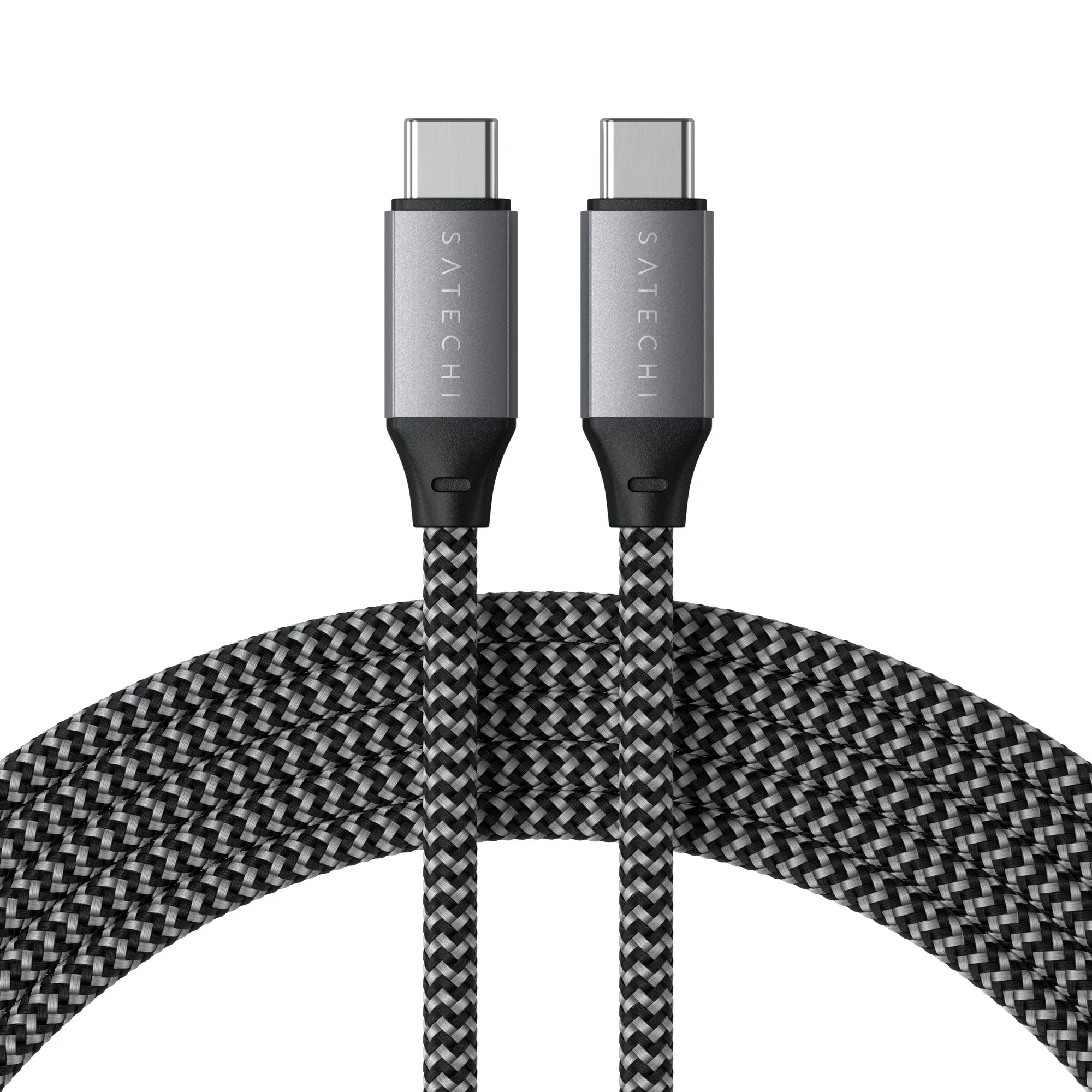
- Step 3: Use a certified 100W-rated cable like the Satechi USB-C to USB-C Charging Cable: A cable rated for 100W ensures safe power delivery at high wattage. Connect the cable to your charger and then to your laptop. The reversible connectors plug in either way—no fiddling. The Satechi cable also supports data transfer between devices. Common mistake: Using a phone-grade cable (often 15–60W) with a laptop charger can slow charging or cause overheating. Stick to a high-wattage cable.
- Step 4: Monitor charging and avoid daisy-chaining: Plug the cable directly from the charger to the laptop. Avoid using hubs, adapters, or extension cables rated for lower wattage—they can bottleneck power or cause instability. Your laptop’s battery icon should show “Charging” quickly. Checkpoint: If your laptop shows “Not Charging” despite a correct cable and charger, try a different USB-C port on the laptop (some support power, others only data).
Product Used in This Guide
-
USB-C to USB-C 100W Charging Cable: The Satechi USB-C to USB-C Charging Cable supports Power Delivery and data transfer between USB Type-C smartphones, tablets, and laptops, with reversible connectors on each side. This 100W-rated cable works with most modern laptops that accept USB-C charging, so you only need one cable for both your phone and your computer.
USB-C to USB-C 100W Charging Cable