Quick answer
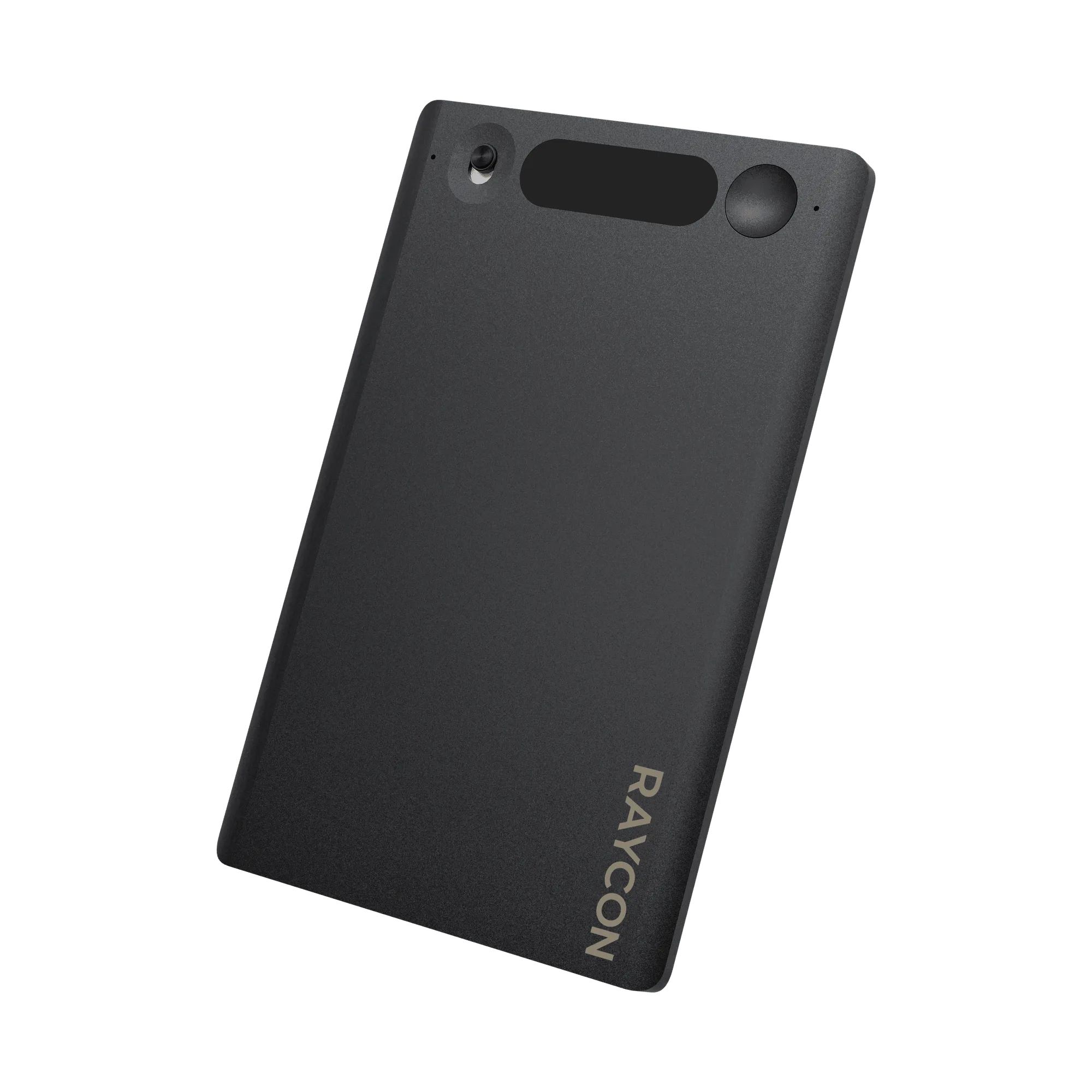
The Raycon AI Notetaker works best when you treat it as a three-stage habit: capture cleanly, let transcription run, then review with AI summaries. For most people, the Raycon Notes App - Premium is the piece that turns raw recordings into usable meeting or lecture notes, so start there and pair it with the Raycon devices you already carry.
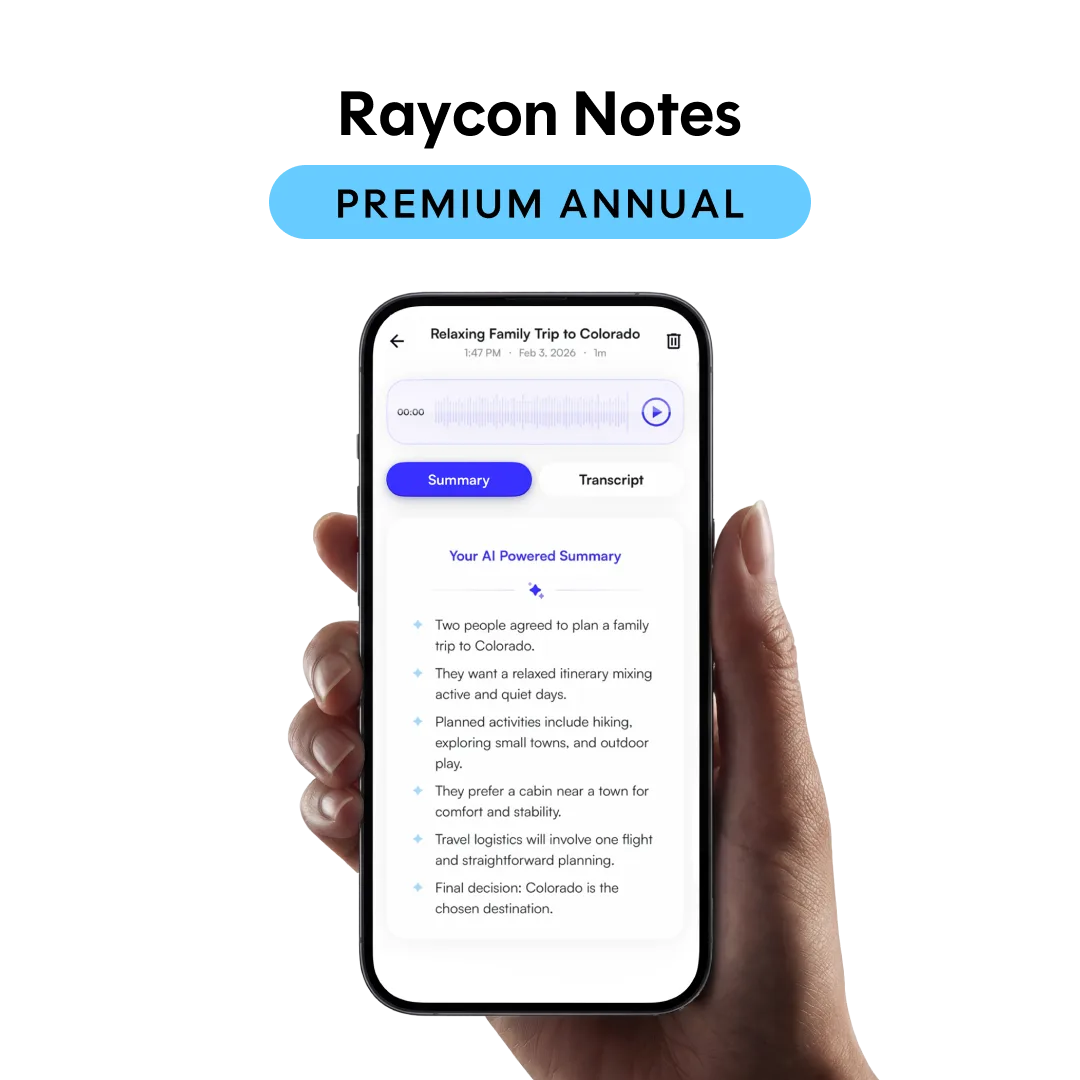
Raycon Notes App - Premium
Recording a meeting or lecture is easy. Turning that recording into notes you will actually use is the hard part. The Raycon AI Notetaker is built for that second job: it captures audio, transcribes it, and helps you find the decisions, action items, and key points without replaying an hour of tape.
This guide walks through a repeatable process for meetings and lectures, from setup to review. It assumes you already have a Raycon Notetaker or a compatible Raycon device, and it points out the checkpoints where most people lose quality or time.
Set up before the session starts
Do the boring setup work before anyone starts talking. Charge your device, confirm the Raycon Notes App is signed in, and decide whether you are recording in person or through a call. For in-person lectures, place the device between you and the speaker rather than at the edge of the room. For calls, test that the app is picking up system audio, not just your microphone.
If you use the Raycon Notes App - Premium, check that your monthly transcription hours are available. The premium plan includes 25 hrs/month of transcription, which is generous for most students and knowledge workers, but a heavy week of back-to-back calls can eat into it. Knowing your remaining hours prevents a mid-lecture surprise.
- Checkpoint: run a 30-second test recording and play it back before the real session begins.
Capture the audio cleanly
Start recording a minute early and stop a minute late. That buffer catches the agenda slide, the room-change instructions, and the closing summary that people often forget. If you are in a noisy room, move closer to the speaker rather than turning up gain, because raising input volume also raises background noise.
For lectures, resist the urge to record every session at maximum length. A 90-minute recording with no breaks is harder to review than two 45-minute recordings with clear labels. If your setup allows it, split long sessions into logical chunks so the transcript stays searchable and the AI summary stays focused.
- Common mistake: leaving the device in a bag or pocket, which muffles speech and forces you to guess at words later.
Let transcription and AI summaries do the first pass
Once the recording is saved, let the Raycon Notes App handle transcription before you start editing. The premium plan includes AI summaries with action items and highlights, speaker identification, and the ability to ask AI about your recordings. That first pass is not the final notes; it is the raw material you will refine.
Speaker identification matters more than people expect. In a meeting with four or five voices, knowing who said what turns a wall of text into an accountable record. In a lecture, it helps you separate the professor's main points from student questions, which are often where exam hints hide.
- Checkpoint: skim the AI summary for names and action items, then confirm they match what you remember before sharing.
Review and turn recordings into usable notes
Set a 10-minute review window right after the session, while context is fresh. Read the AI summary, fix any misheard names or terms, and pull out three things: decisions made, tasks assigned, and questions left open. That structure works for both meetings and lectures, though lectures may swap tasks for concepts to review.
Use the Ask AI feature to query your recordings instead of scrubbing through audio. Questions like 'What did we decide about the launch date?' or 'What did the professor say about the midterm format?' are faster than manual search. Premium also includes unlimited cloud storage, so you can keep a searchable archive across a semester or a project.
- Common mistake: sharing the raw AI summary without editing, which can spread misheard names or half-finished action items.
Build a lightweight system you will keep using
The tool only helps if you actually return to it. Give each recording a consistent name, such as '2026-09-11 Client Sync' or 'BIO 201 Lecture 4', so search works later. If you use Raycon devices for playback, the app works seamlessly with them, which makes reviewing on a commute or between classes more realistic.
Decide in advance how long you keep recordings. Unlimited cloud storage in the premium plan removes the technical limit, but your attention is still finite. A simple rule, like keeping everything for one semester or one project and archiving the rest, keeps the library useful instead of overwhelming.
- Checkpoint: once a week, scan your recordings and delete or archive anything you will not revisit.
Your Raycon AI Notetaker workflow, step by step
- Charge and sign in before the session: Top up your device and confirm the Raycon Notes App is signed in with transcription hours available. Checkpoint: a dead device or expired plan is the most common reason a recording never happens.
- Place the device for clean pickup: Put the notetaker between you and the speaker, or test system audio for calls, rather than leaving it in a bag. Checkpoint: run a 30-second test and play it back before the real session.
- Record with a small buffer: Start a minute early and stop a minute late, and split very long sessions into labeled chunks. Common mistake: one giant recording that is hard to review and search.
- Run transcription and AI summaries: Let the app transcribe, identify speakers, and generate action items and highlights before you edit anything. Checkpoint: verify names and action items against your memory.
- Review within 10 minutes: Fix misheard terms, then pull out decisions, tasks, and open questions into your own notes. Common mistake: sharing the raw summary without a quick edit.
- Name, store, and archive: Use consistent recording names and a simple retention rule so your library stays searchable. Next step: once a week, archive or delete recordings you will not revisit.
Product facts that matter for this workflow
- Raycon Notes App - Premium: Premium includes 25 hrs/month transcription, AI summaries with action items and highlights, Ask AI about your recordings, speaker identification, and unlimited cloud storage. These features cover the transcription and review stages of the workflow, so you spend time on decisions rather than manual note-taking.
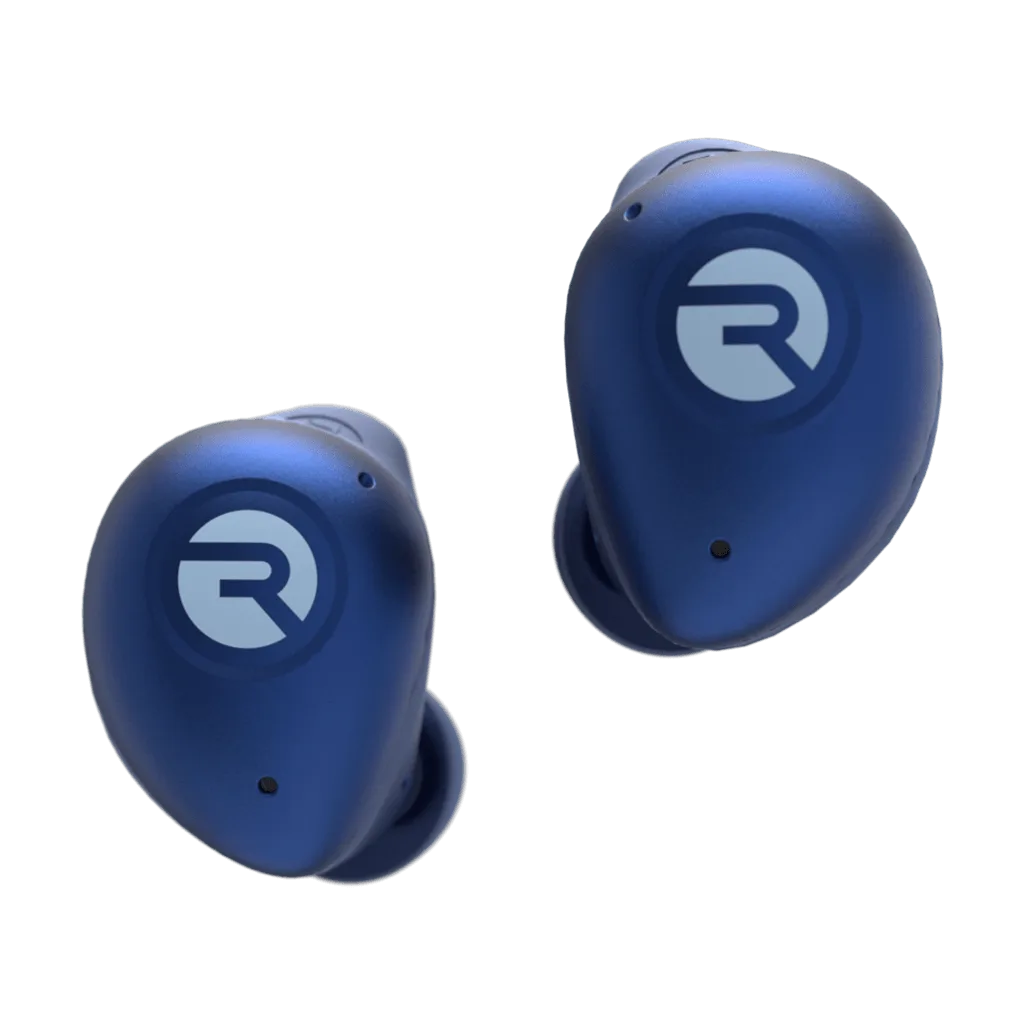
- Fitness Earbuds: No-budge fit with a 56 hour battery life. Long battery life means you can record or review sessions across a full day of classes or back-to-back meetings without stopping to charge.
The Raycon AI Notetaker is most useful when you treat capture, transcription, and review as one habit rather than three separate tools. Start with the setup and placement steps, let the Raycon Notes App - Premium handle the first pass, and keep your review window short. That routine is what turns a recording into notes you can actually use.