Quick answer
Use the RGB LED Cube as one part of a complete circuit: add a battery for power and a motor if your build needs motion. Flip the small switches to turn each internal LED on or off, then mix red, green, and blue to get purple, teal, or yellow. Start with a simple battery-and-LED loop before adding motors or complex structures.
What the RGB LED Cube actually does
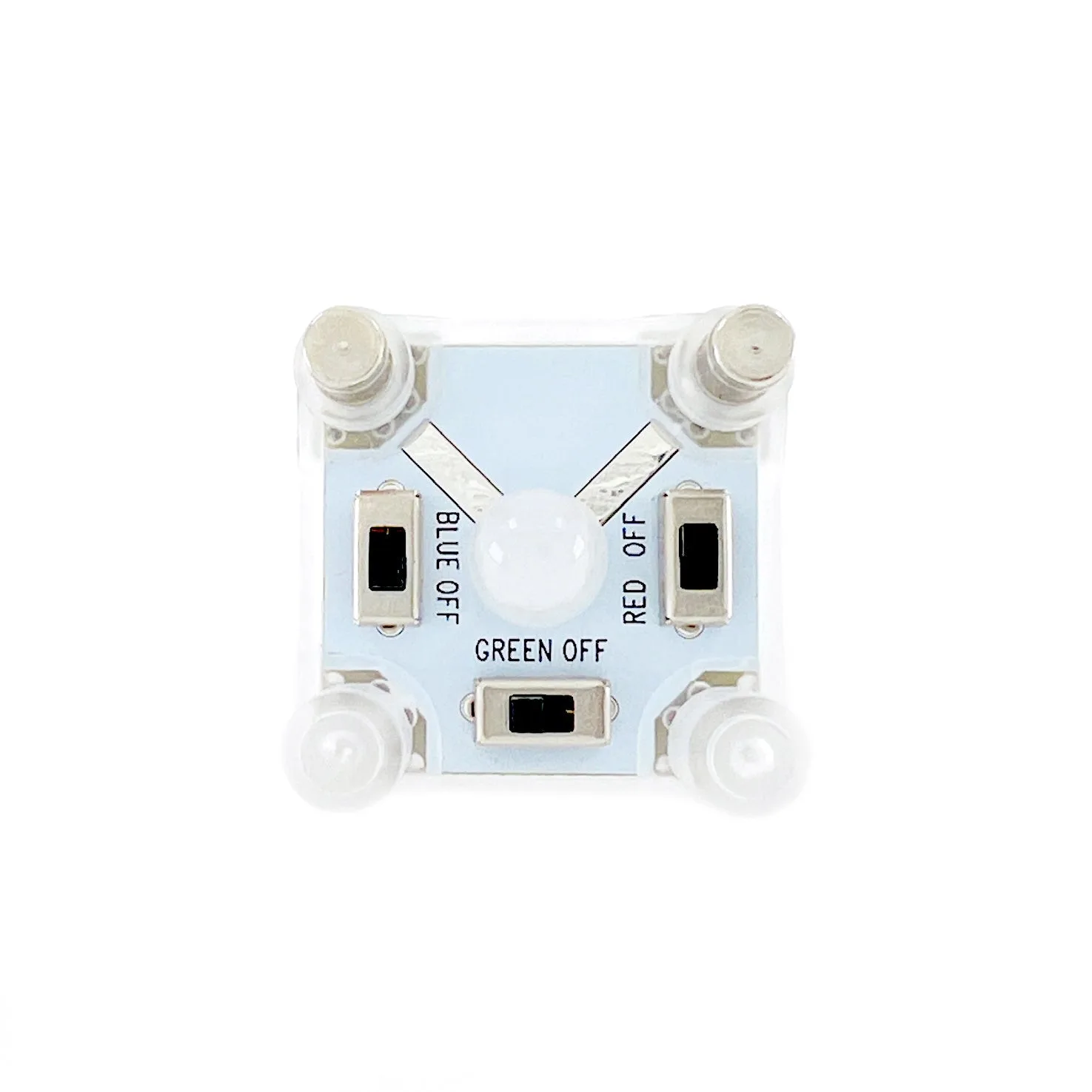
The RGB LED Cube contains three separate LEDs—red, green, and blue—inside one bulb. Small switches let you turn each color on or off individually. That means you can run just red, just blue, or combine them: red plus blue gives purple, green plus blue gives teal, and red plus green gives yellow. Because it is only one part of a circuit, it needs a battery to power it and a motor if you want the build to move. It does not include those parts on its own.
This design makes the cube a flexible light source for Circuit Cubes builds. You can use it as a steady indicator, a color-changing beacon, or a decorative element on a moving model. The tradeoff is that you must plan the rest of the circuit—without a battery, the cube stays dark.
Plan the circuit before you snap bricks
Sketch where the battery, the RGB LED Cube, and any motor will sit. The cube needs a clear path to the battery, so leave room for the connector. If you are adding a motor, decide whether it will share the same power source or run separately. Circuit Cubes parts are designed to work together, but the physical layout still matters: a cube buried under bricks is hard to switch or see.
A common mistake is building the whole model first and then trying to squeeze in the LED. Place the cube early so you can route wires without dismantling your work.
Wire the cube step by step
Connect the RGB LED Cube to a battery using the standard Circuit Cubes connectors. Make sure the connection is snug—a loose plug is the most frequent reason a light flickers or stays off. Once powered, test each color switch one at a time before you build around the cube. If red works but green does not, the issue is usually the switch position or a poor connection, not a dead LED.
When you add a motor, keep the LED circuit separate if possible. Motors draw power and can cause dimming if the battery is shared and already under load. If you must share power, test the build with both running to see whether the light stays bright enough for your purpose.
Three project ideas that use color mixing
A color-changing beacon: mount the cube on top of a stationary tower and switch between red, blue, and green to signal different modes. A teal-and-purple night light: combine blue with green, then blue with red, to create two distinct moods. A moving light: pair the cube with a motor-driven build so the light travels with the model—use Tracker or ArT Walker as a base if you want motion without designing a chassis from scratch.
Each project uses the same cube; only the surrounding build and switch settings change. That keeps the parts list small and the focus on color experimentation.
Step-by-step: your first RGB LED Cube project
- Gather power and the cube: Place the RGB LED Cube and a battery on your work surface. Do not build the model yet—just confirm you have both parts and that the cube's switches move freely. Checkpoint: if you do not have a battery, the cube cannot light. Stop and find one before continuing.
- Connect cube to battery: Plug the cube into the battery using the Circuit Cubes connector. Push until it seats fully. Turn each color switch on and off to verify red, green, and blue all work. Common mistake: forcing the connector the wrong way. If it does not slide in easily, flip it and try again.
- Test color mixing: Turn on red and blue together to see purple. Try green plus blue for teal, and red plus green for yellow. Leave the combination you like best switched on. Checkpoint: if a color does not appear, check that its switch is fully engaged and the connector is still snug.
- Build a simple frame around the cube: Snap bricks around the cube so it stays visible and the switches remain reachable. Leave a gap for the wire so it is not pinched. Common mistake: burying the cube. If you cannot reach the switches, rebuild the frame.
- Add motion if you want it: If your build should move, integrate a motor—such as the Bluetooth controller motors in Tracker—and test both light and motion together. If the light dims when the motor runs, use a separate battery for the LED or reduce motor load. Next step: once this works, try changing the color combination to signal different modes in your build.
Parts that pair with the RGB LED Cube
- RGB LED Cube: The RGB LED Cube has three different LEDs in one bulb and small switches to turn each on or off, letting you mix red, green, and blue for purple, teal, and yellow. You can change the color of your build without swapping parts, which makes it easy to test different looks during a single session.
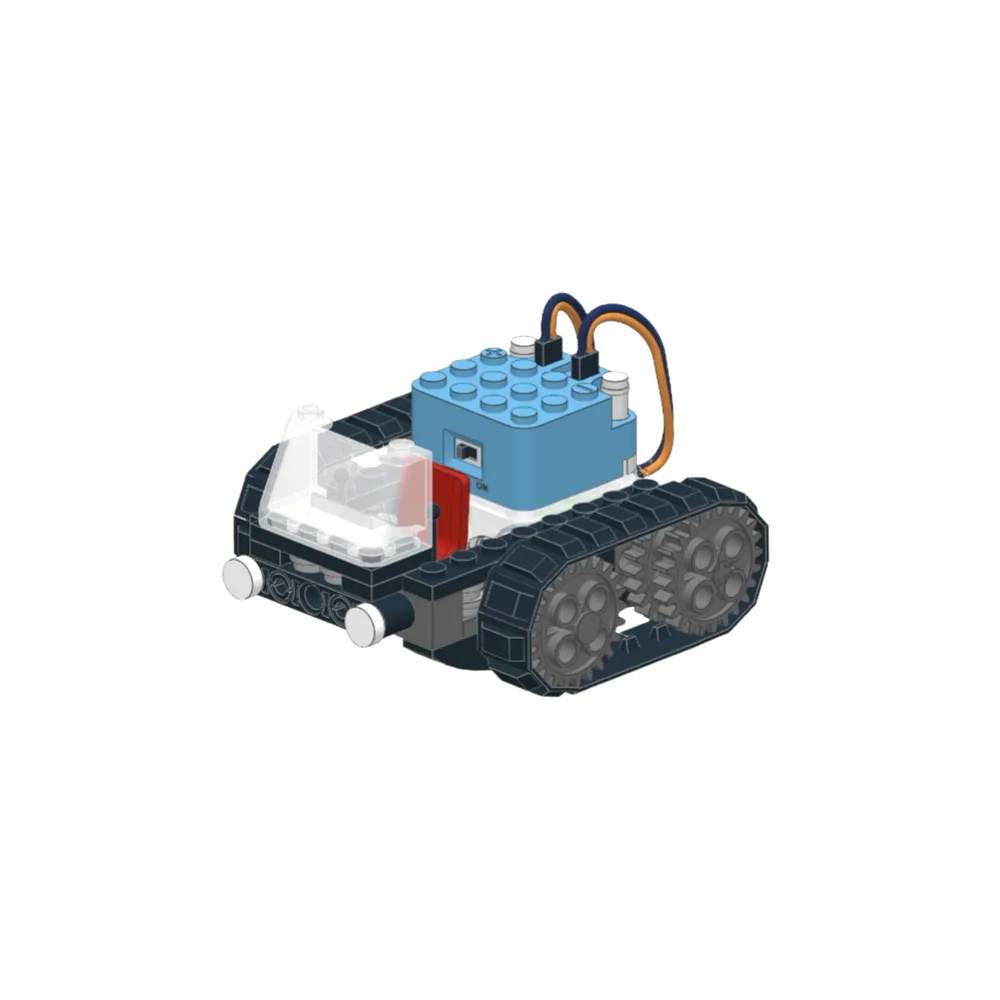
- Tracker: Tracker includes Bluetooth controller motors and has build instructions available online. If you want your lit build to move, Tracker provides the motion and the instructions to assemble it, so you can focus on integrating the LED cube.
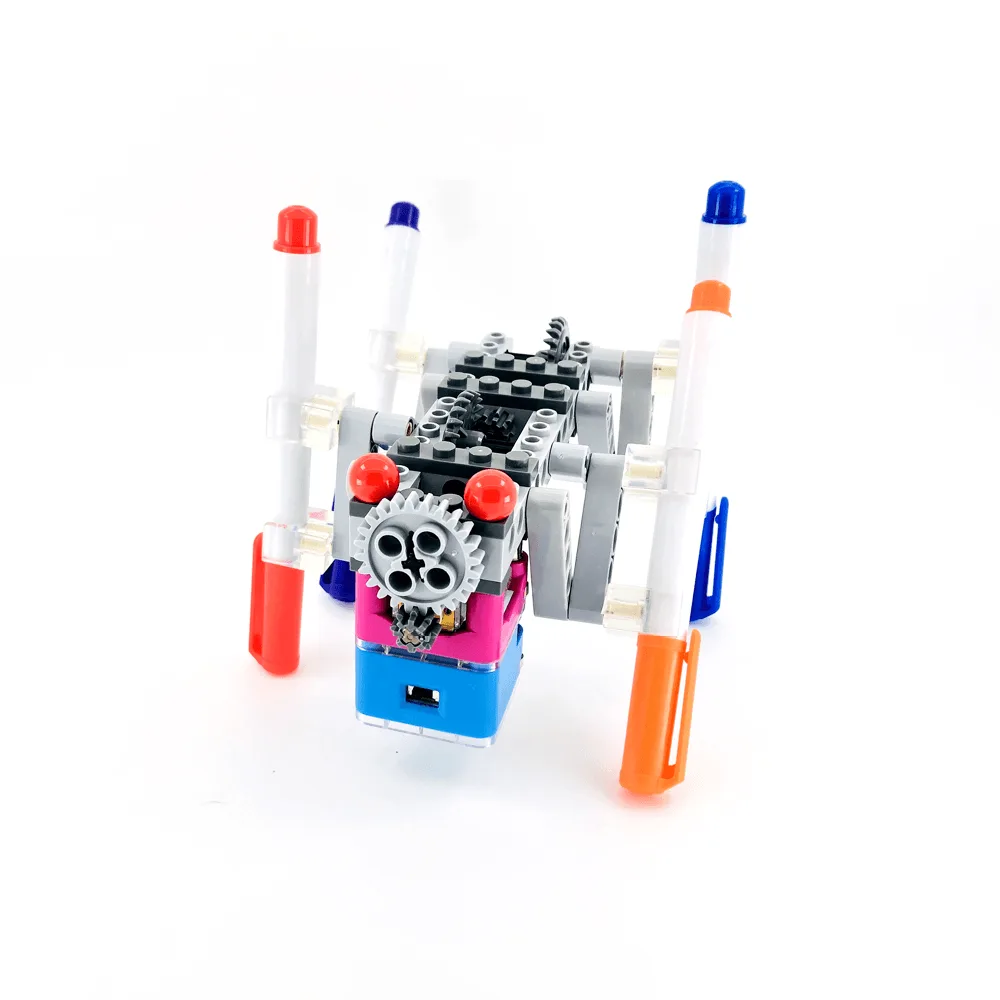
- ArT Walker: ArT Walker is a STEM toy with build instructions available via a provided link. It gives you a walking platform for a light-up project, and the online instructions reduce paper waste while keeping the build accessible.