Quick Answer
If your robot vacuum won't return to the dock, start by checking the dock's power connection and placement, ensuring the charging contacts are clean, and verifying the vacuum's path is clear. If these don't work, a sensor issue or an error with the mapping system may be the culprit, and you may need to reset the vacuum or consult the manual.
A robot vacuum that refuses to dock can turn a hands-free cleaning session into a frustrating chore. You might find it beeping in a corner, stuck under a chair, or simply running out of battery before it reaches home. Fortunately, most docking problems have straightforward fixes you can try before calling support.
In this guide, we'll walk through the most common causes and solutions, from simple placement checks to more involved sensor and mapping resets. We'll also point out when it's time to consider a replacement or a different model.
Check the Dock's Power and Placement
The first thing to verify is that the charging dock is plugged in and receiving power. Look for a light indicator on the dock; if it's off, check the outlet and the power adapter. Also, ensure the dock is placed against a wall on a hard, level surface, and that there's enough clearance on both sides and in front for the vacuum to approach and align.
If the dock is on carpet, it may shift or tip over, preventing a secure connection. Move it to a hard floor if possible. Also, remove any obstacles within about 3 feet of the dock, as the vacuum needs a clear path to navigate back. Some models use the dock as a home reference for their mapping, so a cluttered area can confuse the return.
- Ensure the dock's power cord is firmly connected and the outlet works.
- Place the dock on a hard, level surface with at least 1.5 feet of clearance on each side and 4 feet in front.
- Keep the area around the dock free of clutter, cables, and low-hanging furniture.
Clean the Charging Contacts and Sensors
Dirty charging contacts are a common reason for a vacuum to fail to dock or charge. Over time, dust and grime can build up on the metal strips on both the vacuum and the dock, preventing a proper electrical connection. Use a dry cloth or a cotton swab with a little rubbing alcohol to gently clean these contacts, and make sure they are dry before trying again.
Similarly, the docking sensors (usually infrared or optical) on the vacuum and the dock can get obscured by dirt or hair. Wipe them with a soft, dry cloth. On many eufy models, these sensors are located on the front of the vacuum and on the dock's base. Keeping them clean ensures the vacuum can 'see' the dock and align correctly.
- Clean the charging contacts on both the vacuum and the dock monthly.
- Use a dry microfiber cloth to wipe the sensors gently; avoid water or harsh cleaners.
- Check for tangled hair or debris around the wheels and sensors that might obstruct navigation.
Clear Obstructions and Check the Vacuum's Path
Sometimes the vacuum simply cannot find its way back because the path is blocked. Move any furniture, toys, or cables that may have been left in the cleaning area. Also, check if the vacuum is trapped under a low piece of furniture or if its wheels are stuck on a threshold or rug edge.
If your vacuum uses a mapping system, it may have a 'find home' feature that relies on the map. If you've moved the dock recently, the map may be outdated. In that case, you may need to reset the map or send the vacuum to remap the area. Refer to your model's manual for specific instructions, as this process varies.
- Before starting a cleaning cycle, do a quick sweep of the floor to remove potential obstacles.
- If the vacuum often gets stuck on rugs, consider using boundary strips or setting no-go zones in the app.
- If you've moved the dock, delete the existing map and let the vacuum create a new one.
Reset the Vacuum and Check for Software Updates
A simple reset can resolve many glitches. Turn off the vacuum and remove it from the dock (if it's there). Press and hold the power button for about 10 seconds to force a restart, then place it back on the dock. For some models, you may need to press a reset button with a pin. Check your user manual for the exact method.
Also, ensure your vacuum's firmware is up to date. Open the companion app, go to settings, and look for a software update. Manufacturers often release fixes for navigation and docking issues. If a reset and update don't help, your vacuum's sensors or battery may be failing, and it might be time to contact support or consider a replacement.
- Perform a hard reset by holding the power button for 10-15 seconds.
- Update the vacuum's firmware via the app to get the latest bug fixes.
- If the problem persists after a reset, note any error codes displayed and search for them in the manual or online.
Diagnosis: From Symptom to Solution
- Symptom: The vacuum stops mid-clean or after finishing and doesn't return to the dock. It may be beeping, showing an error, or simply running out of battery away from the dock. Identify the exact behavior: does it attempt to dock and miss, or does it not even try?
- Likely Cause: Common causes include dock placement issues, dirty contacts or sensors, obstacles in the path, outdated mapping, or a software glitch. Less common but possible: a failing battery or sensor hardware. Check the simplest explanations first—power, placement, cleanliness.
- Corrective Action: Start by ensuring the dock is powered and placed correctly. Clean the charging contacts and sensors. Clear the area of obstacles. If the issue persists, perform a reset and update the firmware. For persistent issues, consult the manual or contact customer support. After each step, test the vacuum to see if the issue is resolved.
- When to Stop or Choose Another Option: If you've tried all the above and the vacuum still won't dock, or if you notice physical damage or unusual noises, it may be time to contact professional support or consider a replacement. If your vacuum is older and out of warranty, the cost of repair might exceed the value of a new model. Don't keep troubleshooting indefinitely; know when to seek help or upgrade.
Products That Simplify Docking and Maintenance
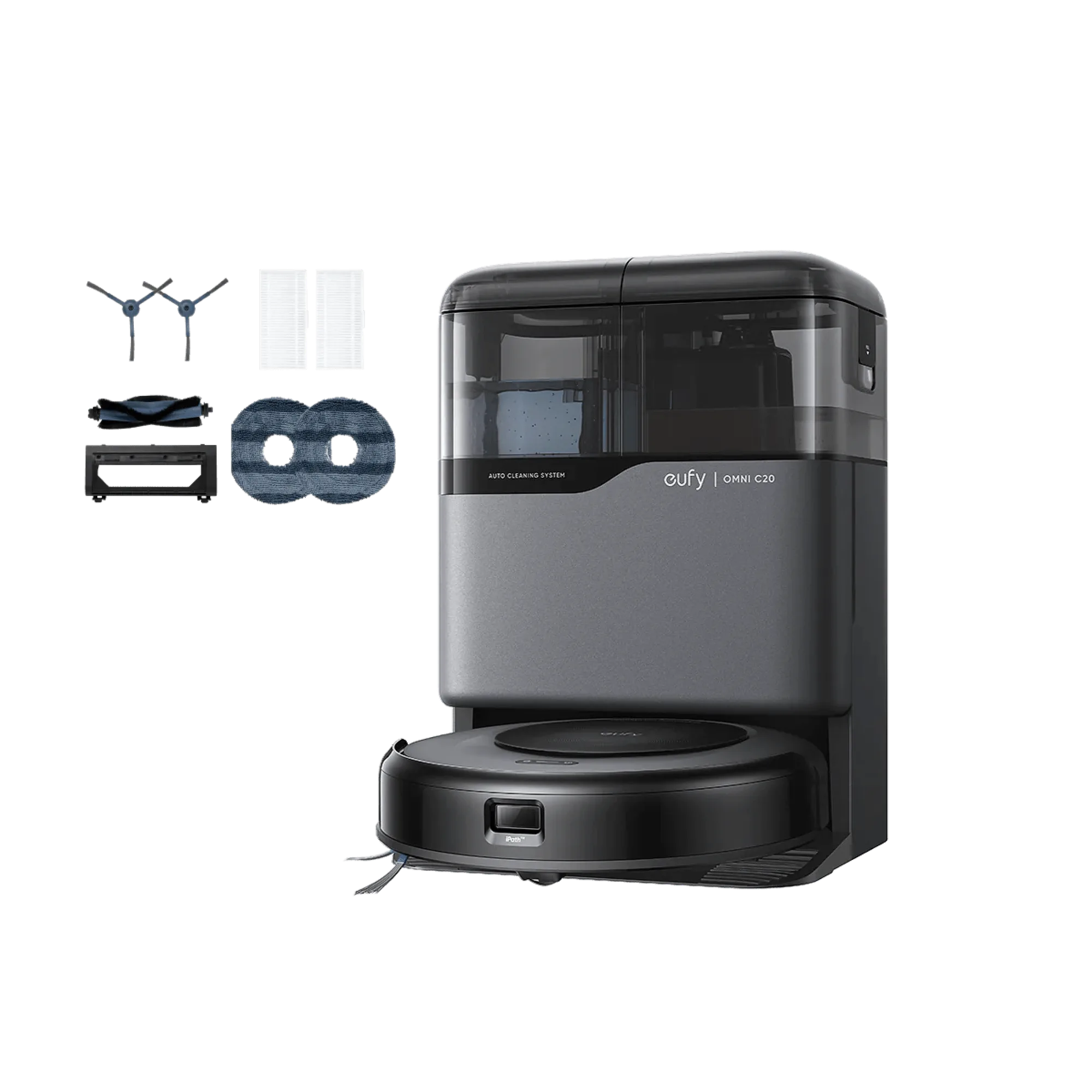
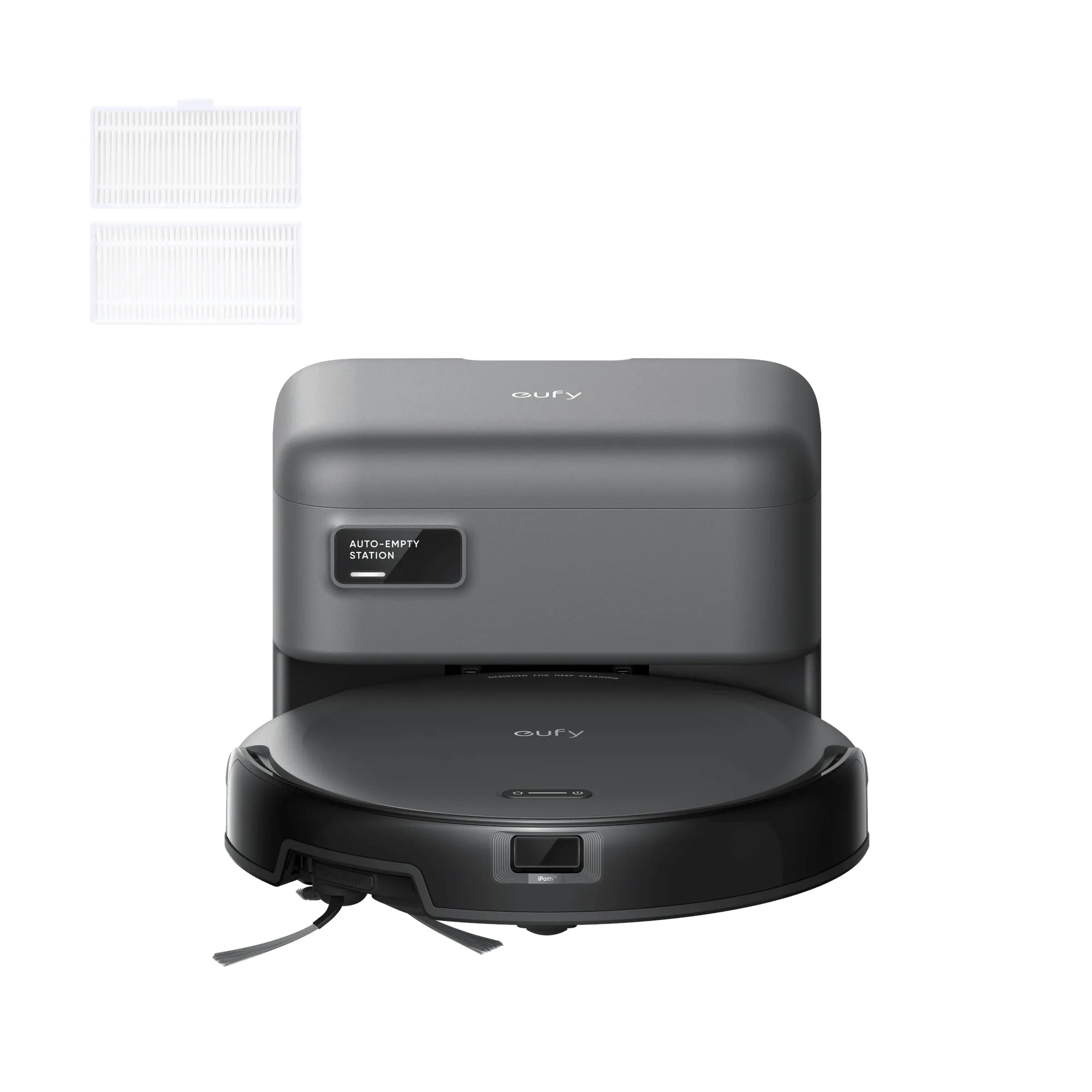
- eufy Robot Vacuum C10 with 2 Replacement Washable Filters: Self-Empty Station: C10's dust bin is automatically emptied into the station's 3L dust bag. Thanks to its large capacity, it only needs replacing every 60 days. A self-empty station means you don't have to manually empty the bin after every cleaning, reducing the times you interact with the dock and minimizing potential errors from a full bin.
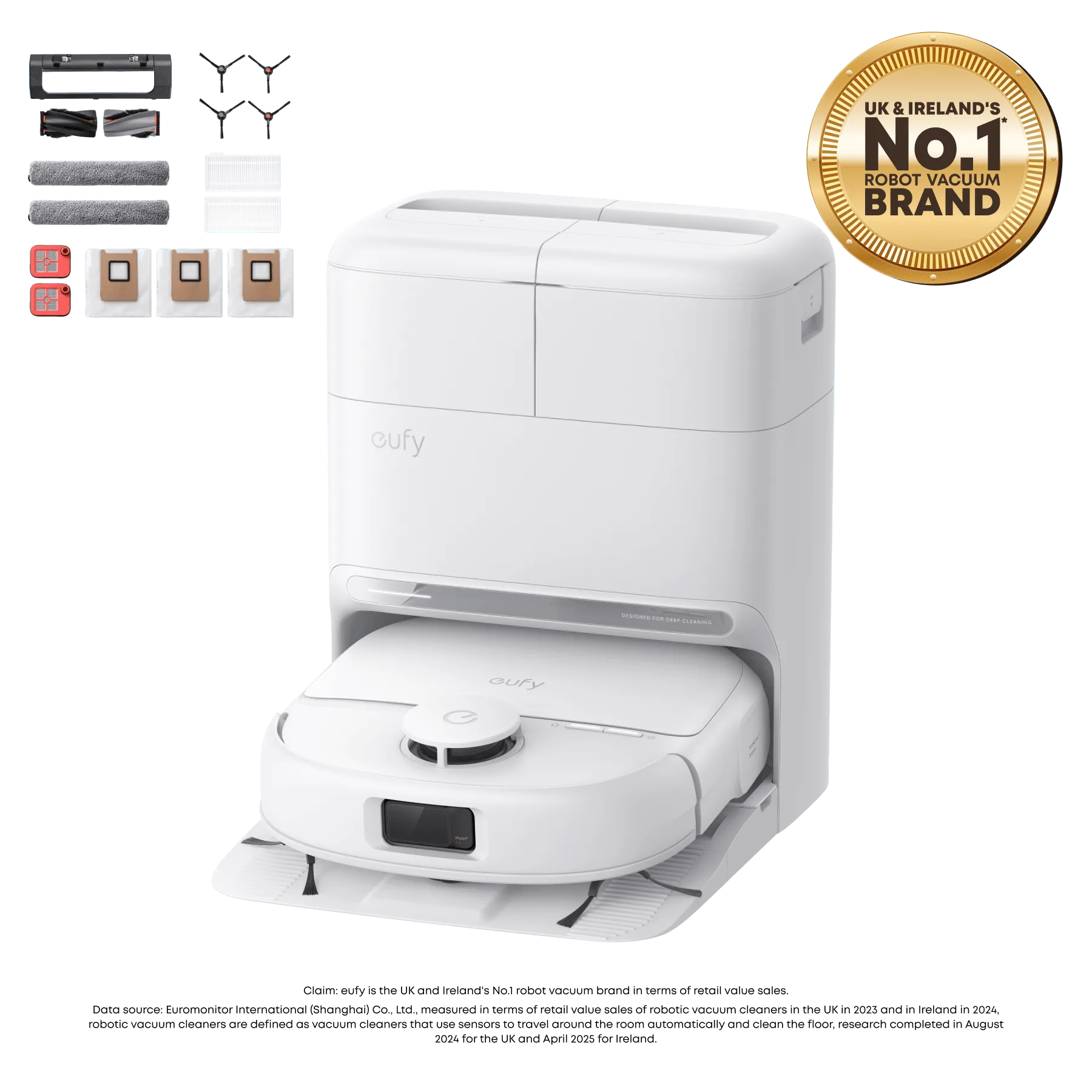
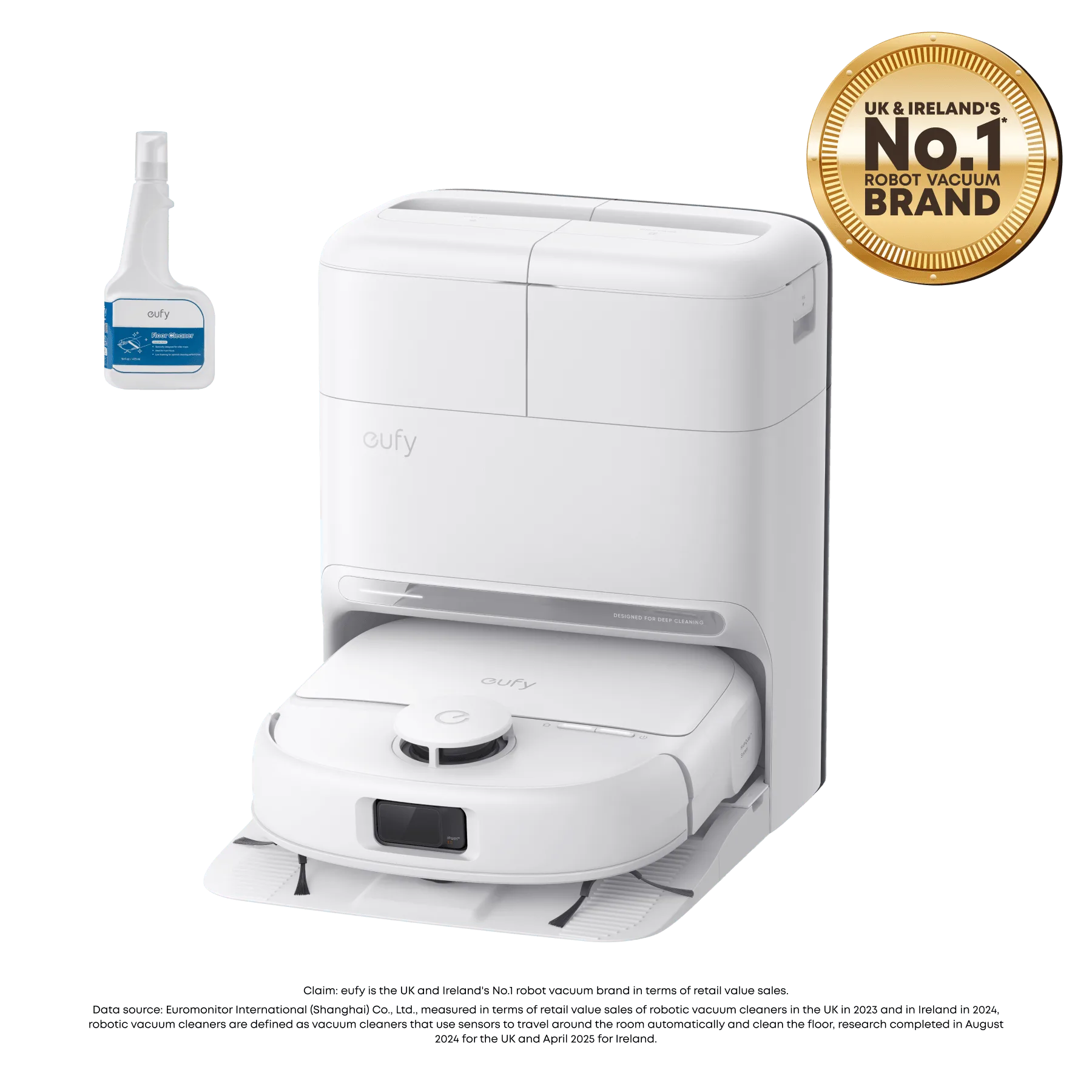
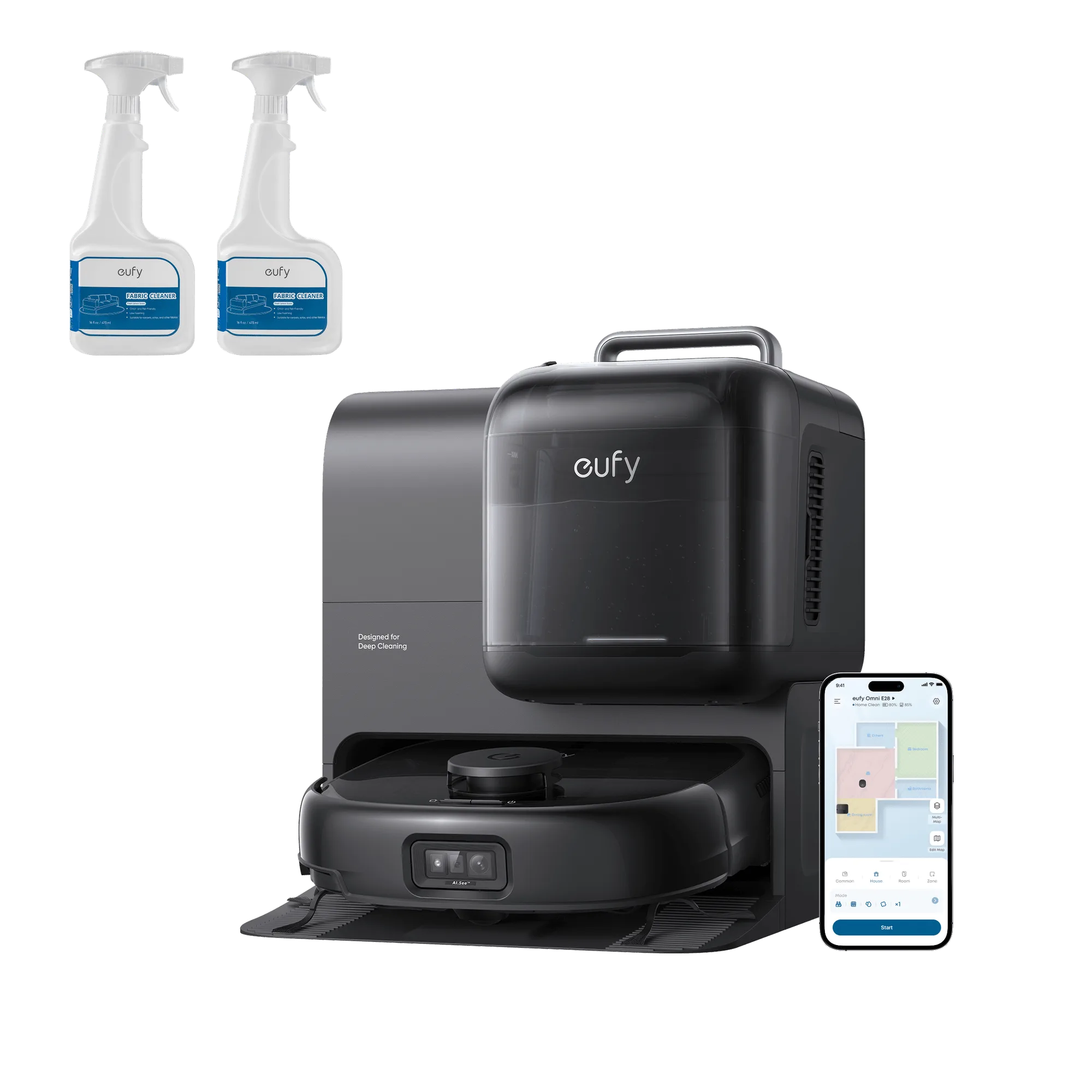
- https://eufydu.com/products/bundle-t2351v12-1-t29c3121-1-t29f70a2-1-b583d4d67ec3801e7d579c23-563601eufy X10 Pro Omni with 6 Extra Dust Bags and 2 Floor Cleaners: Everything you need for longer-lasting cleaning. This bundle includes six extra dust bags and floor cleaner to support hassle-free maintenance and keep floors fresh between cleans. Having extra dust bags and floor cleaner ensures you can maintain the vacuum's performance without frequent interruptions, so it's more likely to complete its cycle and return to the dock as expected.
Docking issues can often be resolved with a few simple checks and cleanings. By following this guide, you can get your robot vacuum back to its job of keeping your floors clean. If the problem persists, remember that eufy's customer support and a range of models with advanced docking features are available to ensure a hassle-free cleaning experience.