Quick answer
To shoot sharp close-ups on your Samsung S26 or S25 Ultra, attach the SANDMARC Macro Lens to the phone's main camera, use the 25mm lens for standard macro work, and keep the phone steady at the correct focus distance.
Why a clip-on macro lens beats digital zoom
Digital zoom on a phone crops into the sensor, which often softens details and exaggerates noise. A dedicated macro lens like the SANDMARC Macro Lens captures close-up details optically, so you get more real detail without relying on software tricks.
The SANDMARC Macro Lens is built with premium multi-coated optics, which helps reduce flare and ghosting. It also counters the artificial sharpening that Samsung's S26 and S25 Ultra models sometimes apply, giving your macro shots a more natural, organic look.
Choosing between the 25mm and 100mm lenses
The SANDMARC Macro Lens kit includes two lenses: a 25mm lens and a 100mm lens. The 25mm lens is ideal for capturing close-up details with a shallow depth of field, while the 100mm lens provides an extended focus distance, which is useful for subjects that are harder to approach, like insects or small electronics.
If you are just starting out, begin with the 25mm lens. It is easier to handle and gives that classic macro look. Switch to the 100mm when you need more working distance or want to shoot subjects that might be startled by your proximity.
Step-by-step macro setup for Samsung S26 & S25 Ultra
- Attach the lens to the main camera: Clip the SANDMARC Macro Lens onto your Samsung S26 or S25 Ultra over the main camera lens. Make sure it is centered and secure. Use the 25mm lens for standard macro shots. Check that the clip is aligned with the camera lens to avoid vignetting.
- Open the camera app and switch to the main lens: In the camera app, select the main (1x) lens. Do not use the ultra-wide or telephoto lenses, as the macro lens is designed for the main sensor. If you accidentally use the wrong lens, the image will be blurry or cropped.
- Get close, but not too close: Move the phone closer to your subject until it is about 1-2 inches away (for the 25mm lens). Use the 100mm lens if you need more distance. The lens has a fixed focus, so you must physically move the phone to find the sharpest point. If the image is blurry, try moving the phone slightly forward or backward instead of relying on autofocus.
- Tap to focus and lock exposure: Tap on your subject on the screen to set focus. Then, press and hold on the screen to lock focus and exposure. This prevents the camera from refocusing when you move slightly. Locking focus is essential for macro shots because the depth of field is very shallow.
- Use a tripod or steady surface: To avoid camera shake, use a tripod or rest your phone on a stable surface. If you are shooting handheld, brace your elbows against your body and hold your breath while pressing the shutter. Even slight movement can cause blur in macro photography, so stability is key.
- Take multiple shots and review: Take several photos at slightly different distances and angles. Review them on the phone's screen and zoom in to check sharpness. Delete the ones that are not in focus. Macro photography is a numbers game—taking more shots increases your chances of getting a sharp one.
Product facts
-
Macro Lens Edition - Samsung Ultra: The SANDMARC Macro Lens offers a shallow depth of field that mimics the human eye and counters artificial sharpening in the Samsung S26 & S25 Ultra models. This means your close-up shots will have a natural, organic look without the over-processed appearance that phone cameras sometimes produce.
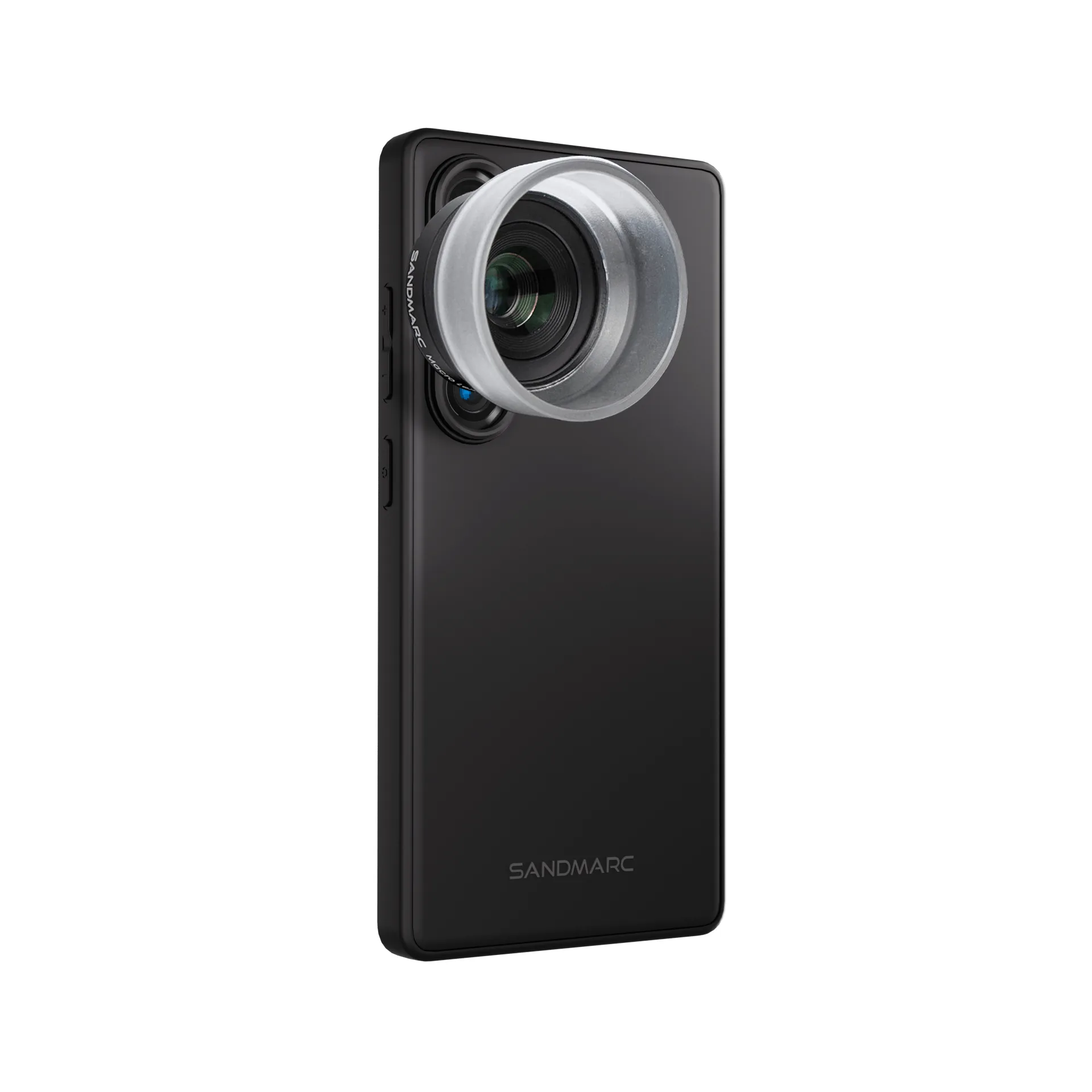
Macro Lens Edition - Samsung Ultra
-
Macro Lens Edition - Samsung Ultra: The kit includes a 25mm lens for close-up details and a 100mm lens for extended focus distance. You can switch between the two lenses depending on your subject, giving you more flexibility in the field.