Quick answer
Attach the SimXPro GT-RS Single Monitor Mount directly to your GT-RS or GT cockpit using the provided hardware, then mount your VESA-compatible monitor. This guide walks through each step and highlights common mistakes to avoid.
Before you start: what you need
The SimXPro GT-RS Single Monitor Mount is designed specifically for the GT-RS and GT cockpits. It attaches directly to the rig, so you won't need a separate floor stand. Make sure your monitor has a VESA 75 or 100 pattern and that you have a Phillips head screwdriver and a hex key (usually 4mm or 5mm) on hand.
The mount is rigid and space-efficient, but it only supports a single monitor. If you plan to run triples later, consider a dedicated triple mount instead.
Common mistakes to watch for
The most frequent issue is overtightening the bolts, which can strip the threads in the aluminum extrusion. Tighten firmly but stop when you feel resistance. Another common mistake is mounting the VESA plate off-center, causing the monitor to tilt. Use a level to check alignment before fully tightening.
Also, route your monitor cable before bolting the mount to the rig. It's much harder to thread cables behind a fully installed mount.
Installation steps
- 1. Attach the mount bracket to the cockpit: Slide the mount bracket onto the vertical extrusion of your GT-RS or GT cockpit. Position it at your desired height and tighten the included bolts with a hex key. Make sure the bracket is level. Common mistake: not leveling the bracket first leads to a crooked monitor.
- 2. Install the VESA plate on the monitor: Screw the VESA plate onto the back of your monitor using the four screws that match your VESA pattern (75 or 100 mm). Do not overtighten – just snug is enough. Checkpoint: confirm the plate is centered on the monitor's mounting holes.
- 3. Connect the monitor arm to the bracket: Slide the monitor arm (attached to the VESA plate) onto the bracket. Tighten the locking screw to secure it. Adjust the tilt and swivel as needed, then tighten the pivot bolts. Common mistake: forgetting to tighten the pivot bolts causes the monitor to sag over time.
- 4. Route and connect cables: Run your display and power cables along the cockpit frame and through any cable clips. Connect them to the monitor before finalizing the position. Checkpoint: leave enough slack for tilt adjustments without pulling the cables tight.
- 5. Final alignment and tightening: Use a level to check the monitor is straight. Adjust the height or angle if needed, then fully tighten all bolts. Give the mount a gentle shake to confirm stability. Takeaway: a stable mount should not wobble when you steer or shift.
Product fact
-
SimXPro GT - RS Single monitor mount: The SimXPro GT-RS Single Monitor Mount uses a VESA 75/100 pattern and attaches directly to the GT-RS and GT cockpits. This means you can mount most standard monitors without an extra floor stand, saving floor space and keeping your rig clean.
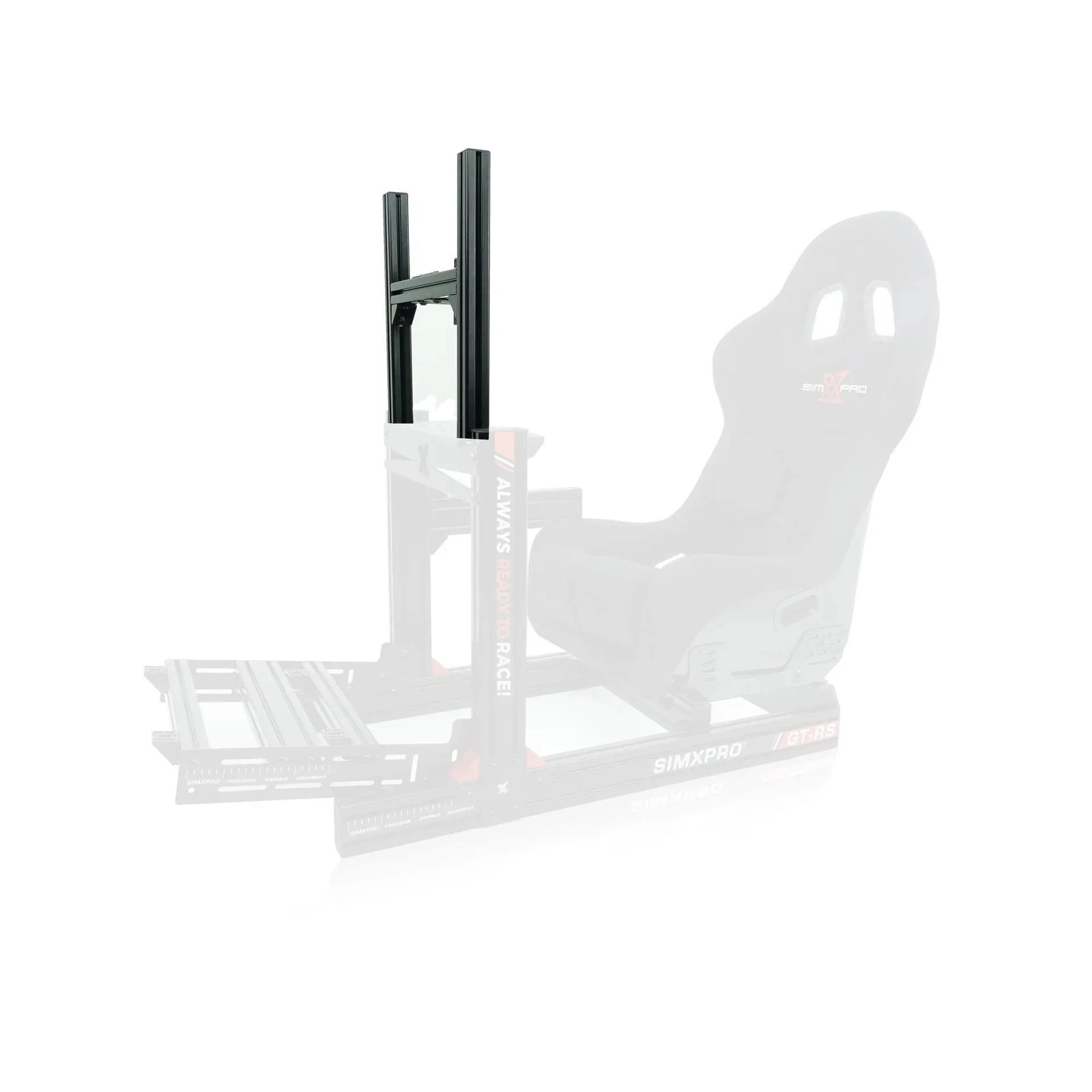
SimXPro GT - RS Single monitor mount