Quick answer
To get the most from your Super 16 RTX 5070 Ti laptop, focus on three things: updating drivers and firmware, configuring power and display settings, and managing storage for your games and projects.
Why the Super 16 needs a deliberate setup
The MAINGEAR Super 16 packs a desktop-grade RTX 5070 Ti GPU and a high-refresh display into a portable chassis. That means it can run demanding games and creative software, but the factory defaults may not be tuned for your specific workload. A few targeted adjustments ensure the hardware runs cool, quiet, and fast without throttling.
How to set up your Super 16 RTX 5070 Ti laptop
- Update GPU and chipset drivers: Go to NVIDIA's website or use GeForce Experience to download the latest driver for the RTX 5070 Ti. Also install the latest chipset driver from Intel or AMD (depending on your CPU). Skipping driver updates is the most common cause of poor frame rates and system instability.
- Configure power and cooling mode: Open Windows power settings and select the High Performance or Ultimate Performance plan. In the MAINGEAR control center (if available), set the fan profile to Auto or Performance to balance noise and thermals. Leaving the default Balanced plan can cap GPU performance, especially during extended gaming sessions.
- Adjust display and refresh rate: Right-click the desktop, go to Display Settings > Advanced Display, and set the refresh rate to the maximum supported (e.g., 240 Hz or 165 Hz). Disable variable refresh rate (VRR) if you notice flicker in some games. Many users forget to change the refresh rate from 60 Hz, wasting the screen's smoothness potential.
- Optimize storage for games and projects: Use the Boost button (if available) to double RAM and storage, or manually install games on the fastest NVMe SSD. Keep at least 20% of the drive free for sustained write performance. Filling the SSD to near capacity can cause stuttering in open-world games and slow down file transfers.
- Run a stress test to verify stability: Use tools like FurMark or 3DMark to run the GPU at full load for 15 minutes. Monitor temperatures with HWMonitor—aim for GPU temps below 85°C under load. If temperatures exceed 90°C, check that the laptop's vents are clear and consider raising the rear for better airflow.
Product highlights
-
Super 16 | RTX 5070 Ti: The Super 16 features an NVIDIA RTX 5070 Ti GPU and a smooth high-refresh display, designed to handle gaming and creative tasks on the go. This means you can run modern games at high frame rates and render projects without being tied to a desktop, but you need to keep drivers current to avoid stutter or crashes.
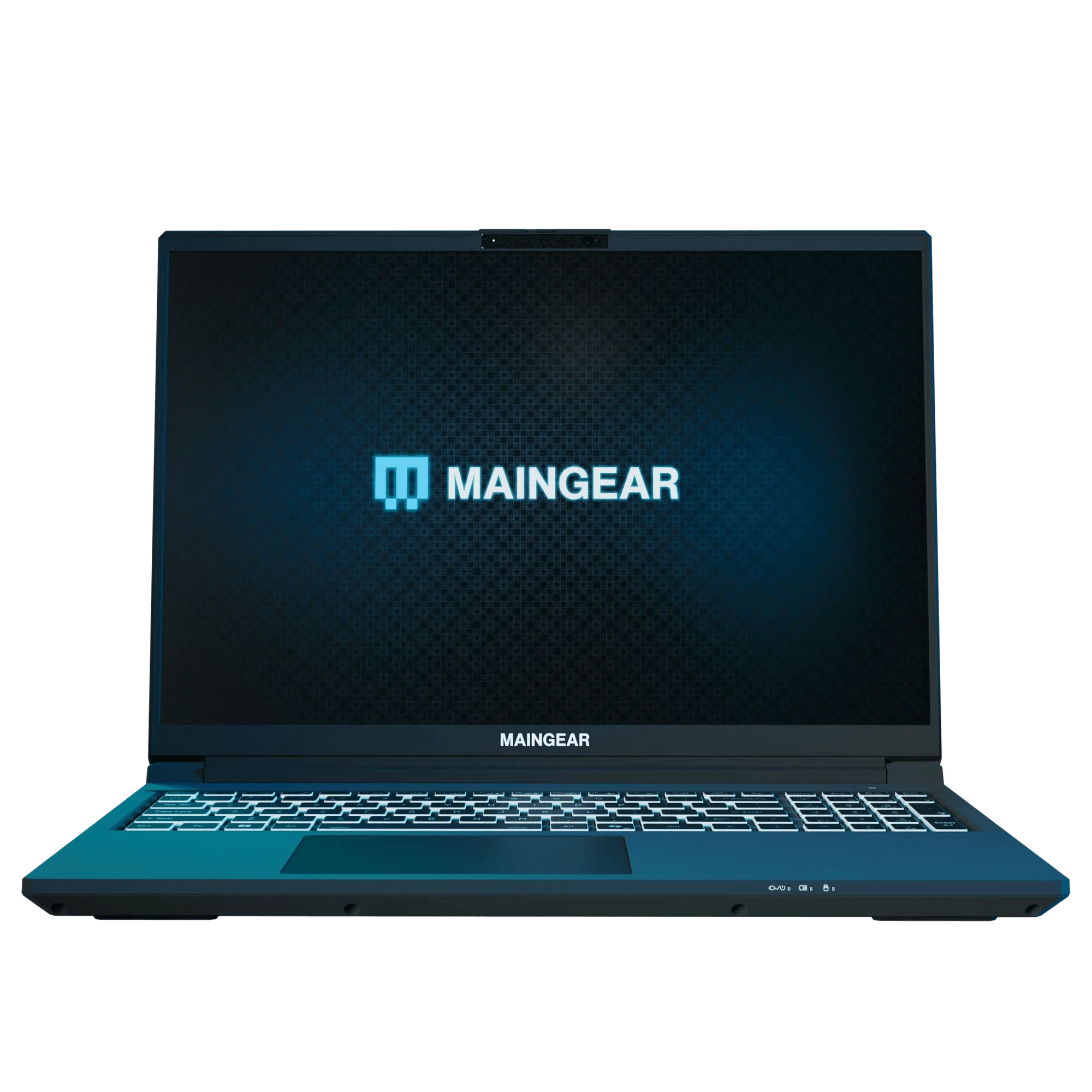
Super 16 | RTX 5070 Ti