Quick answer
Insert a nano SIM card into the slot on the Magnus IV tablet, then enable LTE through Windows 10 Pro's network settings. No driver installation is needed.
Before you start: SIM card size and carrier compatibility
The Magnus IV uses a standard nano SIM card — the smallest form factor used by most modern phones. If your carrier sent a multi-size card, pop out the nano section before inserting.
The device supports 4G LTE on bands B2/B4/B5/B12/B13/B66/B71, which covers AT&T and T-Mobile networks in the US. Check with your carrier that your data plan includes LTE tablet access; some prepaid plans restrict data-only devices.
Where to insert the SIM card
The SIM tray is located on the top edge of the tablet portion (not the docking keyboard). You will need a SIM eject tool or a small paperclip to open it.
The docking keyboard does not have its own SIM slot. LTE connectivity is handled entirely by the tablet module, so keep the tablet portion powered on and within range of the keyboard when using mobile data.
Step-by-step: Insert SIM and activate LTE
- Power off the tablet and locate the SIM tray: Press and hold the power button until the shutdown menu appears, then select Shut down. On the top edge of the tablet, find the small pinhole next to the SIM tray icon. Inserting or removing a SIM while the device is on can cause the card to be unrecognized or corrupt data. Always power off first.
- Eject the tray and insert the nano SIM: Use the SIM eject tool or a straightened paperclip to push into the pinhole until the tray pops out. Place the nano SIM into the tray with the gold contacts facing down and the notched corner aligned with the tray guide. Gently push the tray back in until it clicks flush. If the tray does not slide in easily, the SIM may be upside down or misaligned. Do not force it — check orientation.
- Power on and open network settings: Press the power button to boot Windows 10 Pro. Once at the desktop, click the network icon in the system tray (bottom-right corner) and select Mobile broadband settings from the menu. If the mobile broadband option does not appear, restart the tablet once. Windows 10 Pro usually detects the modem automatically.
- Enter APN details from your carrier: In the mobile broadband settings, click Add an APN and enter the Access Point Name (APN) provided by your carrier (e.g., 'broadband' for AT&T or 'fast.t-mobile.com' for T-Mobile). Save the profile and select it as the default. Using the wrong APN or leaving it blank will prevent data connection. Contact your carrier for the exact APN if you are unsure.
- Test the connection: Turn on mobile data in the network settings. Open a browser and visit a website to confirm internet access. If the connection fails, verify that your data plan is active and that the SIM is fully inserted. If the device shows 'No SIM' after following these steps, power off, reseat the SIM, and try again. Persistent issues may indicate a faulty SIM or tray.
Product facts
-
Magnus IV 4G LTE 10.1" 2-in-1 Laptop, 1280 x 800 IPS High Resolution, Intel Dual Core 4GB/64GB Windows 10 Pro with Docking Keyboard: The Magnus IV has a 10.1” capacitive touch screen with 1280 x 800 IPS resolution and runs Windows 10 Professional. Windows 10 Pro handles LTE activation through its standard mobile broadband settings, so you do not need extra software to get online.
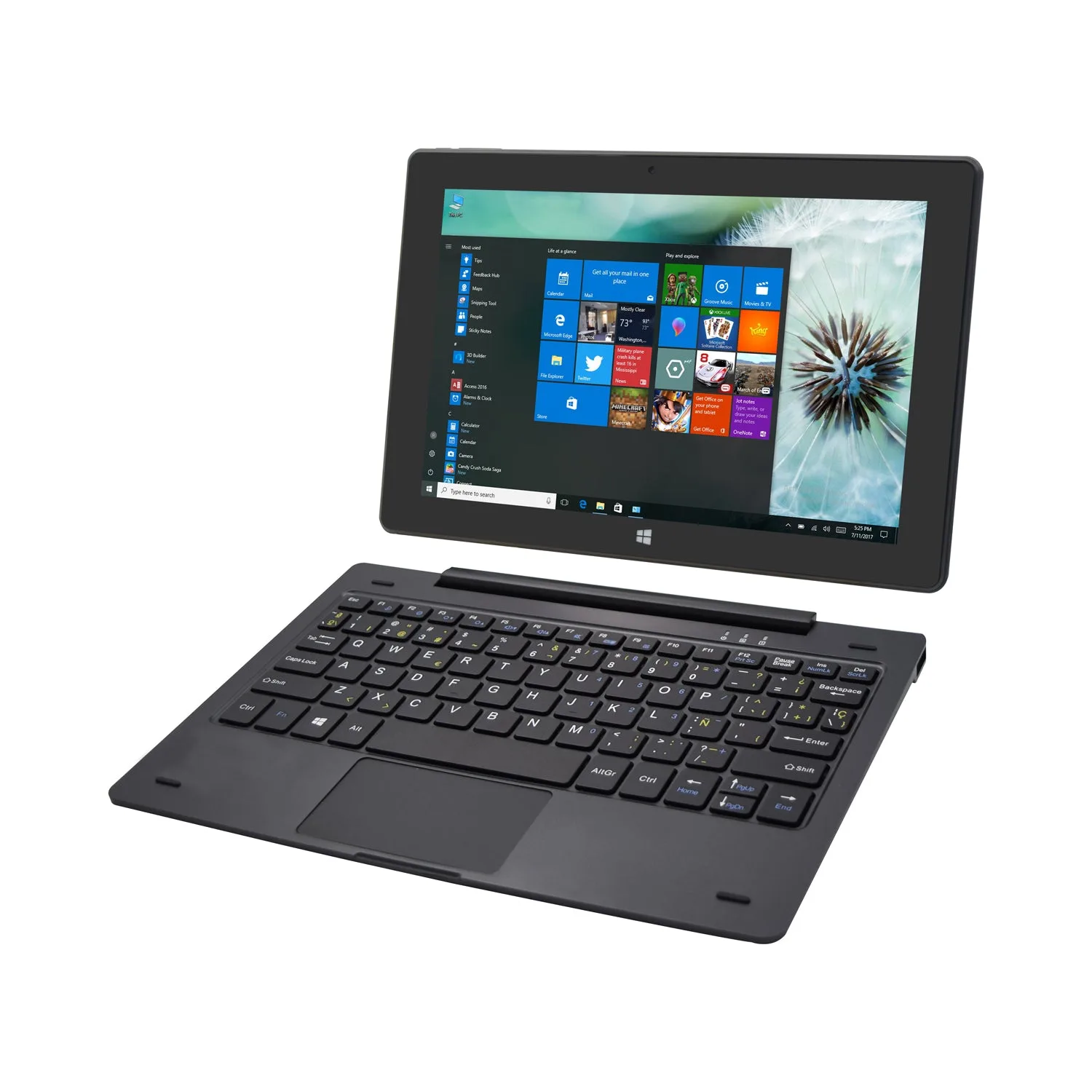
Magnus IV 4G LTE 10.1" 2-in-1 Laptop, 1280 x 800 IPS High Resolution, Intel Dual Core 4GB/64GB Windows 10 Pro with Docking Keyboard