Quick Answer
Setting up your pre-configured laptop for gaming involves unboxing carefully, updating drivers and Windows, configuring power and graphics settings, and installing your games. Follow the steps below to avoid common pitfalls and get the best performance from day one.
Unboxing and Physical Setup
When you first open the box, inspect the laptop and all accessories for any shipping damage. Plug in the power adapter and charge the battery fully before turning it on for the first time. This ensures the battery calibration is accurate and avoids unexpected shutdowns during initial updates.
Place the laptop on a hard, flat surface to allow proper airflow. Using it on a bed or pillow can block vents and cause overheating, which reduces performance and can shorten component life.
Initial Software Configuration
During the Windows setup, choose your region, language, and network. Connect to the internet to download the latest updates. Skip optional offers like Office 365 or third-party antivirus trials for now — you can add them later if needed.
Once at the desktop, go to Windows Update and install all available updates. Restart the laptop as many times as required. This step is critical because many gaming performance improvements come from cumulative Windows and driver updates.
Driver and Graphics Updates
Visit the laptop manufacturer's support page or use the built-in update utility to install the latest chipset, audio, and network drivers. For the graphics card, download the latest driver directly from NVIDIA or AMD — not just from Windows Update — to get game-specific optimizations.
A common mistake is skipping driver updates or using outdated versions. This can cause stuttering, lower frame rates, or compatibility issues with new games. Always reboot after installing drivers.
Power and Performance Settings
Open the Power & Battery settings in Windows and select the High Performance or Ultimate Performance power plan. If your laptop has a dedicated performance mode (often accessible via a keyboard shortcut or pre-installed software), enable it. This allows the CPU and GPU to run at full speed during gaming.
Keep in mind that high-performance mode increases fan noise and heat. This is normal and expected for gaming laptops. Using a cooling pad can help maintain sustained performance during long sessions.
Game Mode and Graphics Settings
In Windows Settings, go to Gaming > Game Mode and turn it on. This prioritizes game processes and minimizes background activity. Then, under Graphics, set individual games to use the high-performance GPU if the laptop has switchable graphics.
For the best experience, also disable hardware acceleration in apps like Discord or your browser while gaming — they can steal GPU resources and cause input lag.
Installing and Configuring Games
Install your games through Steam, Epic Games Store, or directly from the developer. During installation, choose a fast SSD drive (usually the C: drive) for quicker load times. Avoid installing games on an external USB drive unless it's a high-speed USB-C SSD.
After installation, launch each game and adjust the graphics settings. Start with the game's built-in presets (e.g., High or Ultra) and then fine-tune. Turn off motion blur and V-Sync if you prefer higher frame rates over visual smoothness.
Step-by-Step Setup Checklist
- Unbox and charge fully: Inspect for damage, connect the power adapter, and let the battery charge to 100% before first boot. Common mistake: Starting setup on low battery can interrupt updates and cause calibration issues.
- Run Windows Update: Connect to the internet, complete Windows setup, then install all available updates. Restart as needed. Checkpoint: After updates, verify the system is fully up to date before installing drivers.
- Install latest GPU drivers: Download the newest driver from NVIDIA or AMD. Avoid relying solely on Windows Update for graphics drivers. Common mistake: Using outdated drivers leads to stuttering and missed game optimizations.
- Enable High Performance power plan: Set Windows power mode to High Performance or Ultimate Performance. Activate any laptop-specific performance mode. Checkpoint: Expect louder fans and warmer chassis — this is normal under load.
- Turn on Game Mode and assign GPU: Enable Game Mode in Windows Settings. For each game, set it to use the high-performance GPU if available. Common mistake: Forgetting to assign the dedicated GPU results in games running on integrated graphics.
- Install games on the SSD: Choose the internal SSD for game installations to minimize load times. Avoid external drives unless they are high-speed USB-C SSDs. Checkpoint: After installation, launch a game and adjust graphics settings to your preference.
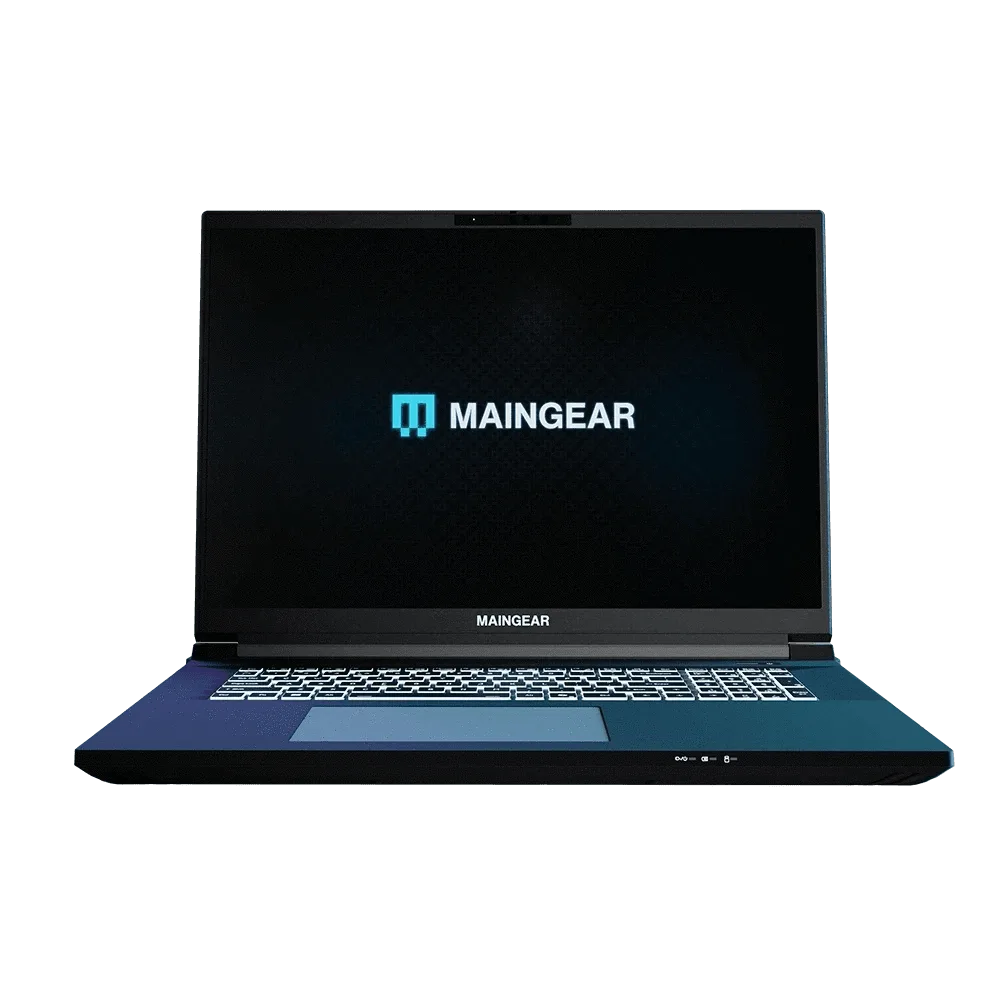
Pre-configured Laptops from MAINGEAR
- Zero Platinum: Compact, clean, and powerful. The Zero puts everything on display, with nothing to hide. Pure gaming performance asking to be customized. The Zero series offers a compact form factor that's easy to set up and fits into any gaming space, while still delivering the performance needed for modern games.
- Zero Elite: Compact, clean, and powerful. The Zero puts everything on display, with nothing to hide. Pure gaming performance asking to be customized. The Zero Elite provides additional customization options and higher-tier components, making it a great choice if you want more headroom for future games without the complexity of a full DIY build.
- MG-1 Ultimate: Crafted for advanced performance, customization, and understated simplicity, the MAINGEAR MG-1 brings your games to the next level. The MG-1 Ultimate is built for enthusiasts who want maximum performance out of the box. Its advanced cooling and premium components mean less tweaking and more gaming.