Quick Answer
Most Turtle Beach microphone failures come from a physical mute switch, a loose connection, or incorrect console/PC settings. Start by checking the headset's mute button and the connection point. If that doesn't work, test the mic on another device to isolate the problem.
A dead microphone can end a gaming session fast. Whether you're coordinating a raid or chatting with friends, a silent mic is frustrating. Fortunately, most Turtle Beach microphone issues have simple fixes you can do in minutes.
This guide walks through the most common causes—from a flipped mute switch to outdated firmware—and shows you how to fix them. We'll also cover when it's time to replace a part instead of troubleshooting further.
Check the Basics: Mute Switch and Connections
Before diving into software settings, start with the physical hardware. Many Turtle Beach headsets have a flip-to-mute microphone or a dedicated mute button on the ear cup. If the mic is flipped up or the button is pressed, you'll be silent. Look for a small LED that often indicates mute status.
Next, inspect the connection. For wired headsets, ensure the 3.5mm jack is fully inserted into the controller or PC. For wireless models, verify the USB transmitter is securely connected to the console. A loose connection can cause intermittent mic failures.
- Toggle the mute switch or flip the mic up and down a few times to ensure it's not stuck.
- Unplug and replug the headset or transmitter to reset the connection.
- If using a controller, try a different port or a wired connection to rule out controller issues.
Adjust Audio and Privacy Settings on Your Device
If the hardware looks fine, the issue might be in your device's settings. On Windows, right-click the speaker icon, select 'Open Sound settings,' and verify the correct input device is selected. Check the input volume and ensure it's not muted. On Xbox, go to Settings > General > Volume & audio output and confirm the headset mic is set as the default.
On PlayStation, go to Settings > Sound > Microphone and adjust the input level. Also, check your privacy settings: on PC, go to Settings > Privacy > Microphone and ensure apps have access. On consoles, check parental controls or privacy settings that might block voice chat.
- Test the mic with a different app (e.g., voice recorder) to see if the issue is app-specific.
- Update your console's system software and the headset firmware via the official app.
Update Firmware and Check for Known Issues
Turtle Beach headsets often rely on firmware updates to fix bugs and improve performance. Use the Turtle Beach Audio Hub (PC/Mac) or the mobile app to update your headset. This can resolve mic issues that stem from outdated software.
Also, check online forums or Turtle Beach support pages for known issues with your specific model. For example, some early Stealth 600 Gen 2 units had mic problems that were later fixed with firmware. If you're experiencing persistent issues, a firmware update might be the solution.
- Download the Turtle Beach Audio Hub from the official website.
- Connect your headset via USB and follow the update instructions.
When to Replace Parts: Transmitters, Cables, and Cushions
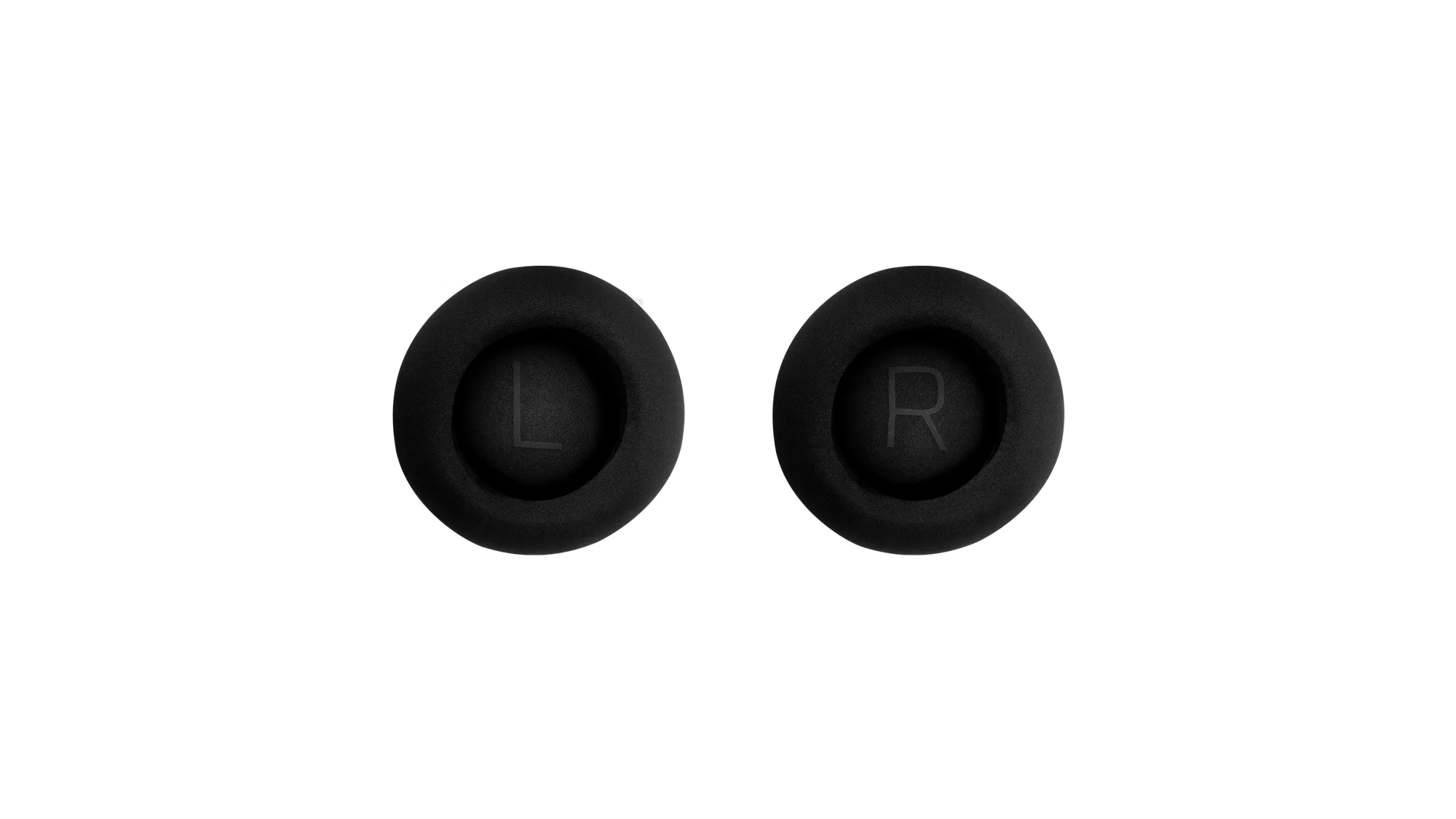
If you've tried all the above and the mic still doesn't work, a hardware component may be failing. The transmitter, cable, or even the ear cushion (which houses the mic in some models) can wear out. For wireless headsets, a faulty transmitter is a common culprit.
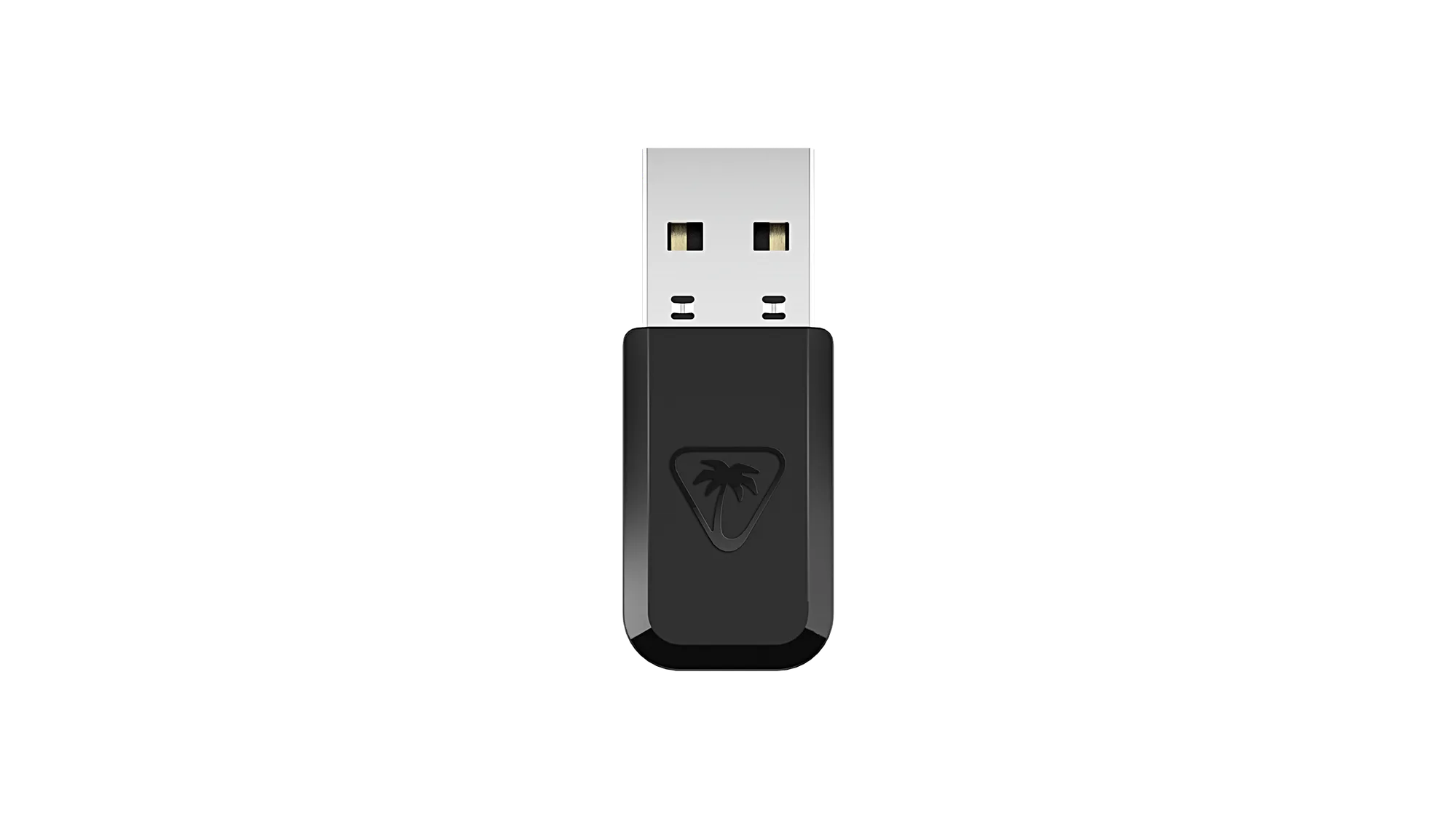
Turtle Beach offers genuine replacement parts. For example, the Stealth 600 Gen 2 MAX Transmitter Teal Xbox is designed to restore wireless connectivity for that headset. Similarly, the Stealth 700 (Gen 3) Xbox USB Devices Transmitter - Black is a direct replacement for the Stealth 700 Gen 3. If your transmitter is damaged, replacing it is often cheaper than buying a new headset.
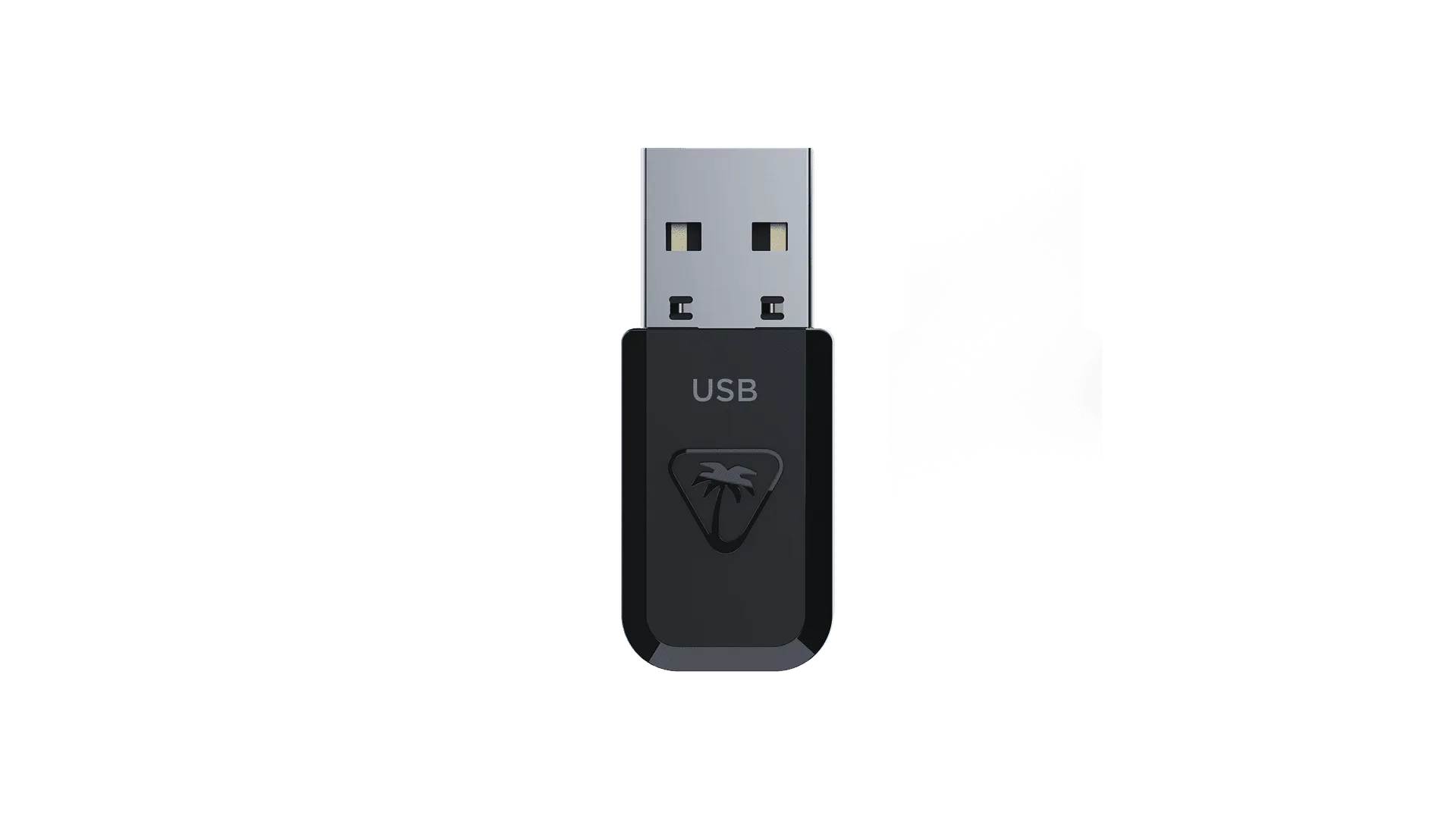
Stealth 700 (Gen 3) Xbox USB Devices Transmitter - Black
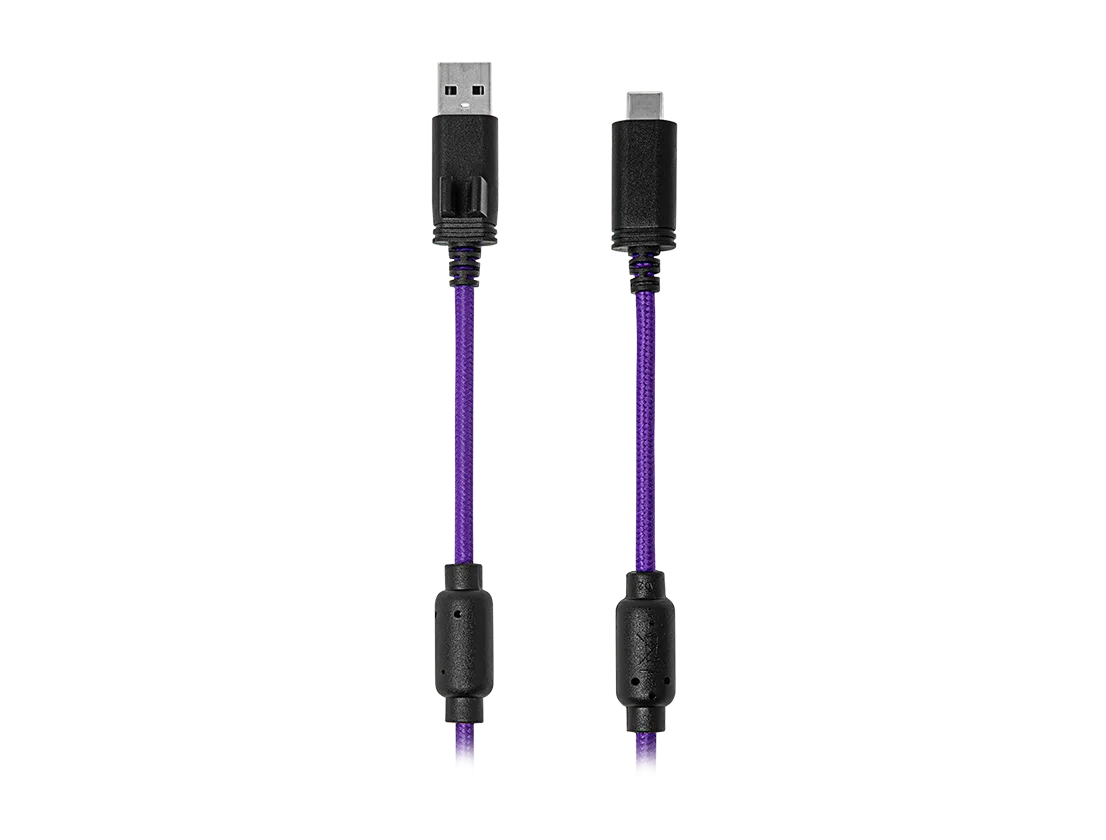
For wired headsets, a damaged cable can cause mic failure. The Stealth Pro Power Cable is a genuine replacement that ensures reliable charging and data transfer. If your cable is frayed or bent, try a new one before considering a full replacement.
- Inspect the transmitter and cable for physical damage.
- Test with a known-good spare part if available.
Diagnosis: Is It the Mic or Something Else?
- Symptom: Mic not picking up voice: Check if the mute switch is on or the mic is flipped up. If not, test the mic on another device (e.g., smartphone) to see if it works. If it works elsewhere, the issue is with your console/PC settings. If not, the mic may be faulty.
- Symptom: Mic works but is intermittent: Inspect the cable and transmitter for damage. Try a different USB port or re-pair the headset. If the problem persists, consider replacing the transmitter or cable.
- Symptom: Mic works in some apps but not others: Check app permissions and default input device settings. Update the app and your system. If all settings are correct, the issue might be with the app itself.
Genuine Replacement Parts That Can Fix Mic Issues
- Stealth 600 Gen 2 MAX Transmitter Teal Xbox: This genuine Turtle Beach Stealth 600 Gen 2 MAX Transmitter in Teal is a replacement part designed for use with your Stealth 600 Gen 2 MAX headset on Xbox. It allows you to restore wireless connectivity and keep your gaming audio experience uninterrupted. If your wireless mic cuts out due to a failing transmitter, swapping in this OEM part can restore both audio and mic function without buying a new headset.
- Stealth 700 (Gen 3) Xbox USB Devices Transmitter - Black: The Stealth 700 (Gen 3) Xbox USB Transmitter is a replacement part designed for use with your Turtle Beach Stealth 700 Gen 3 headset. This black transmitter connects via USB and is intended for Xbox consoles. A faulty transmitter can cause intermittent mic drops. This genuine replacement ensures a stable wireless connection for your Stealth 700 Gen 3.
- Stealth Pro Power Cable: The Turtle Beach Stealth Pro Power Cable is a genuine replacement part designed for your Stealth Pro headset. This cable ensures reliable charging so you can keep your game going without interruption. If your Stealth Pro mic issues stem from a damaged charging cable, this replacement ensures your headset stays powered and ready for voice chat.
A silent mic doesn't have to ruin your game. Start with the simplest checks—mute switch, connections, and settings—and work your way up. If hardware is the culprit, genuine Turtle Beach replacement parts can save you money. For persistent issues, contact Turtle Beach support for further assistance.