Quick Answer
To set up the UGREEN 11-in-1 docking station with SSD enclosure, connect the dock to your Mac via the USB-C cable, install your NVMe SSD into the enclosure, then connect your peripherals and power adapter in the right order.
Why the Connection Order Matters
Connecting the dock to your Mac before installing the SSD or attaching peripherals helps avoid detection issues. The dock enumerates devices as they are connected, so starting with the host cable ensures the dock is recognized first.
If you plug in a monitor or SSD before the dock is fully recognized, macOS may not assign the correct display settings or mount the drive. A simple restart of the dock usually fixes this.
SSD Compatibility and Installation
The dock includes an NVMe SSD enclosure, so you need an M.2 NVMe SSD (not SATA). The enclosure fits standard 2280 size drives, but check the product images and manual for exact dimensions.
When installing the SSD, align the notch on the connector and gently push it in at a 30-degree angle until it clicks. Secure it with the screw or clip provided. Do not force it if it does not fit—check the keying (M-key vs B&M-key).
Powering the Dock
The dock requires the included power adapter to deliver full performance, especially when driving multiple monitors or charging a laptop. Without it, the dock may not provide enough power to the SSD or connected devices.
Always connect the power adapter to the dock before plugging the dock into your Mac. This ensures stable power delivery and avoids intermittent disconnections.
Step-by-Step Setup Guide
- Connect the power adapter: Plug the included power adapter into the dock's power port and into a wall outlet. Wait for the LED indicator (if present) to light up. A powered dock prevents undervoltage issues that can cause devices to drop.
- Install the NVMe SSD: Open the SSD enclosure cover, insert your M.2 NVMe SSD at a 30-degree angle, press down, and secure it with the screw. Replace the cover. Make sure the SSD is fully seated; a loose connection can cause data loss or drive not recognized.
- Connect the dock to your Mac: Use the included USB-C cable to connect the dock to your Mac. Your Mac should recognize the dock and mount the SSD automatically. If the SSD does not appear, check Disk Utility on macOS to see if it needs formatting.
- Attach your peripherals: Connect your monitor, keyboard, mouse, and other devices to the dock's ports. The dock supports multiple displays, but check the maximum resolution and refresh rate for your specific Mac model. For multi-monitor setups, connect the highest-resolution display first.
- Verify and format the SSD (if needed): Open Disk Utility, find the SSD, and if it is unformatted, choose APFS (for Mac) or exFAT (for cross-platform use) and click Erase. Formatting erases all data on the drive—double-check you have the right disk selected.
Product Facts
-
UGREEN Station d’accueil 11-en-1 pour Mac avec boîtier SSD NVMe: The UGREEN 11-in-1 docking station for Mac includes an NVMe SSD enclosure and is listed under Hubs and Docks. This means you can expand storage directly on the dock, keeping your Mac's internal drive free while adding high-speed NVMe storage.
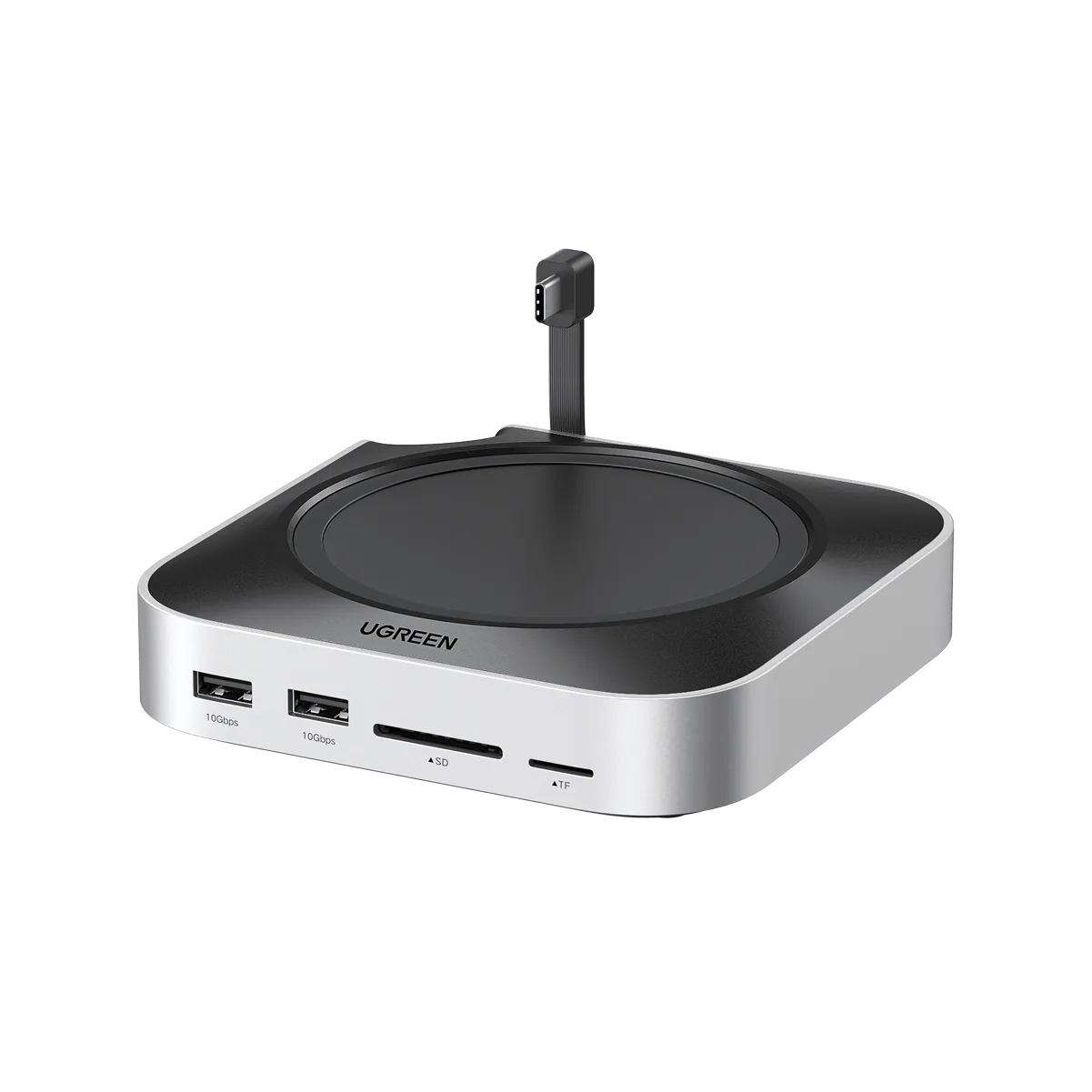
UGREEN Station d’accueil 11-en-1 pour Mac avec boîtier SSD NVMe