Quick Answer
Most karaoke microphone dropouts come from three fixable issues: a weak or dying battery, a wireless channel clash with Wi-Fi or other mics, or a cable and connector problem on wired setups. Start by swapping in a fresh battery or fully charging the mic, then switch channels and move the receiver away from routers or metal surfaces. If the cutouts continue after those steps, the problem is likely inside the mic or speaker and you should stop troubleshooting and repair or replace the unit.
You are mid-chorus when the mic goes silent, then crackles back. That kind of dropout ruins the moment, but it is almost always a signal, power, or level problem you can isolate in a few minutes.
This guide separates each symptom from its likely cause so you can fix the right thing instead of guessing. It covers wireless and wired mics, common interference sources, and the point where you should stop troubleshooting and choose a different setup.
Symptom 1: The Mic Cuts Out at a Distance
If the mic works close to the speaker but drops when you walk across the room, the issue is usually signal range or obstruction, not the microphone capsule itself. Wireless mics operate on UHF or 2.4 GHz bands, and both are affected by walls, bodies, and metal structures. Move the receiver or speaker to a higher, open position and keep a clear line of sight between the mic and the receiver. If your mic has adjustable channels, switch to a different one and rescan for a clean frequency.
Distance dropouts also happen when the receiver is tucked behind a TV, inside a cabinet, or next to a Wi-Fi router. Those placements block or compete with the signal. A simple reposition often restores full-range performance without buying anything new.
- Keep the receiver at least 3 feet away from Wi-Fi routers, cordless phones, and metal shelving.
- Raise the receiver above head height if possible.
- Test the mic at the farthest point you plan to use it before the party starts.
Symptom 2: Static, Crackle, or Intermittent Sound
Static that comes and goes is different from a clean dropout. It often points to interference or a loose connection. On wireless systems, interference can come from other wireless devices, LED lighting, or even a nearby microwave. Switch the mic to a different channel and see if the static follows. If it does, the mic or receiver is the source. If it stays on the same channel, something in the room is broadcasting on that frequency.
On wired mics, crackle usually means a failing cable or a dirty connector. Swap the cable first, then clean the connector with contact cleaner. If the static remains after both steps, the issue is inside the microphone or the speaker input jack.
- Test with a different cable before assuming the mic is broken.
- Avoid running mic cables parallel to power cables.
- Check that the mic connector is fully seated, not just snug.
Symptom 3: Volume Drops or the Mic Sounds Weak
If the mic is audible but quiet, the problem is usually gain staging, not signal loss. Check the mic volume knob on the speaker or mixer first, then the mic's own gain switch if it has one. Many karaoke speakers have separate mic and music volume controls, and it is easy to turn down the wrong one. Also confirm the mic is not muted by a physical switch or a low-battery indicator.
On systems with multiple mic inputs, a weak channel can be caused by a mismatched impedance or a faulty input. Try the mic in a different input to see if the volume returns. If it does, the original input needs service.
- Set the mic gain to about 70% and adjust the speaker volume from there.
- Keep the mic within 2–3 inches of your mouth for consistent level.
- Test each mic input separately to isolate a bad channel.
Symptom 4: The Mic Dies Completely After a Short Time
A mic that works for ten minutes and then dies is almost always a battery problem. Rechargeable mics lose capacity over time, and standard AA or AAA batteries can be drained by a stuck button or a faulty charging contact. Charge the mic fully, then note how long it lasts. If it is significantly shorter than the rated runtime, the battery is failing. For mics with USB-C recharging, try a different cable and wall adapter, since some low-power chargers cannot deliver enough current.
If the mic has a removable battery, replace it with a fresh one of the same type. Do not mix old and new batteries, and do not use rechargeable batteries in a device that expects alkaline unless the manual says it is safe.
- Charge the mic overnight before an event.
- Carry spare batteries or a power bank for USB-C mics.
- If runtime is under half the rated time, replace the battery or the mic.
When to Stop Troubleshooting and Choose Another Option
If you have swapped batteries, changed channels, moved the receiver, tested cables, and adjusted gain, and the mic still cuts out, the problem is likely internal. At that point, further troubleshooting wastes time. For a mic under warranty, contact the manufacturer. For an older or budget mic, replacing it is usually cheaper than repairing it.
If your speaker has a built-in wireless mic that keeps dropping, consider a standalone wireless mic system that connects to the speaker's mic input. That separates the mic from the speaker's internal receiver and often solves persistent interference problems.
- Stop if the mic cuts out even when held 1 foot from the receiver.
- Stop if the battery drains in under 30 minutes after a full charge.
- Stop if the same dropout happens on multiple speakers or channels.
Mic Dropout Diagnostic Checklist
- Battery and power: Check the mic's battery level or charge status first. A weak battery is the most common cause of dropouts and static. If a fresh battery or full charge fixes it, you are done.
- Wireless channel and placement: Switch to a different channel and move the receiver away from routers, metal, and other wireless devices. If the dropout follows the channel, the interference source is external.
- Cables and connectors: For wired mics, swap the cable and clean the connector. For wireless, check that the receiver's output cable is secure. If a new cable fixes it, replace the old one and keep a spare.
- Gain and volume settings: Confirm the mic input is not muted and the gain is set correctly on both the mic and the speaker. If the level is fine but the sound is still weak, test another input.
- Internal fault: If all external checks pass and the mic still cuts out, the fault is inside the mic or speaker. Stop troubleshooting and contact support or replace the unit.
Products That Address Common Mic Problems
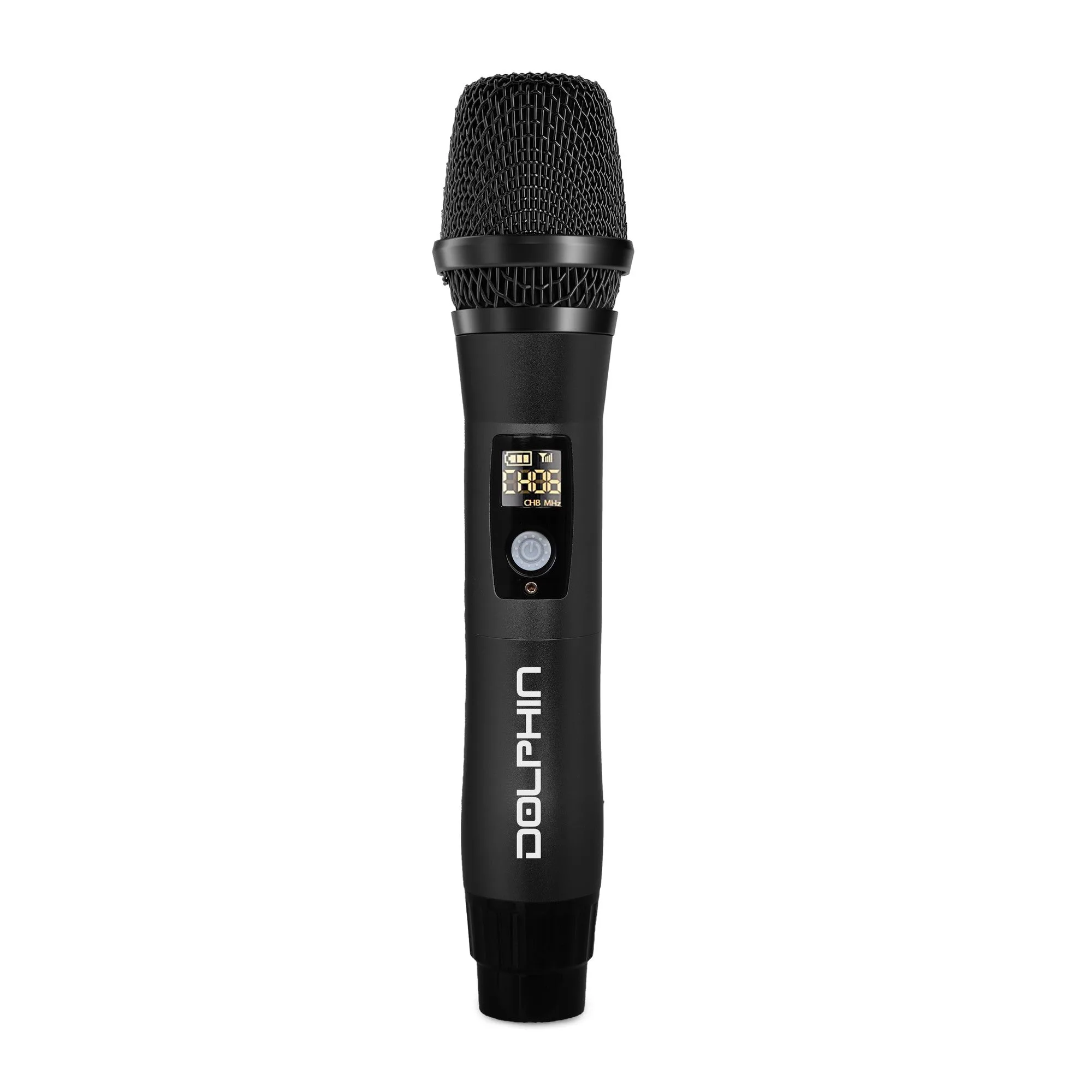
- PartyMic 11: The PartyMic 11 UHF Wireless Microphone offers USB-C recharging and 50 switchable channels with anti-interference technology and DSP. If your current mic has fixed channels and no rechargeable battery, the PartyMic 11 gives you channel flexibility to dodge interference and USB-C convenience to avoid last-minute battery runs.
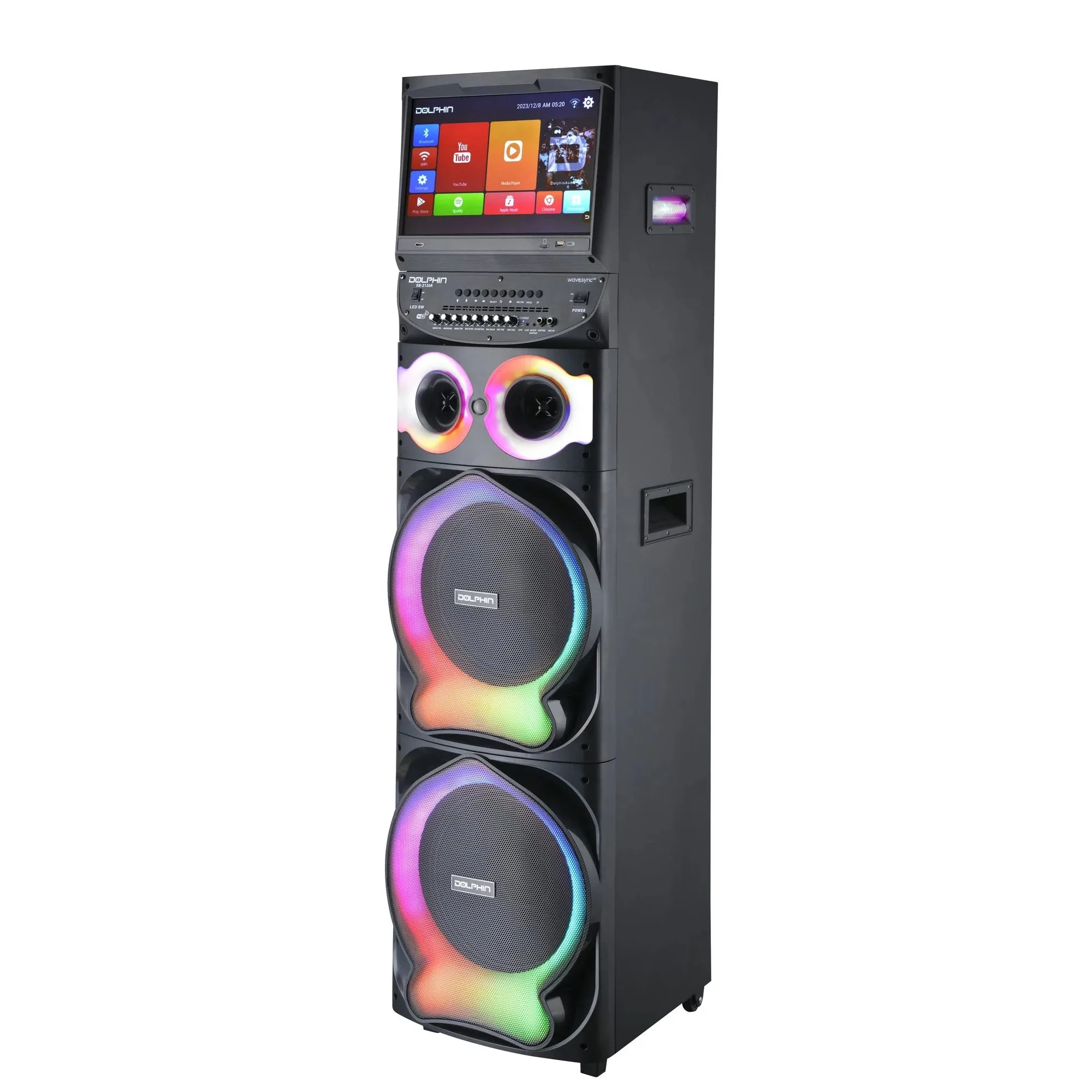
- Karaokebox 2120: The Karaokebox 2120 Dual 12” Karaoke Speaker includes WaveSync Technology and dual wireless microphones. A system with matched dual mics and synced audio reduces the chance of one mic dropping while the other works, and the included mics are designed to work together without channel clashes.
Most karaoke mic dropouts are solved by a fresh battery, a cleaner channel, or a better receiver position. Work through the checklist in order, and if the problem survives all five steps, stop guessing and get the mic serviced or replaced.