Quick answer
HDMI flicker on a camera monitor is most often caused by a damaged cable, a loose connection, or electromagnetic interference. Work through the diagnosis below to isolate the exact cause before replacing any gear.
Why HDMI flicker happens on camera rigs
Camera rigs are mobile by nature. Cables get bent, twisted, and yanked during setup, tear-down, and shooting. Over time, internal wire fatigue or a bent connector can cause intermittent contact that shows up as flicker, snow, or signal dropouts. A second common cause is electromagnetic interference from nearby wireless transmitters, power cables, or gimbal motors. Finally, a loose HDMI port on the monitor or camera—often from the weight of a thick cable pulling on the connector—can produce the same symptom.
When to suspect the cable vs. the port
If the flicker appears only when the cable is moved or bumped, the cable is the likely culprit. If the flicker is constant regardless of cable position, the port or the source device may be at fault. A quick swap with a known-good cable (preferably a shorter, lighter one) will tell you which it is. Thick, long HDMI cables add leverage that can stress ports; a thin, short cable like the SmallHD Thin Micro HDMI Male Cable (12″) reduces that strain and is easier to route on a compact rig.
HDMI flicker diagnosis
- Symptom: The monitor image flashes, goes black, or shows static/snow intermittently. The flicker may stop when the cable is held in a certain position.
- Likely cause: Damaged HDMI cable (internal wire break or bent connector), loose HDMI connection, or electromagnetic interference from nearby wireless gear or power cables. If the flicker is constant and does not change with cable movement, the port or source device may be faulty.
- Corrective action: 1) Power off all devices. 2) Inspect both HDMI connectors for bent pins or debris. 3) Reseat the cable firmly at both ends. 4) If the flicker persists, swap the cable with a known-good, shorter, and lighter cable (e.g., a 12″ thin micro HDMI cable). 5) If the flicker stops, the original cable is damaged. 6) If it continues, move wireless transmitters at least 6 inches away from the cable and monitor. 7) Test with a different monitor or camera to isolate the port. If the flicker stops after step 4, replace the damaged cable. If it continues after step 7, the port or device needs service.
- Stop or choose another option: If swapping the cable and repositioning wireless gear does not resolve the flicker, the issue is likely a damaged HDMI port on the monitor or camera, or a failing internal component. At this point, stop DIY troubleshooting and contact the manufacturer or a qualified repair technician. Do not force a bent connector into the port, as this can cause permanent damage. A persistent flicker after these steps indicates hardware failure beyond cable replacement.
Product facts
-
SmallHD Thin Micro HDMI Male Cable (12″) – Cordon Micro HDMI: The SmallHD Thin Micro HDMI Male Cable (12″) is designed for broadcast professionals needing reliable signal transmission with reduced data loss and interference. Its short 30 cm length and thin profile minimize leverage on the monitor port and are easier to secure against vibration, making it a practical first swap when diagnosing flicker on a compact rig.
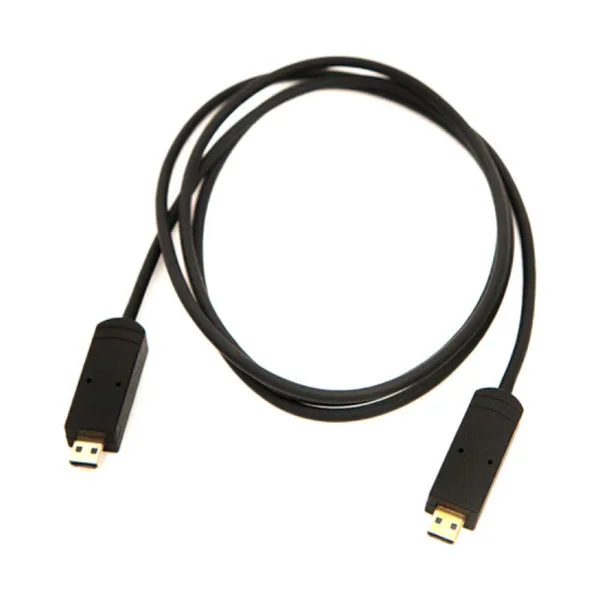
SmallHD Thin Micro HDMI Male Cable (12″) – Cordon Micro HDMI