Quick Answer
Attach the SANDMARC Anamorphic Lens to your Samsung Ultra using the included clip or case mount, align the lens markings horizontally, then shoot in your camera app at 24fps for cinematic widescreen footage with oval bokeh and horizontal lens flares.
Why Use an Anamorphic Lens on Samsung Ultra
Standard phone cameras crop the sensor to record 16:9 video, losing vertical detail. An anamorphic lens squeezes a wider horizontal image onto the same sensor, giving you an ultra-wide aspect ratio (usually 2.35:1 or 2.4:1) without cropping. The result is the same widescreen look used in Hollywood films.
The SANDMARC Anamorphic Lens also adds oval bokeh and horizontal lens flares — two signature cinematic effects that are difficult to replicate in post-processing. This lens is designed specifically for the Samsung Ultra's main camera, so you get consistent sharpness across the frame.
What You Will Need
Before starting, make sure you have the SANDMARC Anamorphic Lens Edition for Samsung Ultra, a compatible phone case or clip mount (sold separately if not included), a clean microfiber cloth, and the Samsung Camera app (third-party apps like Filmic Pro or MCam are optional but offer manual controls).
Step-by-Step Setup Guide
- 1. Clean the Camera Lens: Use a microfiber cloth to remove any smudges or dust from the Samsung Ultra's main rear camera lens. Even a small fingerprint can soften the anamorphic effect. A dirty lens causes flare artifacts and loss of sharpness.
- 2. Attach the Anamorphic Lens: Align the SANDMARC Anamorphic Lens over the main camera module and secure it using the included clip or case mount. Ensure the lens is centered and sits flush — a misaligned lens will cause vignetting (dark corners). Check that no part of the lens housing blocks the camera's field of view.
- 3. Rotate for Horizontal Alignment: Rotate the lens barrel so the engraved markings (usually a line or dot) are perfectly horizontal. This aligns the anamorphic squeeze axis. If the markings are off, your footage will appear stretched or compressed incorrectly. Use the phone's grid lines or a level app for precision.
- 4. Set Camera to 24fps (or 30fps): Open the Samsung Camera app, switch to Video mode, and set the frame rate to 24fps for a filmic motion cadence. 30fps works for smoother motion but looks less cinematic. Avoid 60fps unless you plan to slow down footage. 24fps is the standard for cinematic video — higher frame rates reduce the film look.
- 5. Lock Exposure and Focus: Tap and hold on the subject to lock exposure and focus (AE/AF lock). Anamorphic lenses can confuse auto-focus because of the squeezed image, so manual lock prevents pulsing. Adjust exposure compensation if the scene is too bright or dark. If you see flickering, switch to a manual camera app and set shutter speed to double the frame rate (e.g., 1/50s for 24fps).
- 6. Record and Desqueeze in Post: Record your video. The footage will appear vertically stretched in the camera preview and in your gallery — this is normal. Use a video editor (CapCut, Premiere Pro, DaVinci Resolve) to apply a 1.33x or 1.5x horizontal stretch (desqueeze) to restore the correct widescreen aspect ratio. Do not skip desqueezing — without it, faces and objects will look tall and distorted.
Product Facts
-
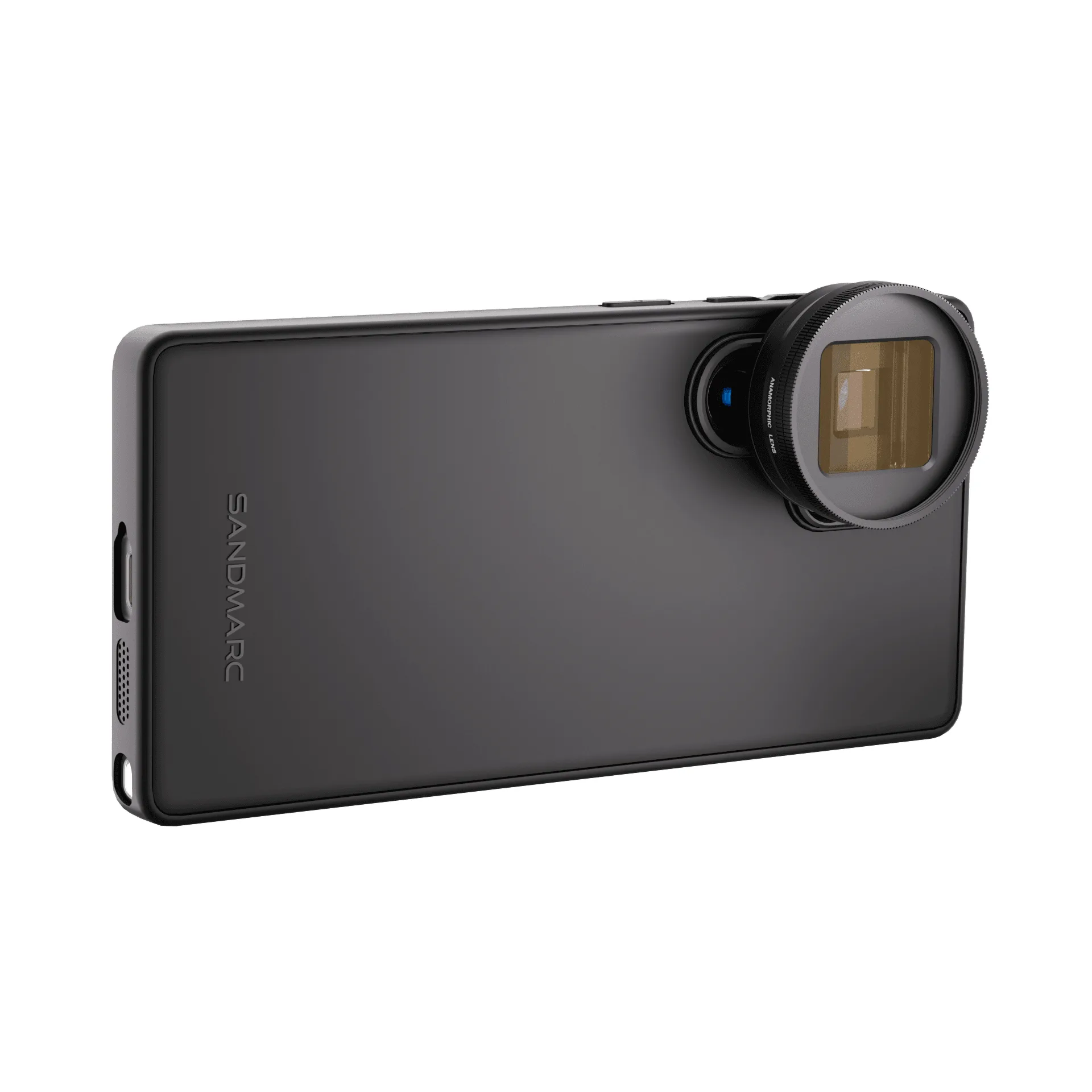
Anamorphic Lens Edition - Samsung Ultra: Designed with the serious filmmaker in mind, the SANDMARC Anamorphic lens allows you to capture cinematic footage with ultra-wide aspect ratio, oval bokeh and horizontal lens flares. You get a true widescreen look straight out of camera, with no cropping or digital effects needed.
Anamorphic Lens Edition - Samsung Ultra