Quick answer
To set up your BRAUN DigiFrame 81 Slim, insert a memory card with your photos, connect the power, and use the remote to start a slideshow. The 8-inch IPS display shows clear images, and you can also play music and video clips.
What you need before starting
The BRAUN DigiFrame 81 Slim works best with a memory card (SD or SDHC) that already has your photos, music, or video files. The frame also has a USB port for a flash drive. Make sure your files are in common formats like JPEG for photos, MP3 for music, and MP4 for video up to 1080p.
The frame includes a remote control and a power adapter. The built-in speaker and headphone jack let you enjoy audio content, but the speaker is only 1W, so it is fine for a small room.
Common setup mistakes to avoid
A frequent issue is inserting the memory card the wrong way. The card slot is on the side; the label on the card should face you when inserting. Also, do not remove the card while the frame is reading it, or you may corrupt the files.
Another mistake is forgetting to set the slideshow mode. By default, the frame may show a single image. Use the remote to select slideshow and adjust timing in the settings menu.
Step-by-step setup
- Insert the memory card: Turn off the frame. Insert your SD or SDHC card into the side slot with the label facing you. Push until it clicks. Do not force it. Check that the card is fully inserted; a loose card can cause read errors.
- Connect power and turn on: Plug the power adapter into the frame and a wall outlet. Press the power button on the top or use the remote. The frame will boot and show a menu. Use only the supplied adapter; third-party chargers may not provide the correct voltage.
- Navigate to your photos: Use the remote to select 'Photo' or 'File Browser'. Choose your memory card. The frame will display thumbnails. Select an image to view it full-screen. If no images appear, check that the card is formatted as FAT32 and contains JPEG files.
- Start a slideshow: Press the 'Slideshow' button on the remote. To adjust timing, go to Settings > Slideshow Interval and choose 3, 5, or 10 seconds. You can also set transition effects. The slideshow will loop continuously until you stop it; press 'Stop' to pause.
- Play music or video (optional): From the main menu, select 'Music' or 'Video'. Choose a file. Use the remote to control volume (0-15). For headphones, plug into the 3.5mm jack on the side. Video playback supports up to 1080p; higher resolutions may not play smoothly.
Product facts
-
BRAUN DigiFrame 81 Slim: The BRAUN DigiFrame 81 Slim has an 8-inch IPS display with LED backlight, a built-in 1W speaker, and a headphone jack. The IPS screen gives wide viewing angles and bright colors, while the speaker lets you play music or video sound without external speakers.
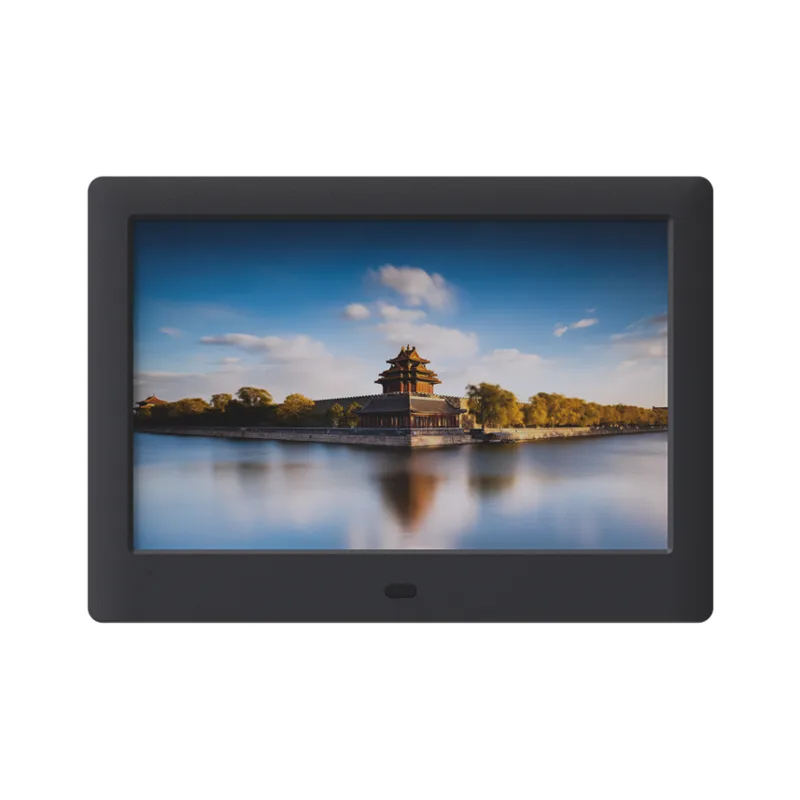
BRAUN DigiFrame 81 Slim