Quick Answer
The CORSAIR AIR 5400 RS-R ARGB in white is an excellent foundation for a clean, all-white PC build. Its three-chamber design separates airflow and hides cables, making a white-out aesthetic easier to achieve.
Why the AIR 5400 RS-R Works for a White Build
A white PC case is only part of the equation. The AIR 5400 RS-R's triple-chamber layout gives you dedicated space for the motherboard, PSU, and cable management, which keeps the front compartment nearly wire-free. This is especially helpful when you want to show off white components and RGB lighting without dark cables cluttering the view.
The case also supports reverse-connector motherboards, which can route most cables out of sight behind the motherboard tray. If you're building from scratch, a white motherboard with rear connectors simplifies the clean look even further.
Component Selection Trade-offs
Matching white components can be tricky because not every part comes in the same shade of white or the same finish. The AIR 5400 RS-R uses a matte white exterior with a tempered glass front and side panel. To keep the look consistent, choose matte white or silver parts for the GPU, cooler, and fans. Glossy white parts will stand out in contrast, which may or may not suit your preference.
For the PSU, fully modular white cables are worth the extra cost. The case hides the PSU in its own chamber, but any visible cables near the motherboard tray should match the theme.
Building Your White PC: Step by Step
- Plan Your Component Palette: List every visible part—motherboard, GPU, cooler, fans, cables—and confirm they are available in white or light silver. Use PCPartPicker or a manual checklist to avoid mismatched shades. Common mistake: assuming all white parts match. Compare photos or manufacturer samples before buying.
- Prepare the Case Chambers: Remove both side panels and the front glass. The AIR 5400 RS-R has a separate PSU chamber and a cable management chamber behind the motherboard tray. Install the I/O shield and any pass-through grommets before mounting the motherboard. Checkpoint: install the CPU and RAM on the motherboard outside the case to avoid scratching the white interior.
- Mount the Motherboard and Cooler: Place the motherboard in the main chamber. If using a 360mm AIO, route the radiator into the top chamber before securing the motherboard. For reverse-connector boards, route all cables behind the tray first. Common mistake: forgetting to feed AIO tubes or fan cables before tightening the motherboard screws.
- Route and Hide Cables: Use the cable management chamber to run PSU cables, fan cables, and the ARGB controller cables. Secure them with the included velcro straps. Keep the front chamber as empty as possible for a clean white look. Checkpoint: plug in all cables at the PSU and motherboard before closing the back panel—reopening is tedious.
- Set Up ARGB Lighting: Connect the included ARGB fans and any additional RGB strips to the case's built-in controller or your motherboard's software. Set a unified white or pastel color profile to match the case exterior. Common mistake: mixing ARGB and non-ARGB fans in the same lighting zone, causing uneven brightness.
- Final Check and Power On: Double-check all connections, especially the GPU power and RAM seating. Close the glass panels, power on, and verify that all fans spin and lighting works. Adjust fan curves in iCUE or your motherboard software for quiet operation. Checkpoint: run a stress test for 10 minutes to confirm thermals are stable before moving the PC to its final spot.
Product Facts
-
AIR 5400 RS-R ARGB Dreikammer-Mid-Tower PC-Gehäuse – Weiß: Dreikammer-Mid-Tower-ATX-Gehäuse mit umlaufendem Glasgehäuse, doppelten Luftstromkanälen, 360-mm-AIO-Kammer The triple-chamber design keeps the main compartment clean for a white aesthetic, while the dedicated 360mm AIO chamber lets you mount a liquid cooler without crowding the build.
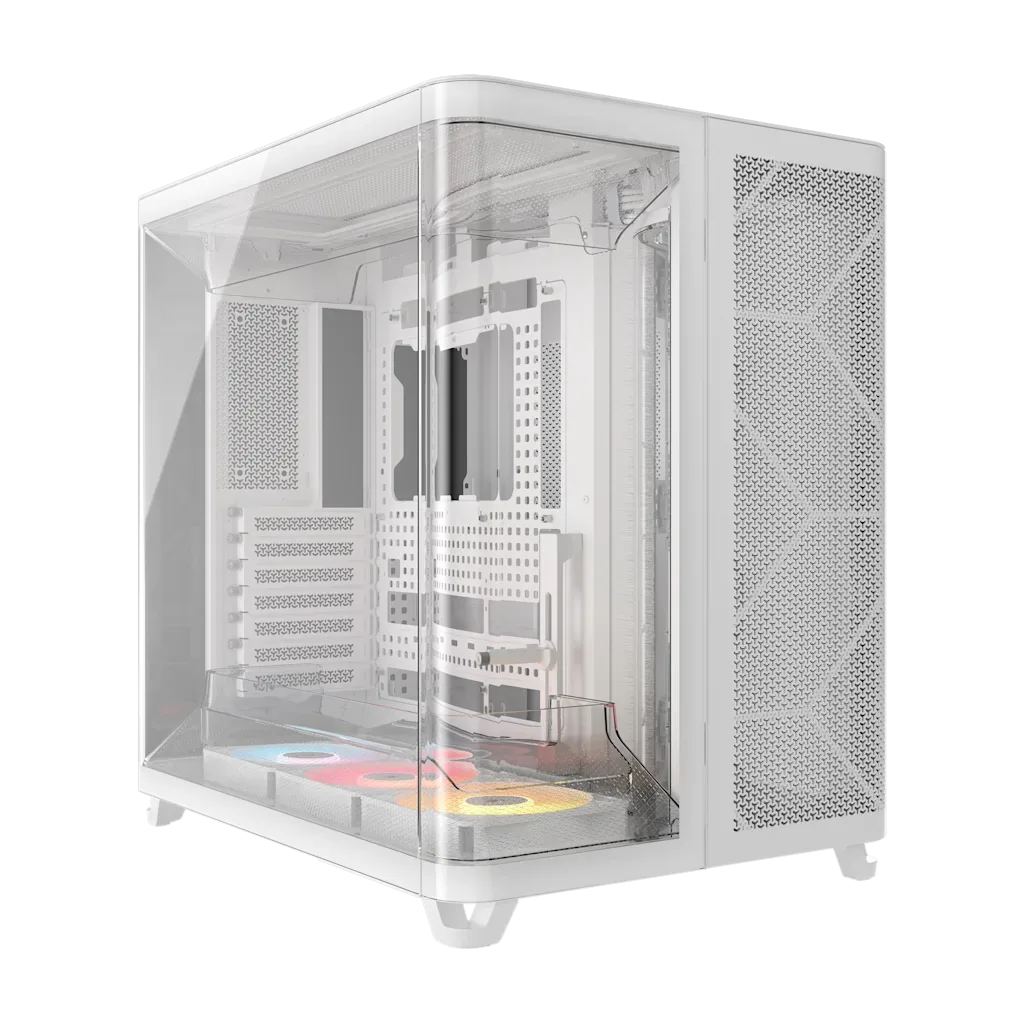
AIR 5400 RS-R ARGB Dreikammer-Mid-Tower PC-Gehäuse – Weiß