Quick Answer
To connect your AISLPC handheld to a TV, plug the mini HDMI end of the AISLPC Handheld to TV HDMI Cable into your console and the standard HDMI end into your TV. Switch the TV to the correct HDMI input, and your handheld's screen will appear on the big display. For the best experience, use a console with a video output port like the RG series.
Playing retro games on a small handheld screen is great for portability, but sometimes you want to share the experience on a bigger screen. Whether you're showing off your high score to friends or just want a more comfortable viewing angle, connecting your AISLPC retro handheld to a TV is a straightforward process.
This guide walks you through the entire setup, from choosing the right cable to troubleshooting common issues. We'll focus on the AISLPC Handheld to TV HDMI Cable, designed for compatible AISLPC retro handheld consoles, and cover the steps to get you gaming on the big screen in no time.
What You Need to Connect Your Handheld to a TV
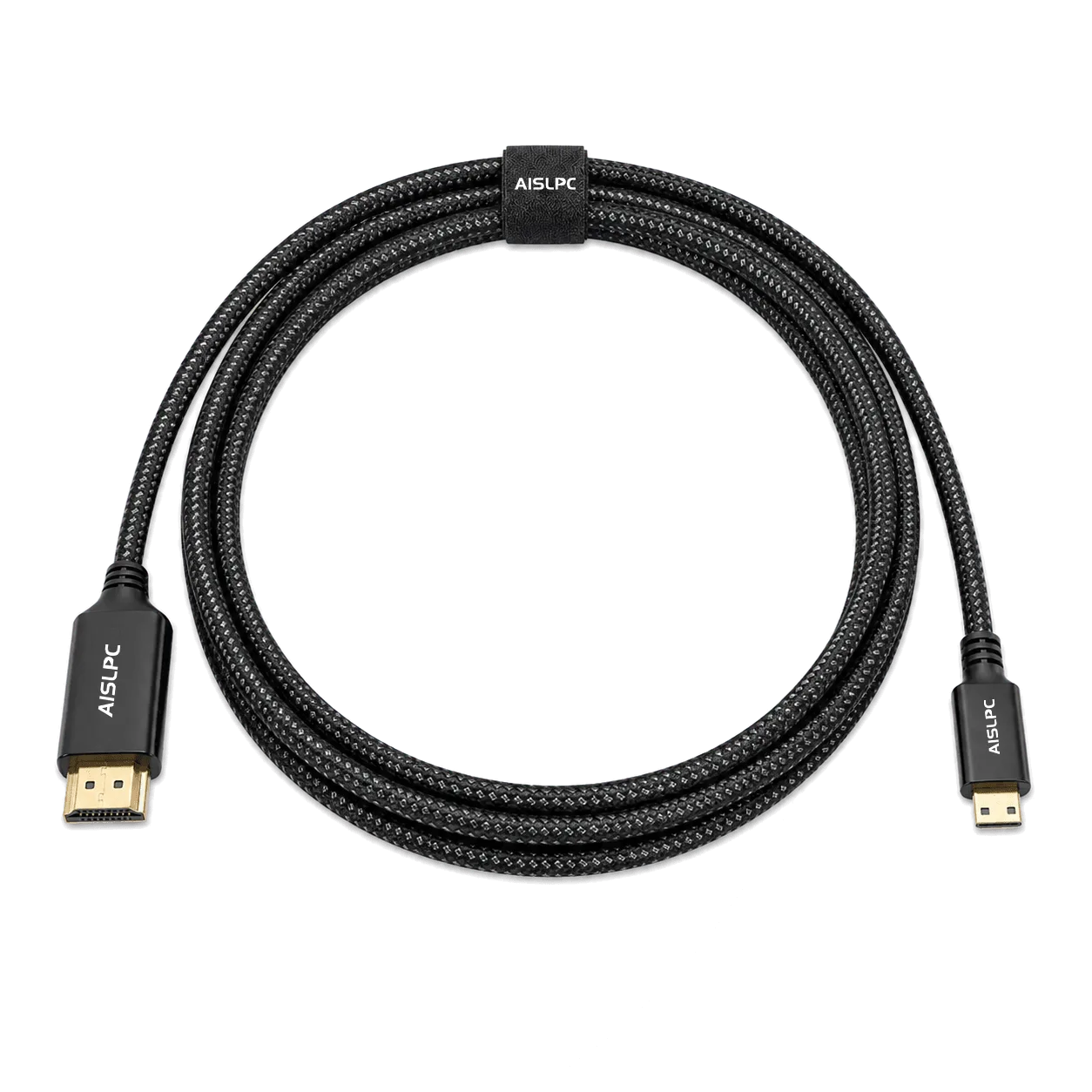
Before you start, gather the essentials: your AISLPC retro handheld console, a TV or monitor with an available HDMI port, and the AISLPC Handheld to TV HDMI Cable. This cable features a mini HDMI connector on one end and a standard HDMI connector on the other, bridging the gap between your portable device and your display.
Check that your handheld model has a mini HDMI output port. Most RG series consoles, like the AISLPC RG43V PRO or RG43H PRO, include this port. If you're unsure, look for a small, trapezoid-shaped port on the top or bottom edge of the device. The cable is not compatible with consoles lacking this output.
- Confirm your handheld has a mini HDMI output port before purchasing the cable.
- Ensure your TV has a free HDMI input; most modern TVs have multiple.
Step-by-Step Connection Process
Connecting your handheld to a TV is simple. First, power off your handheld to avoid any potential signal issues. Then, insert the mini HDMI end of the cable into your handheld's HDMI port. Make sure it's firmly seated but avoid forcing it, as the port can be delicate.
Next, plug the standard HDMI end into an available HDMI port on your TV. Note which HDMI port you use (e.g., HDMI 1, HDMI 2). Turn on your TV and select the corresponding input source using your TV remote. Finally, power on your handheld. The screen should mirror to the TV automatically. If not, check your handheld's display settings for an HDMI output option.
- Always handle the mini HDMI connector gently to avoid bending pins.
- Label your TV inputs to easily find the correct one next time.
Troubleshooting Common Issues
If you see a black screen or no signal, first check that both ends of the cable are fully plugged in. Try a different HDMI port on your TV, as some ports may be disabled or reserved for ARC. Also, ensure your TV is set to the correct input source.
If the image appears but there's no sound, verify that your handheld's volume is turned up and not muted. Some games may output audio only through the handheld's speakers; in that case, check your console's audio settings for an HDMI audio output option. If the problem persists, test the cable with another HDMI device to isolate the issue.
- A loose connection is the most common cause of no signal; re-seat both ends.
- Some TVs require you to enable HDMI-CEC or similar settings for automatic detection.
Quick Setup Checklist
- Verify HDMI port: Check that your AISLPC handheld has a mini HDMI output port. Look for the small trapezoid-shaped port on the device. Not all models have this, so confirm before proceeding. If your console lacks the port, the cable won't work; consider a model like the RG43V PRO.
- Connect the cable: Insert the mini HDMI end into your handheld and the standard HDMI end into your TV. Ensure both connections are snug and secure. A loose connection is a common cause of no signal; double-check both ends.
- Select the input source: Turn on your TV and use the remote to select the HDMI input that matches the port you used. If you see the handheld's screen, you're set. If no signal, try a different HDMI port or re-seat the cable.
Recommended Accessories and Consoles
- AISLPC Handheld to TV HDMI Cable for RG Series: As an official AISLPC accessory, this Handheld to TV Braided HDMI Cable is designed for compatible AISLPC retro handheld consoles, allowing you to connect your device to a TV, monitor, or projector for a larger and more immersive gaming experience. Featuring a durable braided cable design, it offers better daily wear resistance and a more premium feel compared with standard plastic. This cable is built specifically for AISLPC handhelds, ensuring a secure fit and reliable signal. The braided design adds durability, so it can withstand frequent plugging and unplugging without fraying.
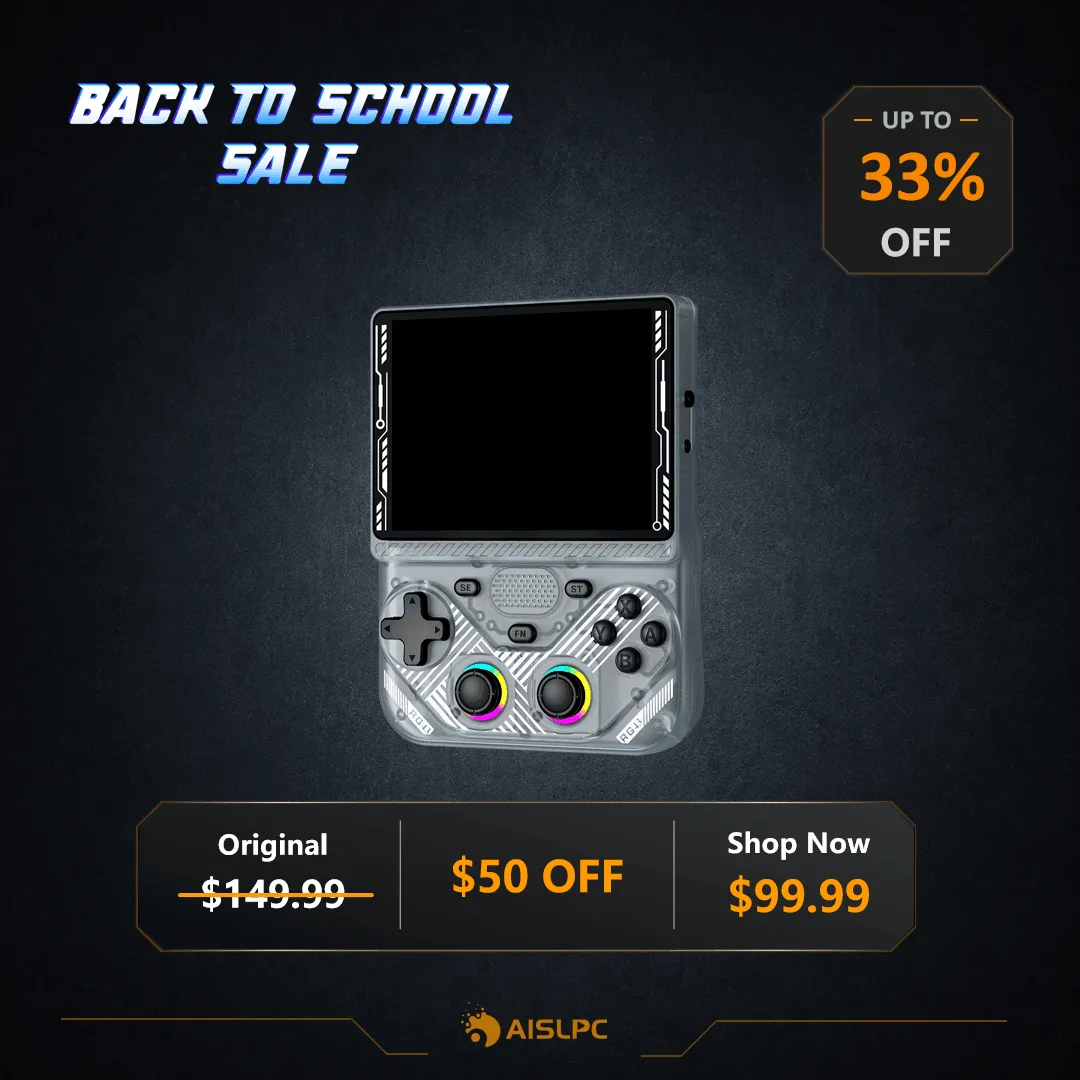
- AISLPC® - RG43V PRO Retro Handheld Game Console: Powered by a Rockchip RK3562 quad-core (2.0GHz) processor for smooth and stable gameplay. Features a 4.3-inch IPS display (1024×768) with clear visuals and vibrant colors, ideal for retro gaming. Compatible with 20+ classic gaming systems. With its powerful processor and HDMI output, the RG43V PRO delivers smooth performance on the big screen, making it a great choice for TV-connected retro gaming sessions.
- AISLPC® - RG52 MINI Retro Handheld Game Console: Powered by the RK3562 quad-core chip with EmuELEC & RGBOX dual systems, delivering smooth gameplay, fast response, and stable performance for retro and 3D gaming. Features a vibrant 5.5-inch IPS screen with 720×1280 HD resolution, full lamination, and anti-glare technology. The RG52 MINI's dual-system support and high-resolution display make it versatile for both handheld and TV play, ensuring a crisp image when connected to a larger screen.
Connecting your AISLPC handheld to a TV opens up a new way to enjoy your favorite retro games. With the right cable and a few simple steps, you can transform your portable gaming into a shared big-screen experience. If you run into any hiccups, revisit the troubleshooting tips above, and you'll be back to gaming in no time.