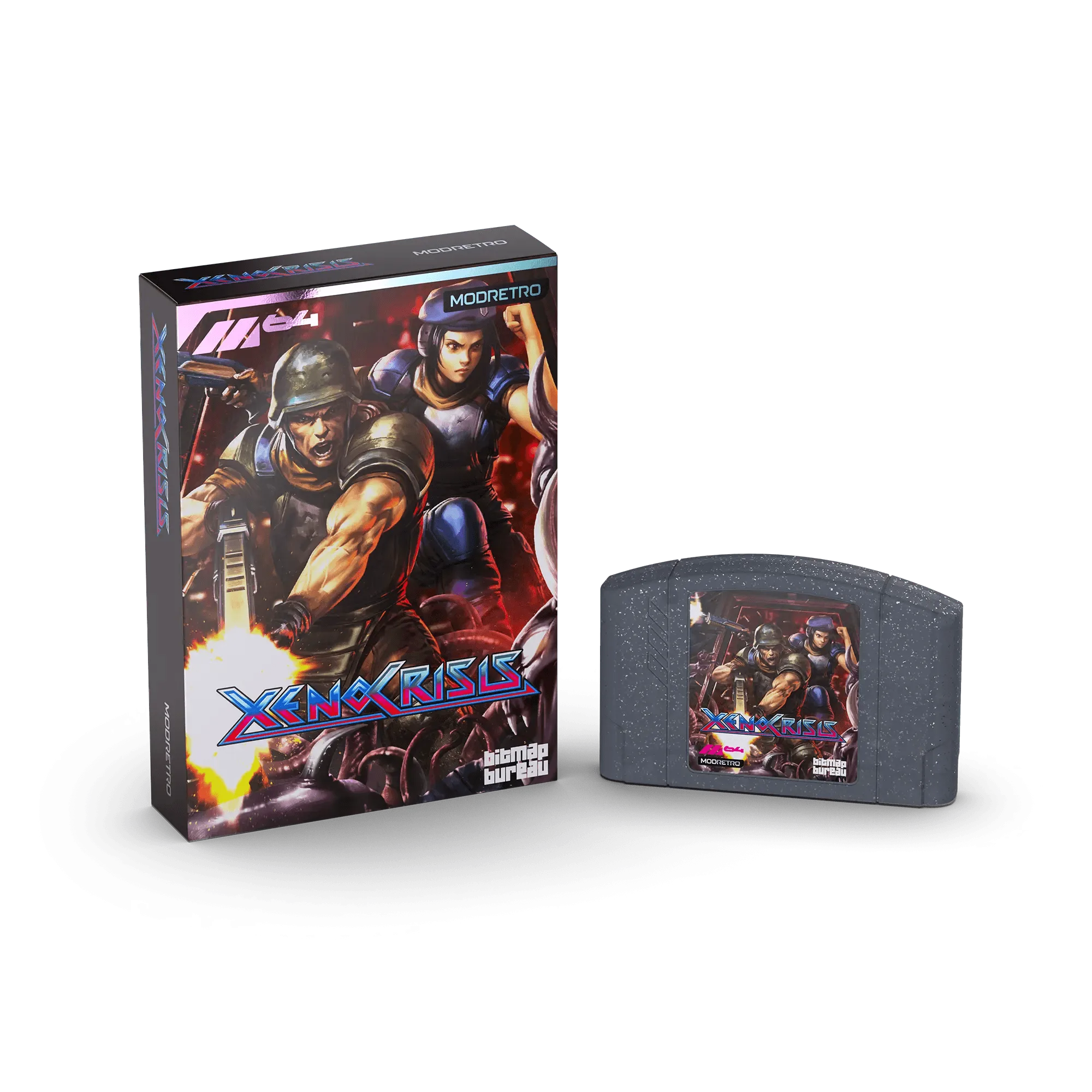
The M64 console brings back the golden age of 64-bit gaming, but connecting it to a modern TV can feel like a puzzle. Many modern TVs lack the composite or S-Video inputs that older consoles rely on. Fortunately, you can connect your M64 to a modern TV without a dedicated adapter, using a few clever workarounds and the right cables.
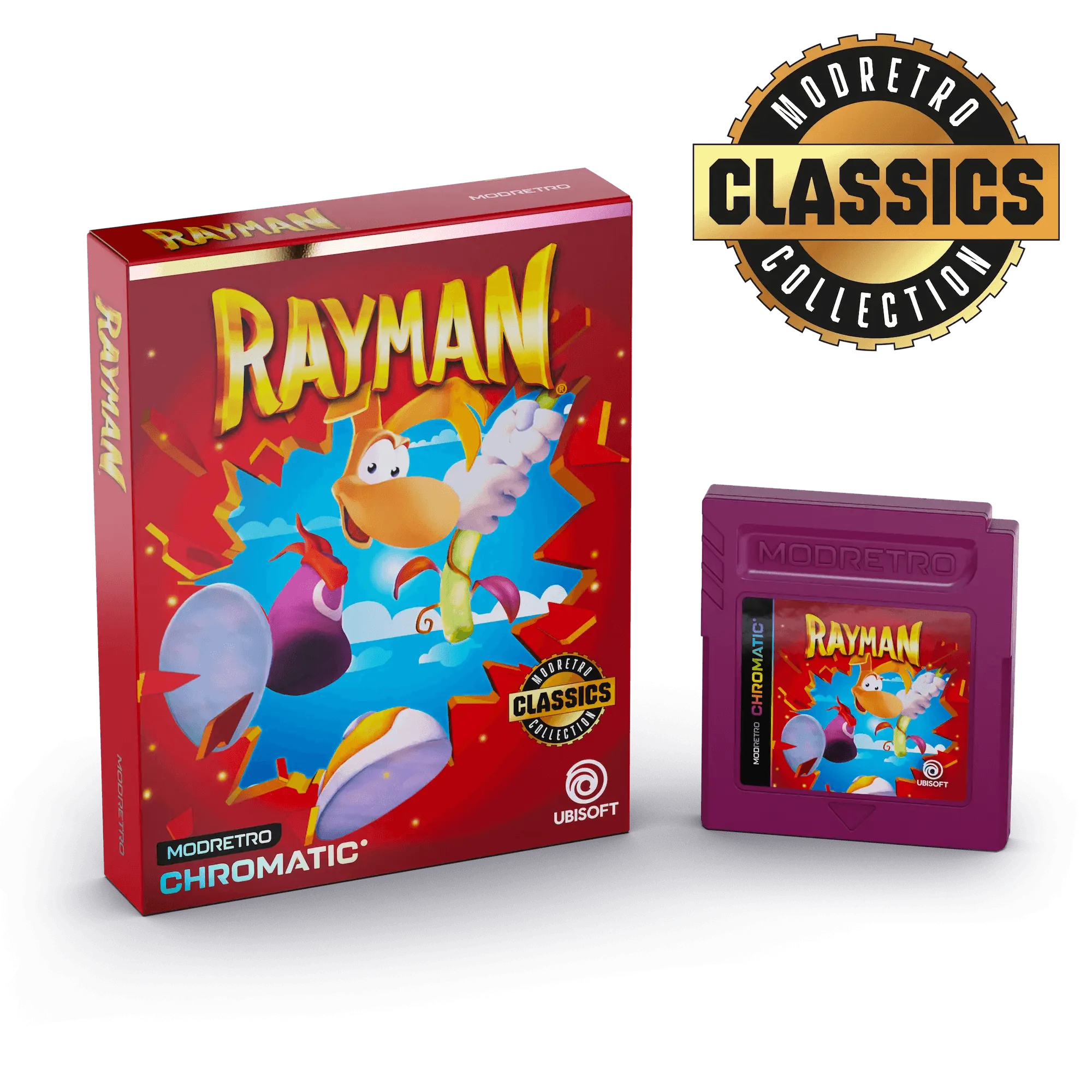
In this guide, we'll walk you through the simplest methods to get your M64 up and running on an LED, OLED, or 4K TV. Whether you're using the M64 AV Adapter or a standard AV cable, we'll cover everything from physical connections to display settings, so you can enjoy your favorite games like Xeno Crisis and rayman-2-35be2ab6fb57ea4c499d7bc8-591275">Rayman 2 Forever in no time.
Understanding Your M64's Output Options
The M64 console typically outputs video via composite (RCA) or S-Video, depending on the model and region. These analog signals are not directly compatible with modern TVs that only have HDMI ports. However, there are several ways to bridge this gap without buying a dedicated upscaler adapter.
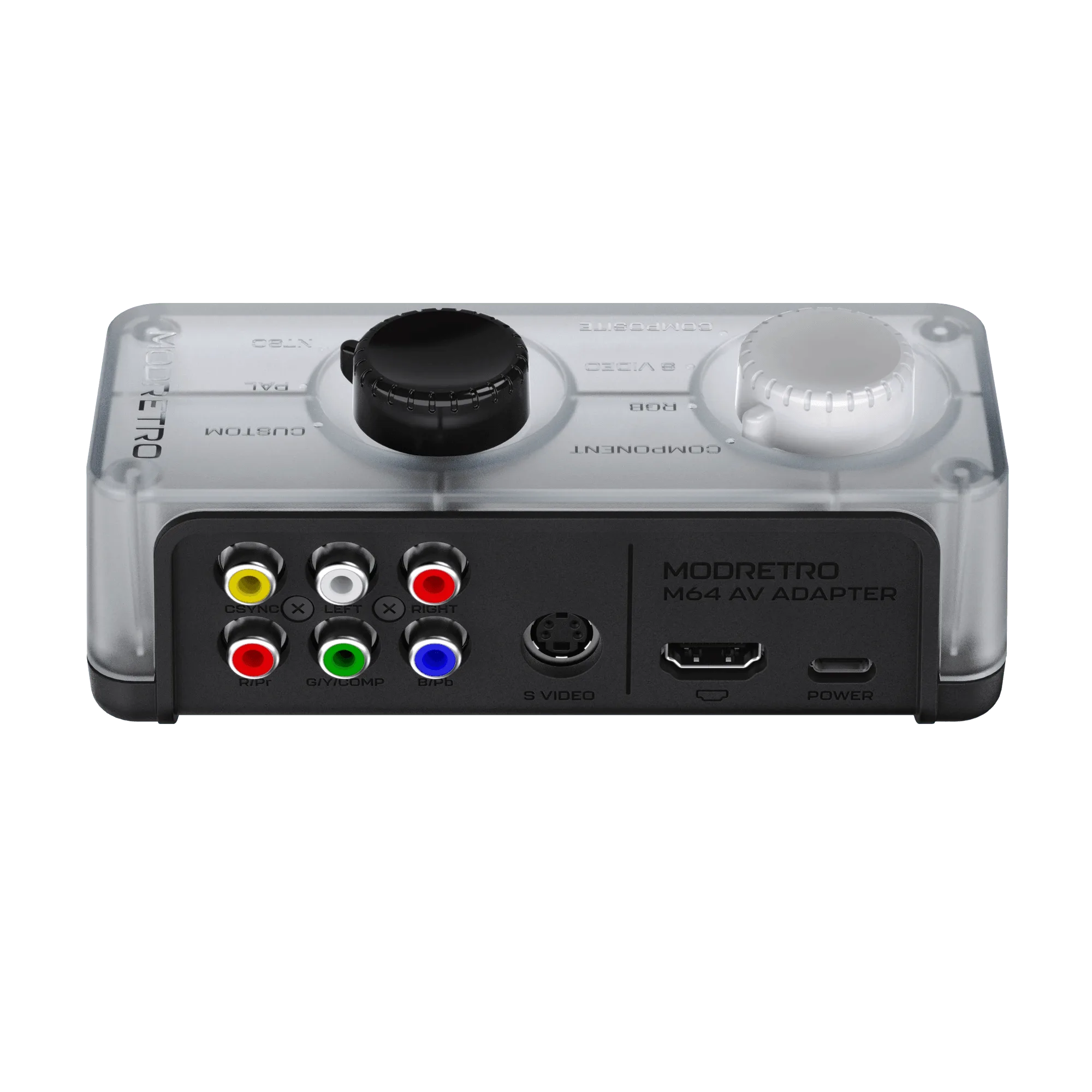
First, check what outputs your M64 has. Most models feature a multi-out port that can carry composite, S-Video, or RGB signals with the right cable. If you have the M64 AV Adapter, you can easily convert the console's signal to a standard AV output. This adapter is a simple, cost-effective solution that works with most modern TVs that still have composite inputs.
- Composite (RCA) – yellow, white, and red cables
- S-Video – a round connector with multiple pins
- RGB – requires a SCART cable (common in Europe)
Method 1: Using a Standard AV Cable with a TV That Has Composite Inputs
If your modern TV still has a composite input (often a single yellow video jack and red/white audio jacks), you can connect your M64 directly using a standard AV cable. Simply plug the multi-out end into the console and the RCA ends into the TV's corresponding color-coded ports. Make sure to select the correct input source on your TV (usually labeled 'AV' or 'Composite').
This method is the simplest and requires no extra hardware. However, many newer TVs have removed composite inputs entirely. If your TV lacks these ports, you'll need to use a converter box or an HDMI adapter, which we'll cover next.
- Check your TV's manual for a composite input label
- Use high-quality cables to minimize signal degradation
Method 2: Using a Composite-to-HDMI Converter
For TVs with only HDMI ports, a composite-to-HDMI converter is your best bet. These small devices take the analog signal from your M64 and convert it to digital HDMI, allowing you to plug directly into any modern TV. You'll need a standard AV cable for the M64, a converter box, and an HDMI cable.
Connect the AV cable from the M64 to the converter's input, then run an HDMI cable from the converter to your TV. Power the converter via USB (usually included). Once connected, switch your TV to the correct HDMI input, and you should see the M64's menu. This method works well for LED and 4K TVs, though the image may be slightly softer due to the upscaling.
- Choose a converter with good reviews for minimal lag
- Ensure the converter supports the PAL or NTSC signal of your console
Method 3: Using an M64 AV Adapter for Better Compatibility
The M64 AV Adapter is a purpose-built accessory that simplifies connecting your M64 to modern displays. It plugs into the console's multi-out port and provides standard composite output, which you can then connect to a TV with composite inputs or a converter. This adapter is especially useful if you have a newer M64 model that doesn't include a standard AV cable in the box.
Using the adapter is straightforward: plug it into the console, connect the included AV cable to the adapter, and then to your TV or converter. The adapter ensures a clean signal and is a reliable choice for gamers who want a dedicated solution without hunting for third-party cables.
- The adapter is compact and easy to store
- It works with both PAL and NTSC consoles
Optimizing Display Settings for the Best Picture
Once you have your M64 connected, you may need to adjust your TV's display settings to get the best picture quality. Many modern TVs default to overscan or stretch modes, which can cut off parts of the game image. Look for a 'Screen Fit' or 'Just Scan' option in your TV's picture settings and enable it to display the full image.
You may also want to set the aspect ratio to 4:3, as most M64 games are designed for that ratio. Stretching to 16:9 can distort the image. Additionally, enabling 'Game Mode' on your TV can reduce input lag, making your gaming experience more responsive.
- Disable any 'zoom' or 'wide' modes
- Adjust sharpness to avoid artifacts
- Use game mode to reduce input lag
Troubleshooting Common Connection Issues
If you're having trouble getting a signal, start by checking all cable connections. Ensure the AV cable is fully inserted into the console and the TV or converter. If you're using a converter, make sure it's powered on and set to the correct input. Sometimes, the converter may need to be plugged into a powered USB port rather than a TV's USB port for adequate power.
Another common issue is a black-and-white picture, which usually indicates a signal mismatch. This can happen if your TV or converter doesn't support the console's video standard (PAL or NTSC). In that case, you may need a converter that supports both standards, or you can try a different input on your TV.
- Try a different HDMI port on your TV
- Test with another AV cable to rule out a faulty cable
- Check if your TV has a 'Video' or 'AV' input that needs to be selected
Connecting your M64 to a modern TV without an adapter is definitely possible with the right cables and a little know-how. Whether you use a standard AV cable, a composite-to-HDMI converter, or the M64 AV Adapter, you can enjoy your favorite games like Xeno Crisis and Rayman 2 Forever on the big screen. Remember to optimize your TV's display settings for the best experience. If you're looking for a reliable solution, consider the M64 AV Adapter from our store to simplify the setup.