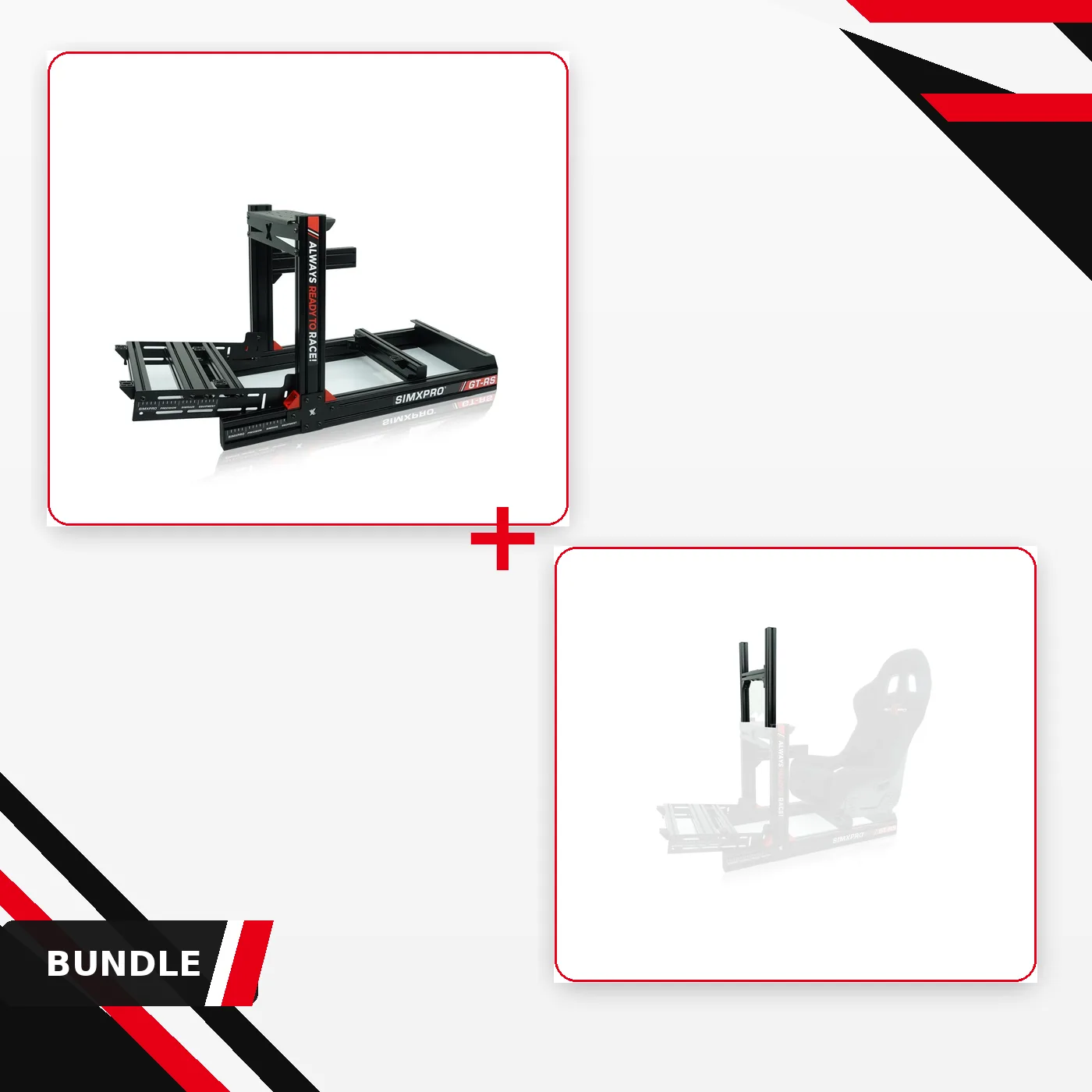
Quick answer
Mount the SimXPro PC - keyboard tray to your cockpit's frame using the provided steel tray and hardware, adjusting its position a few millimeters to align with your seating position. This guide walks through the full installation process and highlights common mistakes to avoid.
Why a keyboard tray beats a lap keyboard
If you race with a keyboard on your lap or balanced on a side table, you know the struggle: it slides, it's out of reach, and it clutters your driving area. A dedicated keyboard tray fixes that by keeping the keyboard within arm's reach and off the floor, so you can type between sessions without breaking your seating position.
The SimXPro PC - keyboard tray is built from steel, so it's solid enough to hold a PC case as well as a keyboard. That means you can use it to free up floor space in your rig room, not just to give your keyboard a home.
Positioning: where to place the tray
The tray's position can be adjusted by a few millimeters horizontally and vertically. That might not sound like much, but it's enough to fine-tune the tray so it sits exactly where your hand naturally rests. Before tightening everything down, sit in your cockpit and simulate typing to find the spot that feels natural.
A common mistake is mounting the tray too far forward or too low, forcing you to lean or stretch. Take the time to adjust before final tightening.
Installation steps
- Gather tools and hardware: You'll need the SimXPro PC - keyboard tray, the included mounting hardware, and basic tools like an Allen key or hex wrench (check the tray's manual for exact sizes). Lay everything out on a clean surface. Check that all bolts and brackets are present before starting.
- Choose the mounting location: Sit in your cockpit and decide where the keyboard should sit. Aim for a position that lets your elbows stay at a natural angle while typing. Mark the spot on the rig's frame with a pencil or masking tape. Test the position by mimicking typing motions before drilling or tightening.
- Attach the tray bracket to the frame: Use the provided bolts to loosely attach the tray bracket to the chosen spot on your cockpit's frame. Do not fully tighten yet—you'll need some play for adjustment. Keep bolts loose enough to slide the tray but tight enough to hold its weight.
- Mount the tray and adjust alignment: Place the tray onto the bracket and secure it with the hardware. Slide the tray horizontally and vertically within its adjustment range to align it with your seating position. Tighten all bolts once the position feels right. Double-check that the tray is level and doesn't interfere with your legs or pedals.
- Route cables and test stability: Run your keyboard cable (and PC cables if you're using the tray for a PC) along the rig's frame, using cable ties or clips to keep them tidy. Give the tray a firm push to ensure it doesn't wobble or shift. A stable tray means no surprises mid-race—test it with a few typing sessions before trusting it fully.
Product facts
-
SimXPro PC - keyboard tray: The steel tray provides a solid platform for a PC case, keeping it off the floor and neatly integrated with the rig. You can use the same tray to hold a PC, freeing up floor space and reducing clutter in your sim racing area.
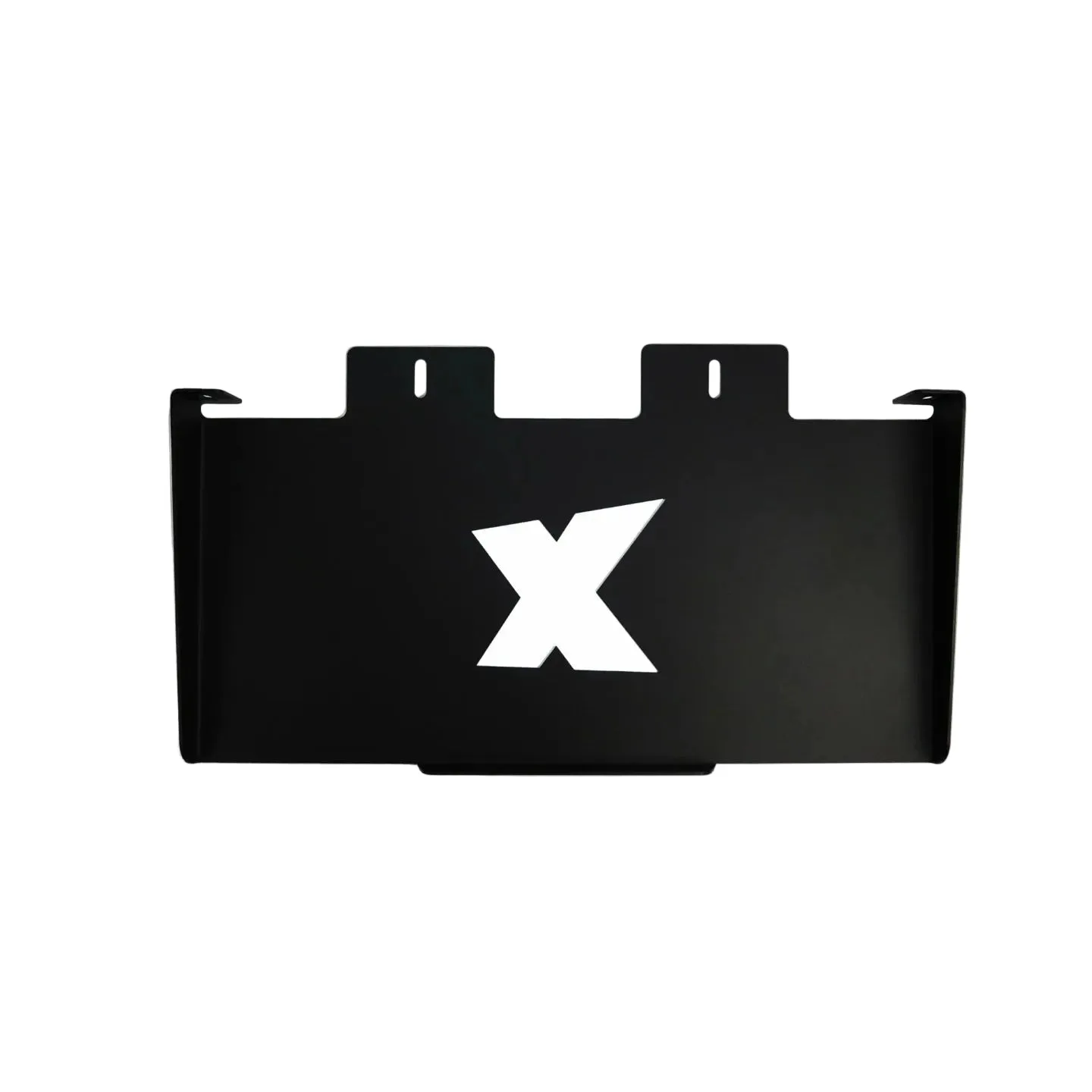
SimXPro PC - keyboard tray
-
SimXPro PC - keyboard tray: Its position can be adjusted by a few millimetres horizontally and vertically for precise fitment. You can fine-tune the tray's location to match your seating position, avoiding awkward reaching while driving.