Quick answer
To connect your tablet to a TV, you need a tablet that supports video output over USB-C or Micro-USB, an HDMI adapter compatible with that port, and a standard HDMI cable. An OTG cable helps when your tablet lacks a dedicated video-out port or when you want to connect peripherals like a mouse or keyboard at the same time. Check your tablet's specifications first—many budget tablets do not support HDMI alt mode, and no cable can add that capability.
Check your tablet's video output support before buying any cable
Not every tablet can send video out through its charging port. Look in your tablet's settings or user manual for terms like HDMI alt mode, DisplayPort alt mode, or MHL. If none are listed, your tablet likely cannot mirror its screen to a TV over a wired connection. In that case, a wireless casting method or a different device is your only option. This is the single most important checkpoint—buying an adapter before confirming support is the most common reason people fail at this task.
Choose the right adapter and cable for your tablet's port
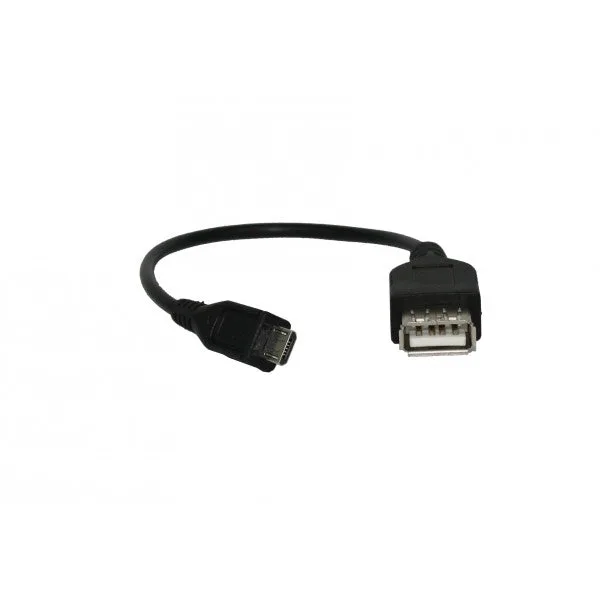
Once you confirm video output support, match the adapter to your tablet's port. USB-C tablets need a USB-C to HDMI adapter. Micro-USB tablets with MHL support need an MHL-to-HDMI adapter. Then connect a standard HDMI cable from the adapter to your TV's HDMI input. If your tablet supports OTG but not video output, an OTG cable alone will not mirror the screen—it only lets you connect USB peripherals like a mouse, keyboard, or flash drive. For example, the iView US OTG Cable enables direct data transfer between your mobile device and USB peripherals, but it does not convert video signals. Knowing this distinction saves you from buying the wrong accessory.
Step-by-step: connect and mirror your tablet to the TV
Follow these steps in order. Skipping the power or input check is the most frequent mistake.
Troubleshooting when the TV shows no signal
If the TV displays 'No Signal' or 'Unsupported Format', first verify the TV is on the correct HDMI input. Then check that the adapter is firmly seated in the tablet and the HDMI cable is tight at both ends. Some adapters require external power—if yours has a power input, plug it in. If the image appears but flickers, try a different HDMI cable or lower the tablet's resolution in display settings. If nothing works, your tablet may not support video output over its port, even if it charges and transfers data fine.
Steps to connect your tablet to a TV
- Confirm your tablet supports video output: Check the tablet's specifications for HDMI alt mode, DisplayPort alt mode, or MHL. If none are present, stop—wired mirroring will not work. Checkpoint: No video output support means you need a different method.
- Get the correct adapter for your tablet's port: Use a USB-C to HDMI adapter for USB-C tablets, or an MHL-to-HDMI adapter for Micro-USB tablets with MHL. An OTG cable alone does not mirror video. Checkpoint: Match the adapter to the port, not to the TV.
- Connect the adapter to the tablet and the HDMI cable to the TV: Plug the adapter into the tablet, then connect a standard HDMI cable from the adapter to an available HDMI input on the TV. Checkpoint: Ensure all connections are snug.
- Power on the TV and select the correct HDMI input: Use the TV remote to choose the HDMI port you connected to. The tablet screen should appear automatically or after a few seconds. Checkpoint: Wrong input is the top reason for a blank screen.
- Adjust display settings if needed: If the image is mirrored but the resolution looks wrong, go to your tablet's display settings and try a different resolution or scaling option. Checkpoint: Some tablets default to a lower resolution for external displays.
- If nothing appears, troubleshoot systematically: Try another HDMI cable, another TV port, or a powered adapter. If still no signal, your tablet likely lacks video output support. Checkpoint: Rule out cables and ports before concluding the tablet is incompatible.
Product facts
- OTG Cable: OTG (On-The-Go) functionality allows your smartphone or tablet to act as a host for USB devices. Ideal for transferring files, connecting a keyboard, mouse, or game controller. Useful when you want to control your tablet with a mouse or keyboard while it is connected to a TV, but it does not carry video.
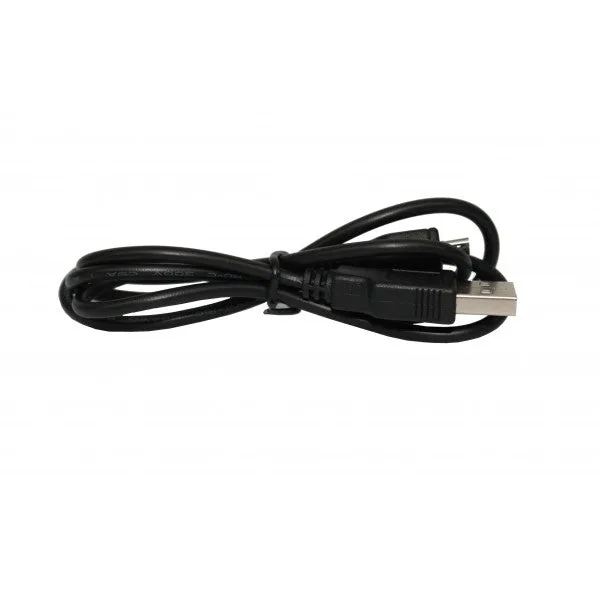
- USB Cable: This USB Cable from iView US is a practical accessory for your everyday connectivity needs. Designed as a standard cable, it offers a reliable solution for linking your devices. A spare USB cable is handy for charging your tablet or connecting peripherals, but it is not an HDMI or video cable.