Quick answer
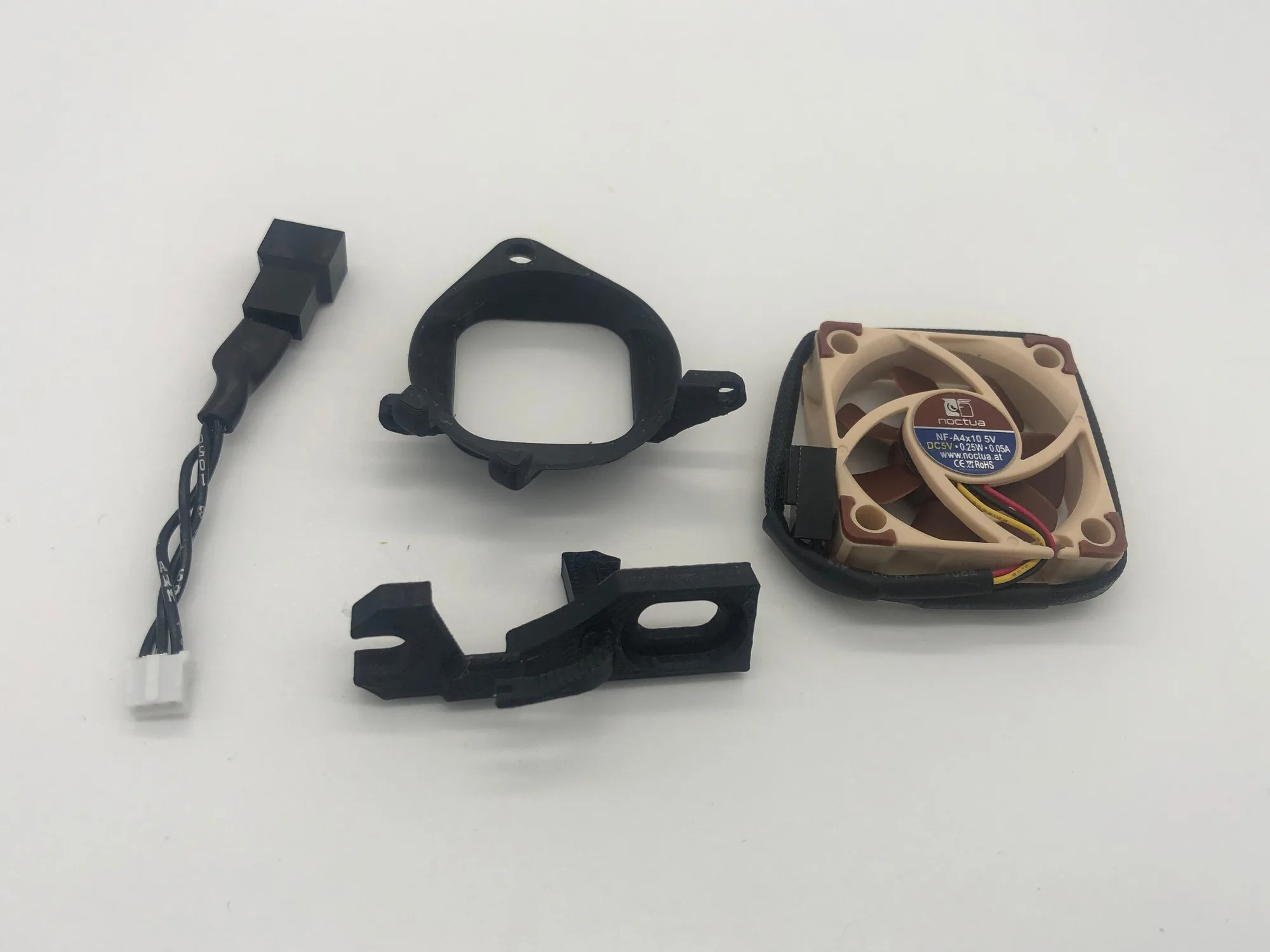
To quiet a Dreamcast, replace the stock fan with a Noctua kit like the Dreamcast Noctua Fan Kit (product ID 602855). It includes Noctua fan components for quieter operation and is compatible with Dreamcast consoles for cooling upgrades. No soldering is required; the fan connects to the existing header.
Tools and prep before you open the shell
You need a Phillips #1 screwdriver, a plastic pry tool, and isopropyl alcohol for cleaning. Work on a static-free mat. The Dreamcast shell has six screws: four under the controller ports and two near the AV out. Remove the modem or broadband adapter first to access the top screws. Keep screws organized by length; mixing them can crack the shell when reassembling.
Remove the stock fan and bracket
Unplug the fan connector from the motherboard. It is a small 2-pin header near the power supply. Do not pull the wires; use a plastic pry tool to lift the connector. The stock fan sits in a plastic bracket held by two tabs. Squeeze the tabs and lift the fan out. If the fan is stuck, do not force it; check for hidden clips. Clean the old thermal paste from the fan bracket if any is present.
Mount the Noctua fan in the bracket
The Dreamcast Noctua Fan Kit is designed for use with the Product Options application, meaning you select the correct variant for your console revision at checkout. The kit includes Noctua fan components. Align the fan's airflow arrow toward the exhaust vent. Secure it with the provided screws or rubber mounts. Do not overtighten; rubber mounts should be pulled through until the fan is snug but not compressed.
Wire the fan to the motherboard
The Noctua fan comes with a 3-pin connector, but the Dreamcast header is 2-pin. Use the included adapter cable if provided. If not, you can plug the 3-pin connector into the 2-pin header by aligning the red and black wires; the yellow tach wire remains unconnected. The fan will run at full speed. Check that the connector is fully seated and no pins are bent.
Test before closing the shell
Reconnect the power supply and controller board, then power on. Listen for the fan spinning and check for airflow at the exhaust. If the fan does not spin, power off immediately and reseat the connector. Let the console run for five minutes. The Noctua fan should be noticeably quieter than the stock fan. If you hear rattling, a cable may be hitting the blades.
Step-by-step install
- Power down and unplug: Turn off the Dreamcast and remove all cables, including power and AV. Wait 30 seconds for residual power to drain. Checkpoint: no LED should be lit.
- Open the shell: Remove the six Phillips screws and gently lift the top shell. Use a pry tool to release the clips near the controller ports. Common mistake: forcing the shell can crack the plastic.
- Disconnect the stock fan: Lift the 2-pin connector from the motherboard using a plastic pry tool. Do not pull the wires. Checkpoint: connector is free and wires are intact.
- Remove the fan bracket: Squeeze the two tabs on the plastic bracket and lift the fan out. Set the bracket aside. Common mistake: breaking the tabs by pulling too hard.
- Install the Noctua fan: Mount the Noctua fan into the bracket with the airflow arrow pointing toward the exhaust vent. Use provided rubber mounts or screws. Checkpoint: fan is snug but not compressed.
- Connect the fan: Plug the Noctua fan into the 2-pin motherboard header. If using a 3-pin connector, align red and black wires; leave yellow unconnected. Common mistake: bending pins by forcing the connector.
- Test and close: Power on and confirm the fan spins quietly. If it does not spin, power off and reseat the connector. Then reassemble the shell. Checkpoint: fan spins and console runs quietly for 5 minutes.
Product facts
- Dreamcast Noctua Fan Kit: Compatible with Dreamcast consoles for cooling upgrades. This kit fits all standard Dreamcast models, so you do not need to measure or guess compatibility.
- Dreamcast Noctua Fan Kit: Includes Noctua fan components for quieter operation. The Noctua fan reduces noise compared to the stock fan, making long gaming sessions less distracting.
- Dreamcast Noctua Fan Kit: Designed for use with the Product Options application. You select the correct variant at checkout, ensuring you get the right fan for your console revision.