Quick answer
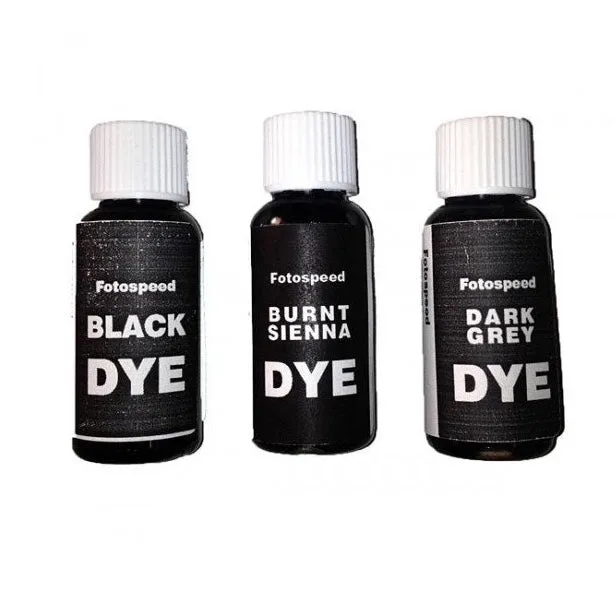
The Fotospeed Retouching Set DY10 is a three-bottle black and white retouching kit for touching up prints, and it is formulated to leave no surface marking. Use it in thin layers, build density slowly, and work on a print you can afford to lose the first time. If you are new to spotting, practise on a scrap print before you touch a good one.
What the three bottles are actually for
The DY10 kit is built around the two jobs most darkroom printers run into: hiding dust spots and small scratches on a finished black and white print, and adding tone or colour by hand where the print needs it. The kit is listed as suitable for all black and white prints, and the three 15ml bottles give you enough working strength for a long run of prints without buying a larger bottle you will not finish.
Treat the bottles as concentrates with different strengths rather than three versions of the same thing. Start with the lightest tone, let it dry fully, then decide whether the print needs more. Retouching is a build-up process, and the most common reason a print ends up looking blotchy is that the first application was too heavy.
Set up before you open a bottle
Work on a clean, flat surface with good daylight or a neutral desk lamp, and keep a sheet of blotting paper or kitchen towel next to the print. Have a fine brush, a clean water pot, and a scrap print of the same paper ready. Fibre and resin-coated papers take retouching differently, so your practice scrap should match the paper you are about to work on.
Ventilation matters more than most people expect. Even small amounts of retouching fluid are best used with a window open or a fan moving air across the desk, and you should keep the bottles capped between passes so they do not evaporate or pick up dust.
Spot tone prints without leaving a halo
Load the brush, then touch it to the blotting paper until it is almost dry. Apply the tone in small dabs directly onto the spot, working from the outside of the blemish inward so the edges blend. Wait for the area to dry before judging it, because wet retouching fluid always looks darker than the finished result.
If the spot still shows after one or two passes, add another thin layer rather than a heavier one. A halo appears when the fluid spreads past the blemish and darkens the surrounding print, and it is very hard to remove once it has dried into the paper surface.
Hand colouring prints in layers
For hand colouring, work from the lightest area of the print to the darkest, and keep the brush drier than you would for spotting. Build colour in repeated thin passes, letting each pass dry before adding the next. This is slower, but it keeps the print from going muddy and lets you stop before the colour becomes too strong.
Keep a note of how many passes each area received. If you colour a series of prints, matching them later depends on repeating the same sequence, not on guessing the colour strength from memory.
When the kit is the wrong tool
Retouching dyes are for finishing a print, not for rescuing a badly exposed one. If the shadows are blocked or the highlights are blown, no amount of spotting will fix it, and colouring over a weak print usually makes the problem more obvious. Fix the exposure or the print first, then retouch.
The kit is also not a substitute for negative retouching or for digital repair. It works on the print surface, so if you need to correct dust on the negative itself, deal with that at the scanning or printing stage instead.
Retouching the DY10 way, step by step
- Test on a scrap print: Take a discarded print on the same paper and run one thin pass of the lightest tone across a corner. Let it dry completely, then compare it with the print you plan to work on. Checkpoint: if the dried tone does not match the print's black, adjust your dilution before touching the good print.
- Load the brush almost dry: Dip the brush, then drag it across blotting paper until it stops leaving a wet line. A dry brush gives you control; a wet brush gives you a stain. Common mistake: starting with a fully loaded brush and trying to spread the fluid out afterward.
- Spot from the edge inward: Apply the tone to the outer edge of the blemish first, then work toward the centre. This blends the repair into the surrounding tone instead of creating a dark dot in the middle. Checkpoint: if a halo starts to form, stop and let the area dry before deciding whether it needs another pass.
- Build density in thin layers: Add one pass, let it dry, then assess. Repeat only if the spot still reads as lighter than the surrounding print. Common mistake: adding a second heavy pass while the first is still wet, which darkens the area beyond the blemish.
- Colour from light to dark: When hand colouring, start with the palest areas of the print and move toward the darker ones, keeping each pass thin and letting it dry before the next. Checkpoint: stop one pass earlier than you think you need to, because dried colour reads stronger than wet colour.
- Store the bottles capped and upright: Cap each bottle as soon as you finish with it, and keep the kit upright in a cool spot away from direct light. Next step: label the bottles with the date you opened them so you know how long they have been in use.
Product facts
- Fotospeed Retouching Set DY10: Fotospeed DY10 BW Retouch Kit is suitable for all BW prints. Leaves no surface marking. The kit consists of 3 x 15ml bottles. The three small bottles let you test the kit on a scrap print before committing a full print, and the no-surface-marking claim is the reason it is worth using thin layers rather than one heavy pass.
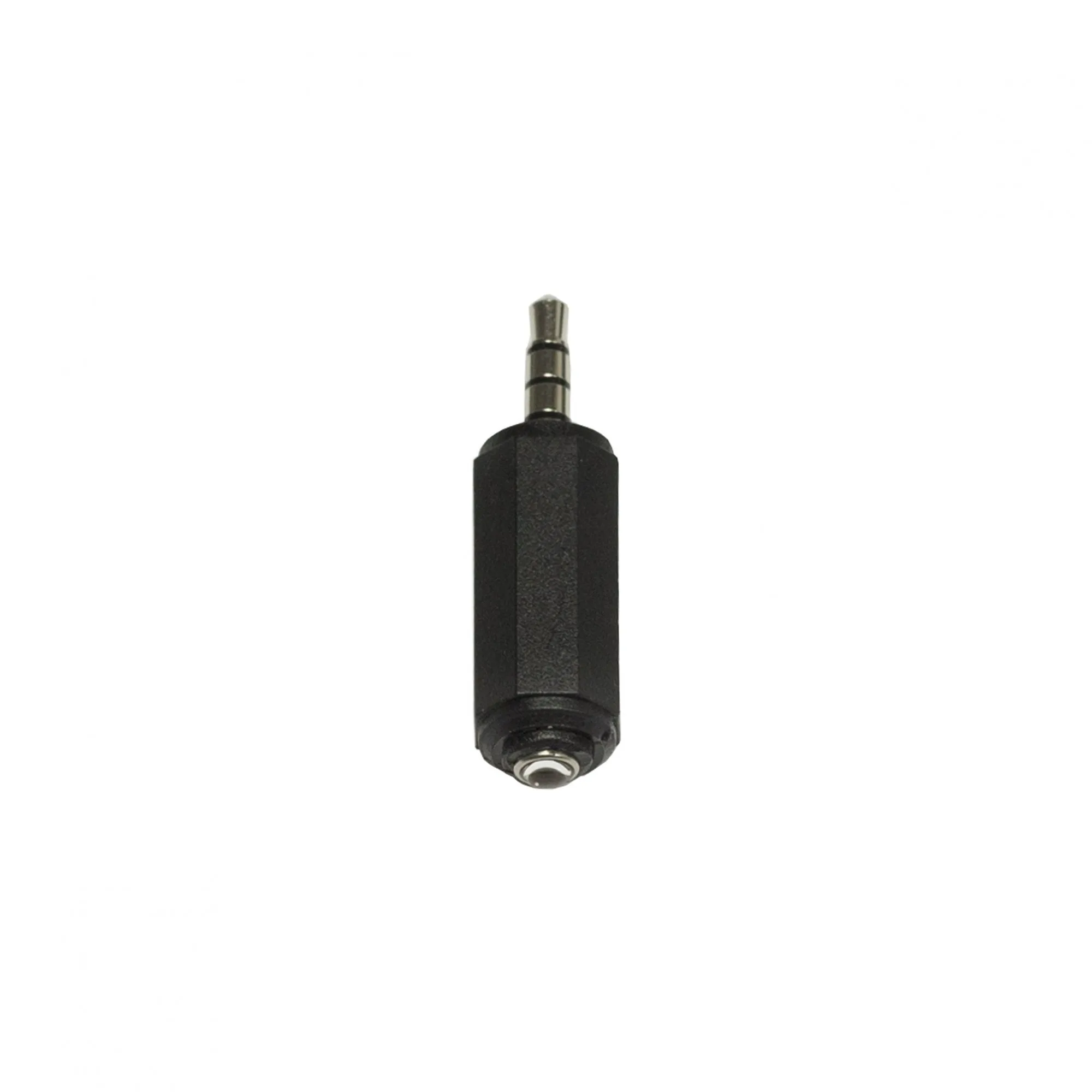
- Filmomat PhotoPlug Shutter-Speed Tester: The Filmomat PhotoPlug is a compact optical shutter-speed tester for analogue cameras. Used with the free Shutter-Speed app, it turns your smartphone into a simple tool for checking whether your camera's shutter speeds are firing accurately. If your prints look inconsistent and you suspect the camera rather than the retouching, checking shutter speeds first saves you from retouching a problem that starts at exposure.