Quick Answer
Most sticky or unresponsive keys are caused by debris under the keycap, a loose or worn keycap, or a failing switch, not by the keyboard as a whole. Start by pulling the affected keycap and cleaning the stem and housing with compressed air and isopropyl alcohol. If the key still double-types or drops inputs after cleaning, the switch itself is the problem and you should plan a replacement or a board with swappable switches.
A key that sticks, mushes, or ignores half your presses ruins a session faster than bad ping. Before you write off the keyboard, it helps to separate the symptom from the cause, because a sticky key and a key that does not register at all usually have different fixes.
This guide walks through the common causes in order of how easy they are to rule out, from crumbs under a keycap to switch chatter that no amount of cleaning will cure. It also covers maintenance habits that keep HyperX mechanical keyboards and similar boards feeling consistent for years.
Symptom Check: Sticky, Mushy, or Dead?
A sticky key resists travel or returns slowly, which points to physical interference like a spilled drink, a warped keycap, or debris on the stem. A mushy key bottoms out without a crisp click, which often means a worn or contaminated switch. A dead key sends no input at all, which can be a broken switch, a loose connection, or a software remap you forgot about.
Test each behavior in a key tester or a plain text document. If the key registers but repeats letters you did not press, that is key chatter, a separate electrical fault discussed below. Naming the symptom correctly saves you from pulling apart a keyboard that only needed a firmware reset.
- Press the key slowly and feel for grit or a rough patch in the travel.
- Type a full sentence and watch for dropped or doubled characters.
- Swap the keycap with a known-good one to see if the problem follows the cap or stays with the switch.
Cause 1: Debris and Residue Under the Keycap
Crumbs, dust, and dried drink residue are the most common reason gaming keyboard keys feel sticky. The keycap sits on a stem, and anything caught between the stem and the housing adds friction. Sugary drinks are worse than water because the residue stays tacky and keeps collecting dust.
Power the keyboard off and unplug it. Use a keycap puller to lift the affected cap straight up, then blow out the exposed switch with short bursts of compressed air. For tacky residue, dampen a lint-free cloth or cotton swab with 70 percent isopropyl alcohol and wipe the stem and the inside of the keycap, then let everything dry completely before reinstalling.
- Never pour or spray liquid directly onto the board; apply alcohol to the cloth, not the keyboard.
- Hold compressed air upright to avoid spraying propellant onto the switch.
- If the spill was sugary or milky, repeat the cleaning after a day, since residue can resurface.
Cause 2: Keycaps That Bind or Wear Out
Keycaps can warp, crack at the stem, or loosen enough to sit crooked and rub against the housing. A crooked cap feels sticky even when the switch underneath is perfectly fine. This is common on heavily used keys like W, A, S, and D, where constant pressure stresses the stem mount.
Swap the suspect keycap with one from a rarely used key. If the problem moves with the cap, replace the cap. If your board uses PBT keycaps, they resist shine and wear better than thin ABS caps, which is one reason durability-focused models ship with them. Check that the replacement cap seats fully and does not wobble side to side.
- Inspect the underside of the cap for cracks or a chewed-up stem socket.
- Press the cap on until you feel it seat; a half-seated cap will bind.
- Keep a spare set of keycaps so you can test without stealing caps from another row.
Cause 3: Switch Wear and Key Chatter
If cleaning and a keycap swap change nothing, the switch is the likely culprit. Mechanical switches wear over time, and the metal contacts inside can degrade until they register a press twice or fail to close at all. That double-registration is key chatter, and it is an electrical fault, not a dirt problem, so cleaning will not fix it.
Key chatter is most obvious in games where a single tap fires twice or a held key stutters. Some keyboards let you swap switches without soldering, which turns a five-minute fix into a repair instead of a replacement. If your board has fixed switches, chatter on one key usually means living with a remap or replacing the keyboard.
- Confirm chatter in a key tester before buying anything; it should show two presses for one tap.
- Check for a firmware update first, since some chatter-like symptoms are firmware bugs.
- If the board supports hot-swap switches, replace only the faulty switch.
Cause 4: Software, Firmware, and Connection Issues
A key that stops responding entirely is sometimes not a hardware problem at all. A remap in your keyboard software, a stuck macro, or a profile that loaded incorrectly can make a working key appear dead. Wireless boards add another variable: low battery, a crowded 2.4GHz band, or a weak dongle connection can drop inputs.
Reset the keyboard to its default profile, update its firmware, and test with a different cable or USB port. For wireless models, charge fully and move the receiver closer with a clear line of sight. If the key works in one profile but not another, the issue is software and no cleaning is needed.
- Test the keyboard on a second computer to rule out the host system.
- Plug directly into the motherboard rather than a hub or front-panel port.
- Reinstall the configuration software if profiles will not save correctly.
Diagnosis Flow: Match the Symptom to the Fix
- Sticky or gritty travel: Pull the keycap, blow out the switch, and clean residue with isopropyl alcohol on a cloth. Fixed after cleaning? Reassemble and add a monthly dust pass to your routine.
- Key presses twice or drops inputs: This is key chatter, an electrical switch fault. Cleaning will not help; test in a key tester to confirm. If the board has hot-swap switches, replace the switch. If not, plan a replacement.
- Key dead in one profile but fine in another: Reset the profile, update firmware, and test on another computer or USB port. Software fixes are free. Only open the keyboard after you rule them out.
Boards Built to Be Easier to Maintain
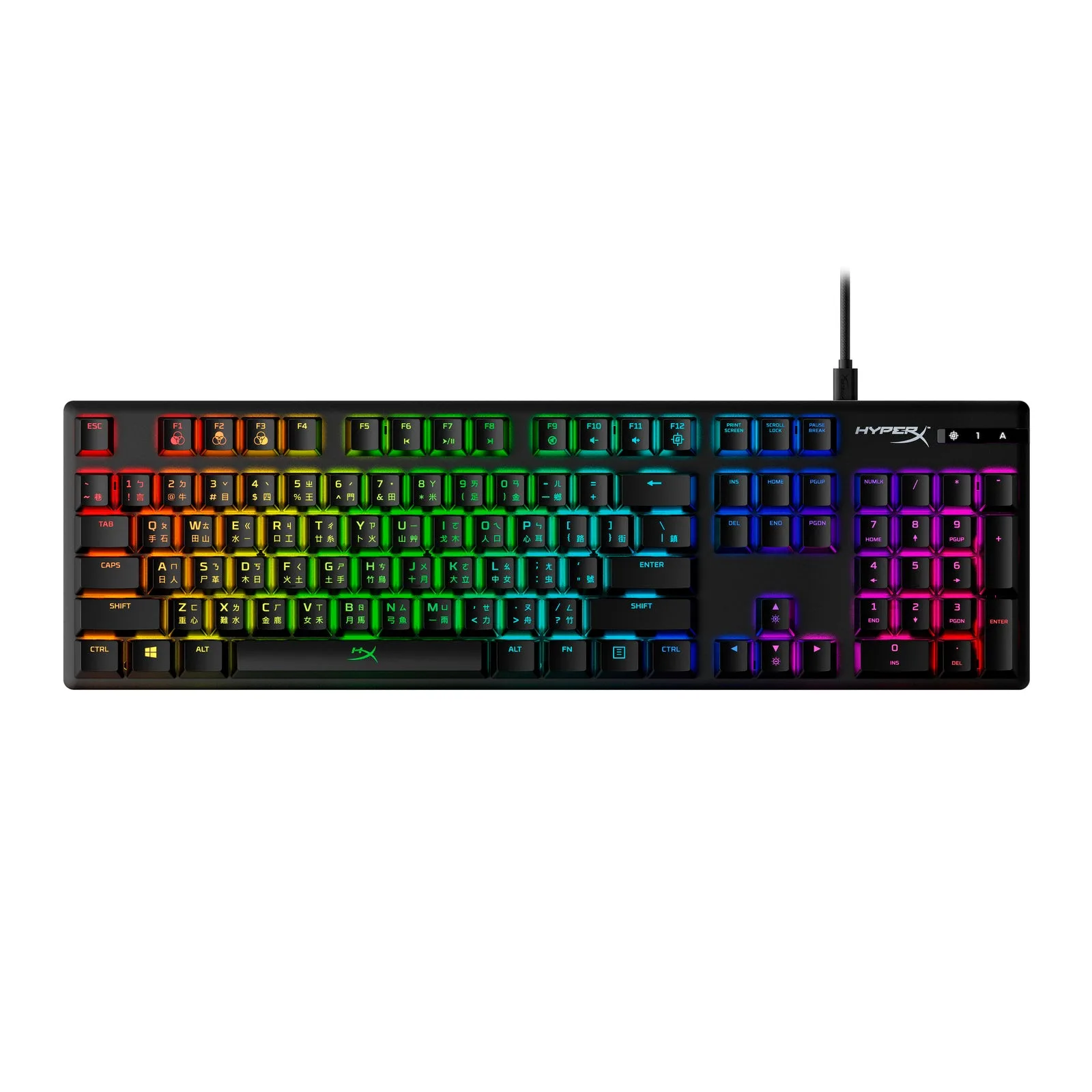
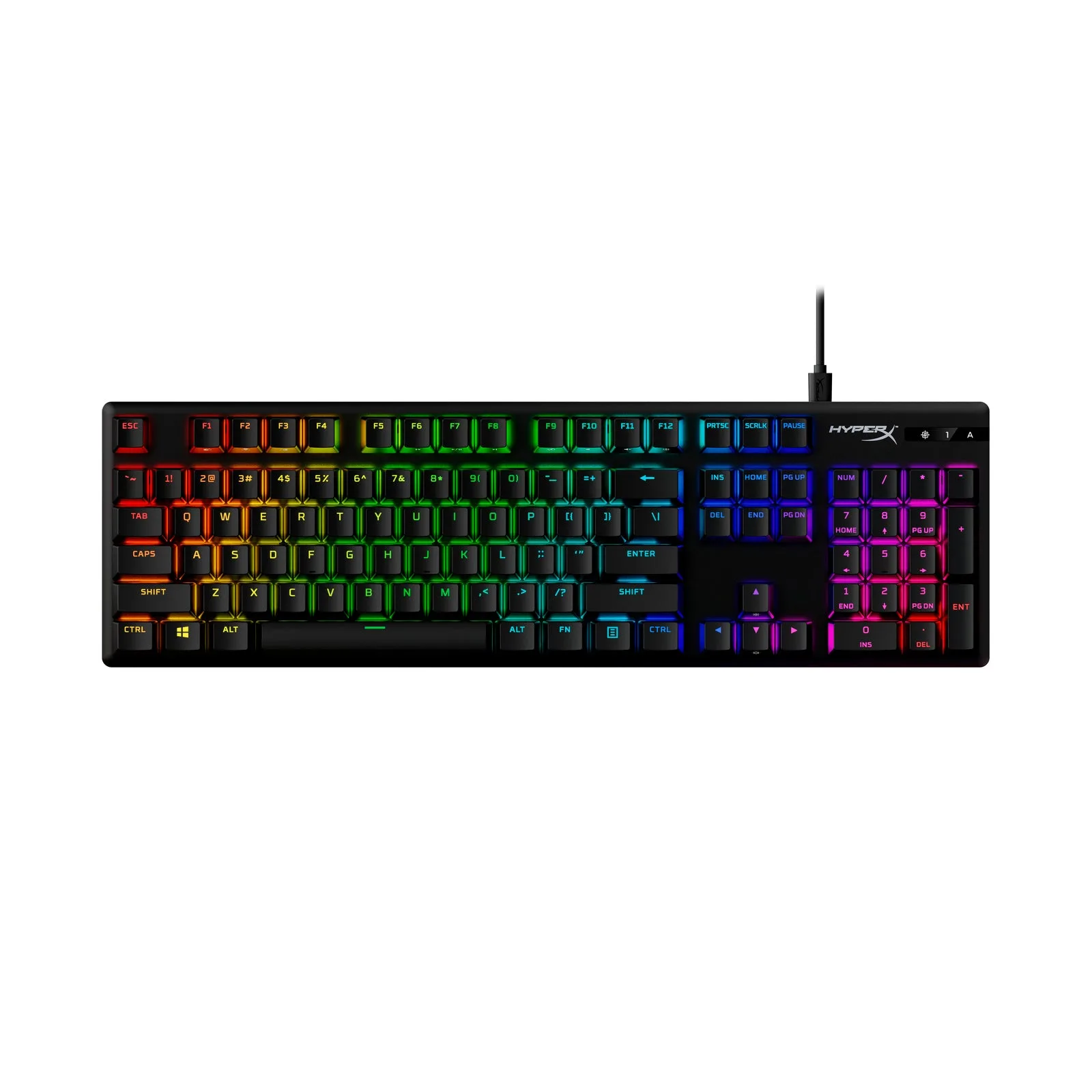
- HyperX Alloy Origins - Mechanical Gaming Keyboard: Built with a full aluminum body and custom HyperX mechanical switches with exposed LEDs. The rigid aluminum frame resists flex that can shift keycaps out of alignment, and exposed-LED switches make it easier to see and clear debris around the stem.
- HyperX Alloy Origins PBT - Mechanical Gaming Keyboard: Adds pre-installed PBT keycaps with side-printing to the Alloy Origins design. PBT keycaps resist the shine and stem wear that make heavily used keys feel loose or sticky, so you replace caps less often.
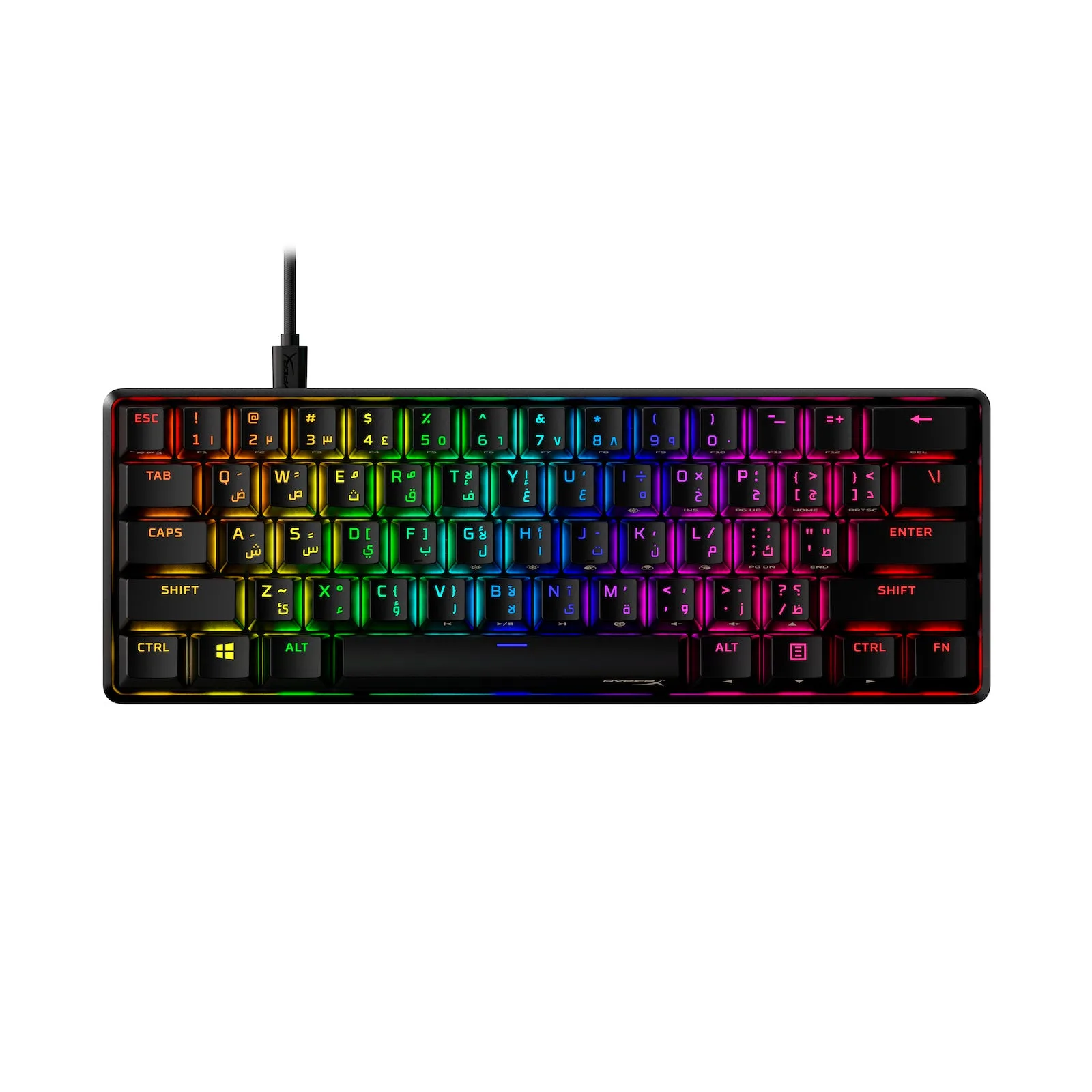
- HyperX Alloy Origins 60 - Mechanical Gaming Keyboard: A 60 percent form factor with a full aluminum body, HyperX switches rated to withstand 80 million keypresses, and double shot PBT keycaps. The 80 million keypress rating and PBT caps mean fewer worn-out switches and keycaps over the life of the board, which is the main defense against chatter and sticky keys.
Work through the causes in order: clean first, swap keycaps second, and only blame the switch when both fail. If chatter or a dead switch shows up on a fixed-switch board, put the money toward a replacement with PBT keycaps and hot-swap support instead of chasing a repair that will not hold.