Quick answer
To apply laptop stickers without bubbles, clean the surface thoroughly, use the hinge method to position the sticker, and press from the center outward with a squeegee or credit card.
Why bubbles form and how to prevent them
Bubbles usually appear when dust, oil, or moisture gets trapped under the sticker, or when you press from the edges inward. A clean, dry surface and slow, even pressure from the center are your best defenses.
If you are using a vinyl sticker like the Area 5 Stickers Bundle, the material is flexible and repositionable for a short time, which gives you a small window to fix mistakes before it bonds permanently.
What you will need
You only need a few household items: a microfiber cloth, rubbing alcohol or a mild cleaner, a squeegee or credit card, and your laptop sticker. Avoid paper towels, which can leave lint behind.
Step-by-step bubble-free application
- Clean the laptop surface: Wipe the area where the sticker will go with a microfiber cloth and rubbing alcohol. Remove all dust, oil, and fingerprints. Let it dry completely. Any residue left behind will create a bump or bubble under the sticker.
- Position the sticker using the hinge method: Peel a small corner of the backing paper and align the sticker on the laptop. Hold the peeled corner down with one finger, then slowly pull the backing paper away while pressing the sticker down from that corner outward. This method lets you lift and reposition the sticker if it is not straight, without touching the adhesive.
- Smooth from the center outward: Using a squeegee or the edge of a credit card, start at the center of the sticker and press firmly toward the edges in a straight line. Work in overlapping strokes to push air out. Pressing from the edges inward traps air and creates bubbles.
- Burnish the edges: After the sticker is fully applied, run the squeegee along all four edges with firm pressure. This ensures the adhesive bonds completely and prevents lifting. Skipping this step can cause the corners to peel up over time.
- Let it set for 24 hours: Avoid closing the laptop or placing it in a bag for at least 24 hours. The adhesive needs time to cure fully for maximum grip. If you close the laptop immediately, the sticker may shift or crease.
Stickers that make it easy
-
Area 5 Stickers Bundle: Retro sci-fi inspired waterproof vinyl stickers designed to personalize laptops and water bottles. The waterproof vinyl material is durable and flexible, making it easier to smooth out bubbles during application and resistant to peeling over time.
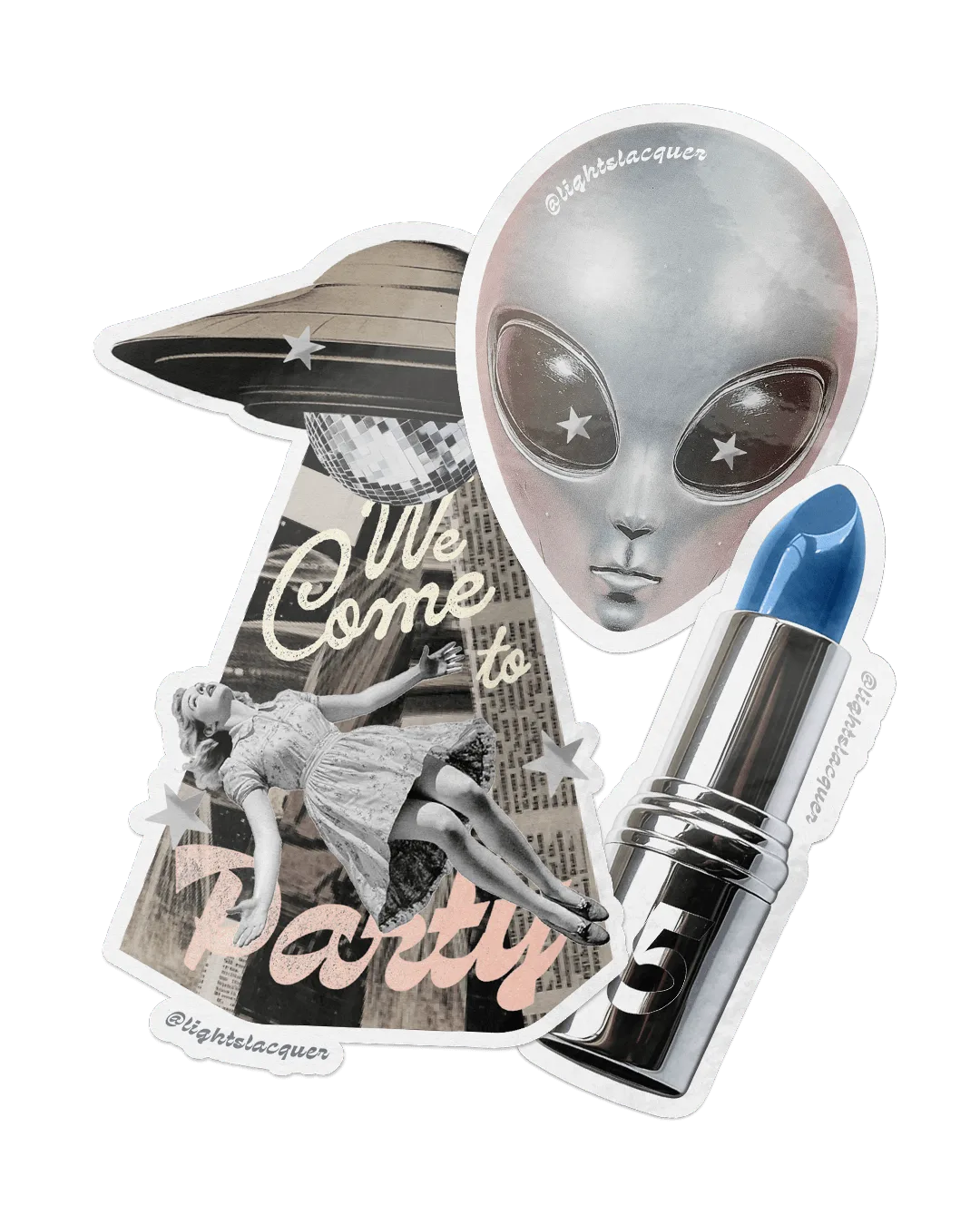
Area 5 Stickers Bundle