Quick answer
The right keyboard cable depends on your desk layout, number of devices, and whether you prefer a straight or coiled cable. Focus on length, connector type, and build quality.
Straight vs. coiled: which feels better on your desk?
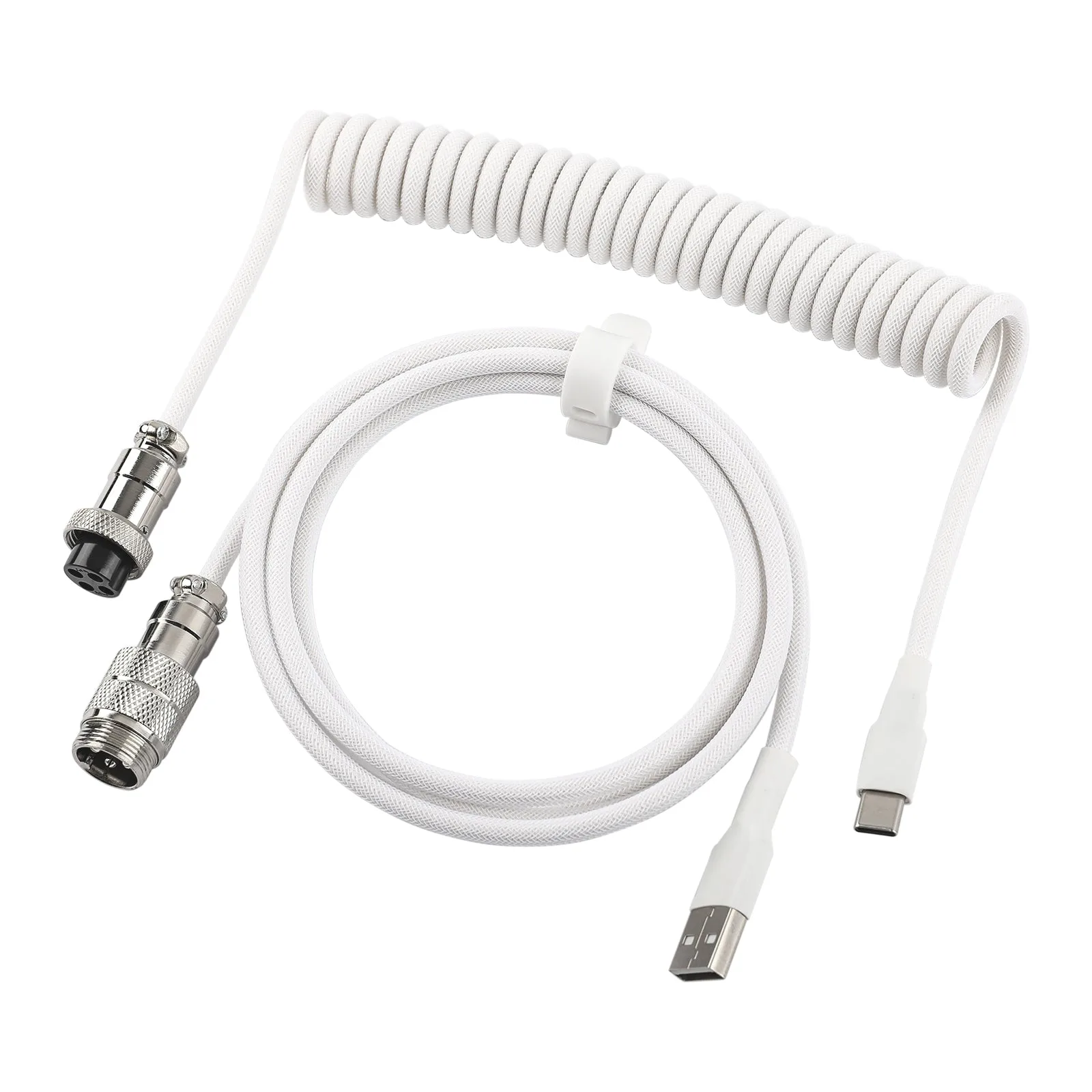
A straight cable lies flat and stays out of the way, but it can be harder to manage if your keyboard moves around. A coiled cable stretches and retracts, which keeps your desk tidy and reduces clutter. Coiled cables are especially popular in custom keyboard builds for their retro look and space-saving design.
Length matters more than you think
If your keyboard sits close to your computer, a 1.5-meter cable is plenty. For a wider desk or a setup where the tower is far away, a 1.8-meter cable gives you more reach. Too long a cable can create excess slack; too short and you'll be tugging on your keyboard.
Connector type: USB-A vs. USB-C
Most modern keyboards use USB-C, but many computers still have USB-A ports. A USB-A to USB-C cable works with older PCs, while a USB-C to USB-C cable is better for newer laptops and hubs. Some cables, like the EPOMAKER MIX Pro 2-in-1 Cable, have a USB-A to dual USB-C design, letting you connect both your keyboard and mouse with one cable.
How to choose your keyboard cable in 4 steps
- Measure your desk distance: Measure the distance from your keyboard to your computer's USB port. Add 30 cm for slack. If the distance is under 1.2 meters, a 1.5-meter cable works. For longer runs, pick a 1.8-meter cable. A cable that's too short will strain the connector. A cable that's too long can be coiled but adds bulk.
- Decide between straight and coiled: If you move your keyboard often or want a clean look, choose a coiled cable. If your keyboard stays put and you prefer a low-profile cable, go straight. Coiled cables can snag on desk edges if not routed carefully. Straight cables are simpler but don't retract.
- Check your computer's USB port type: Look at the USB ports on your computer. If you have only USB-A ports, get a USB-A to USB-C cable. If you have USB-C ports, a USB-C to USB-C cable is fine. For dual-device setups, consider a 2-in-1 cable like the EPOMAKER MIX Pro. Using an adapter can add bulk and potential failure points. A direct cable is more reliable.
- Consider build and connector quality: Look for cables with reinforced connectors, braided or double-sleeved jackets, and thick copper cores. These last longer and resist fraying. Quick-swap connectors like the aviator type on the EPOMAKER MIX Cable V2 let you change cables without desoldering. Cheap cables may work at first but often fail at the connector after a few months. Invest in a durable cable for daily use.
Cables that fit the bill
-
EPOMAKER MIX Pro 2-in-1 Cable: Dual-Device 2-in-1 Design – USB-A to Dual USB-C lets you connect a keyboard and mouse simultaneously. Main cable is 150 cm, branch is 30 cm. Perfect if you want to save USB ports and keep your desk neat with one cable doing double duty.
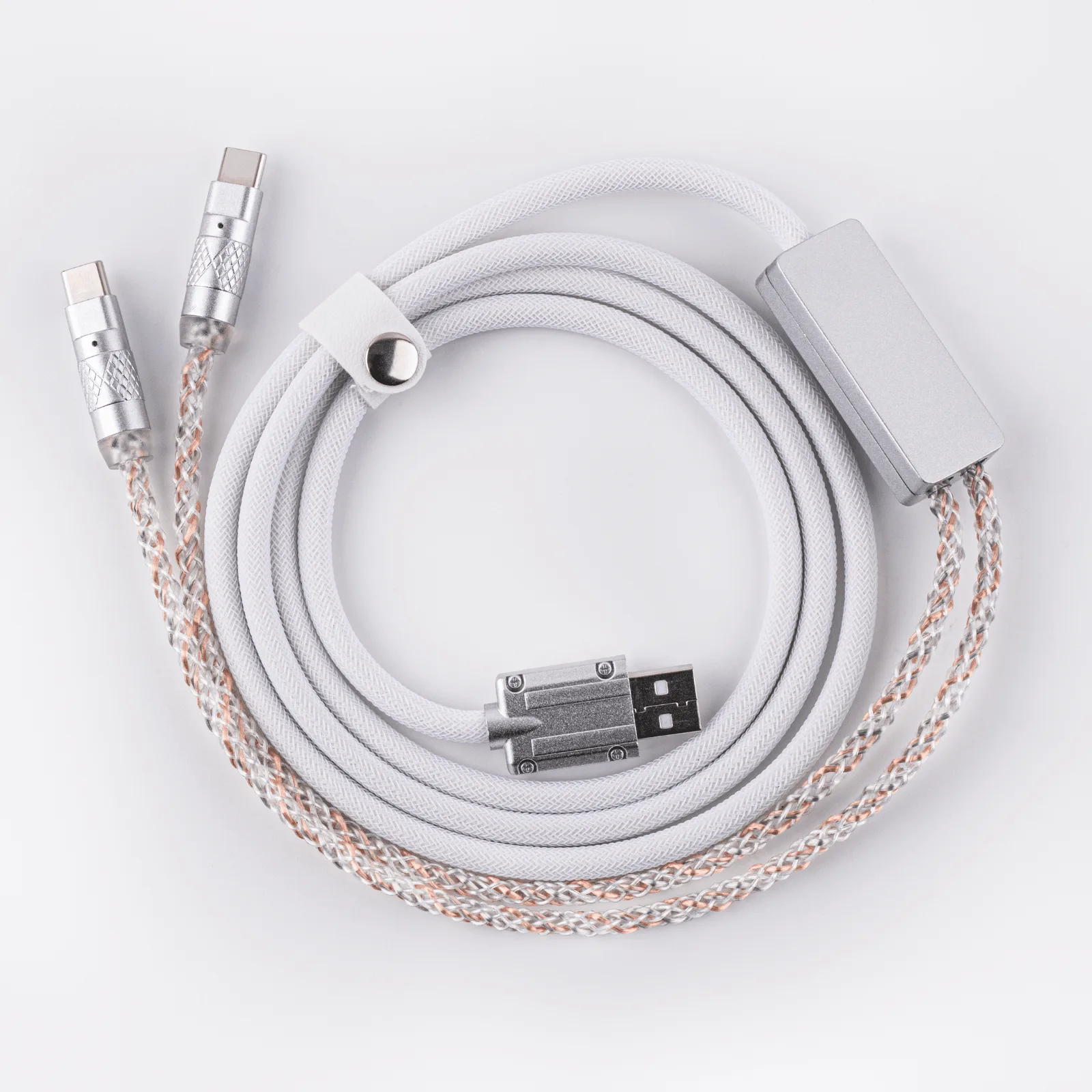
EPOMAKER MIX Pro 2-in-1 Cable
-
EPOMAKER RT100 Cable: 1.8-meter USB-A to USB-C cable with a high-tensile, thickened copper core for rapid data transfer and charging. Great for setups where the computer is far from the keyboard, or if you need a durable cable that handles frequent plugging and unplugging.
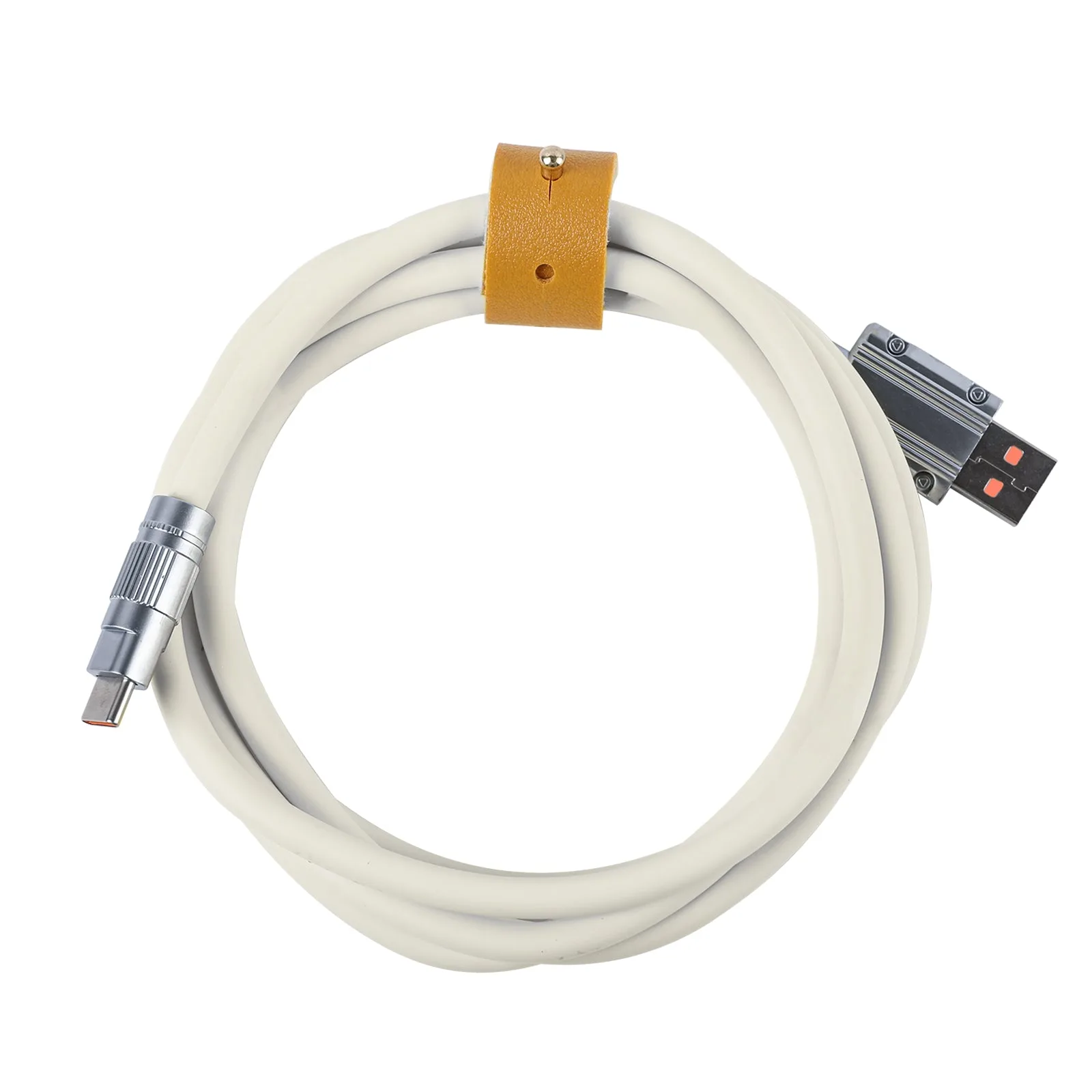
EPOMAKER RT100 Cable
-
Epomaker MIX Cable V2: Coiled cable with a practical strap for tidy storage, improved coil design prevents overstretching, and a quick-swap metal aviator connector. Ideal for custom keyboard enthusiasts who want a retro coiled look without sacrificing modern build quality and portability.