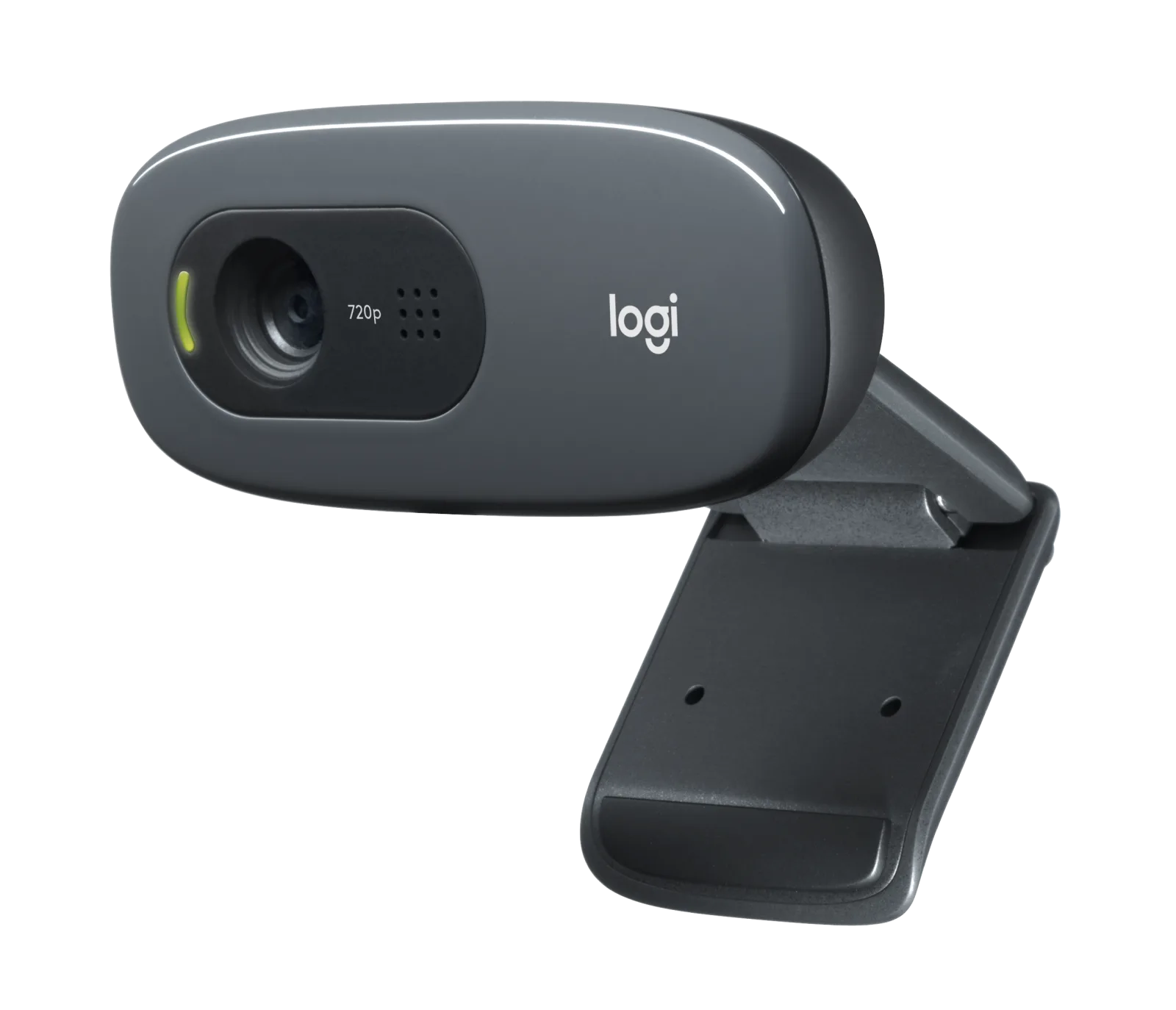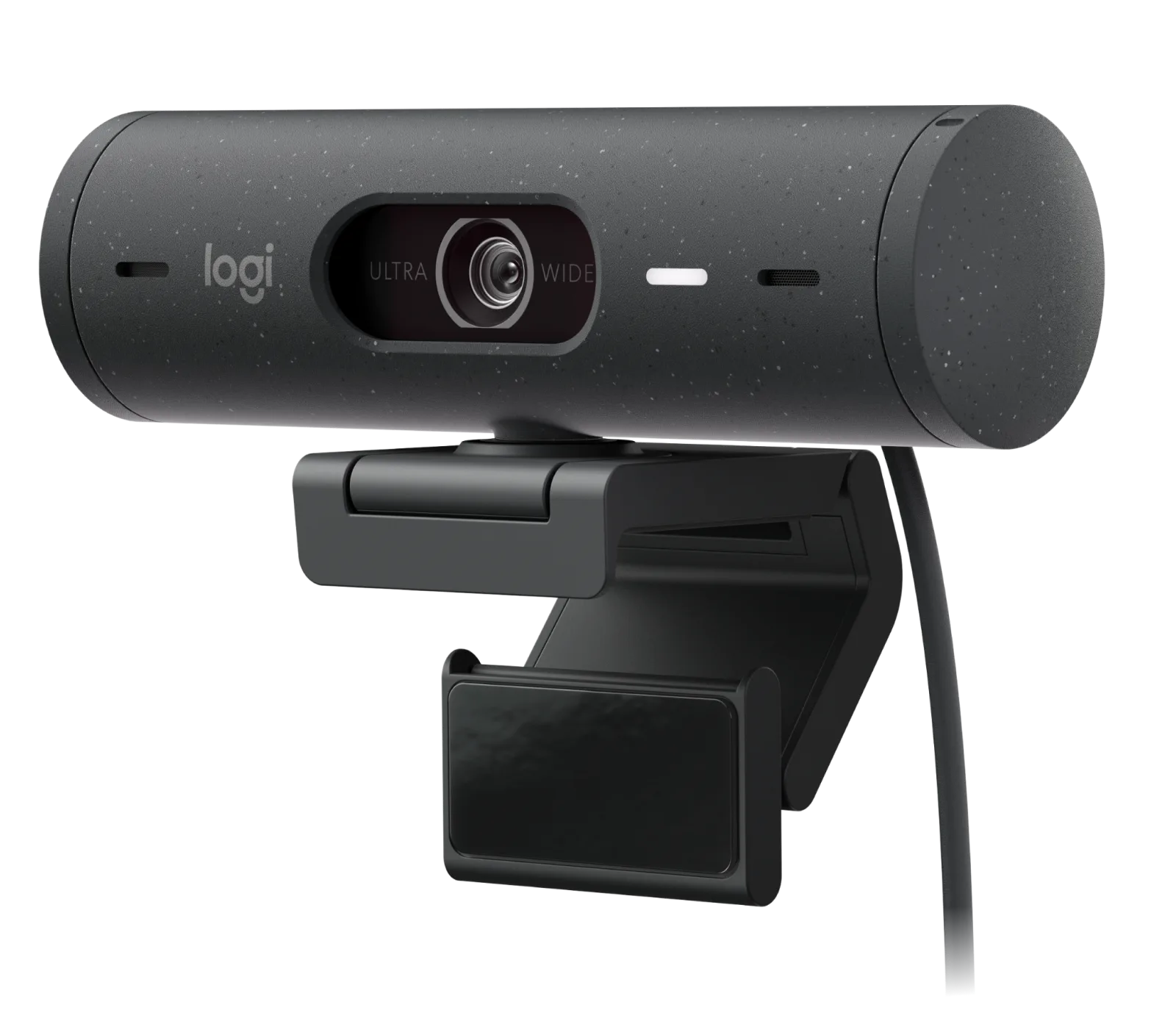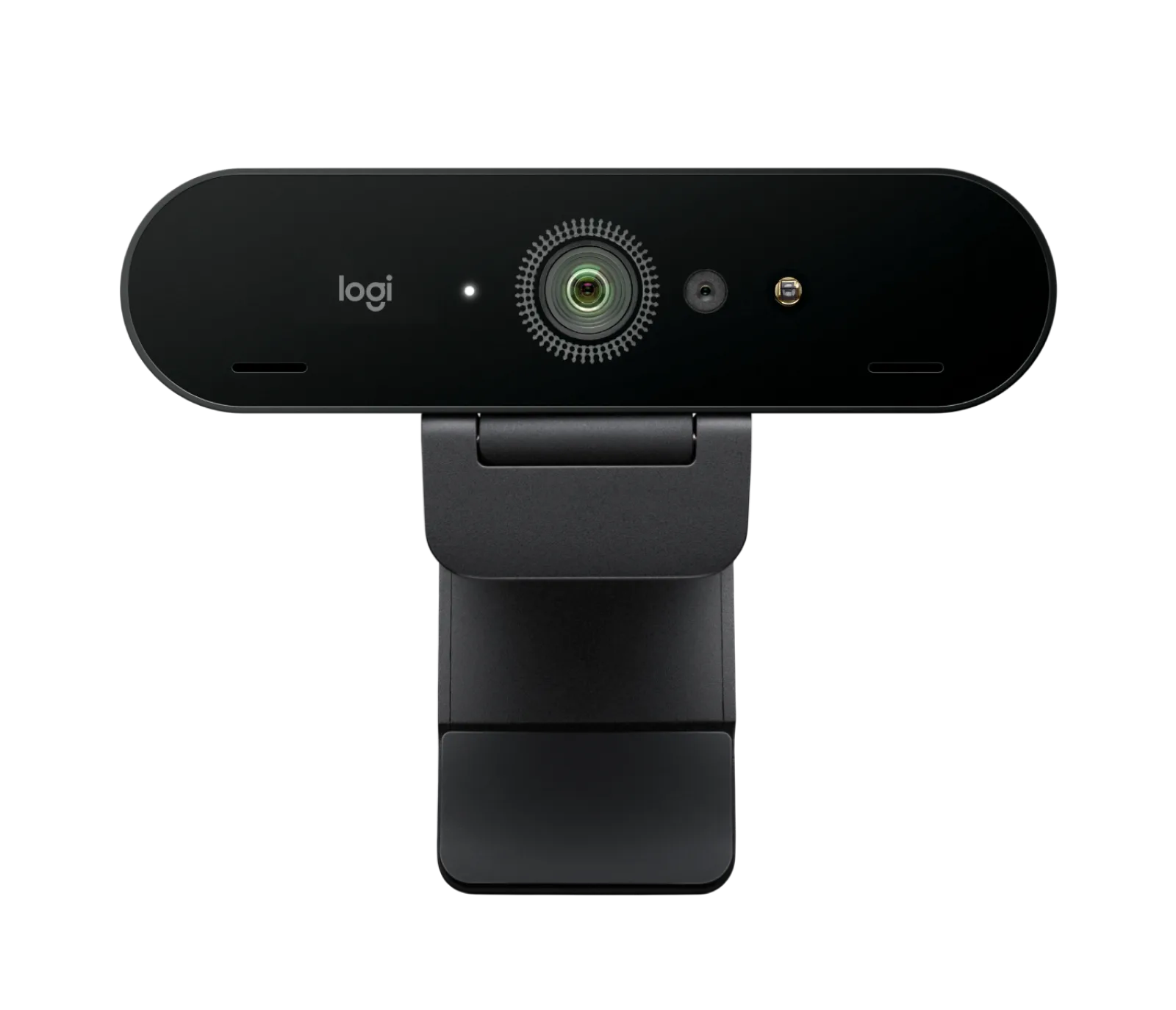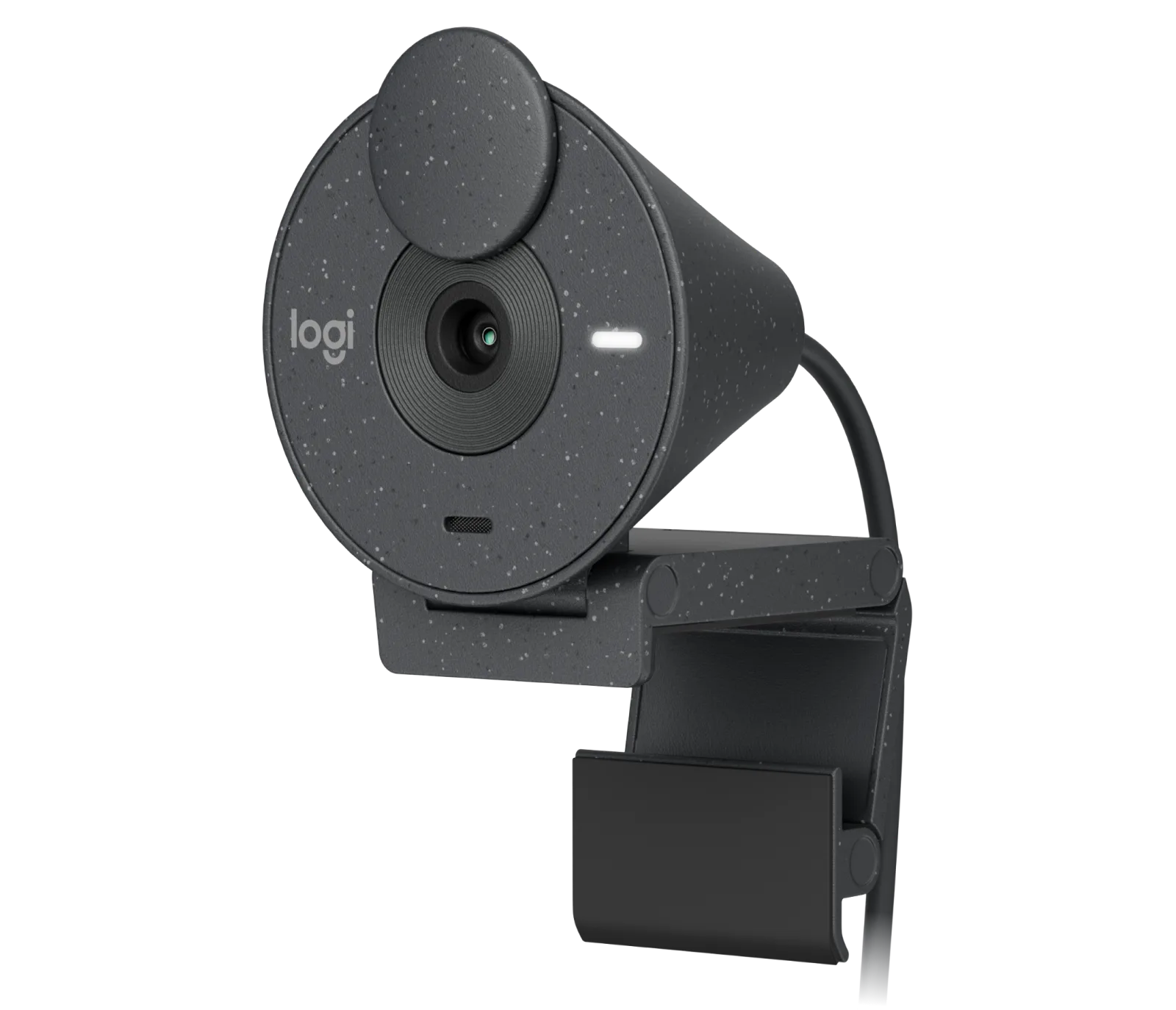
Quick answer
For most video calls, a 1080p webcam at 30 fps is the sweet spot: sharp enough for faces, light on bandwidth, and affordable. Buy 4K only if you record or crop often and have the upload speed to sustain it. Frame rate matters more than resolution for smooth motion, and field of view should match your room, not your ego.
Resolution: what 720p, 1080p, and 4K actually mean on a call
Resolution is the number of pixels the sensor captures. 720p (1280x720) looks soft on a laptop screen but survives weak internet. 1080p (1920x1080) is the standard for remote work because it keeps facial detail without demanding much bandwidth. 4K (3840x2160) captures four times the pixels of 1080p, but most meeting apps compress video to 1080p or lower anyway, so the visible gain on a call is small.
The real benefit of 4K shows up when you crop, zoom, or record locally. If you present slides or stream, 4K gives you room to reframe without losing sharpness. For everyday calls, put the money into lighting and a stable mount instead.
Frame rate: why 30 fps beats 60 fps for most calls
Frame rate is how many images the webcam sends per second. 30 fps is smooth enough for talking heads and is what most platforms default to. 60 fps reduces blur when you gesture or move, but it doubles bandwidth and can make some apps drop resolution to compensate. If your upload speed is under 5 Mbps, 30 fps is the safer choice.
Check your upload speed before buying. A 1080p 30 fps stream typically needs 3-4 Mbps; 1080p 60 fps pushes past 6 Mbps. If you share a connection, stay at 30 fps and let the webcam's autofocus and exposure do the heavy lifting.
Field of view: match the lens to your room, not the spec sheet
Field of view (FOV) is the angle the lens sees. A 60-degree FOV frames one person at a desk. A 78-degree FOV fits two people or a whiteboard behind you. A 90-degree or wider FOV captures the whole room but makes you look small and distant, and it exaggerates background clutter.
Measure your desk depth and how far you sit from the screen. If you are within arm's length, 60-70 degrees is plenty. If you present at a whiteboard or share a table, 78-90 degrees works better. Many webcams let you crop digitally, but cropping reduces effective resolution, so start with the right lens.
What to skip: autofocus, HDR, and other features that rarely matter
Autofocus helps when you move between near and far positions, but for a fixed desk setup, fixed focus is fine and often sharper. HDR balances backlight from a window, yet most meeting apps apply their own tone mapping, so the gain is modest. A privacy shutter and a physical mount thread are more useful day to day.
Do not pay for 4K if your laptop is the bottleneck. Check your USB port and processor: older machines may struggle to encode 4K, causing dropped frames. A 1080p webcam with good low-light performance will look better than a 4K webcam in a dim room.
Decision rules for buying a webcam
- If you take calls at a desk all day: Choose 1080p at 30 fps with a 60-70 degree field of view and a privacy shutter. Spend the savings on a light or a better mount.
- If you present at a whiteboard or share a table: Choose 1080p at 30 fps with a 78-90 degree field of view so the board stays in frame. Check that the wider lens does not make you look too small.
- If you record or stream and crop often: Choose 4K at 30 fps only if your upload speed is above 10 Mbps and your computer can encode it. Otherwise, 1080p is the better buy.
- If your room is dim: Prioritize low-light performance over resolution; a 1080p sensor with a larger aperture beats a 4K sensor in poor light. Add a soft light behind the camera for the biggest upgrade.
Product facts that matter for your setup
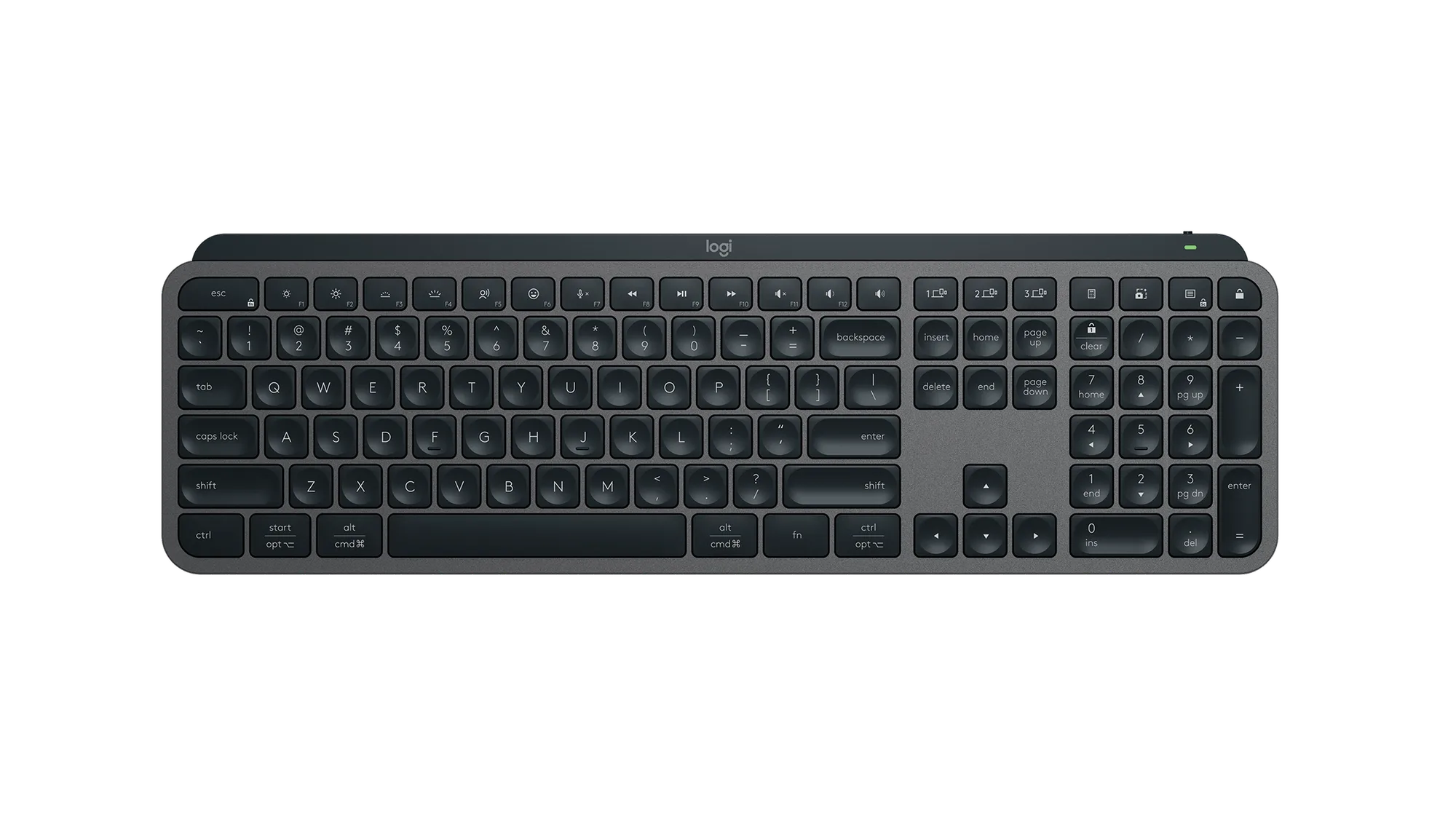
- MX Keys S - Graphite - English US (QWERTY): The Logitech MX Keys S in Graphite offers a refined typing experience with a full English US (QWERTY) layout and low-profile, scissor-switch keys for stable, quiet typing. If you are on calls all day, a quiet keyboard keeps your microphone from picking up clatter, and the full layout speeds up note-taking during screen shares.
- K780 Multi-Device Wireless Keyboard - Dark Grey/Speckled White - English US (QWERTY): The Logitech K780 Multi-Device Wireless Keyboard in Dark Grey/Speckled White pairs with up to three devices and lets you switch between them. Useful when you join calls from a laptop, tablet, and phone; you can keep one keyboard on the desk and switch inputs without unplugging anything.
Who should buy which webcam
Best for
- Remote workers who join 1080p meetings from a desk
- Students and hybrid teams on shared or average internet
- Anyone who wants a simple, reliable camera for daily calls
Not for
- Streamers who need 4K for local recording and heavy cropping
- Users with very fast upload speeds who want the highest detail on calls
- Rooms where a wide 90-degree lens is needed to capture a group