Quick answer
Edit the raw file first, then apply one fall Lightroom preset as a starting point and refine it. Correct white balance and exposure, recover highlight and shadow detail in the foliage, grade the greens, yellows, oranges and reds separately, and finish with a restrained vignette and sharpening. This order keeps autumn color believable instead of muddy or neon.
Start with a clean, neutral base
A seasonal preset cannot fix a file that is too dark, too blue or clipped. Before you open the preset panel, set the camera profile to Adobe Standard or a neutral profile, adjust exposure so the brightest foliage still holds texture, and set white balance from a neutral reference in the scene. If the image was shot under overcast light, warming the white balance slightly is usually safer than pushing saturation later. This base step is what makes any autumn color grading Lightroom work look natural rather than filtered.
Choose a preset for the stage of fall
Early autumn scenes are dominated by green, yellow and orange, while late fall shifts toward dark reds and magenta. Pick a preset family that matches that stage instead of forcing a late-fall look onto an early-season forest. Apply the preset at a moderate strength, then use the amount slider to dial it back. A preset is a starting point, not a final grade, so expect to adjust it after application.
Grade the foliage colors separately
Use the HSL or Color Mixer panel to treat each autumn hue on its own. Reduce luminance on greens to stop grass and leaves from glowing, shift yellow slightly toward orange for warmth, and pull red luminance down if late-fall leaves look flat. Keep saturation changes small; a few points in the right direction usually reads better than a large global saturation boost. This is where autumn color grading Lightroom decisions have the most visible effect.
Control contrast and atmosphere
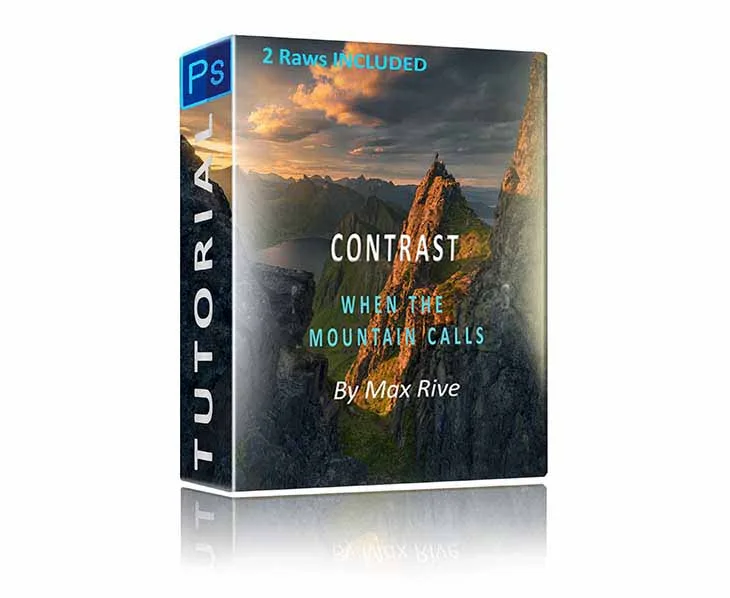
Autumn scenes often contain haze between mountain layers, side light and deep shadow. Use the tone curve and local adjustments to add contrast where it helps the composition, not across the whole frame. If the image needs stronger separation between layers or more controlled highlight and shadow detail, a dedicated contrast workflow is more reliable than stacking global sliders. This is the stage where a structured editing tutorial can save time compared with guessing.
Finish with restraint
Add a subtle vignette, sharpen for the intended output size, and check the image at 100 percent for color fringing around branches. Compare the edited version with the original before exporting. If the foliage looks uniformly orange or the sky has shifted, reduce the preset amount and revisit the individual color sliders rather than adding more global adjustments.
Step-by-step autumn editing workflow
- Step 1: Correct the base file: Set a neutral camera profile, fix exposure so foliage highlights hold texture, and set white balance from a neutral reference before applying anything else. Checkpoint: if the histogram shows clipped highlights in the leaves, lower exposure before moving on.
- Step 2: Apply one seasonal preset: Choose a preset that matches early or late fall, apply it, then reduce the amount so it supports the image rather than replacing your adjustments. Common mistake: stacking several presets at full strength, which flattens color and contrast.
- Step 3: Grade individual autumn hues: In HSL or Color Mixer, reduce green luminance, nudge yellow toward orange, and lower red luminance if late-fall leaves look flat. Keep saturation changes small. Checkpoint: view the image at fit-to-screen size to judge color balance, not just at 100 percent.
- Step 4: Refine contrast and atmosphere: Use the tone curve and local adjustments to separate mountain layers and control haze, shadow detail and highlights without flattening the whole frame. Common mistake: adding global contrast when the scene only needs local separation.
- Step 5: Finish and compare: Add a subtle vignette, sharpen for output size, check for color fringing around branches, and compare the edit with the original before exporting. If the result looks uniformly orange or the sky shifted, reduce the preset amount and revisit the color sliders.
Products that support this workflow
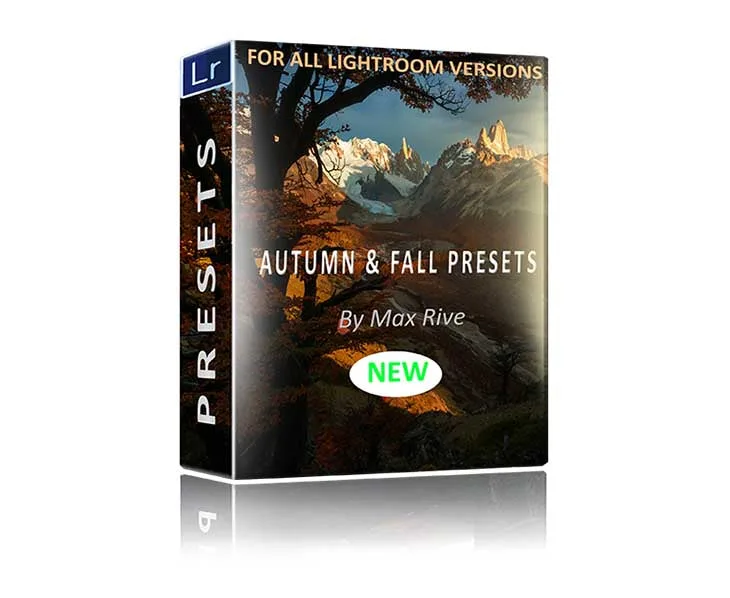
- Autumn and Fall Lightroom Presets: Autumn and Fall Lightroom Presets is a preset pack built for autumn and fall landscape images, covering green, yellow and orange forests in early autumn through dark reds and magenta in late fall. It gives you a stage-appropriate starting point so you spend less time building a fall look from scratch and more time refining the individual image.
- Photoshop Contrast Tutorial: Photoshop Contrast Tutorial teaches contrast editing for landscape images, including haze between mountain layers, side sunlight, vignetting, shadow detail, highlight control and color saturation. Useful when your autumn scene needs stronger layer separation and controlled contrast that global Lightroom sliders alone may not achieve.