Quick Answer
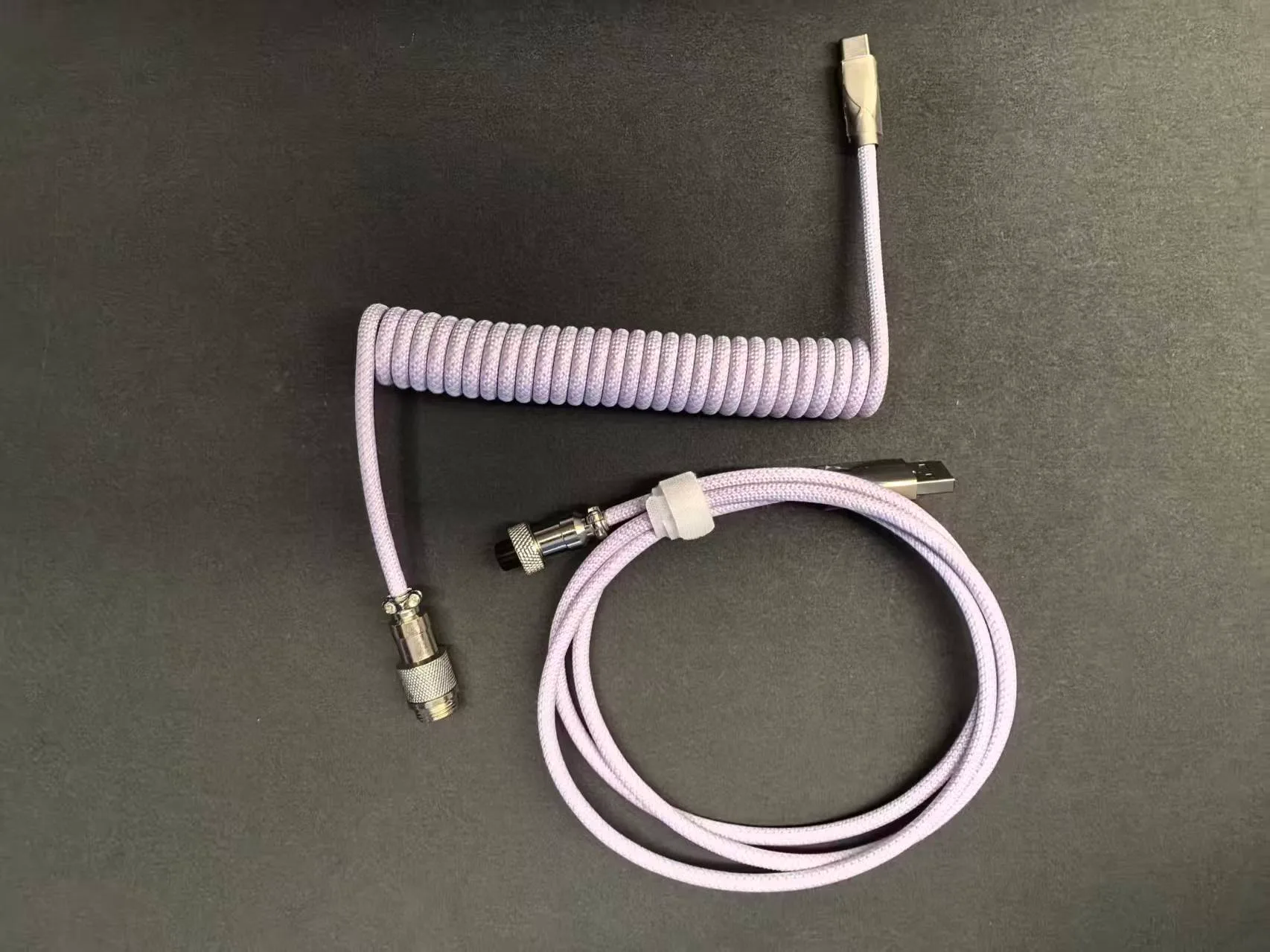
To install a coiled artisan cable, connect the USB-A end to your computer, route the coil away from interference, then plug the Type-C (or Mini/Micro) end into your keyboard. Avoid stretching the coil tight or placing it near heat sources.
Why proper routing matters for coiled cables
A coiled artisan cable is designed to stretch and contract, but pulling it too taut can damage the internal wires over time. Routing the coil so it hangs naturally—usually off the back or side of your desk—prevents strain on the connectors and keeps the cable looking tidy.
Unlike a straight cable, a coiled cable can also act as a spring if not secured. Placing it near a monitor edge or under a heavy object may cause it to pop loose or develop kinks. A little planning before plugging in saves you from re-routing later.
Step-by-Step Installation Guide
- 1. Unpack and inspect the cable: Remove the coiled artisan cable from its packaging. Check that the USB-A and Type-C (or Mini/Micro) connectors are clean and free of debris. Gently uncoil the cable to its natural shape—do not pull hard on the coil. If the coil feels stiff, let it sit at room temperature for a few minutes before handling.
- 2. Connect the USB-A end to your computer: Plug the USB-A connector into an available port on your PC, laptop, or powered USB hub. Ensure the connection is firm but not forced. Avoid using a front-panel port that may have limited clearance for the connector. A loose USB-A connection can cause intermittent disconnects; try a different port if the cable feels wobbly.
- 3. Route the coil away from interference: Position the coiled section so it hangs freely—ideally off the back edge of your desk or through a cable management channel. Keep the coil away from heat sources (e.g., radiators, monitor vents) and sharp edges that could abrade the braiding. Do not wrap the coil tightly around a monitor stand; this can stretch the internal wires and distort the coil shape.
- 4. Connect the Type-C end to your keyboard: Align the Type-C (or Mini/Micro) connector with the port on your custom keyboard and insert it gently until fully seated. If the connector is angled, ensure the orientation matches the port—do not force it. If the connector doesn't slide in easily, check for debris in the keyboard port or a bent pin; forcing it can damage both the cable and the keyboard.
- 5. Test the connection and adjust the slack: Type a few keys to confirm the keyboard registers input. Adjust the cable slack so the coil is slightly extended but not under tension. A good rule: the coil should stretch no more than 50% of its relaxed length during normal use. If the keyboard disconnects when you move it, the cable may be too tight—loosen the routing or use a longer cable path.
Product Facts
-
UNKNOWN ERROR Coiled Artisan Cable-Black: Unknown Error studio coiled cables are known for their fair pricing and high quality. This cable is a regular edition that doesn't come with a cable rod. Without a cable rod, the coil shape is set during manufacturing—avoid bending or stretching it excessively to maintain its original form.
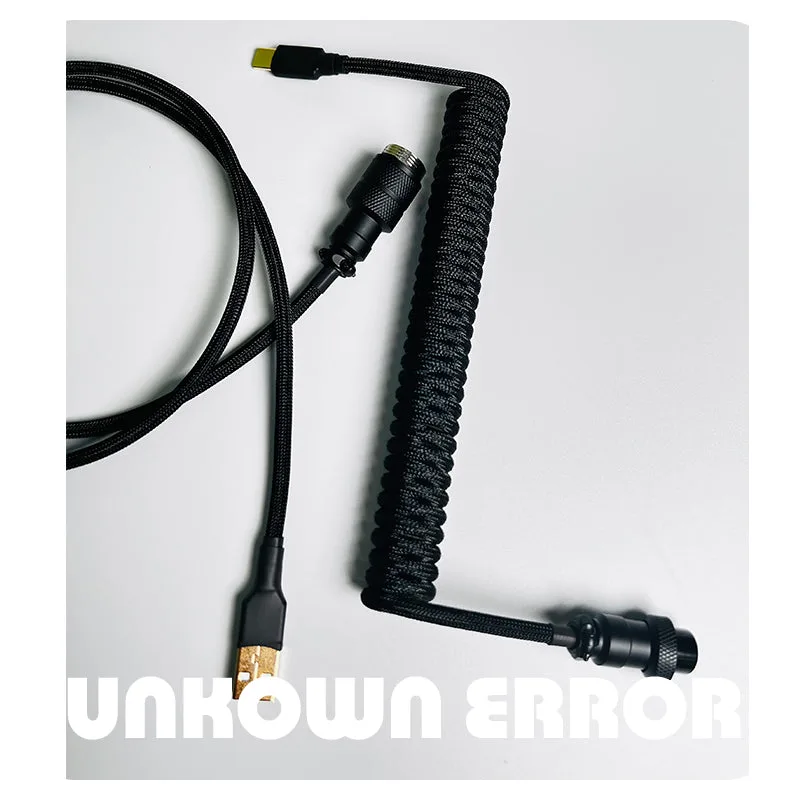
UNKNOWN ERROR Coiled Artisan Cable-Black