Quick answer
Clean the camera lens, align the protector using the included alignment tool, and press from the center outward to avoid bubbles. Use a Case-Mate Pelican Aluminum Ring Lens Protector for durable tempered glass and anti-fingerprint coating.
Why a proper installation matters
A camera lens protector that is misaligned or has trapped dust can degrade photo quality instead of protecting it. The Pelican Camera Lens Protector uses double-tempered glass and anti-scratch coatings, but even the best protector needs careful installation to deliver clear images.
Skipping the cleaning step or rushing alignment are the most common reasons for bubbles and poor adhesion. Taking a few extra minutes ensures the protector stays secure and your photos remain sharp.
Step-by-step installation guide
- Clean the camera lens thoroughly: Use the included alcohol wipe to remove oils and dust from the camera lens. Follow with the dry cloth to eliminate any streaks. A common mistake is leaving lint behind, which creates bubbles under the glass. Check the lens under bright light before proceeding; any visible specks will cause bubbles.
- Peel the backing and align the protector: Hold the protector by the edges and peel off the adhesive backing. Use the alignment tool or the camera ring as a guide to center the protector over the lens. The most frequent error here is touching the adhesive side, which leaves fingerprints that prevent full adhesion. If you touch the adhesive, discard that protector and use a fresh one.
- Press from the center outward: Gently lower the protector onto the lens, starting from the center and pressing outward toward the edges. This pushes air out and prevents bubbles. A common checkpoint is pressing too hard at the edges first, which traps air in the middle. Use your thumb or a soft cloth to apply even pressure in a circular motion from the center.
- Remove any remaining bubbles: If small bubbles appear, use the included squeegee or a credit card wrapped in a microfiber cloth to push them to the edge. Do not lift the protector to reapply, as this introduces dust and weakens the adhesive. Bubbles that remain after 24 hours usually indicate dust trapped underneath; consider replacing the protector.
Product used in this guide
-
Pelican Camera Lens Protector (Black) - iPhone 14 / 14 Plus: The Pelican Aluminum Ring Lens Protector features durable double-tempered glass with anti-fingerprint and anti-scratch coatings. The tempered glass resists cracks from drops while the coatings keep the lens clean and smudge-free, so you get clearer images without constant wiping.
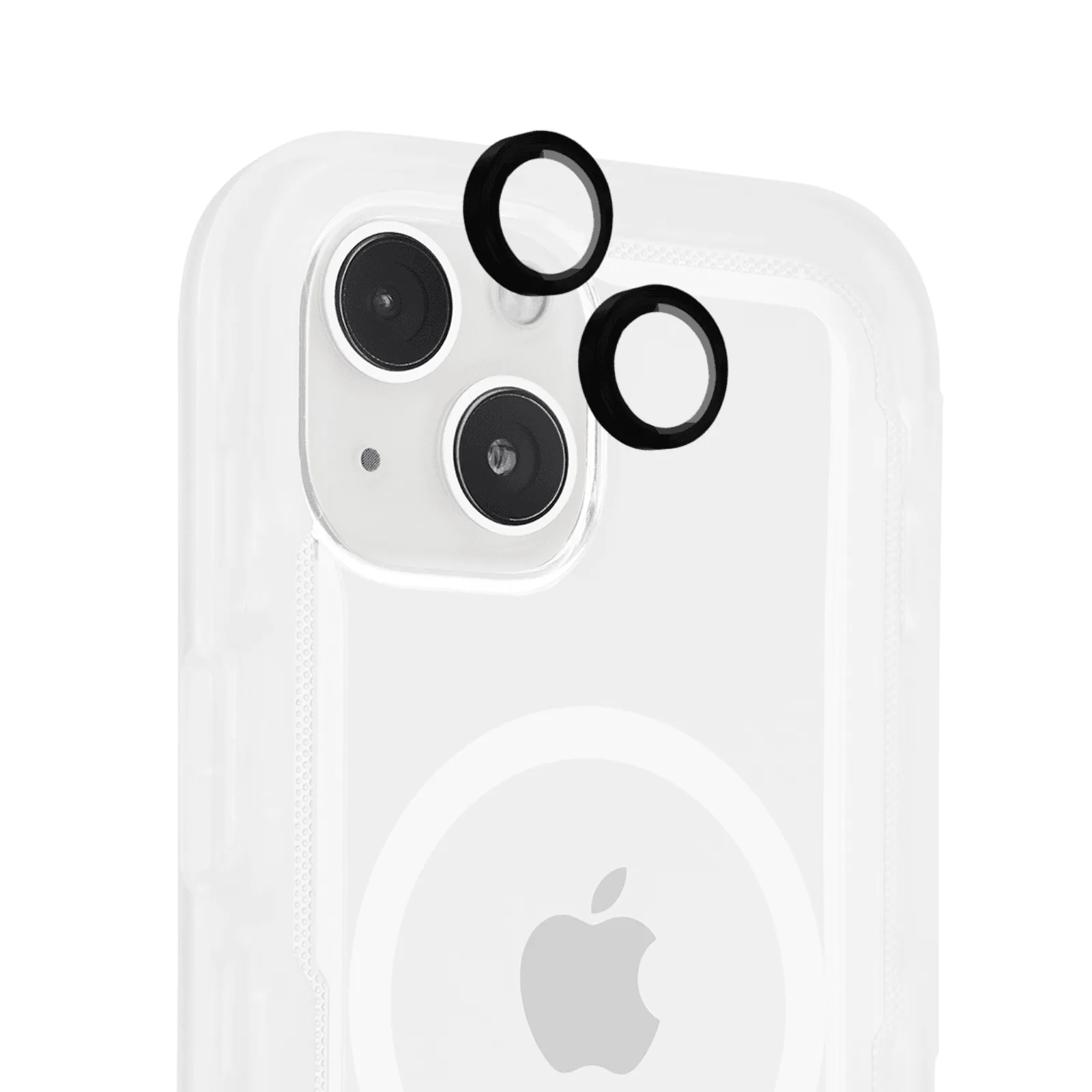
Pelican Camera Lens Protector (Black) - iPhone 14 / 14 Plus