Quick answer
Insert the included USB receiver into your laptop, turn on the remote, and your system will recognize it automatically within seconds—no software or pairing code needed.
Why the USB receiver matters
Most laser presentation remotes, including Logitech models like the R400, R500s, and R800, connect via a dedicated USB receiver stored inside the remote or battery compartment. This plug-and-play approach avoids Bluetooth pairing menus and works reliably even in rooms with multiple wireless devices.
The trade-off is that you need a free USB-A port on your laptop. If your laptop only has USB-C ports, you will need a USB-A to USB-C adapter or hub. The receiver does not support Bluetooth, so you cannot pair it without the dongle.
Compatibility notes for Windows and macOS
These remotes are recognized as standard HID (Human Interface Device) keyboards, so they work without drivers on Windows 10, Windows 11, and macOS Ventura and later. Slide navigation (up/down arrows) and laser pointer activation function immediately after pairing.
If the remote does not respond after insertion, try a different USB port or restart your laptop. On macOS, you may need to grant accessibility permissions for the pointer to work in presentation software like Keynote or PowerPoint.
Step-by-step pairing process
- Locate and remove the USB receiver: Check the battery compartment or a dedicated slot on the side of the remote. Gently pull out the small USB receiver. On the R400, R500s, and R800, the receiver is stored inside the battery compartment. Common mistake: trying to pair without removing the receiver first. The remote will not be detected until the receiver is inserted into the laptop.
- Insert the receiver into your laptop: Plug the USB receiver into an available USB-A port. If your laptop has only USB-C ports, use a USB-A to USB-C adapter. Wait 5–10 seconds for the operating system to recognize the new hardware. Checkpoint: a notification or sound usually confirms the device is ready. If nothing happens, try a different USB port.
- Turn on the remote: Slide the power switch on the remote to the On position. The remote is now paired and ready. Open a presentation in PowerPoint, Keynote, or Google Slides and test the forward/backward buttons. Common mistake: forgetting to turn on the remote after inserting the receiver. The remote will not send any signals until powered on.
- Test the laser pointer and slide controls: Press the laser button (usually on the top or side) to activate the red laser dot on the screen or projection surface. Use the forward and backward buttons to navigate slides. If the laser does not appear on screen, it is working as a physical light—point it at a wall or projection screen to see the dot. Checkpoint: on macOS, you may need to grant accessibility permissions in System Settings > Privacy & Security > Accessibility for the pointer to work in presentation apps.
Presentation remotes mentioned in this guide
-
R400 Laser Presentation Remote - Black: The Logitech R400 Laser Presentation Remote in Black includes a laser pointer and simple forward/backward slide controls. Its straightforward two-button layout makes it ideal for users who want a no-fuss pairing experience and basic slide navigation.
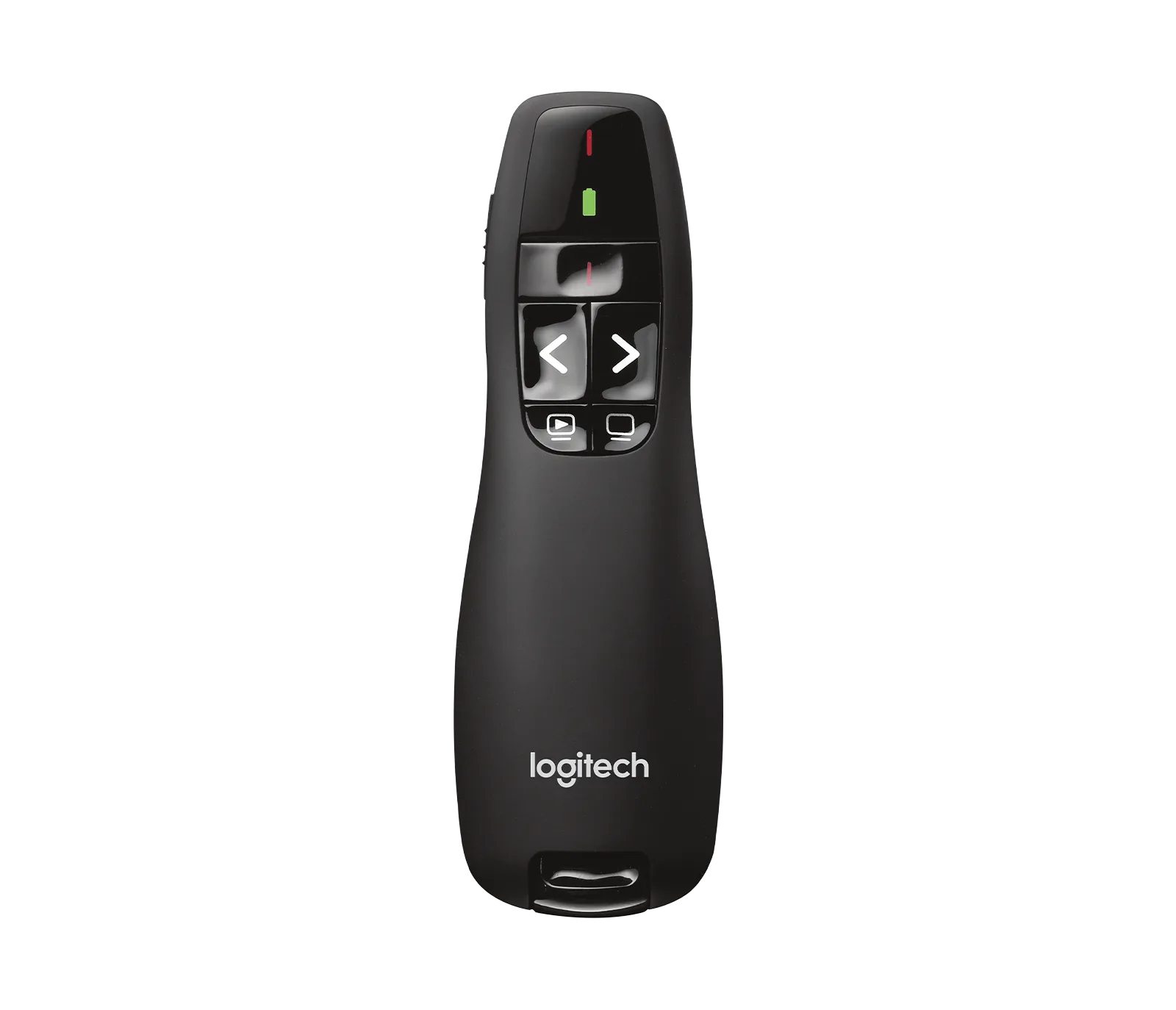
R400 Laser Presentation Remote - Black
-
R500s Laser Presentation Remote - Graphite: The Logitech R500s Laser Presentation Remote in Graphite offers a laser pointer and wireless connectivity for freedom of movement. The R500s adds a sleek graphite finish and the same plug-and-play pairing, making it a step up in aesthetics without complicating setup.
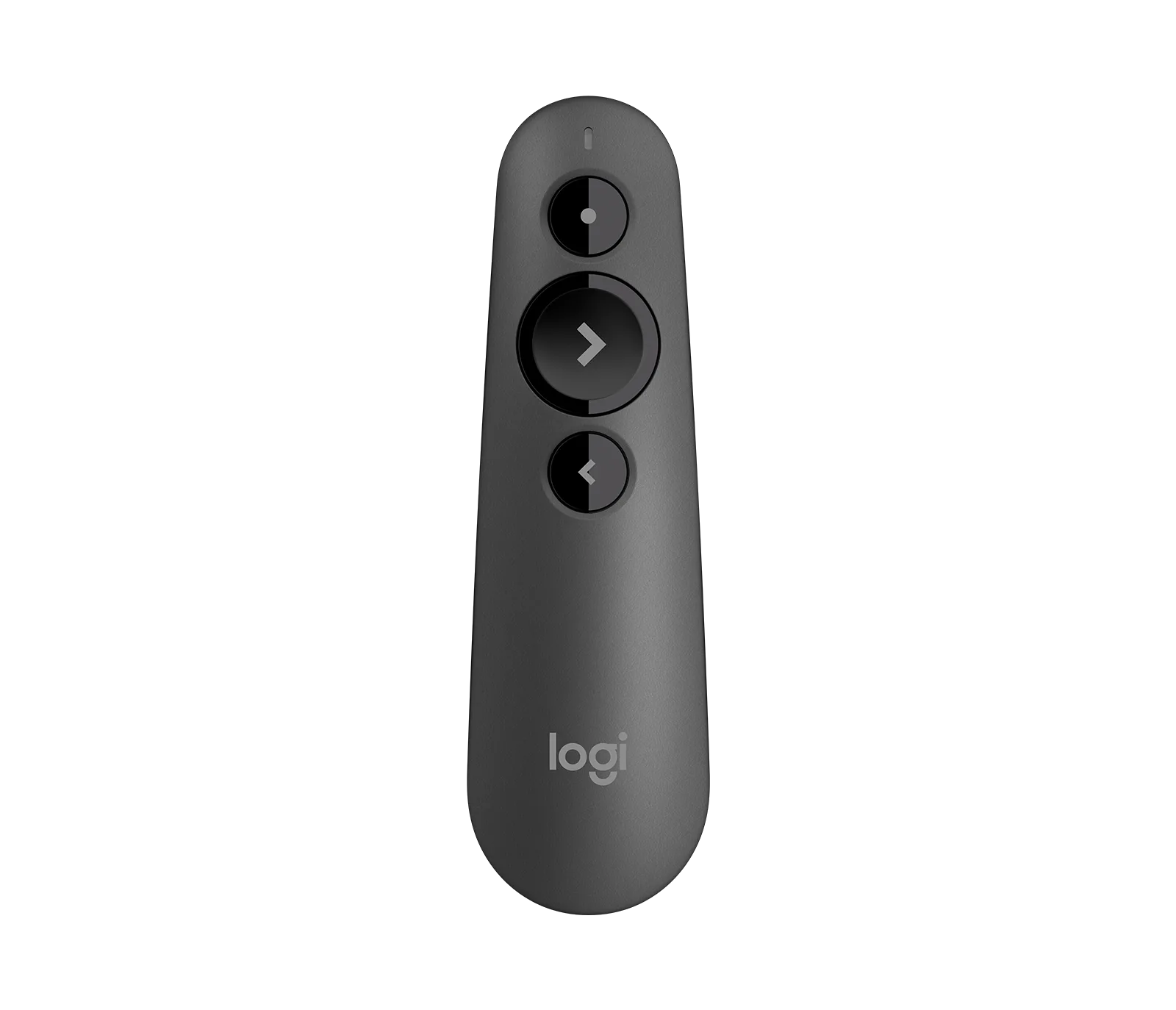
R500s Laser Presentation Remote - Graphite
-
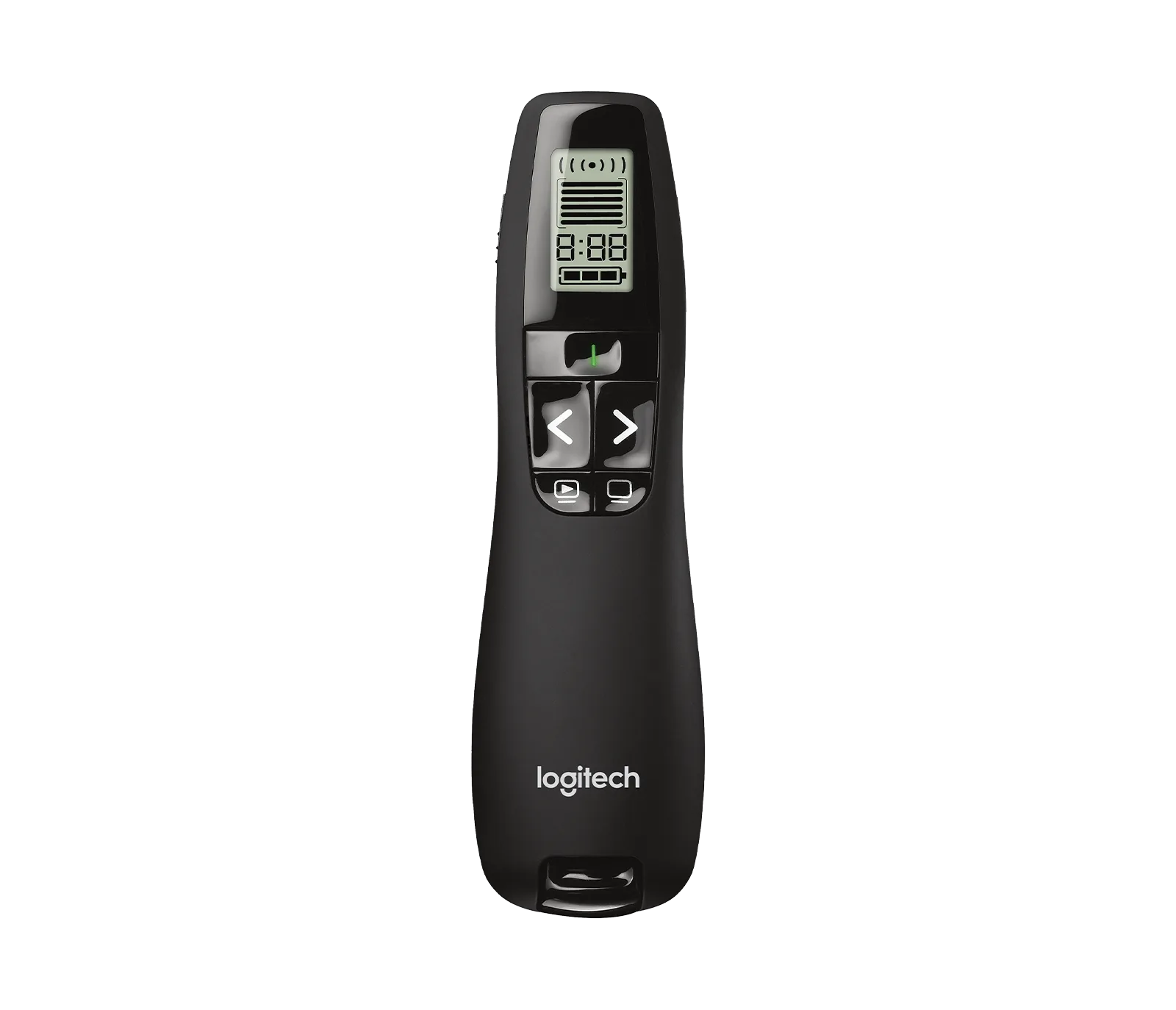
R800 Laser Presentation Remote - Black: The R800 Laser Presentation Remote in Black is designed for professional use with laser pointer functionality and seamless slide navigation. The R800 provides a reliable pairing experience similar to the R400 and R500s, with a focus on professional environments where consistency matters.