Quick Answer
For a 2.4GHz mouse, plug the USB receiver into your laptop and turn the mouse on; it should work in about five seconds. For a Bluetooth mouse, open your laptop's Bluetooth settings, put the mouse in pairing mode, then select it from the device list. If nothing happens, try a different USB port or remove and re-add the Bluetooth device.
Know Which Connection Type You Have
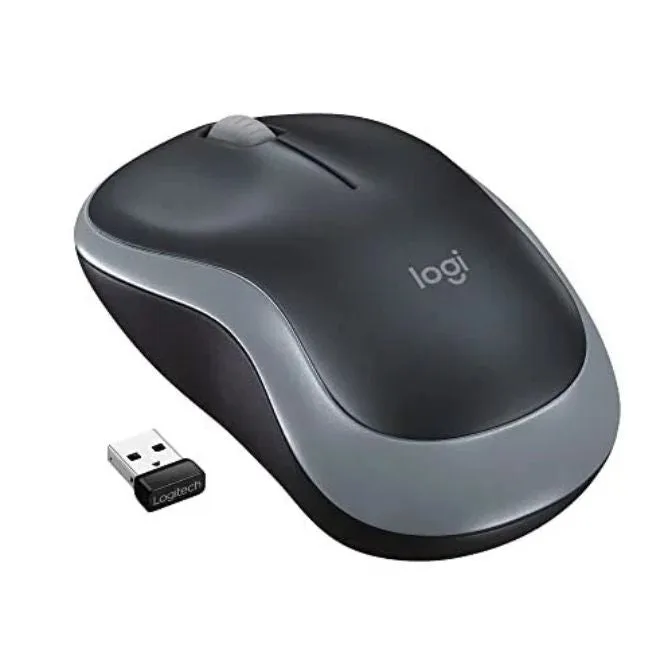
Wireless mice connect in one of two ways, and the setup steps are different. A 2.4GHz mouse uses a small USB receiver that stays plugged into your laptop. A Bluetooth mouse pairs directly with your laptop's built-in wireless, no receiver needed. Check the bottom of the mouse or the box: if there's a tiny USB-A or USB-C dongle, it's 2.4GHz. If the mouse has a Bluetooth logo or a pairing button but no dongle, it's Bluetooth.
Step-by-Step: Pairing a 2.4GHz Mouse
This is the fastest path. Most 2.4GHz mice are pre-paired at the factory, so you rarely need software. The main exception is if you buy a used or renewed mouse that was previously paired to another receiver.
- Insert the USB receiver into an open USB-A or USB-C port on your laptop. Avoid USB hubs if possible during setup.
- Turn the mouse on using the switch on the bottom. Many mice have an off/on slider; some have a small button you press once.
- Wait 5–10 seconds. The mouse should respond immediately. If it doesn't, try a different USB port.
- If the mouse still doesn't work, check for a pairing button on the receiver or inside the battery compartment. Press it once, then press the connect button on the mouse within 10 seconds.
- Test the cursor. If it moves, you're done. If not, replace the battery and repeat.
Step-by-Step: Pairing a Bluetooth Mouse
Bluetooth mice take a few extra clicks but free up a USB port. The exact menu names differ slightly between Windows and Mac, but the logic is the same.
- On Windows 11: open Settings > Bluetooth & devices > Add device > Bluetooth. On Windows 10: Settings > Devices > Bluetooth & other devices > Add Bluetooth or other device > Bluetooth. On Mac: open System Settings > Bluetooth.
- Turn the mouse on and put it in pairing mode. Usually you hold the pairing button for 3–5 seconds until an LED blinks rapidly. Check the manual if unsure.
- Wait for the mouse name to appear in the list, then click or tap it.
- Confirm any pairing code if prompted. Most mice pair without a code.
- Test the cursor. If it doesn't move, remove the device from your laptop's Bluetooth list, restart the laptop, and repeat.
When the Mouse Won't Connect: Quick Fixes
Most connection failures come down to power, port, or interference. Work through these in order before assuming the mouse is broken.
- Replace the battery or charge the mouse. A weak battery is the most common cause of intermittent drops.
- Try a different USB port. Front-panel ports and unpowered hubs sometimes don't supply enough power for the receiver.
- Move the receiver closer. If your laptop is under a desk or behind a monitor, use a short USB extension cable to bring the receiver into line of sight.
- Turn off other wireless devices nearby. Wi-Fi routers, cordless phones, and USB 3.0 hard drives can interfere with 2.4GHz signals.
- For Bluetooth, toggle Bluetooth off and on, or forget the device and re-pair. On Mac, you can also delete the Bluetooth plist file, but that's rarely needed.
Pairing Steps at a Glance
- Identify your mouse type: Check for a USB receiver (2.4GHz) or a Bluetooth logo/button (Bluetooth). Wrong diagnosis leads to wasted time.
- For 2.4GHz: plug in and power on: Insert the receiver, turn the mouse on, and wait 5–10 seconds. If no response, try another USB port before anything else.
- For Bluetooth: open settings and pair: Put the mouse in pairing mode, then select it from your laptop's Bluetooth list. If it doesn't appear, hold the pairing button longer or check the battery.
- Test and troubleshoot: Move the cursor. If it fails, replace the battery, change ports, or re-pair. Most issues are power or interference, not a dead mouse.
Product Facts
- Logitech M185 Wireless Mouse, 2.4GHz with USB Mini Receiver, 12-Month Battery Life, 1000 DPI Optical Tracking, Ambidextrous PC/Mac/Laptop - Swift Gray: Logitech M185 Wireless Mouse uses a 2.4GHz USB nano receiver and has a 12-month battery life, 1000 DPI optical tracking, and a contoured ambidextrous shape. The nano receiver stays in your laptop, so there's nothing to lose. The 12-month battery life means fewer interruptions, and the ambidextrous shape suits left- or right-handed use.
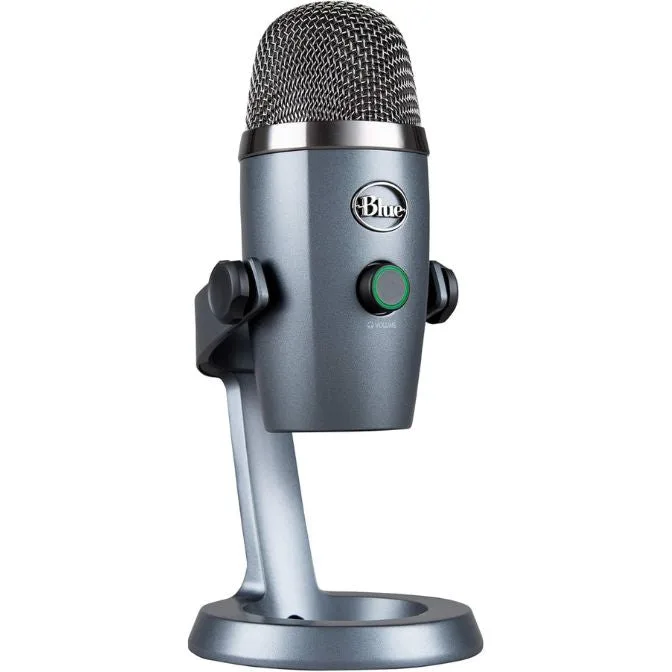
- Logitech for Creators Blue Yeti Nano USB Microphone for Gaming, Streaming, Podcasting,Twitch, YouTube, Discord, Recording for PC and Mac, Plug & Play - Shadow Grey: Logitech for Creators Blue Yeti Nano USB Microphone is plug-and-play for Mac and PC, with a no-latency headphone output and standard threading for boom arms. If you're setting up a streaming or podcasting station, this mic connects via USB without drivers, and the headphone jack lets you monitor your voice in real time.