Quick answer
To pair a Logitech Crayon with an iPad, simply turn on the pen and tap the Bluetooth pairing prompt on your iPad. No app or extra configuration is needed.
Lightning vs USB-C: Which model do you have?
The Logitech Crayon comes in two versions: one with a Lightning connector and one with USB-C. The pairing process is identical for both, but the charging cable differs. Check the port on your Crayon to confirm which model you own before proceeding.
Step-by-step pairing guide
- Turn on your Logitech Crayon: Slide the power switch on the side of the Crayon to the ON position. A green LED should light up briefly to confirm it's powered. If the LED does not light, charge the Crayon for 15 minutes using the included cable (Lightning or USB-C depending on your model).
- Unlock your iPad and open a note-taking app: Wake your iPad and open any app that supports stylus input, such as Notes, GoodNotes, or Notability. This triggers the Bluetooth pairing prompt. If the prompt does not appear, close and reopen the app, or restart your iPad.
- Tap the Bluetooth pairing prompt on your iPad: When the prompt appears on your iPad screen asking to pair with the Logitech Crayon, tap Pair. The Crayon will connect immediately and stay paired until you turn it off. You only need to pair once. The Crayon will reconnect automatically the next time you turn it on near the same iPad.
Product facts
-
Logitech Crayon (Lightning) - Grey: Connects via Lightning for seamless pairing with compatible iPads. If you have an older iPad with a Lightning port, this model charges and pairs directly without needing an adapter.
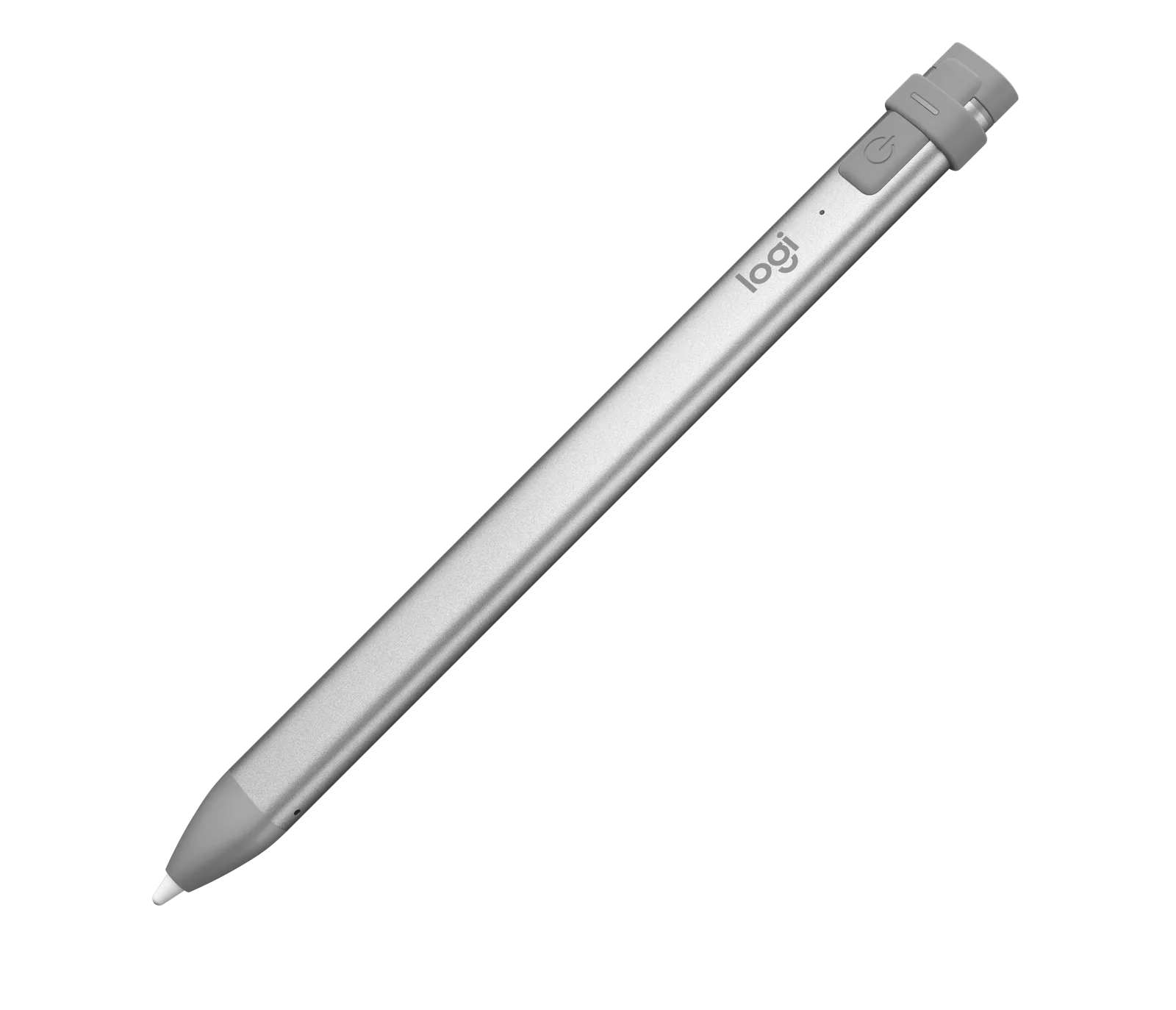
Logitech Crayon (Lightning) - Grey
-
Logitech Crayon (USB-C) - Silver: Connects via USB-C for convenient charging and pairing. For newer iPads with USB-C, this model offers a direct connection and faster charging without extra dongles.
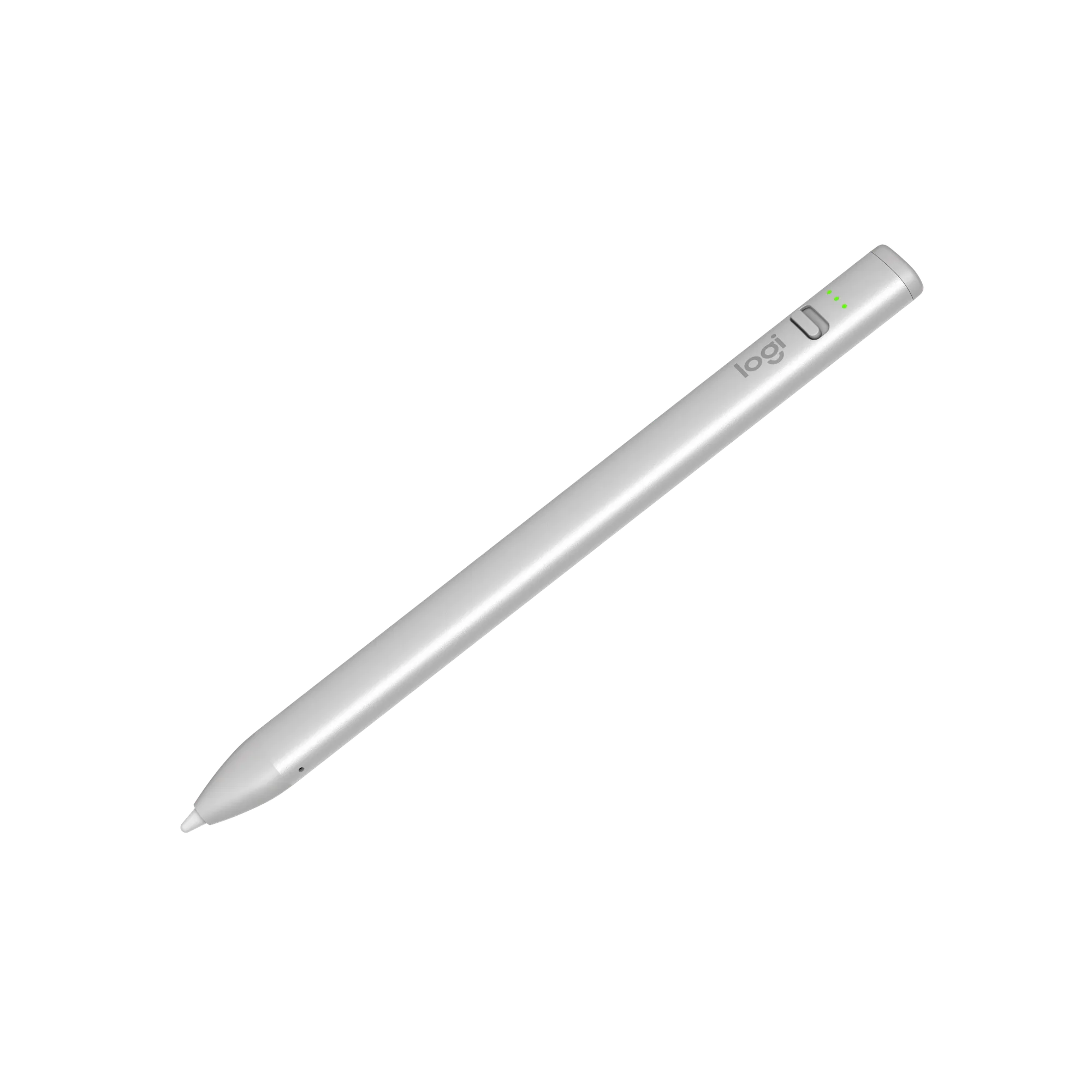
Logitech Crayon (USB-C) - Silver