Quick answer
Insert the USB receiver into your computer, install batteries, and power on the keyboard and mouse. Your TECKNET combo will pair automatically in seconds.
Before you start: check your computer and workspace
The TECKNET BASICS Wireless Keyboard & Mouse Combo uses a single 2.4GHz USB receiver for both devices. It works with Windows, Mac, and Chrome OS without extra drivers. The ultra-slim design is ideal for travel, coffee shops, and compact desks, but the receiver needs a free USB-A port. If your laptop only has USB-C, you will need a USB-C to USB-A adapter (not included).
Step-by-step setup
- 1. Insert the USB receiver: Plug the included USB receiver into an available USB-A port on your computer. Wait 10–15 seconds for the system to recognize it. A notification or a small LED on the receiver may confirm connection. Common mistake: Plugging the receiver into a USB hub or extension cable can cause interference. Always connect directly to the computer port.
- 2. Install batteries and power on the keyboard: Open the battery compartment on the back of the keyboard and insert 2 AAA batteries (not included). Slide the power switch to ON. The keyboard should connect to the receiver automatically within a few seconds. Checkpoint: If the keyboard does not respond, remove and reinsert the batteries. Ensure the power switch is fully in the ON position.
- 3. Power on the mouse: Open the mouse battery compartment and insert 2 AAA batteries (not included). Slide the power switch to ON. The mouse will pair to the same receiver. Move the mouse to wake it from sleep mode. Common mistake: The mouse may appear unresponsive if it has entered deep sleep during shipping. Move it around or press any button to wake it.
- 4. Verify pairing on your operating system: Open a text document or browser and test both the keyboard and mouse. On Windows, open Bluetooth & Other Devices to confirm the receiver is listed as a keyboard/mouse device. On Mac, check System Preferences > Keyboard and Mouse. On Chrome OS, the devices should work immediately without additional settings. Checkpoint: If only one device works, remove the USB receiver, wait 10 seconds, and reinsert it. Both devices will re-pair automatically.
- 5. Adjust mouse DPI and scroll speed (optional): The TECKNET mouse includes a DPI button on the bottom. Press it to cycle through 800 / 1200 / 1600 DPI settings. The current DPI is indicated by a small LED color. Choose the setting that feels most comfortable for your work or play. Common mistake: Forgetting to adjust DPI after setup. The default 1600 DPI may feel too fast for precise tasks like photo editing; try 800 DPI for finer control.
Product in this guide
-
TECKNET BASICS Wireless Keyboard & Mouse Combo, 2.4GHz Mini Cordless Set, Silent 1600 DPI, Quiet Click Lag-Free for PC/Mac/Chrome OS: This combo features an ultra-slim and lightweight design that fits easily into laptop bags and backpacks, and includes a 2.4GHz mini cordless set with silent 1600 DPI mouse and quiet click keyboard. The single USB receiver keeps your setup clutter-free, and the compact size means you can carry it between home, office, and coffee shops without extra gear.
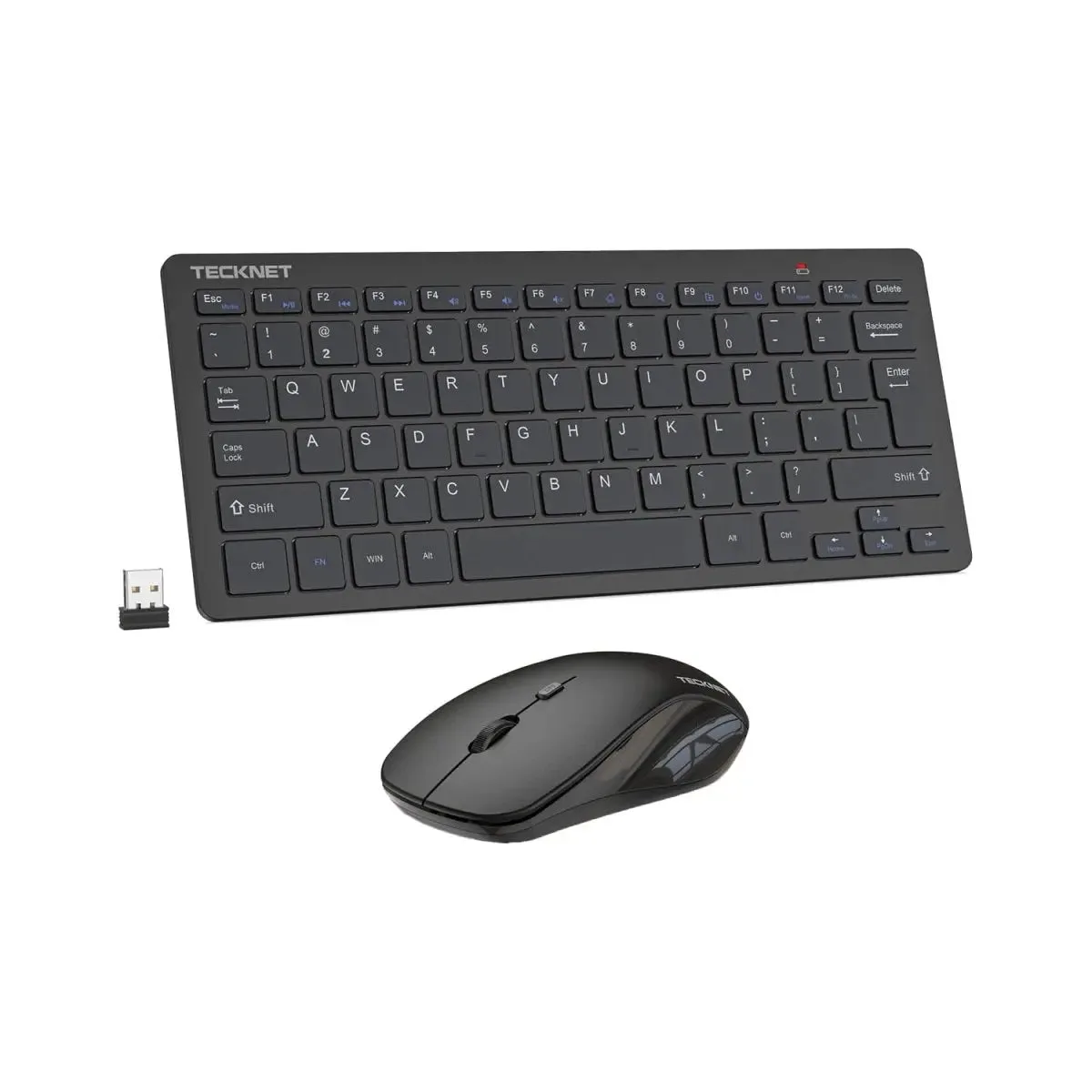
TECKNET BASICS Wireless Keyboard & Mouse Combo, 2.4GHz Mini Cordless Set, Silent 1600 DPI, Quiet Click Lag-Free for PC/Mac/Chrome OS