Quick answer
You can replace the ear cushions on your HyperX Cloud Stinger 3 by gently prying off the old pads, aligning the new ones, and pressing them into place. The process takes about five minutes and needs no special tools.
Why replace the ear cushions?
Over time, the leatherette surface on your earpads can crack or peel, and the memory foam inside can lose its shape. Worn cushions not only feel less comfortable but also reduce the sound isolation that keeps you immersed in your game.
Replacing the cushions restores the original fit and comfort, so the headset still feels like new. It is a simple DIY repair that costs less than buying a new headset and keeps your gear in service longer.
What to check before you start
Make sure you have the correct replacement cushions for the HyperX Cloud Stinger 3. The earpads are designed to fit the specific shape of the earcups, so using the wrong size can affect comfort and sound.
If you are unsure about the fit, check the product listing for compatibility notes or contact support. Also, work in a clean, well-lit area to avoid losing small parts and to see the attachment points clearly.
Step-by-step replacement
- Remove the old cushion: Hold the earcup with one hand and use your fingers to gently peel the edge of the cushion away from the earcup. Work around the perimeter until the pad pops off. If it is stiff, use a plastic spudger or an old credit card to pry it loose without scratching the plastic. Do not pull hard on the wire or the speaker mesh; you only need to remove the pad itself.
- Inspect the earcup: Check the earcup for any debris or damage. Wipe the surface with a dry microfiber cloth. If the speaker mesh is dirty, use a soft brush or compressed air to clean it gently. A clean surface helps the new cushion seat properly and prevents dirt from getting trapped.
- Align the new cushion: Look for the orientation notch or the shape of the pad. Most HyperX pads have a specific top and bottom. Align the new cushion with the earcup so that the notch or the wider side matches the headband direction. If the pad feels lopsided, remove it and re-align before pressing down.
- Press the cushion into place: Starting at one side, press the cushion evenly around the earcup. You should hear or feel a click as the pad snaps into the retaining ring. Continue pressing until the entire pad is seated. Work slowly around the edges; do not force the middle of the pad down first.
- Test the fit: Put the headset on and adjust the headband. The cushion should sit flush against your ears without gaps or pressure points. Rotate the earcups to confirm they still move freely. If the pad shifts or feels loose, remove it and repeat the alignment and press steps.
Product facts
-
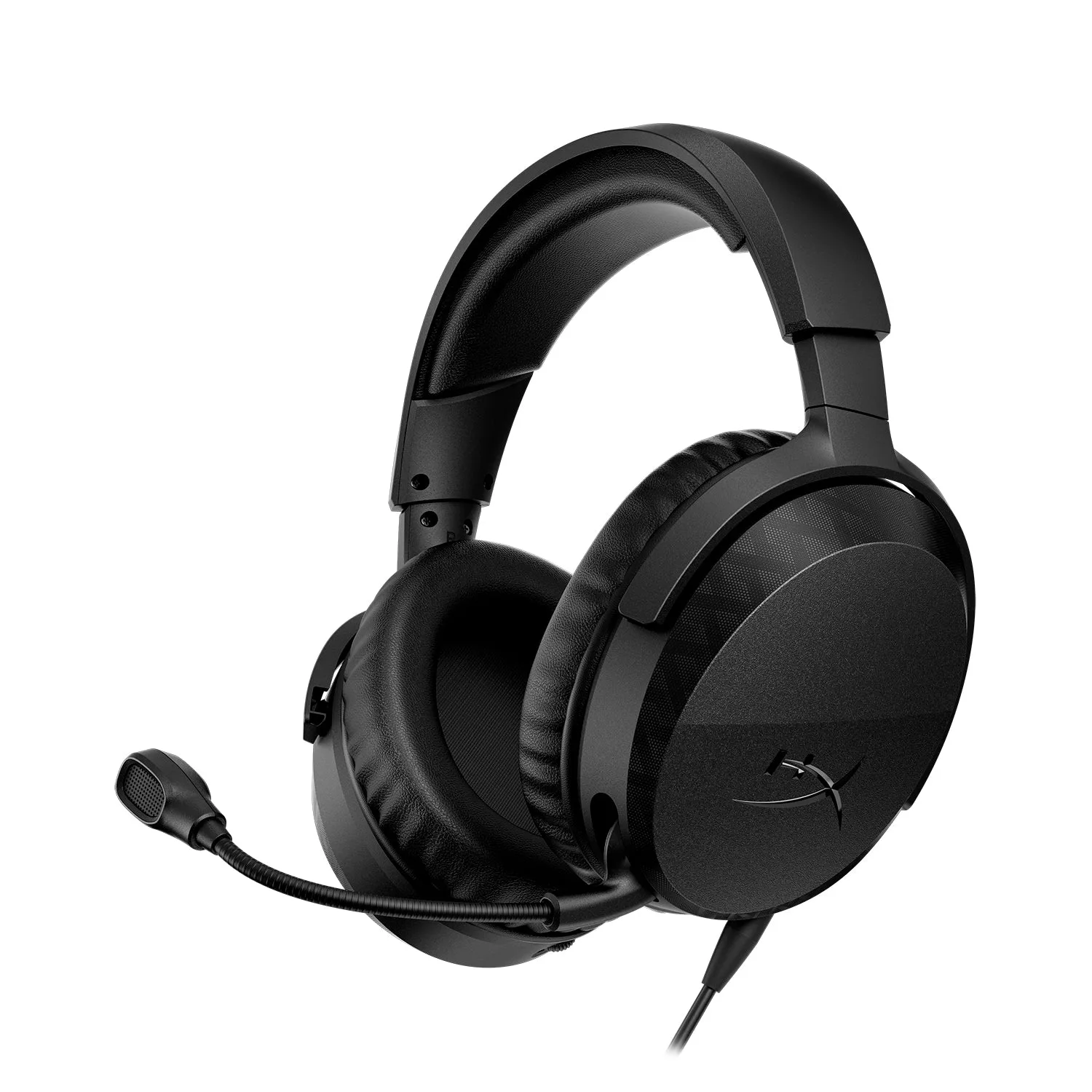
HyperX Cloud Stinger 3 Gaming Headset: The HyperX Cloud Stinger 3 features leatherette earpads and memory foam earcups for comfort during long sessions. These materials are exactly what you are replacing, so the new cushions restore that original plush feel and secure fit.
HyperX Cloud Stinger 3 Gaming Headset