Quick answer
To scan and restore old slide film, start by cleaning the slides and using a dedicated film scanner or a flatbed with a slide holder. For large batches or fragile slides, a professional slide scanning service like Austin Camera's Slide Scans delivers consistent, high-resolution results.
Why professional scanning helps with large collections
When you have hundreds or thousands of slides, scanning each one yourself becomes time-consuming and repetitive. Professional services offer tiered pricing based on quantity, so you can choose a batch that fits your project. For example, Austin Camera's Slide Scans service has tiers from 1–10 up to 1000+ slides, with a per-slide price of USD 1.79 compared to a catalog price of USD 2.99, making it cost-effective for bulk orders.
Professional scanners also use calibrated equipment that captures color and detail more accurately than most consumer flatbeds. This is especially important for slides that have faded or shifted color over decades.
Trade-offs between DIY and service scanning
Scanning at home gives you full control over resolution, cropping, and file formats, but it requires a dedicated scanner and software. For a handful of slides, DIY is fine. For large archives or slides with sentimental value, a service ensures consistent results without the upfront hardware cost.
If you choose to do it yourself, be prepared to spend several minutes per slide including cleaning, scanning, and color correction. A service like Slide Scans handles that labor, so you can focus on restoration.
Step-by-step guide to scanning and restoring old slide film
- 1. Clean the slides carefully: Use a soft, lint-free cloth or a compressed air duster to remove dust and fingerprints from both sides of the slide. Avoid liquid cleaners unless they are specifically made for film, as they can damage the emulsion. Common mistake: using household glass cleaner or paper towels can scratch the slide surface.
- 2. Choose your scanning method: If scanning at home, use a dedicated film scanner or a flatbed scanner with a slide holder. Set the resolution to at least 2400 dpi for good prints, or 4000 dpi for archival quality. For large batches, consider a professional service like Slide Scans. Checkpoint: a low-resolution scan (under 2000 dpi) may not capture fine detail needed for restoration.
- 3. Scan in a lossless format: Save the scans as TIFF or PNG, not JPEG. Lossless formats preserve all the data needed for color correction and dust removal. If your scanner only offers JPEG, scan at the highest quality setting. Common mistake: JPEG compression introduces artifacts that become visible when you edit the image.
- 4. Restore color and exposure: Use photo editing software like Adobe Lightroom, Photoshop, or free tools like GIMP. Adjust the white balance first, then correct exposure and contrast. Slides often have a color cast from age; use the eyedropper tool on a neutral gray area to fix it. Checkpoint: overcorrecting can make the image look unnatural; aim for a balanced, realistic look.
- 5. Remove dust and scratches: Use the spot healing brush or clone stamp tool in your editing software to remove dust spots and scratches. Work at 100% zoom to avoid missing small imperfections. For large batches, consider batch-processing with dust removal presets. Common mistake: applying too much healing can blur fine details; use a small brush size.
Product facts
-
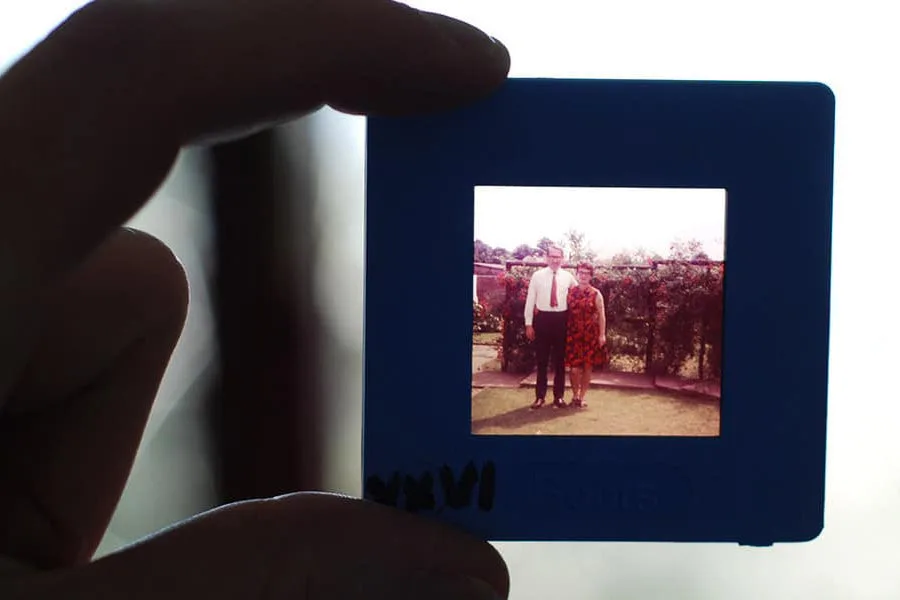
Slide Scans: Austin Camera's Slide Scans service digitizes 35mm slides with pricing tiers from 1 single slide up to 1000+ slides, priced at USD 1.79 per slide (catalog price USD 2.99). This service is ideal for large collections because the per-slide cost drops with volume, and you get consistent, professional-quality scans without buying your own scanner.
Slide Scans