Quick Answer
Setting up the Epomaker HACK59 for daily typing involves unboxing, connecting via USB or Bluetooth, installing switches if needed, and configuring key mappings to suit your workflow.
Why the HACK59 Layout Works for Daily Typing
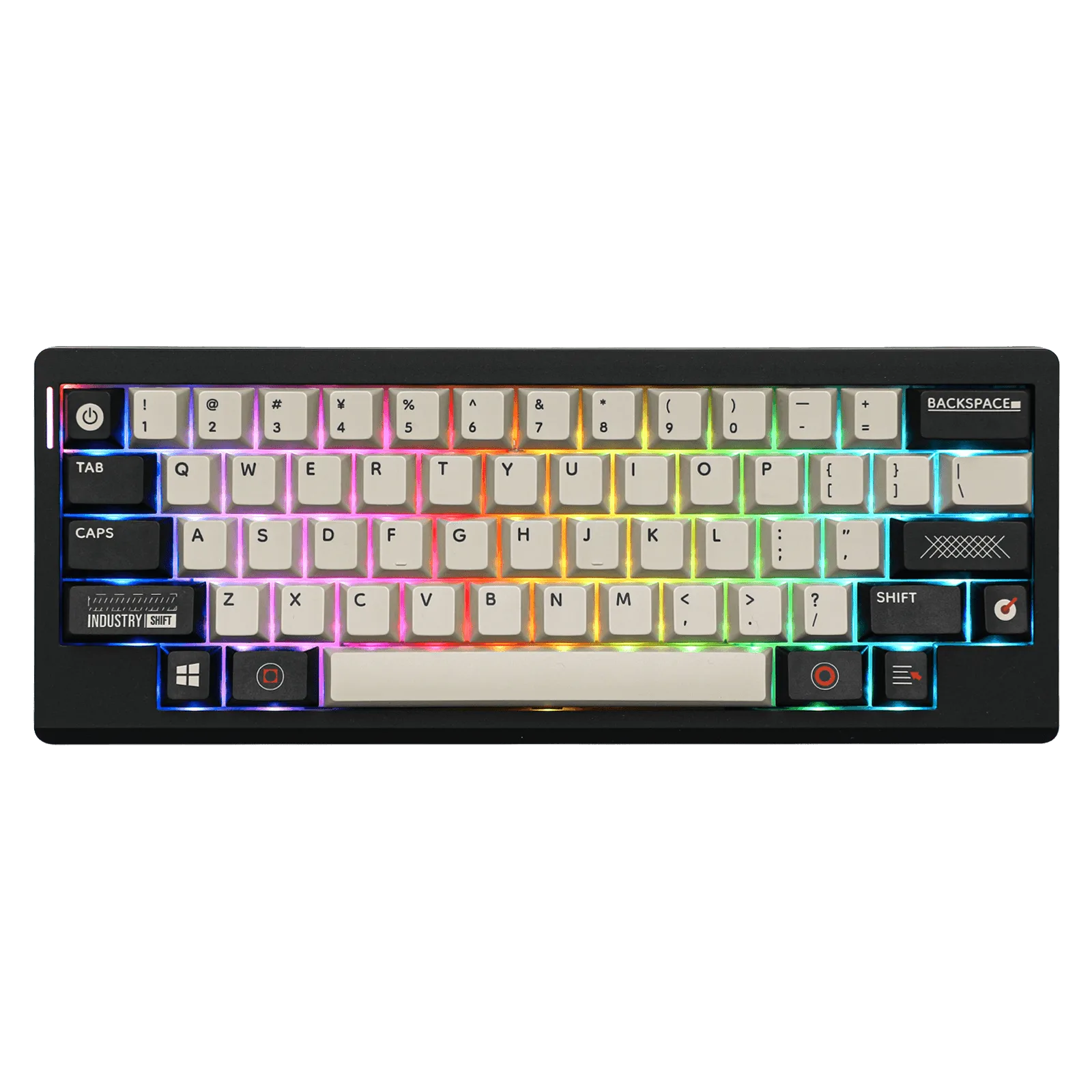
The Epomaker HACK59 uses a compact 59-key layout that keeps essential keys within easy reach, reducing hand movement and improving typing efficiency. This design is especially helpful if you work at a desk with limited space or prefer a minimalist setup.
Because it lacks a dedicated number pad and function row, you may need to adjust to using layers for certain keys. This is a trade-off for the compact size, but most users adapt quickly and appreciate the extra desk space.
Choosing Between Wired and Wireless Modes
The HACK59 supports triple-mode connectivity: USB-C wired, Bluetooth, and 2.4 GHz wireless. For daily typing, Bluetooth is convenient for switching between devices, while wired mode offers the lowest latency and no battery concerns.
If you plan to use Bluetooth, ensure your computer supports it and that the keyboard is fully charged before first use. For a stable office setup, wired mode is often the most reliable choice.
Step-by-Step Setup Guide
- Unbox and Inspect the Keyboard: Remove the HACK59, USB-C cable, keycap puller, and switch puller from the box. Check that all keycaps are seated properly and that the keyboard is clean. Common mistake: Forgetting to remove the plastic film under the keycaps or between the PCB and case. This can cause connection issues or dampen the typing feel.
- Install or Check Switches: If your HACK59 came without switches, press your preferred mechanical switches into the hot-swap sockets. Ensure the pins are straight and the switch clicks into place. If switches are pre-installed, press each one firmly to confirm they are seated. Common mistake: Installing switches with bent pins or not fully seating them can cause non-responsive keys. Always double-check before powering on.
- Connect to Your Computer: For wired mode, plug the USB-C cable into the keyboard and your computer. For Bluetooth, switch the keyboard to Bluetooth mode, press the pairing button, and select 'Epomaker HACK59' from your device's Bluetooth menu. Common mistake: Not switching to the correct mode (wired vs wireless) before connecting. The keyboard will not be detected if the mode is wrong.
- Charge the Battery (Wireless Users): If you plan to use wireless mode, connect the USB-C cable to charge the keyboard fully before first use. A full charge typically takes a few hours and provides several days of use. Common mistake: Using the keyboard while it is charging can slow the charging process. Let it charge undisturbed for best results.
- Configure Key Mapping and Layers: Use the Epomaker software (download from the official site) to remap keys, create custom layers, or adjust lighting. For daily typing, consider mapping common shortcuts (like copy/paste) to easily accessible keys on the main layer. Common mistake: Overcomplicating layers on day one. Start with a simple layout and add customizations as you get comfortable.
- Test All Keys and Adjust Typing Angle: Type a few paragraphs to ensure every key registers correctly. Adjust the keyboard's tilt feet to find a comfortable angle that reduces wrist strain. Common mistake: Ignoring ergonomics. A flat keyboard or wrong angle can cause discomfort over time. Use the feet to tilt the keyboard slightly away from you.
Product Highlight
-
Epomaker HACK59: Special Layout with 59 Keys – The Epomaker HACK59 features a compact 59-key layout that emphasizes a minimalistic approach and ergonomic design. This layout keeps your hands closer together and reduces finger travel, which can help prevent fatigue during long typing sessions.
Epomaker HACK59