Quick answer
Connect your game source to the stereo 3.5mm line input, your chat or mic to the appropriate microphone input, and your headset to the mixer’s headphone output. Then set game and chat levels so voice sits clearly above game audio without clipping. The HyperX Audio Mixer gives you three inputs and simple controls, so most of the work is done before you touch a fader.
Know what each input on the HyperX Audio Mixer is for
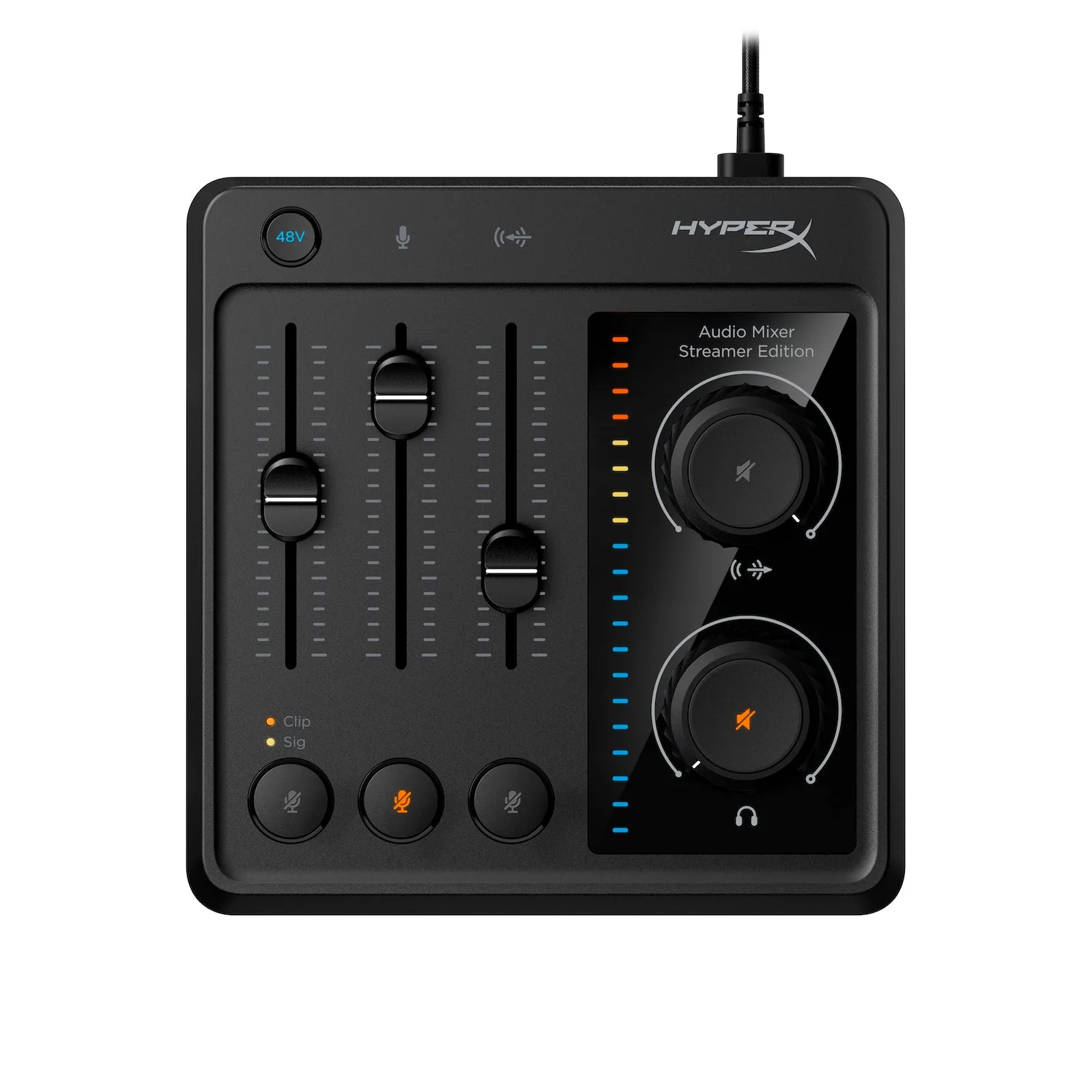
The HyperX Audio Mixer has three inputs: an XLR microphone input, a 3.5mm microphone input, and a stereo 3.5mm line input. The XLR and 3.5mm mic inputs are for microphones; the line input is for a game console, phone, or other line-level source. Your headset connects to the mixer’s headphone output. Understanding this split prevents you from plugging a headset mic into the line input and wondering why nobody can hear you.
Set gain before you balance game and chat
Gain staging is the step most people skip. Start with all volume controls low, then raise the mic gain until your voice peaks just below clipping on loud words. Do the same for the game source using its own volume control, not the mixer’s headphone volume. Once each source is clean on its own, balancing them is a matter of small adjustments rather than fighting distortion.
Balance game and voice for your audience, not just your ears
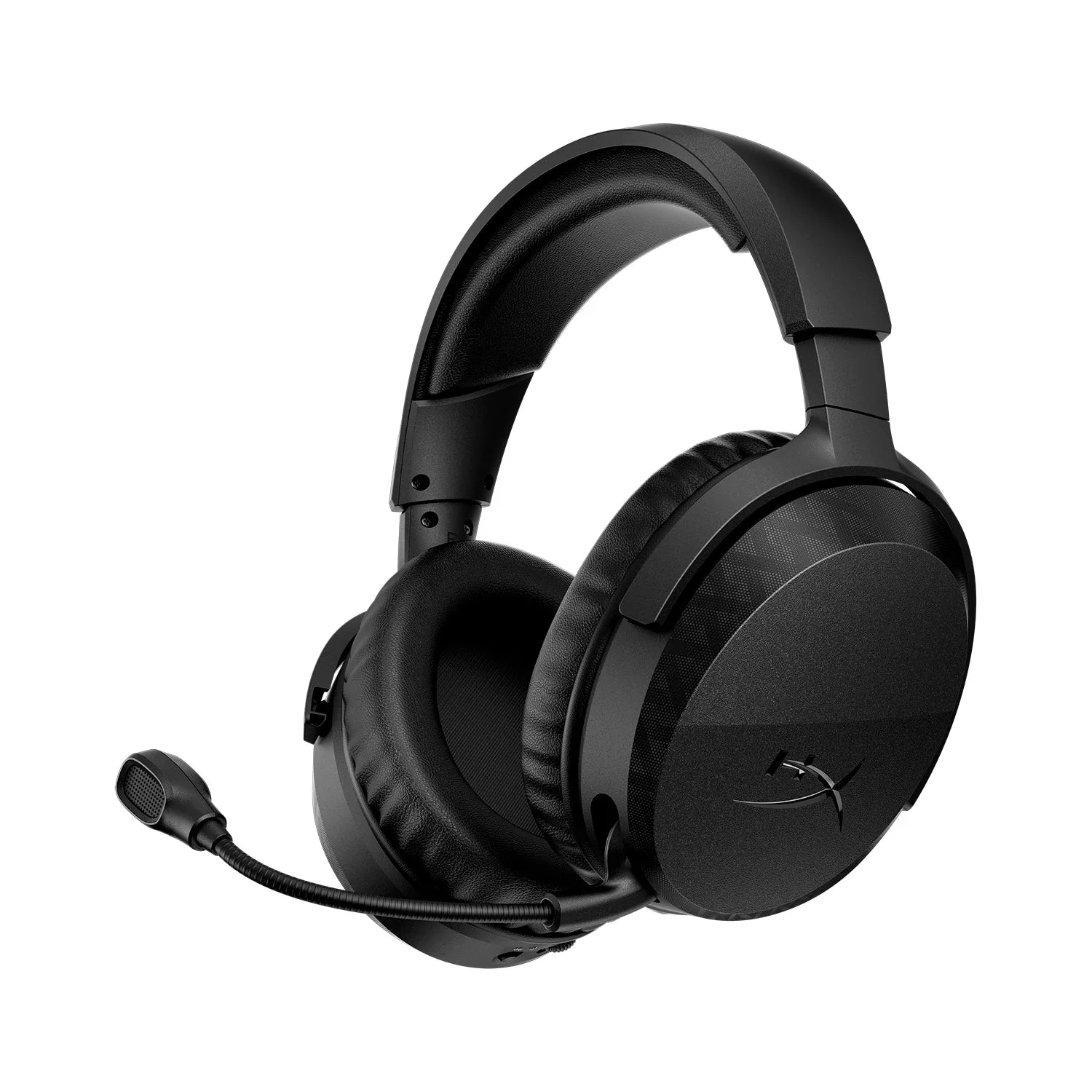
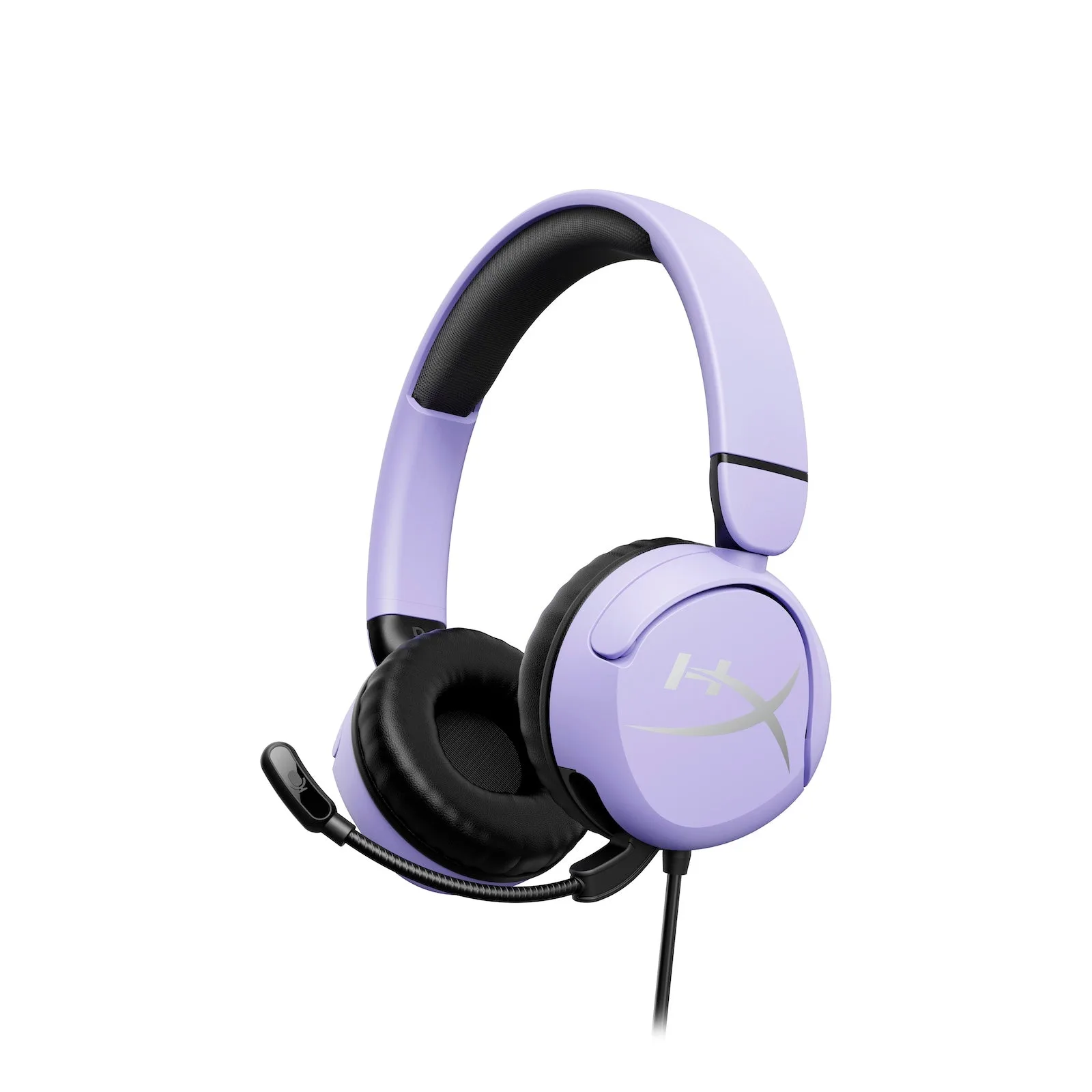
What sounds balanced in your headphones may not translate to the stream. Game audio often has loud peaks—explosions, engine noise—that mask speech. Set game audio lower than feels natural solo, then bring your voice up until it is intelligible over the busiest moment. If you use a HyperX Cloud Stinger 3 or Cloud Mini headset, remember that its own volume control affects only what you hear, not the mix your viewers get.
Label and document your settings
The mixer’s compact controls are easy to bump. Take a photo of your final positions or note them down. If you switch between games with different audio dynamics, you’ll have a reliable starting point instead of rebuilding the mix from scratch each session.
Step-by-step mixer setup
- Power down and connect sources: Turn off the mixer and your devices. Plug your game source into the stereo 3.5mm line input, your microphone into XLR or 3.5mm mic input, and your headset into the headphone output. Checkpoint: tug each cable gently to confirm it is fully seated.
- Set all levels to minimum: Turn mic gain, game volume, and headphone volume all the way down before powering on. This prevents a sudden blast of audio. Mistake to avoid: powering up with faders high and startling yourself or damaging your hearing.
- Set mic gain for clean peaks: Speak at your normal streaming volume and raise mic gain until the loudest words just avoid clipping. Do not use the headphone volume for this. Checkpoint: record a 10-second test and listen for distortion.
- Set game level separately: With the mic muted, raise the game source volume until it is loud enough to hear clearly but not so loud that it masks your voice. Use the game’s own settings if the mixer input is too hot. Mistake to avoid: setting game volume by ear in a quiet moment; test during a busy scene.
- Balance voice over game: Unmute the mic and speak while the game is playing. Adjust game level down or mic gain up in small increments until your voice is consistently intelligible. Checkpoint: have a friend listen to the stream or record a clip to confirm.
- Set your headphone volume last: Raise the mixer’s headphone output to a comfortable level. This control affects only your monitoring, not the stream mix. Mistake to avoid: using headphone volume to fix a stream balance problem.
- Document and lock in: Take a photo of the control positions or note them. If the mixer has a lock feature, use it; otherwise, keep it out of accidental reach. Next step: repeat this process when you change games or add a new audio source.
Product facts
- HyperX Audio Mixer: The HyperX Audio Mixer mixes up to three audio sources: an XLR microphone input, a 3.5mm microphone input, and a stereo 3.5mm line input. You can keep your game console on the line input and a dedicated mic on XLR or 3.5mm, then balance them without unplugging cables.
- HyperX Cloud Stinger 3 - Wireless Gaming Headset: The HyperX Cloud Stinger 3 wireless headset offers 80 hours of battery life on a single charge and 50 mm drivers. Long battery life means fewer interruptions during setup and testing, and the large drivers help you hear the game/chat balance you’re creating.
- HyperX Cloud Mini - Gaming Headset: The HyperX Cloud Mini is a wired headset recommended for ages 8–12, with audio levels designed to stay below 85dB. If a younger player uses the mixer, the Cloud Mini’s volume limit adds a safety layer, but you still need to set the mixer’s headphone output sensibly.