Quick Answer
To set up your UGREEN NVMe SSD enclosure, install the SSD, connect it via USB4 or Thunderbolt, and format the drive for your operating system. Follow the steps below for a smooth setup.
Why USB4 and Thunderbolt Matter
The UGREEN USB4 40Gbps NVMe SSD enclosure supports both USB4 and Thunderbolt connections. This means you can get up to 40Gbps data transfer speeds with compatible devices, making it ideal for video editing, large file transfers, and external boot drives.
If your computer only has USB 3.2 or USB-C ports, the enclosure will still work, but speeds will be limited to the port's maximum. Check your device's specifications to know what to expect.
Choosing the Right NVMe SSD
This enclosure is built for NVMe SSDs, which use the M.2 form factor. Before buying an SSD, confirm it is an M.2 NVMe drive, not a SATA M.2 drive, as they are not interchangeable.
Also, consider the SSD's capacity and performance. While the enclosure supports high speeds, the SSD itself must also be capable of those speeds to see the full benefit.
Step-by-Step Setup
- Install the NVMe SSD: Open the enclosure's cover, insert the M.2 NVMe SSD at a slight angle, and gently push it down until it clicks into place. Secure it with the screw if provided. Make sure the SSD is fully seated before closing the enclosure to avoid connection issues.
- Connect the Enclosure: Use the included USB4 or Thunderbolt cable to connect the enclosure to your computer. If your computer has multiple USB-C ports, choose one that supports USB4 or Thunderbolt for best speeds. Check your computer's port specifications to ensure you're using a high-speed port.
- Format the Drive: On Windows, open Disk Management, find the new drive, right-click and choose 'Format'. On macOS, open Disk Utility, select the drive, and click 'Erase'. Choose the file system that suits your needs: exFAT for cross-platform compatibility, APFS for Mac-only, or NTFS for Windows-only. Back up any existing data on the SSD before formatting, as this process erases everything.
- Verify Performance: After formatting, copy a large file to the drive and monitor the transfer speed. If speeds are lower than expected, check the cable and port, and make sure the SSD is not overheating. If speeds are still slow, try a different cable or port to rule out hardware issues.
Product Facts
-
UGREEN USB4 40Gbps Boîtier NVMe SSD Compatible Thunderbolt: This UGREEN USB4 enclosure supports 40Gbps data transfer speeds and is compatible with Thunderbolt connections. You can achieve fast file transfers and smooth performance when using a compatible USB4 or Thunderbolt device.
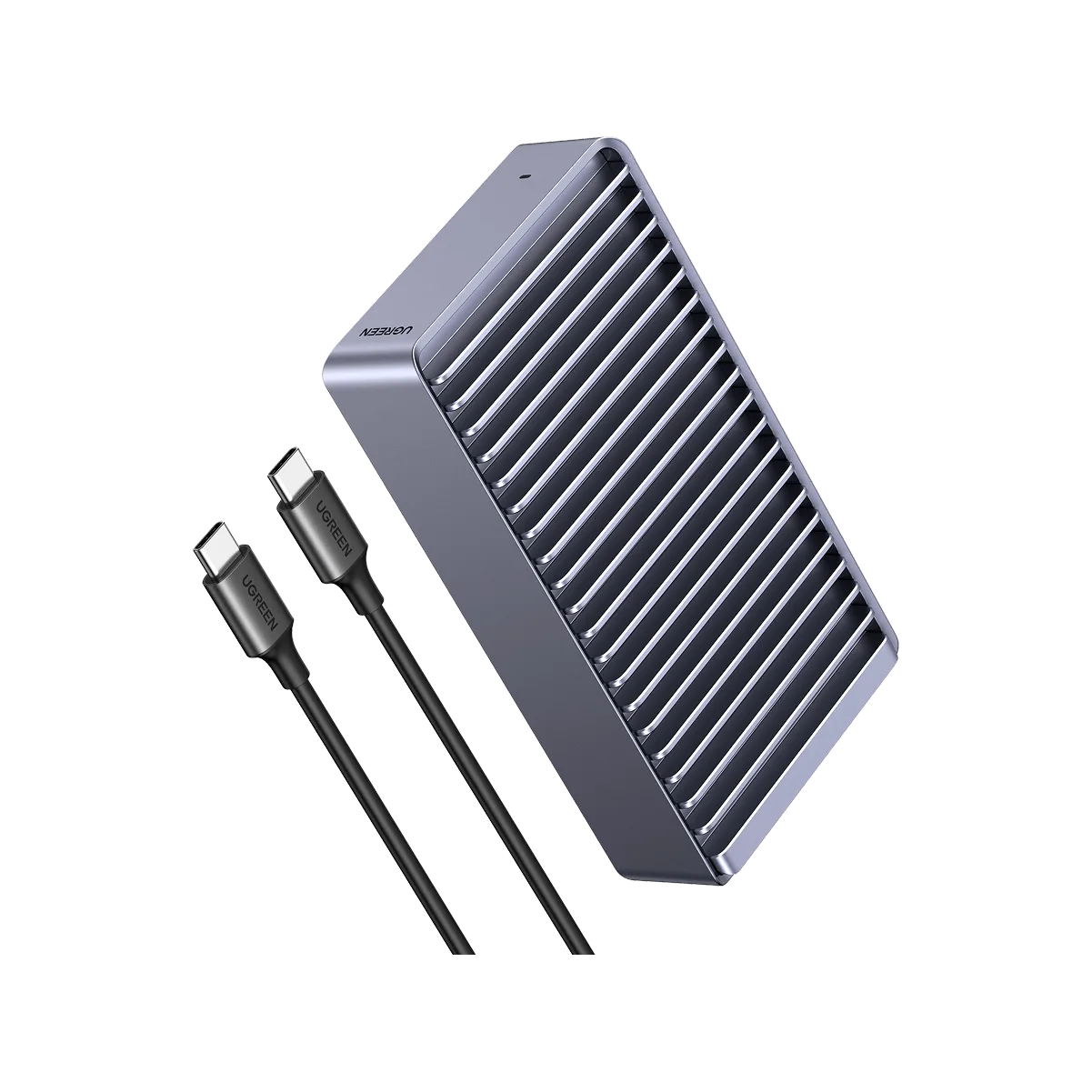
UGREEN USB4 40Gbps Boîtier NVMe SSD Compatible Thunderbolt