Quick answer
To set up a wireless microphone for content creation, pair the receiver with your phone or camera, attach the mic to your subject, and adjust audio levels in your recording app. Use a kit like the Belkin Creator Kit to simplify the process.
Why wireless mics beat built-in audio
Built-in phone microphones pick up room echo, handling noise, and distant sounds. A wireless mic captures clear voice even when the speaker is a few feet away, which matters for interviews, vlogs, and tutorials.
Wireless systems have a trade-off: they need pairing and battery management. Once you understand the setup routine, it becomes second nature.
Wireless microphone setup steps
- Charge all components: Fully charge the transmitter (mic) and receiver before recording. Low battery can cause dropouts or distorted audio mid-take. Check battery indicators on both units before you leave for a shoot.
- Connect the receiver to your phone or camera: Plug the receiver into your device's USB-C or Lightning port (use the appropriate adapter if needed). For phones, you may need to enable external audio input in your recording app's settings. If the app doesn't recognize the mic, try a different recording app or check the connection.
- Attach the mic to your subject: Clip the transmitter to the speaker's collar or lapel, about 6–8 inches from the mouth. Avoid fabric rubbing against the mic, and position it away from jewelry that could cause noise. Do a quick scratch test while listening through headphones to ensure no rustling sounds.
- Pair the transmitter and receiver: Turn on both units. They usually auto-pair within a few seconds. If not, put them in pairing mode (often by holding the power button) and keep them within 3 feet during pairing. If pairing fails, move away from Wi-Fi routers or other wireless devices that may cause interference.
- Set audio levels and test: Start a test recording and speak at your normal volume. Adjust the gain on the receiver or in your app so the levels peak in the yellow zone, not red. Red indicates clipping, which distorts audio. Aim for peaks around -6 dB to -3 dB for a safe headroom.
- Monitor with headphones: Plug headphones into the receiver (if it has a headphone jack) or use a wired connection to your phone to monitor live audio. This helps you catch issues like interference or low battery before they ruin a take. If you hear static, change the channel or frequency on the receiver if available.
Gear that helps
-
Creator Kit: Tripod, Magnetic Phone Mount & Wireless Mics: The Belkin Creator Kit includes a tripod, magnetic phone mount, and wireless microphones in a sand finish. It bundles the essential gear for stable, hands-free recording with clear audio, so you don't have to buy pieces separately.
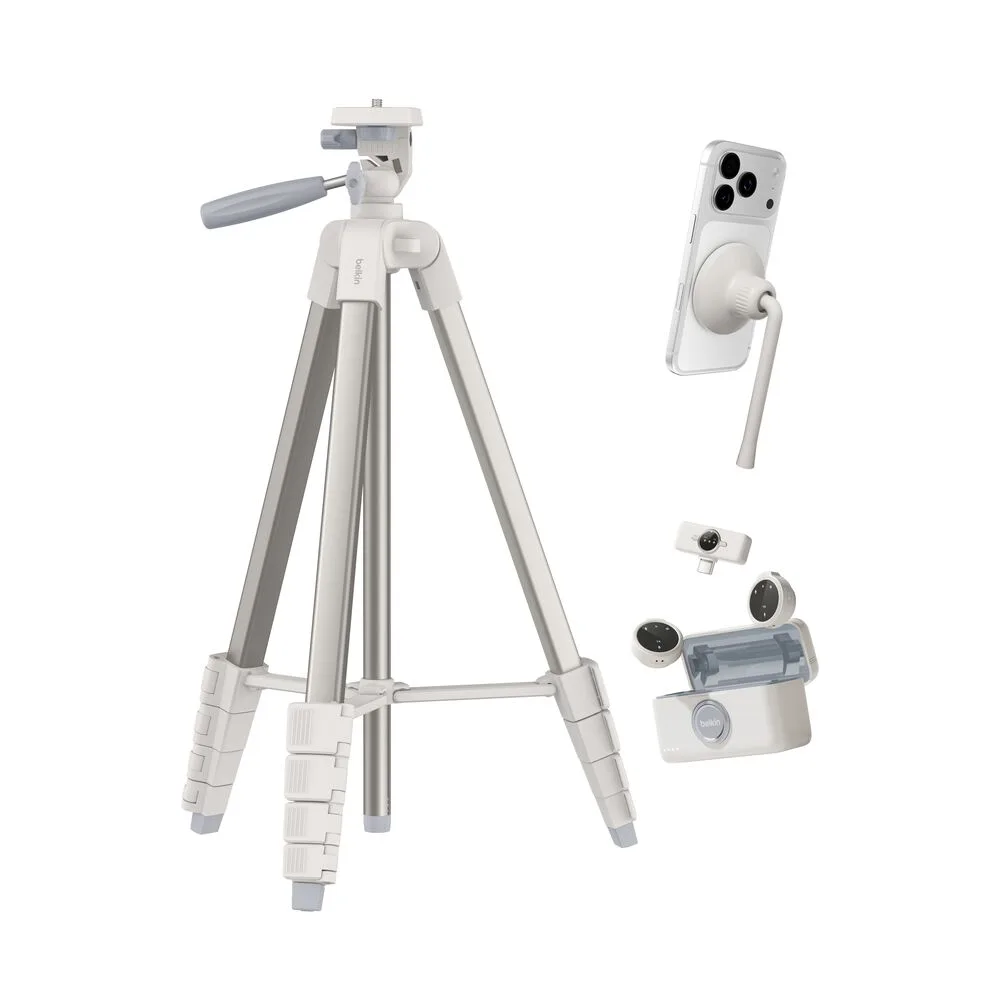
Creator Kit: Tripod, Magnetic Phone Mount & Wireless Mics