Quick Answer
Set the adjustable width, lock the blade depth, and pull the material through steadily to get consistent strips without tearing or wandering cuts.
Why the #59 Blade Design Matters
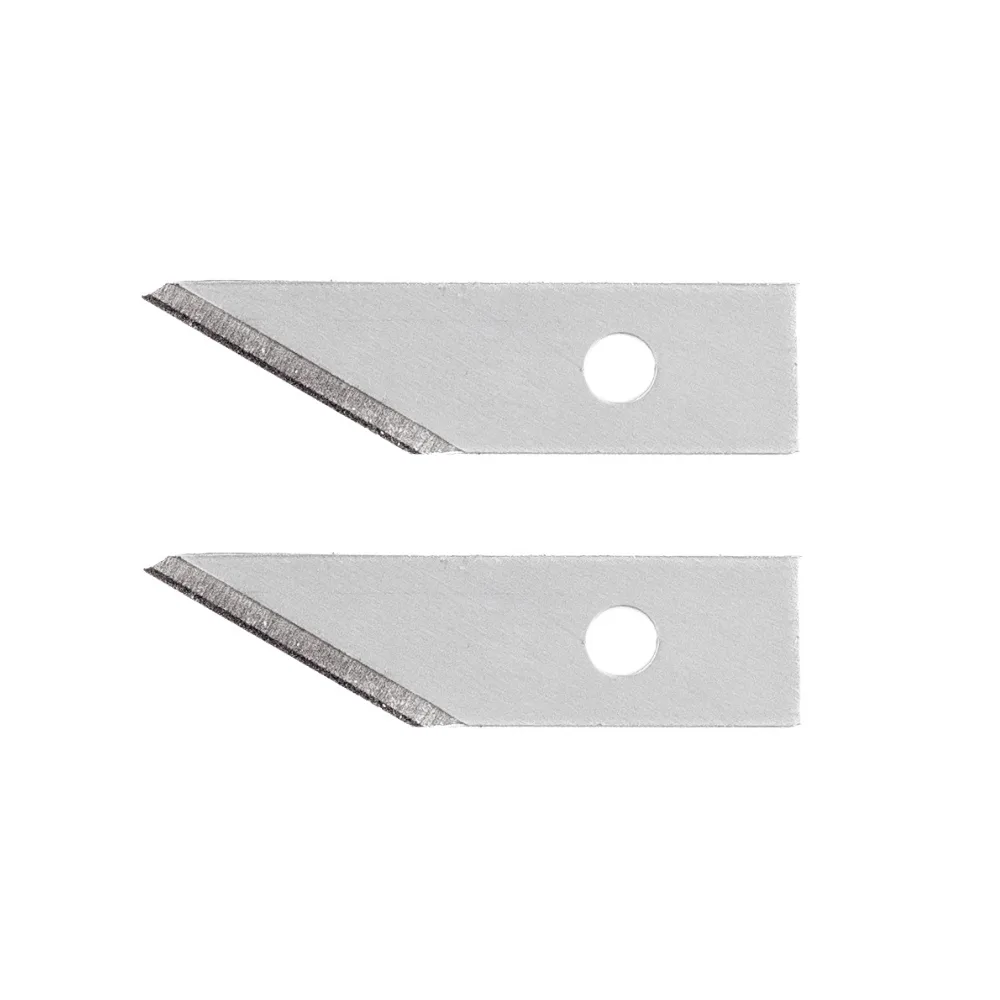
The #59 strip cutter uses two carbon steel blades facing each other, which lets you cut both edges of a strip in one pass. This dual-blade setup is what gives you parallel, uniform-width strips, unlike a single craft knife that requires a straightedge and multiple passes. The trade-off is that the blade assembly has a fixed width range, so you can only cut strips within that range, not arbitrary widths.
How to Use the #59 Strip Cutter Blade
- 1. Set the Strip Width: Loosen the adjustment screw on the blade holder and slide the dual blades to your desired strip width. Tighten the screw securely. Common mistake: Overtightening can warp the blade alignment, causing uneven cuts. Check that both blades are parallel after tightening. Always verify the blades are parallel before cutting.
- 2. Prepare Your Material and Cutting Surface: Place your material on a self-healing cutting mat. The mat protects the blades and provides grip. For thin materials like printer paper, tape the material down to prevent shifting. Common mistake: Skipping the mat can dull the blades quickly and lead to ragged edges. Always use a self-healing mat to preserve blade sharpness.
- 3. Position the Strip Cutter: Hold the strip cutter at a 90-degree angle to the material edge. Align the guide edge of the cutter with the material's edge to ensure the first strip starts straight. Common mistake: Angling the cutter causes the strip to taper, wasting material. Keep the cutter perpendicular to the material edge.
- 4. Apply Steady, Even Pressure and Pull: Press the cutter down firmly enough to engage both blades through the material, then pull the cutter toward you in a smooth, continuous motion. Do not stop mid-cut, as restarting can create a jagged line. Common mistake: Pressing too hard can compress soft materials like cardstock, causing the blades to bind. Use a consistent speed and moderate pressure.
- 5. Check and Adjust After the First Strip: Inspect the first strip for width consistency and clean edges. If the strip is narrower or wider than expected, re-measure and adjust the blade width. If the edges are fuzzy, replace the blades or check for debris. Common mistake: Assuming the first cut is correct without measuring can ruin subsequent strips. Measure the first strip to confirm the width setting.
Product Facts
-
#59 Strip Cutter Blade: Excel Blades #59 Dual Blade Strip Cutter Replacement Blades are made from carbon steel and feature an adjustable width for crafting. The adjustable width lets you cut strips of different sizes without needing multiple tools, while the carbon steel holds a sharp edge longer for repeated use.
#59 Strip Cutter Blade