Quick Answer
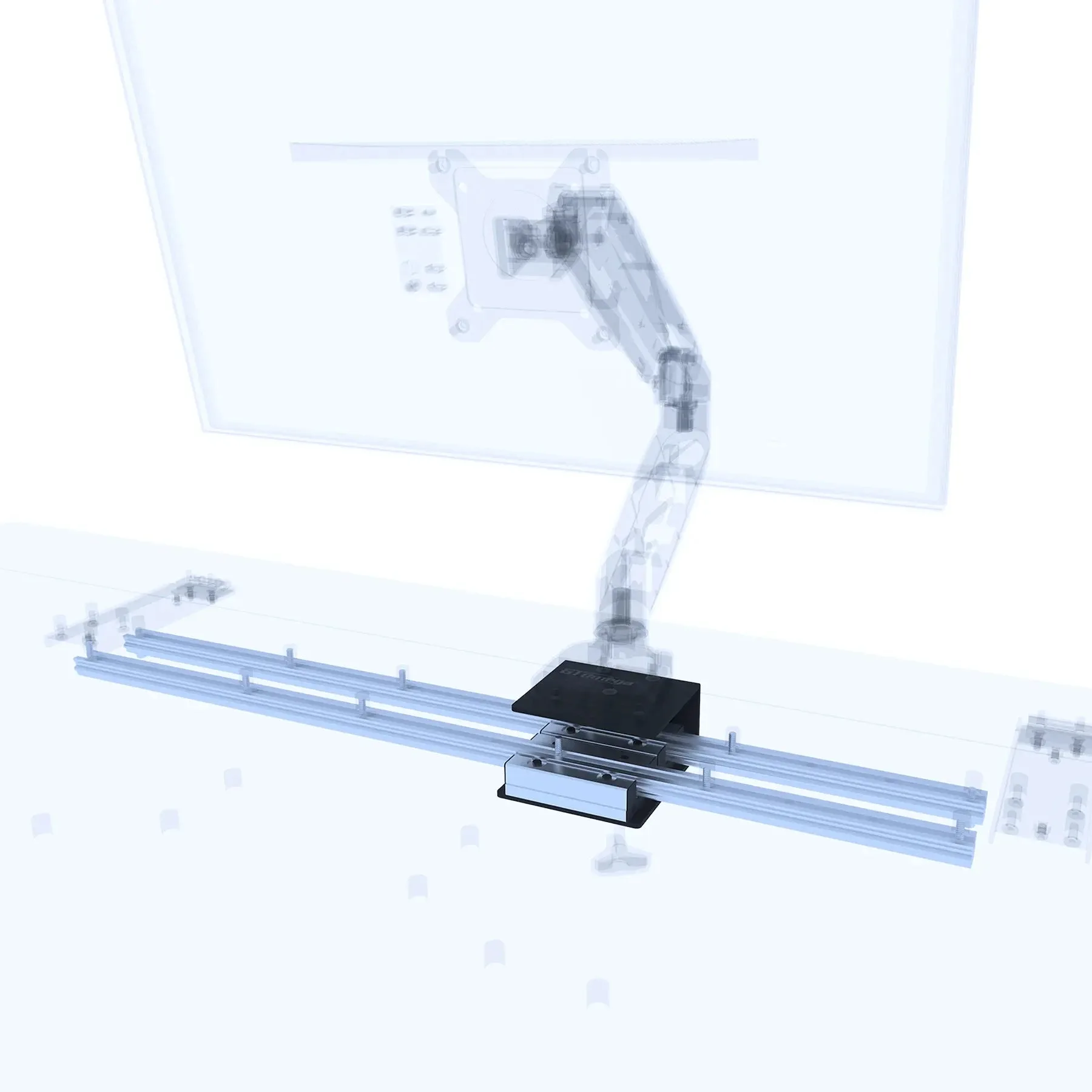
To use a monitor arm rail system, first attach the rails to your GT Omega CORE desk, then mount your monitor arms onto the rails. This lets you slide and lock your screens into new positions without unclamping and reclamping.
Why a Rail System Beats Traditional Clamps
If you regularly switch between typing, video calls, and design work, a fixed monitor arm clamp means loosening the bolt, repositioning the screen, and tightening it again. The Monitor Arm Rail System removes that hassle: the rails attach once to the desk, and the arms glide along them.
The rails are designed specifically for GT Omega CORE Series desks, so the fit is precise and the mounting holes align. That also means the rails are not a universal accessory — if you have a different desk, you'd need to check compatibility or consider a standard clamp arm instead.
Because the rails stay on the desk, you can also switch between single and dual monitor setups more easily. When you add a second arm, you simply slide it onto the rail instead of finding a new clamping spot.
What to Check Before You Start
Before mounting anything, confirm the rail length matches the usable width of your desk. The rails are sold in sizes, so measure the area where you want the monitors to travel.
Also check the weight capacity of your monitor arms. The AXIS Dual Lift Monitor Arms support up to 9 kg per screen and fit 32-inch displays, but if your monitors are heavier or larger, you'll need arms with a higher rating.
Finally, have a helper for the initial mount. Holding the rail level while tightening the bolts is much easier with two people, and it prevents the rail from shifting and misaligning.
Step-by-Step Installation and Use
- Measure and Mark the Rail Position: Hold the rail against the underside of your desk in the desired position. Mark the screw holes with a pencil. Ensure the rail is parallel to the desk edge and centered where you want the monitors to travel. Double-check that the rail is level before drilling or screwing.
- Attach the Rails to the Desk: Using the provided screws and a screwdriver or drill, secure the rail to the desk. Tighten the screws firmly but avoid over-tightening, which could strip the threads or damage the desk surface. Use a manual screwdriver for the final turns to feel the resistance and prevent stripping.
- Mount Your Monitor Arm onto the Rail: Slide the monitor arm's base into the rail channel until it clicks or locks into place. If your arm uses a clamp, position it over the rail and tighten the clamp to secure it. Ensure the arm is fully seated in the rail before releasing it – a loose fit can cause the monitor to sag.
- Attach the Monitor and Adjust: Mount your monitor onto the arm's VESA plate and tighten the screws. Use the arm's gas-spring or tilt adjustments to set the ideal viewing height and angle. Test the full range of motion by sliding the arm along the rail to confirm there are no obstructions.
- Reposition and Lock: To move the monitor, loosen the rail lock (if present), slide the arm to the new position, and re-tighten the lock. For arms without a rail lock, use the arm's own tension adjustment to keep it in place. Always lock the rail before letting go of the monitor to prevent it from sliding unexpectedly.
Products Mentioned in This Guide
-
Monitor Arm Rail System: The Monitor Arm Rail System is designed for GT Omega CORE Series desks and allows repositioning of monitor arms without removing and reclamping. This means you can slide your screens to a new position in seconds, making it easy to adapt your setup for different tasks.
Monitor Arm Rail System
-
AXIS Dual Lift Monitor Arms: The AXIS Dual Lift Monitor Arms support two screens up to 9 kg and 32 inches each, with gas-spring lift for smooth adjustment. These arms are a good match for the rail system if you run a dual-monitor setup, letting you move both screens along the rail and adjust height with minimal effort.
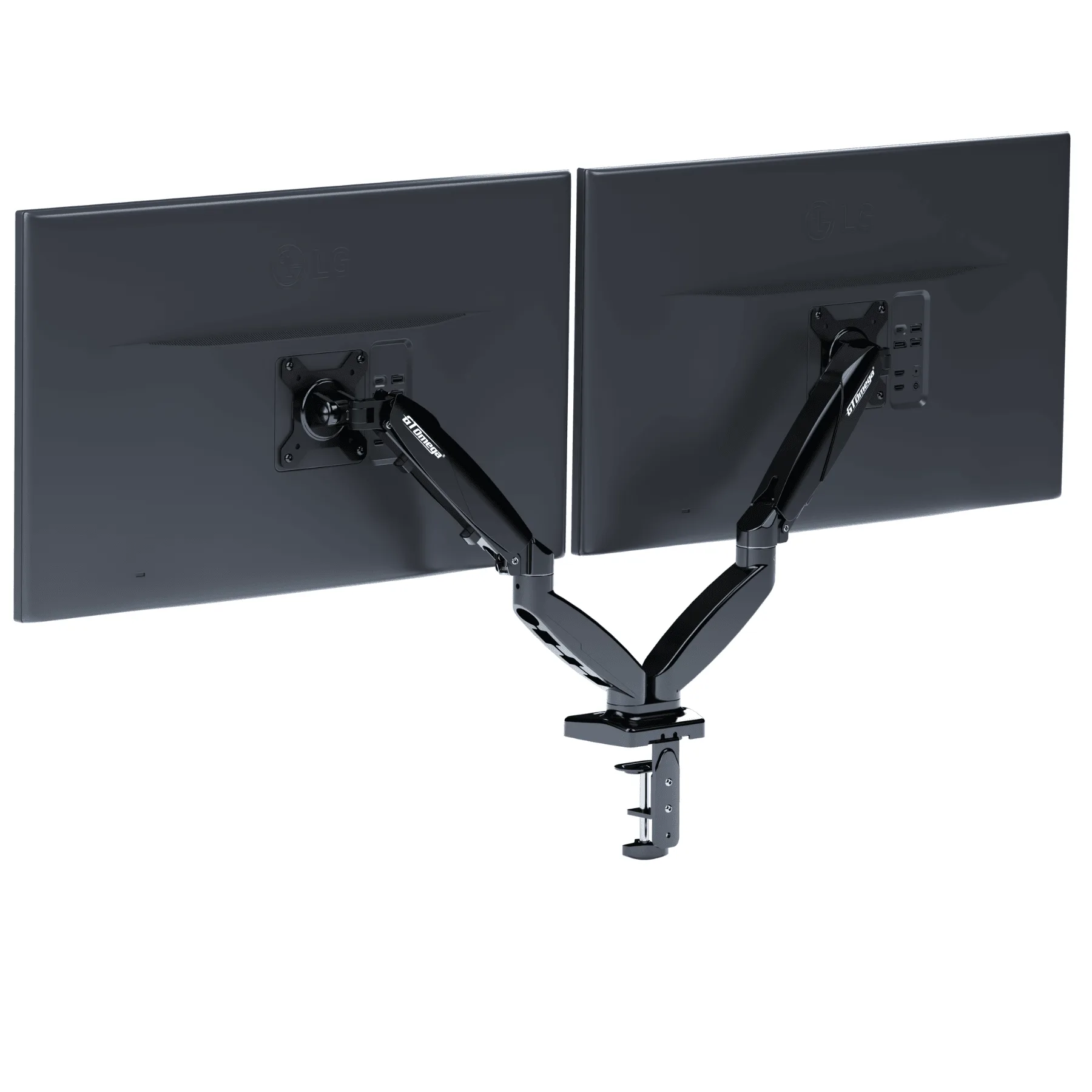
AXIS Dual Lift Monitor Arms