Quick Answer
Use Circuit Cubes marker holders to clip a marker onto your robot's chassis, then let the motion create art. Attach them securely, keep the marker tip at the right height, and test on paper before driving.
Why Marker Holders Make a Great Art Bot Addition
Adding marker holders to your Circuit Cubes build is a simple way to turn movement into a creative project. Instead of just driving around, your robot can leave a trail of color, making it a fun tool for art projects or exploring how motion translates into patterns.
The holders are designed to fit standard markers, so you can use different colors and swap them out between runs. This versatility lets you experiment with line thickness and color combinations without rebuilding your robot.
Choosing the Right Marker and Placement
Not all markers are created equal. For best results, use washable markers with a fine or medium tip—they glide smoothly and are easy to clean up. Avoid jumbo or oddly shaped markers that might not fit securely in the holder.
Placement matters. Attach the holder so the marker tip is perpendicular to the paper and just touching the surface. If it's too high, the marker won't draw; too low, and it may drag or skip. Test on a scrap piece of paper before your full run.
Step-by-Step: Adding Markers to Your Circuit Cubes Robot
- Gather your materials: Collect your Circuit Cubes robot, a set of marker holders, and one or more washable markers. Make sure the markers fit snugly in the holders—if they wobble, the drawing will be uneven. Check that the marker diameter matches the holder before starting.
- Attach the marker holder to your robot: Clip or slide the marker holder onto a sturdy part of your robot's chassis, such as a beam or plate. Position it so the marker will point straight down when the robot is on a flat surface. Avoid placing the holder on moving parts like wheels or gears—it can interfere with movement.
- Insert the marker: Slide the marker into the holder with the cap off. Adjust the height so the tip just touches the paper when the robot is resting on the ground. If the marker is too long, trim the holder or use a shorter marker. Test the marker height by placing the robot on paper and gently pushing it—if it leaves a clear line, you're set.
- Test on scrap paper: Before your main run, let the robot drive on a piece of scrap paper. Check that the line is consistent and that the marker doesn't fall out during turns or bumps. If the marker slips, secure it with a small rubber band or reposition the holder.
- Drive and create art: Place your robot on a large sheet of paper and let it drive. Experiment with different paths, speeds, and marker colors to create unique patterns. You can also combine multiple markers for a multi-color effect. Try using different movement patterns (spirals, back-and-forth) to see how the art changes.
Product Facts
-
Marker Holders: Marker holders come in a set of four, letting you add multiple markers to one build. With four holders, you can create multi-color art bots or use spares for different marker sizes.
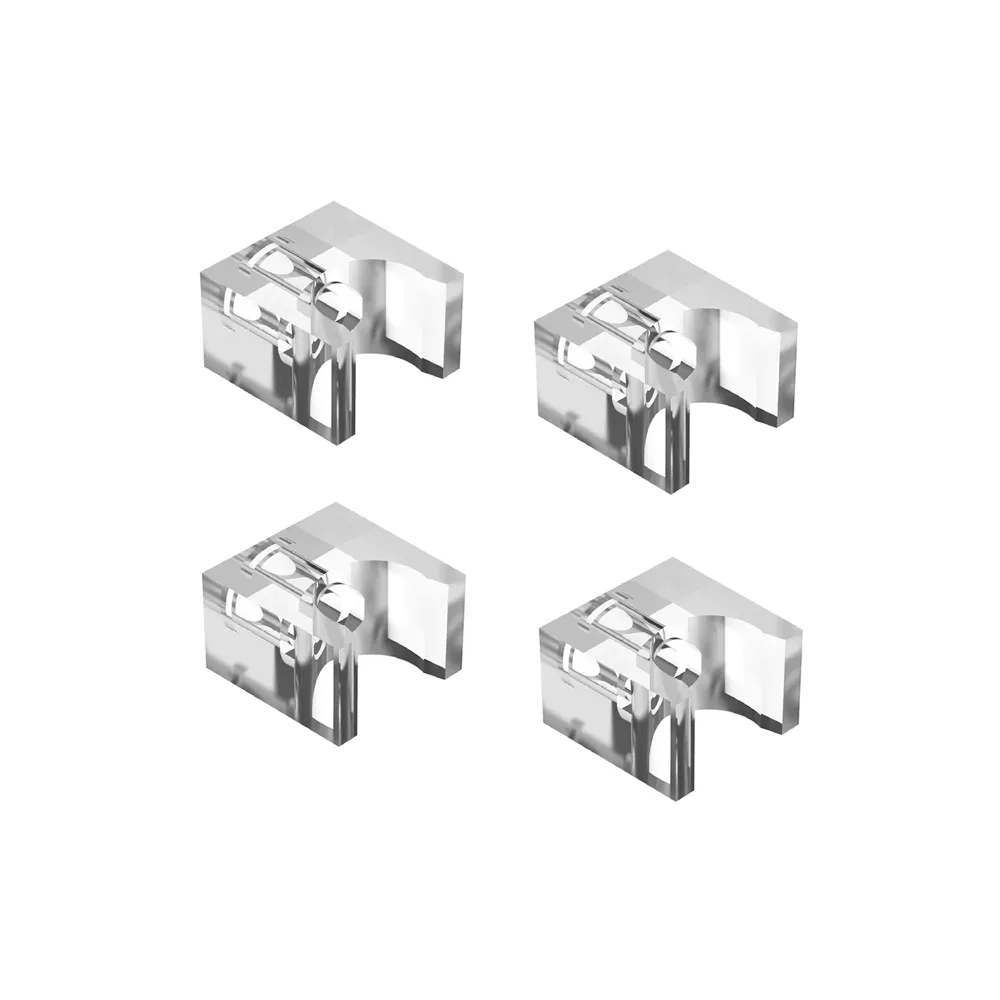
Marker Holders