Quick Answer
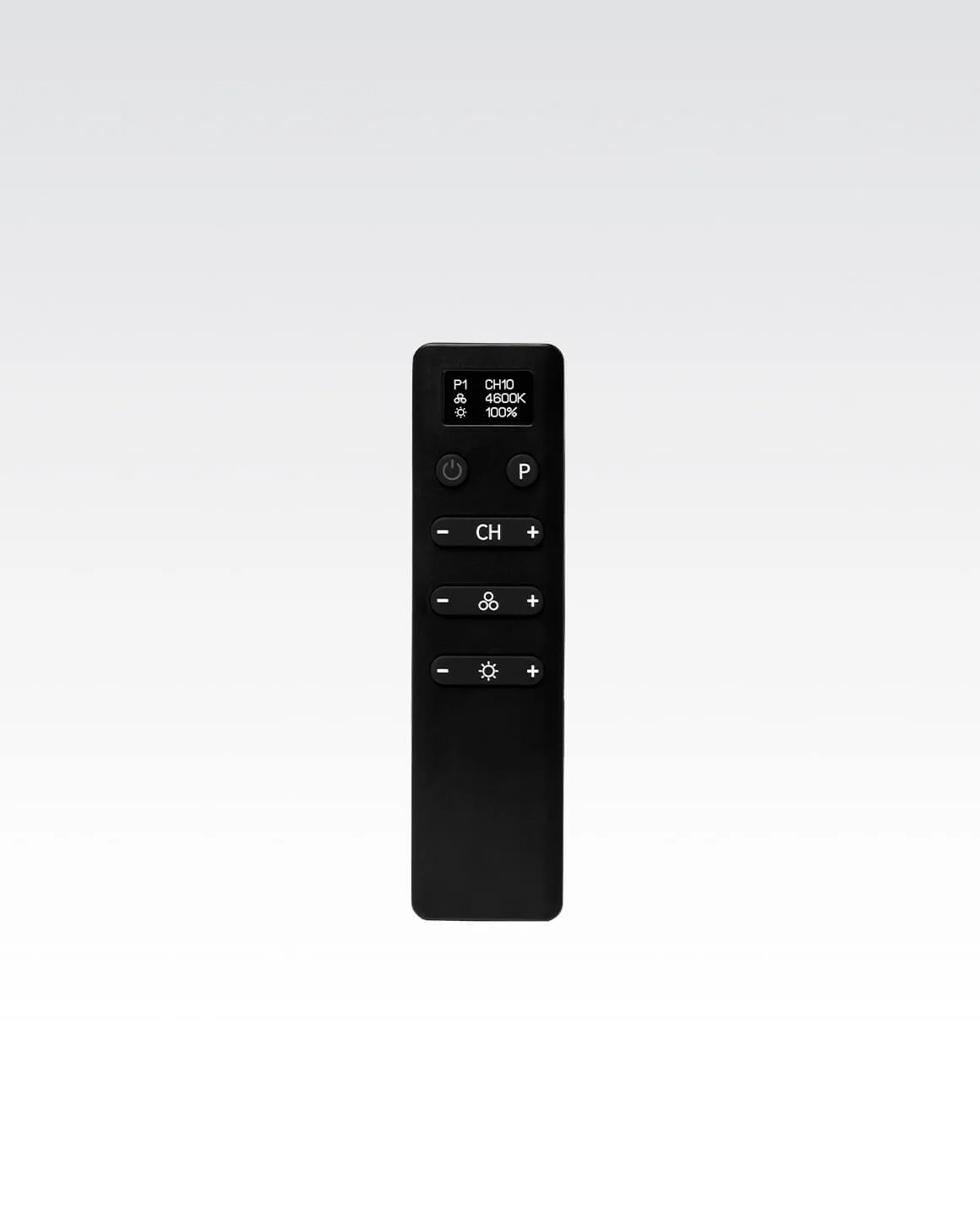
To set up your Lume Cube LCD Remote Control, power on your compatible Lume Cube light, press the remote's pairing button, and wait for the light to respond. The remote works with the Lume Cube Cordless Ring Light Pro and Studio Panel Lights, and you can control multiple lights by pairing each one individually. If the remote stops responding, check the batteries and re-pair the light before assuming the remote is faulty.
What You Need Before You Start
Before pairing, confirm your light is compatible. The Lume Cube LCD Remote Control is a replacement part designed for the Lume Cube Cordless Ring Light Pro and Studio Panel Lights. It is not a universal remote for every Lume Cube product, so check your light model first. The remote is available in Black and White, which matters only for matching your existing gear—functionality is identical.
You will also need a powered light and fresh batteries in the remote. If you are setting up multiple lights, place them within a few feet of each other during pairing to avoid confusion about which light is responding.
How to Pair the Remote with Your First Light
Pairing is a one-time step per light. Turn on the light and set it to a mode where it will visibly respond—brightness changes are easier to see than color shifts. Press and hold the remote's pairing button until the light reacts, then release. The LCD screen on the remote should show a signal or connection indicator.
If nothing happens, move closer and try again. The most common mistake is pressing the pairing button too briefly; hold it for a full second or two. Another frequent issue is pairing while the light is already connected to a different remote or app—disconnect those first.
Adding More Lights to the Same Remote
The Lume Cube LCD Remote Control can manage multiple compatible lights, but each must be paired separately. After pairing the first light, turn it off or move it aside, then repeat the pairing process for the next light. This prevents the remote from re-pairing the same light twice.
Once all lights are paired, use the remote's channel or group buttons (if your model supports them) to control lights individually or together. If your remote does not have group controls, you can still adjust all paired lights simultaneously by pointing the remote at them and using the main brightness and color buttons. For setups where you want independent control, consider pairing only the lights you need to adjust together.
Fixing a Lume Cube Remote That Is Not Working
If your remote suddenly stops working, start with the simplest fix: replace the batteries. Even if the LCD screen lights up, weak batteries can prevent the signal from reaching the light. Next, re-pair the light using the steps above—this resets the connection without needing to replace anything.
Check for interference from other wireless devices or bright sunlight hitting the light's sensor. The remote uses an infrared or radio signal (depending on your specific model), so direct line of sight usually helps. If the remote still does not respond after trying new batteries and re-pairing, test it with a different compatible light to determine whether the issue is the remote or the light.
Step-by-Step Pairing Checklist
- Power on your compatible light: Turn on the Lume Cube Cordless Ring Light Pro or Studio Panel Light and set it to a visible brightness level. Checkpoint: The light should be on and responsive to its own controls before you start pairing.
- Press and hold the pairing button on the remote: Hold the button for 1–2 seconds until the light reacts or the LCD screen shows a connection. Common mistake: releasing too early—hold until you see a response.
- Repeat for each additional light: Turn off or move the first light aside, then pair the next light one at a time. Checkpoint: Each light should respond individually before you try group control.
- Test the connection: Adjust brightness or color and confirm the light changes immediately. If nothing happens, replace batteries and re-pair before troubleshooting further.
Product Facts
- Lume Cube LCD Remote Control: The Lume Cube LCD Remote Control is a replacement part designed for use with the Lume Cube Cordless Ring Light Pro and Studio Panel Lights. This remote is not compatible with every Lume Cube light, so check your model before buying or pairing.
- Lume Cube LCD Remote Control: Available in two color options: Black and White. Choose the color that matches your existing setup; performance is the same.
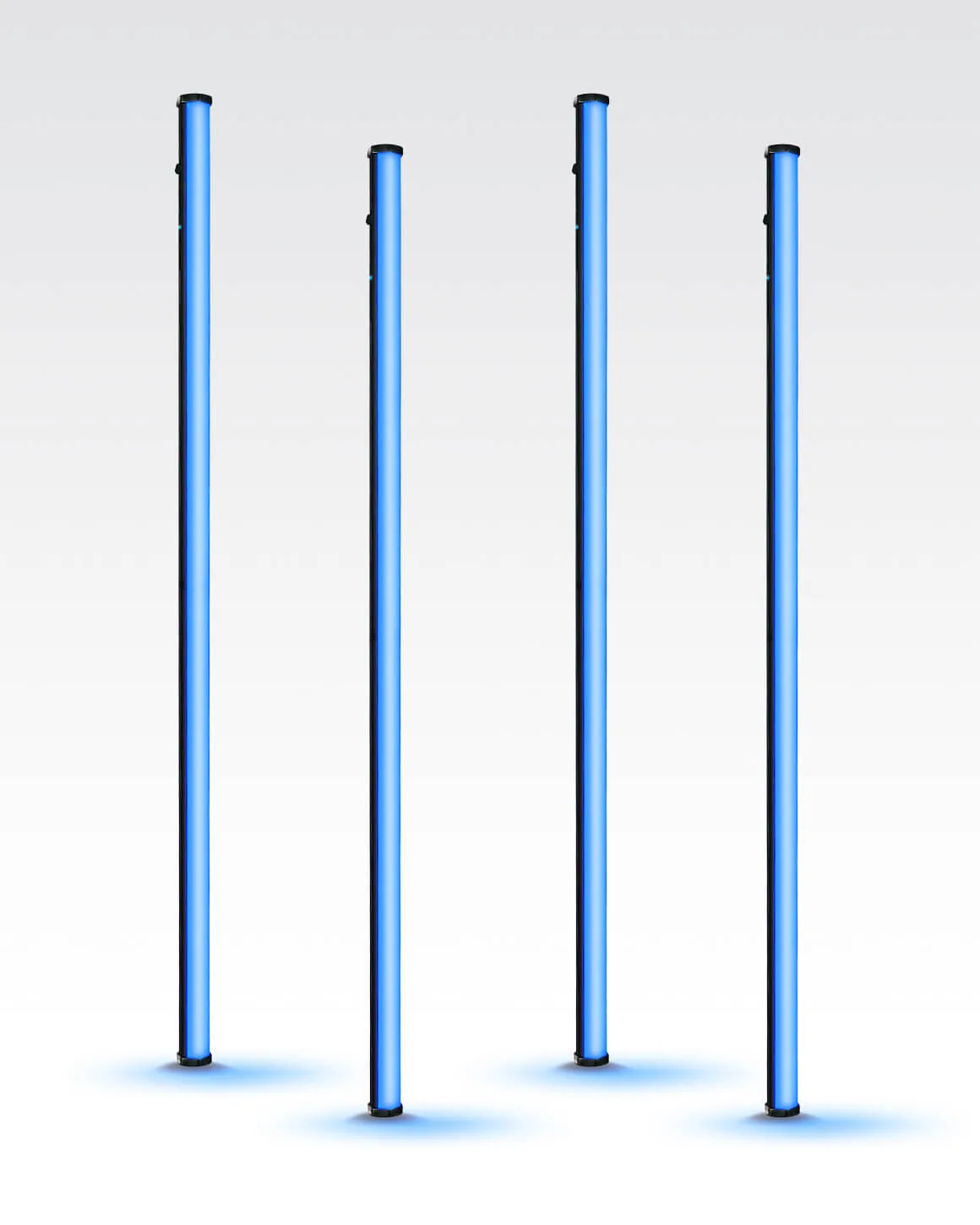
- Lume Cube RGB Tube Light XL 4-Pack App Controlled 4ft. LED Tube Lights: The Lume Cube RGB Tube Light XL 4-Pack includes four 4ft, app-controlled RGB LED tube lights. These tube lights are controlled via app, not the LCD remote, so they are not part of the remote pairing process described here.